PDFs are fantastic for their interactivity and convenience, but if the hyperlinks in them aren’t working, things get frustrating pretty quickly. In this article, we’ll be looking at different fixes to try when a hyperlink won’t open in PDF.
Hyperlink Won’t Open in PDF – Fixes to Try
Whether you’re creating a PDF or accessing one, we’ve got fixes to try when a hyperlink won’t do its job:
Verify the Hyperlink
If you’ve created a PDF with a link that won’t take the reader anywhere, check for spelling, formatting, and URL errors. Look for unnecessary spaces, and check the “http://” or “https://” protocol to ensure you’ve got things down correctly.
Avoid Printing to PDF
Though you might think there’s no difference between “Save As” and “Print to PDF,” there is, in fact, a huge loss in interactivity. “Printing to PDF” treats the job as any other printing job, removing interactive elements like hyperlinks in preparation for “printing.”
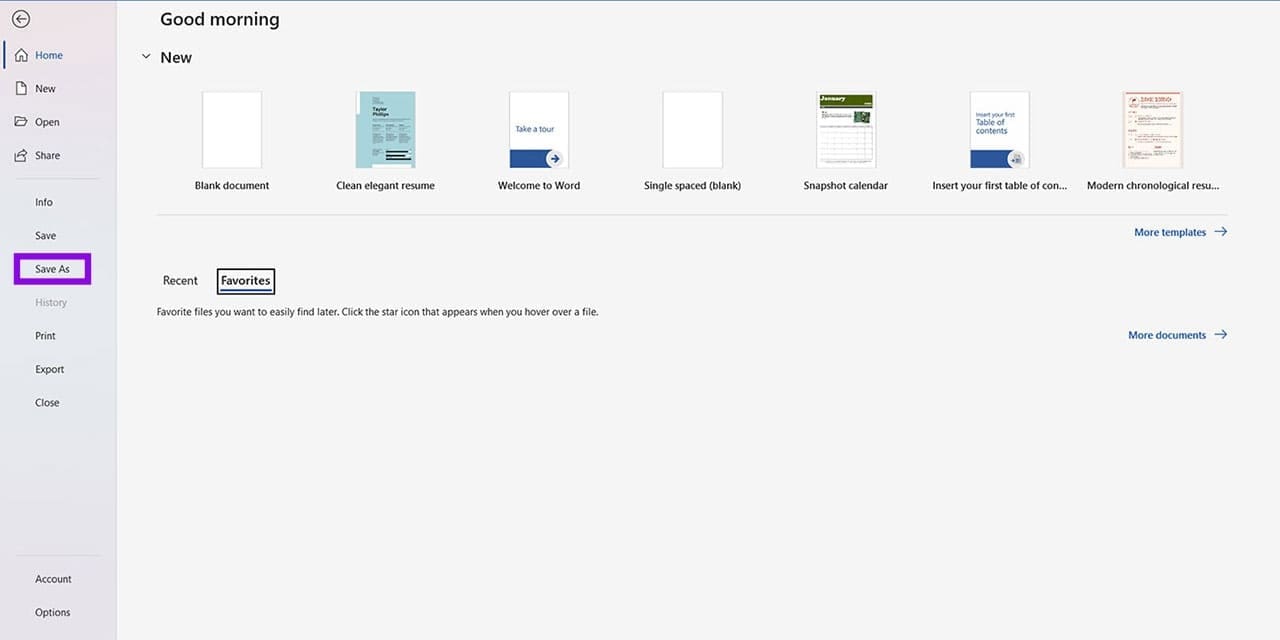
It’s much better to use the “Save As” feature to do the job. In Word, here’s what to do:
Step 1. Head to the File tab and choose “Save As” or click (F12).
Step 2. Choose the dropdown option next to “Save as type” and choose “PDF” from the list.
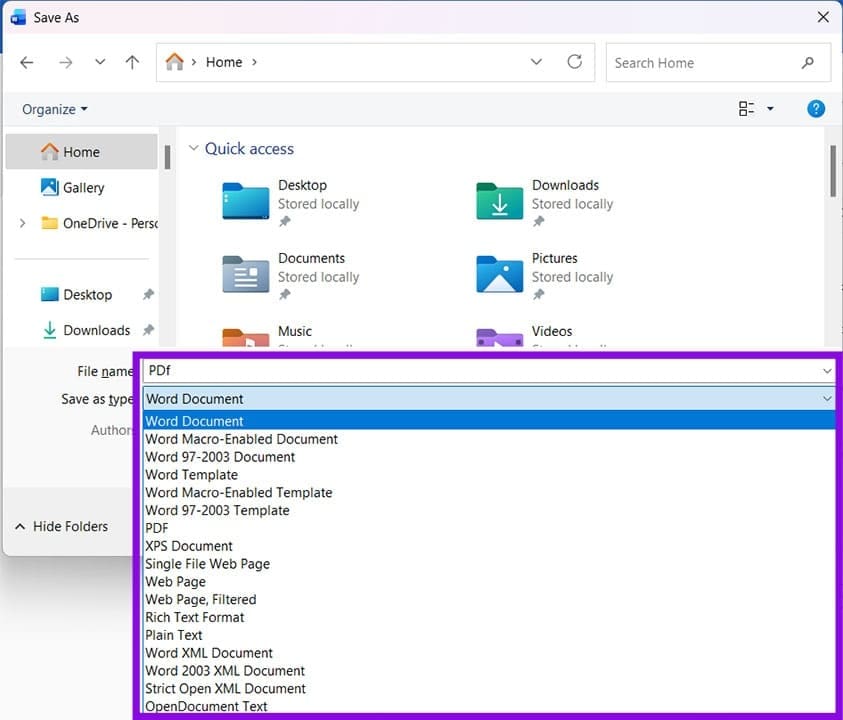
Step 3. Select “Enter” or the “Save” button to finalize the conversion.
Tag for Accessibility
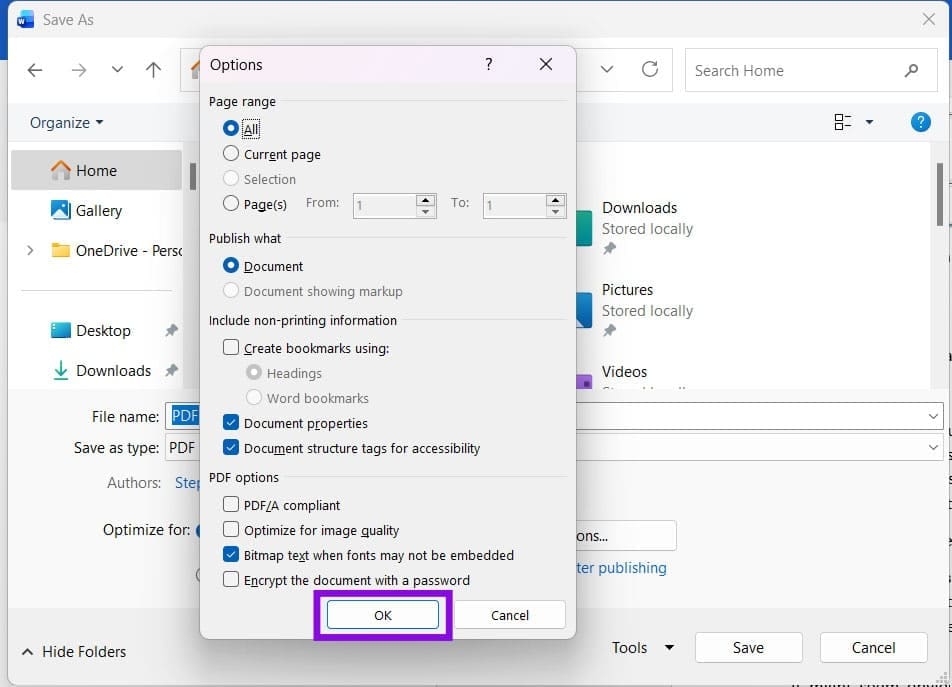
While we’re on the “Save As” topic, it’s important when using Office files that you ensure that “Document structure tags for accessibility” is enabled. When saving a PDF, click the “Options” button and check this option in the menu that appears. Be sure to click “OK” when done.
Add Hyperlink to PDF
If you’re wondering how to fix a PDF hyperlink in a PDF after file creation, then a quick solution is to add one in after the fact. Many PDF readers allow you to edit PDFs in different ways (though some charge for this), and one such way is adding hyperlinks.
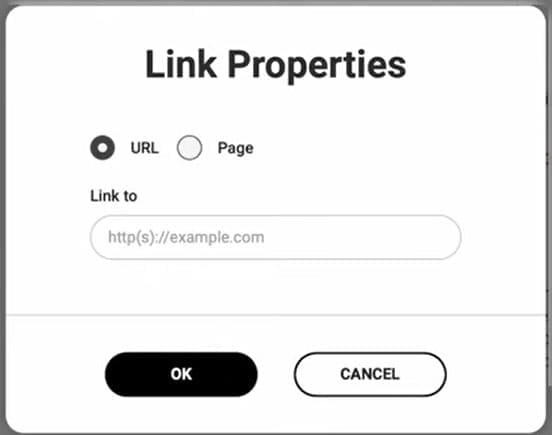
By drawing a box over the broken hyperlink, you can add an area that still works like a hyperlink when clicked. Just be sure to set the correct URL when doing so, and to save your changes.
Use a Dedicated PDF Reader
If you’re viewing a PDF on your web browser, then all the interactive features may not be working as intended. Try opening your PDF file on a dedicated reader to see if the problem remains.
Adjust Browser Privacy Settings
Your browser’s privacy settings may also be the reason hyperlinks in your browser aren’t working. Not being able to open a link in a new tab is a big giveaway. You’ll need to force the browser to download PDFs. To adjust these settings in Chrome:
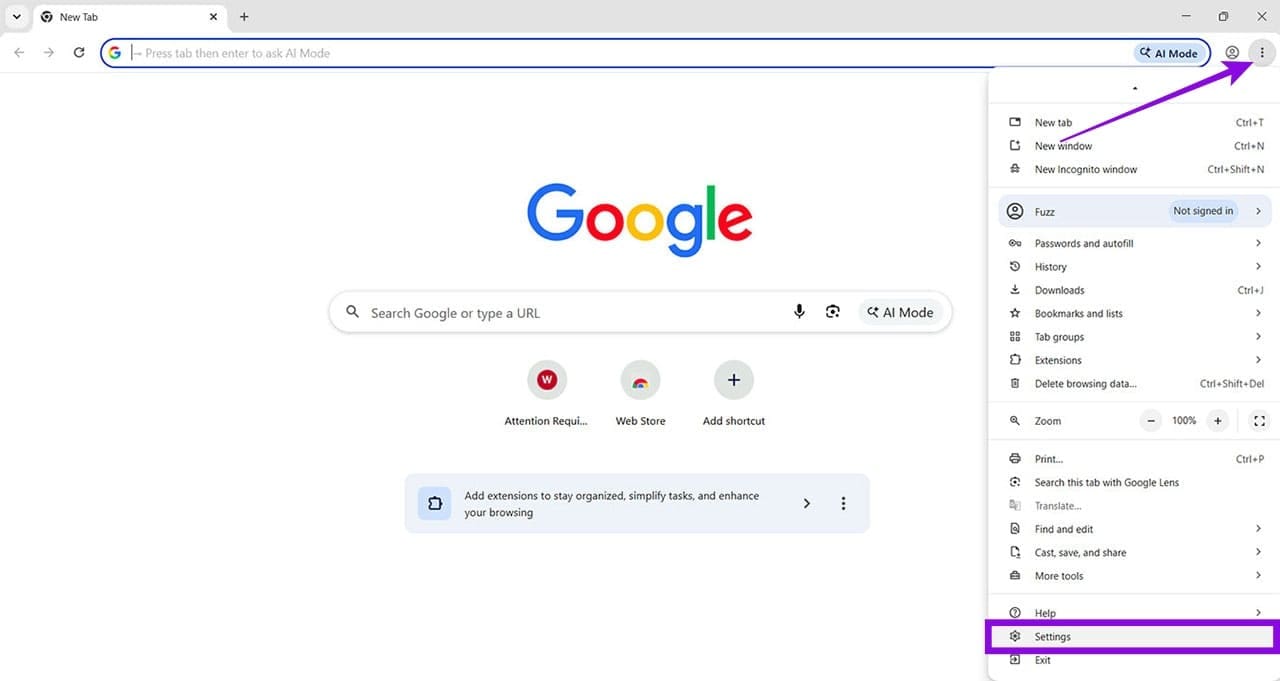
Step 1. Click the three-dot menu and “Settings.”
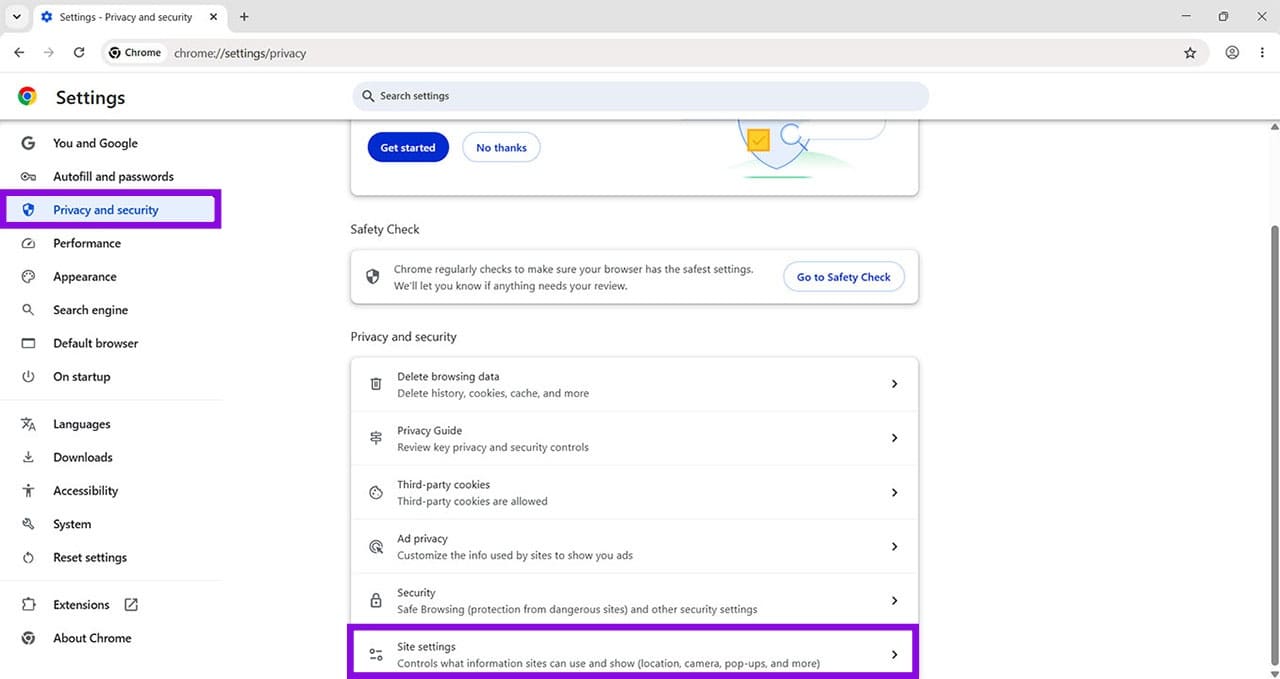
Step 2. Click “Privacy & security” in the sidebar and “Site settings” in the main window.
Step 3. Click “Additional content settings” and then “PDF documents.”
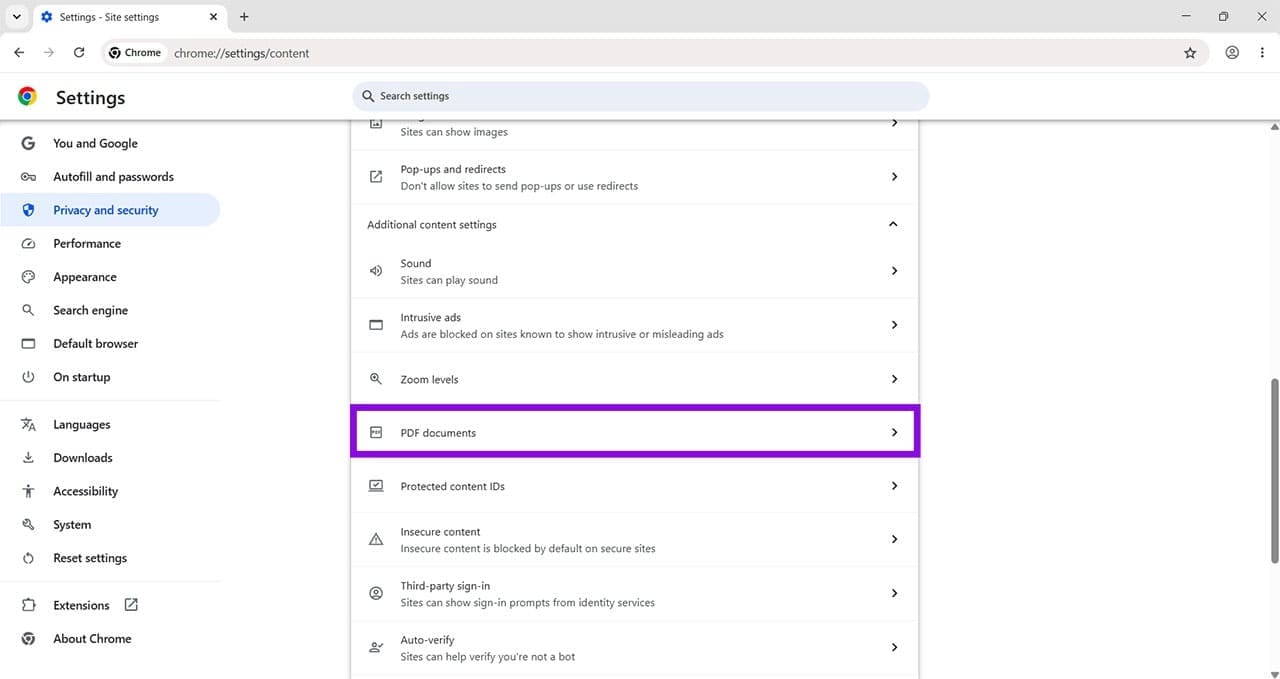
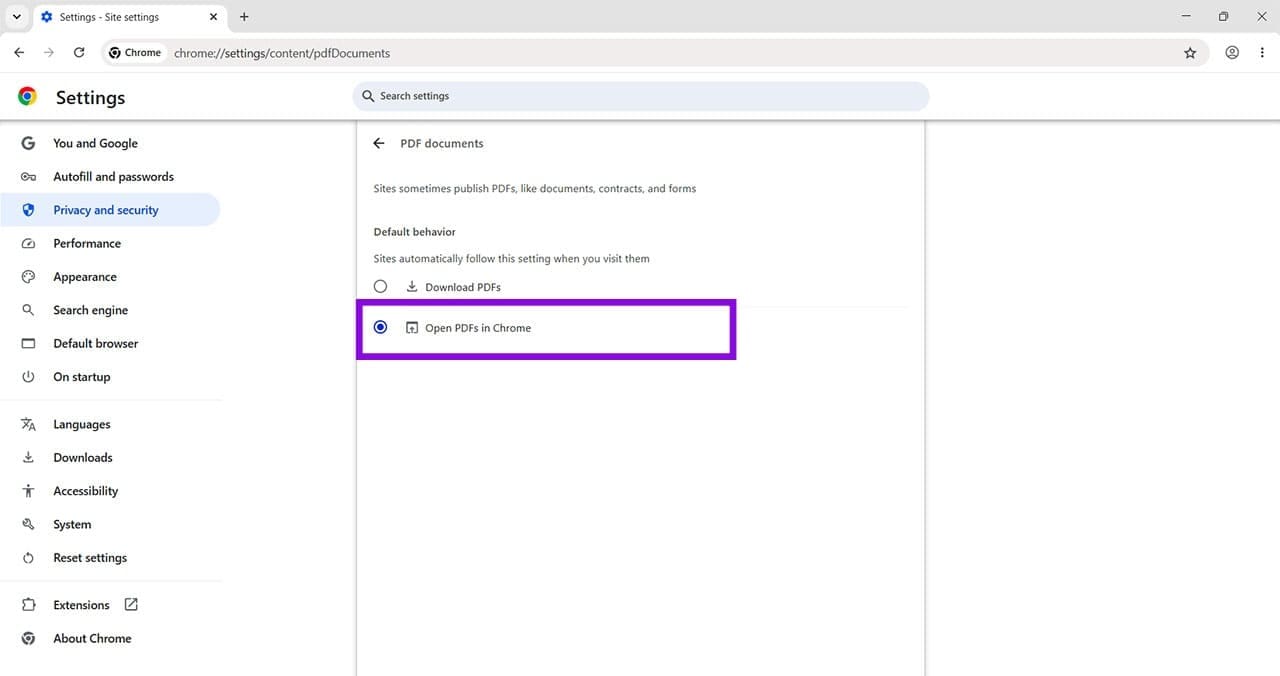
Step 4. Check “Download PDFs” instead of “Open PDFs in Chrome.”
In Edge, here’s what to do:
Step 1. Open “Settings” and click “Privacy, search, and services.”
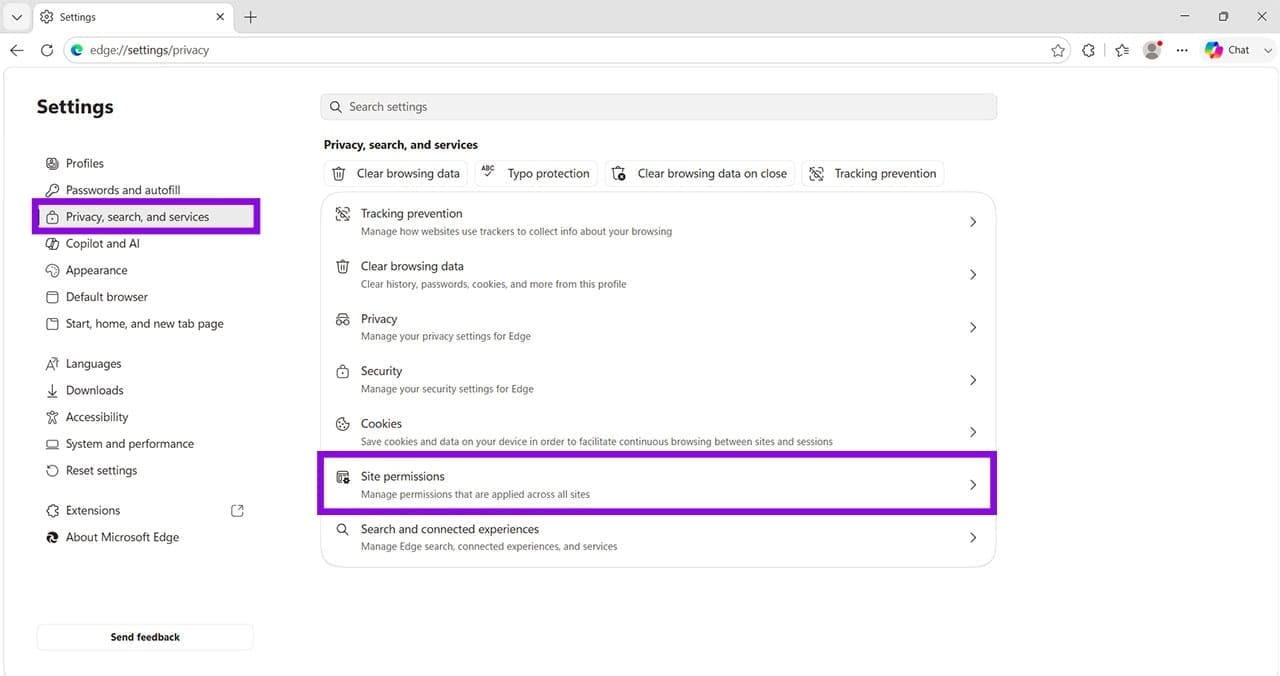
Step 2. Click “Site permissions.”
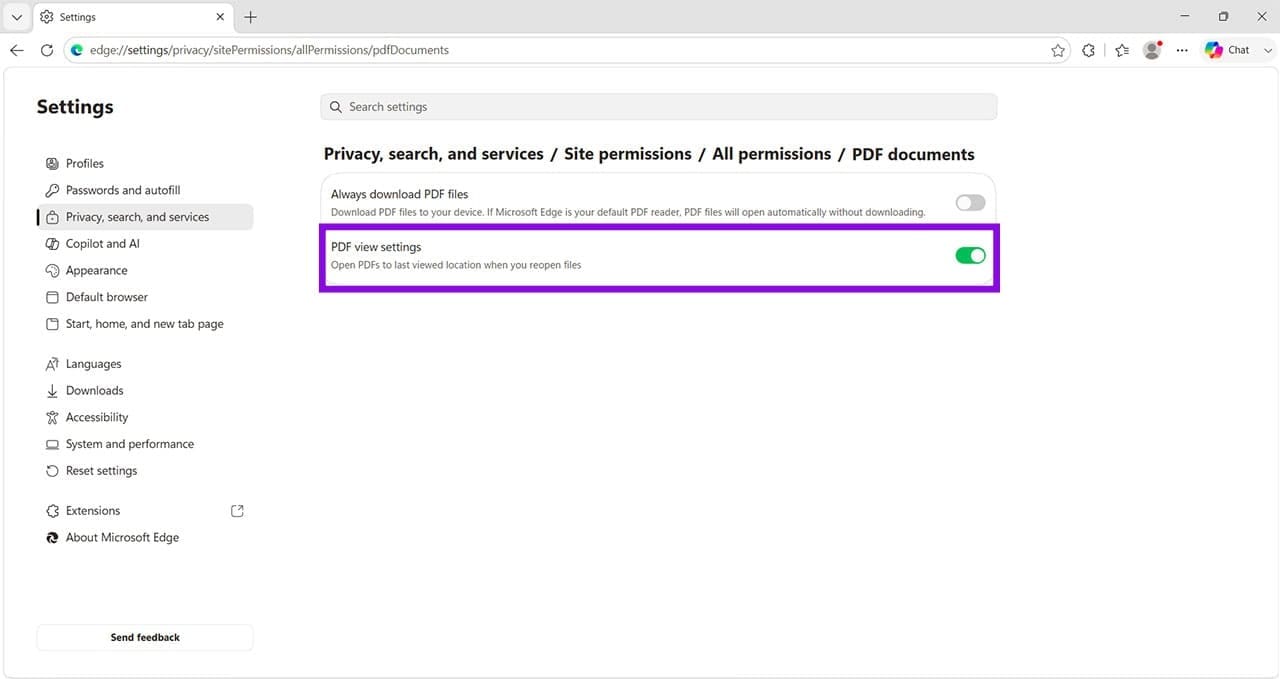
Step 3. Click “All permissions” and scroll down to “PDF documents.”
Step 4. Open the PDF settings section and enable the option to download PDF files instead of opening them in the browser, if available.
Unlock the PDF
It can’t be done with all PDF files and all file readers, but you can remove restrictions on certain PDFs with unlocking tools. Provided you have permission to modify the document, try using your software to free up access.