Word has a variety of built-in functions to make creating documents easier. Though the app is notoriously finicky when it comes to inserting images, it offers a few ways to do so, including the Screenshot. If this function won’t work for you, or is suddenly greyed out, this article is here to help you.
Here’s what to do for Microsoft Word screen clipping not working.
Microsoft Word Screen Clipping Not Working – Fixes to Try
If you’re struggling to take a screen clip in Word, we’ve got some troubleshooters to help you out:
Check With Another App
To check that it’s only Word that’s having issues, try copying and pasting text or images into other apps to ensure the clipboard isn’t acting up. You can also try the Windows Snipping Tool (Win + Shift + S) to screenshot images. If none work, then restart your machine.
Check for Minimized Windows
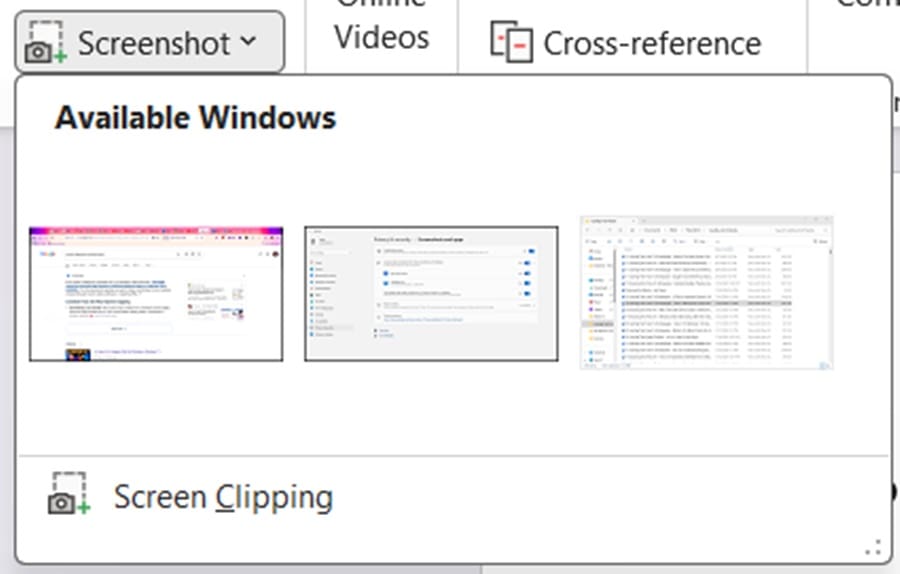
When clicking the Screenshot button, you’ll be presented with a list of windows, in addition to Screen Clipping. Sometimes, a minimized window can mean the feature won’t work correctly. Ensure that your target window is unminimized.
Check Privacy Settings
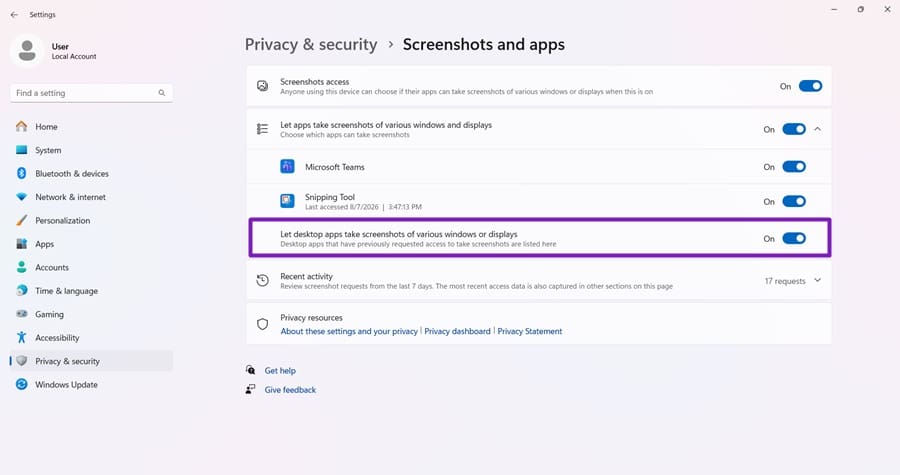
In Windows 11, privacy settings can limit certain functions like screenshots. Check that this is not the case for Word:
Step 1. Open your Windows settings (Win + I), then click “Privacy & Security” in the side panel.
Step 2. Scroll all the way down to “Screenshots and apps” near the bottom.
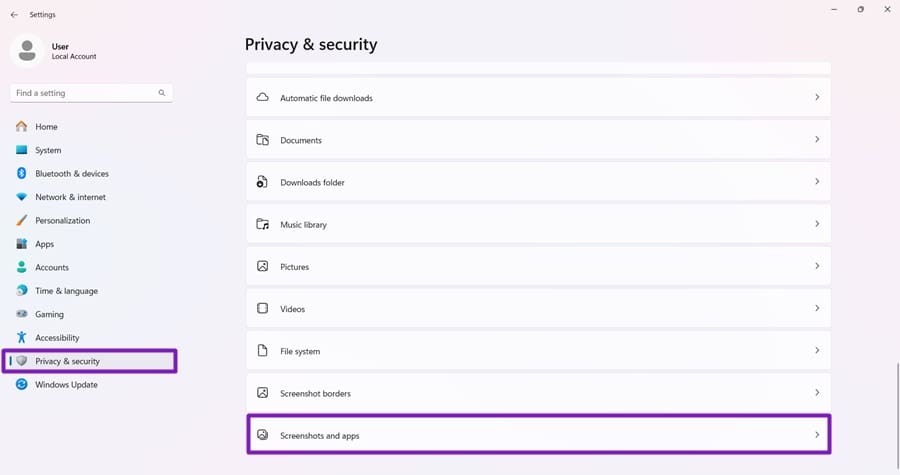
Step 3. Ensure that Microsoft Word, if it appears, is toggled to “On” and, if not, that “Let desktop apps take screenshots of various windows or displays” is.
Disable Extensions
Sometimes a third-party Word add-in may interfere with screenclipping, Microsoft Word users have found. If you suspect this might be the case, try disabling any add-ins in Word. Here’s how:
Step 1. Click the “File” tab and choose “Options” in the sidebar of the menu.
Step 2. In the Options window that pops up, click “Add-ins” in the sidebar.
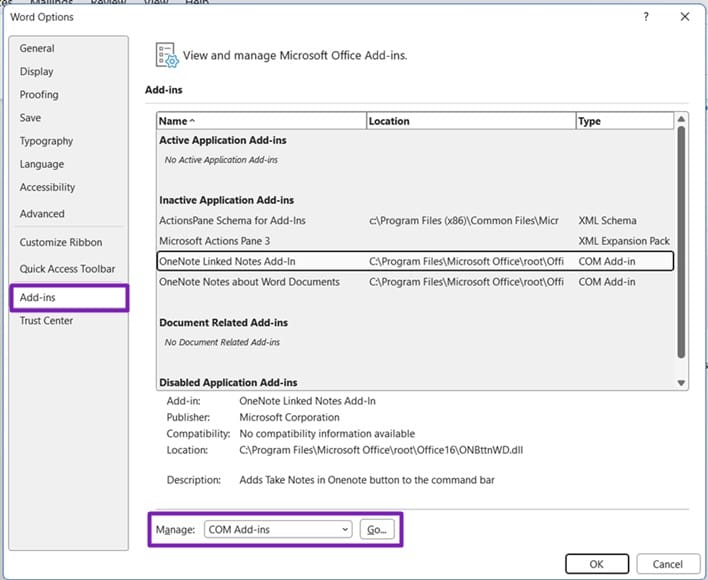
Step 3. Click the “Go” button next to “Manage” to see installed add-ins.
Step 4. Untick any recently installed add-ins, click “OK,” and then see if the Screenshot feature can be used.
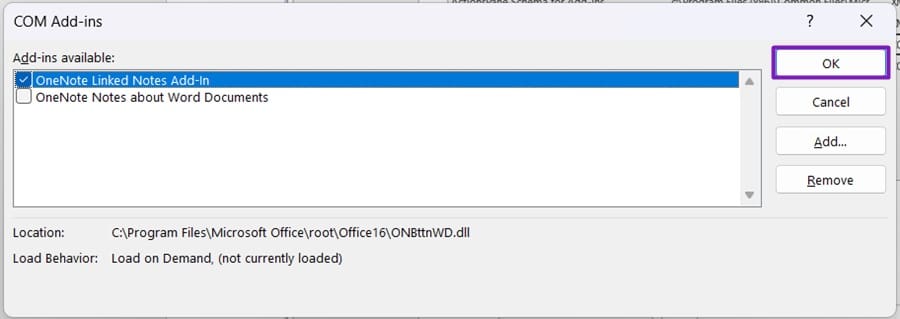
For apps and integrations outside of Word, especially recently installed ones, try disabling or uninstalling them before rebooting Word and trying again.
Ensure Print Screen Is Working
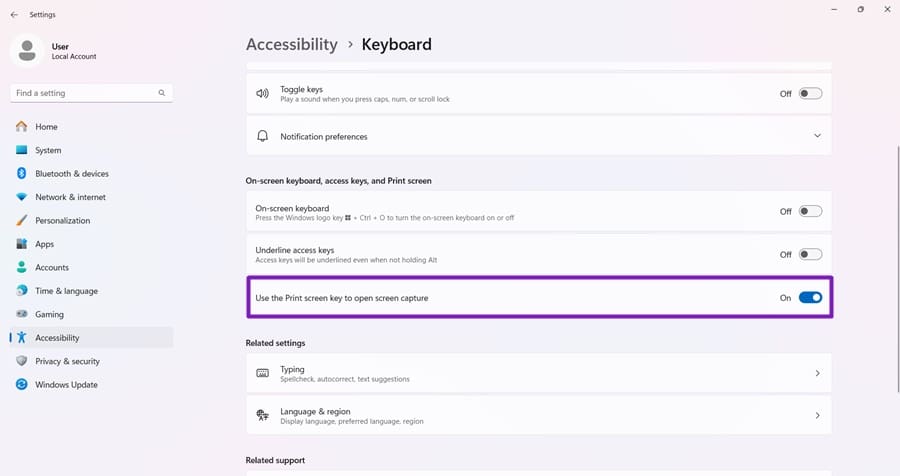
A shortcut for the screenshot feature is the Print Screen key, which can be configured in Windows to open the screen-capture tool. To check that it’s working correctly, do the following:
Step 1. Open Windows settings (Win + I) and click “Accessibility” in the sidebar.
Step 2. Scroll down to “Keyboard” and select it.
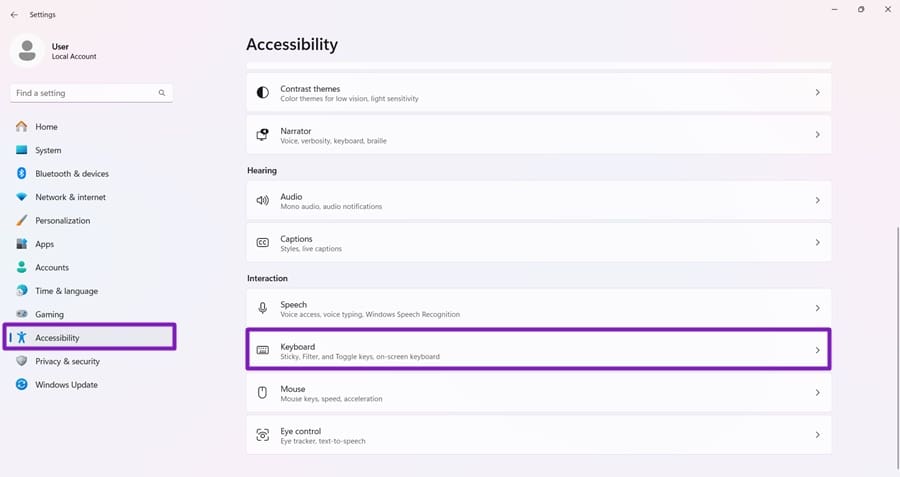
Step 3. Ensure that “Use Print screen key to open screen capture” is toggled to “On.”
Update Office
If other Word functions are also playing up, the problem could be more software-related. It’s important to ensure you’re running the latest version of Office and Word. Here’s how to do that:
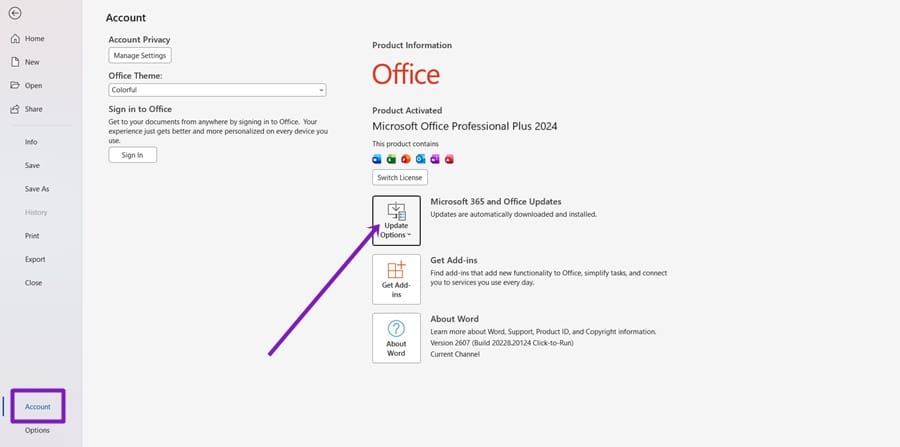
Step 1. Click the “File” tab and then “Account” in the sidebar.
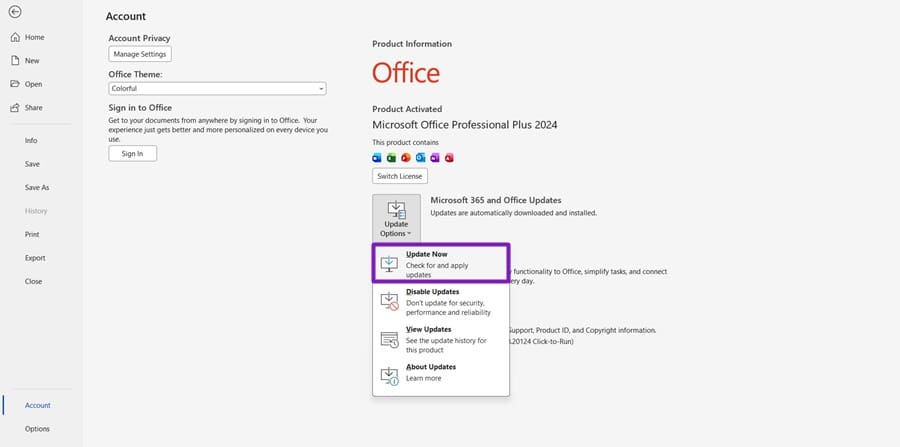
Step 2. You’ll see your Office version listed on the right. Click “Update Options.”
Step 3. Choose “Update Now” from the dropdown menu.
Use the Snipping Tool
If nothing is working, then the good news is the Snipping Tool, built into Windows, is a perfect alternative. Press Windows + Shift + S to open the Snipping Tool, select the area you want to capture, and then press Ctrl + V in Word to paste the resulting image.