Skip to content
LogoTechnipages
LogoTechnipages
  • Topics
        • Android
        • Browsers
        • Gaming
        • Hardware
        • Internet
        • iPhone
        • Linux
        • macOS
        • Office
        • Reviews
        • Software
        • Windows
        • Definitions
        • All Recent Posts
  • Product Reviews
  • About

How to Have a Video Background on Chrome’s New Tab Page

Mel HawthorneNovember 4, 2020 Comments (0)

The new tab page is probably one of the pages that you see the most in a web browser. Every time you want to open a new tab, you’ll see it. You could leave Chrome with its default blank background, or you could choose to customise it, if you want it to look a little cooler.

By default, Chrome lets you customise your new tab page through colour schemes and background images. There are some odd limitations placed on the type of backgrounds you’re allowed though. For example, not only can you not set a video background, but you can’t even select an animated one. Neither animated nor static gifs are officially supported, but it is possible to make it work. If you rename the gif that you want to use as a background so that the file ends in “.gif.png”, you can import it as a custom background image and Chrome will then play the gif normally.

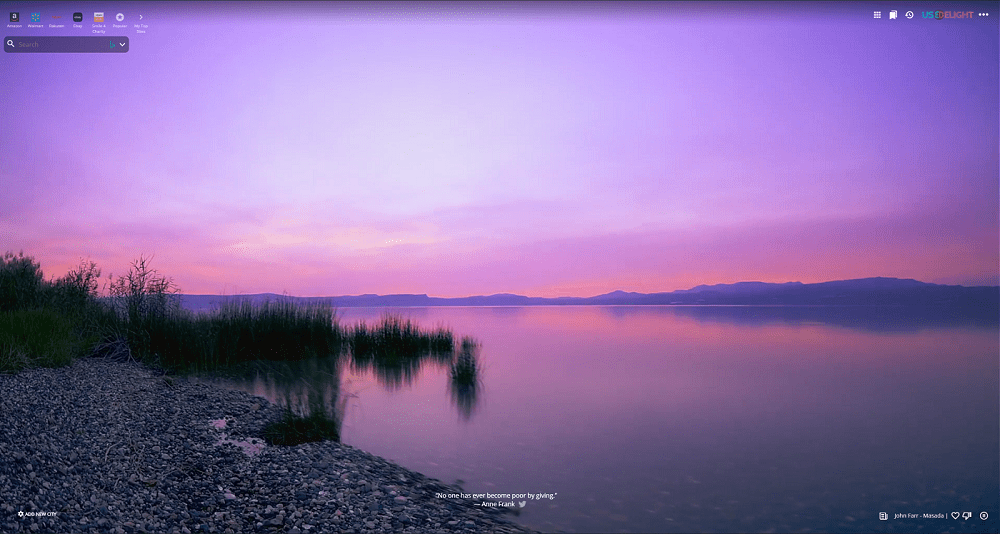
Unfortunately, the same trick doesn’t work with videos. There aren’t really many options for setting a video background. One option that does work is to use a Chrome extension. The extension “Chrome Theme Infinity New Tab Backgrounds HD” which can be found on the Chrome Web Store here, includes a number of video backgrounds. Each background video is a short MP4 video of a landscape, with credits and locations listed in the bottom-right corner.
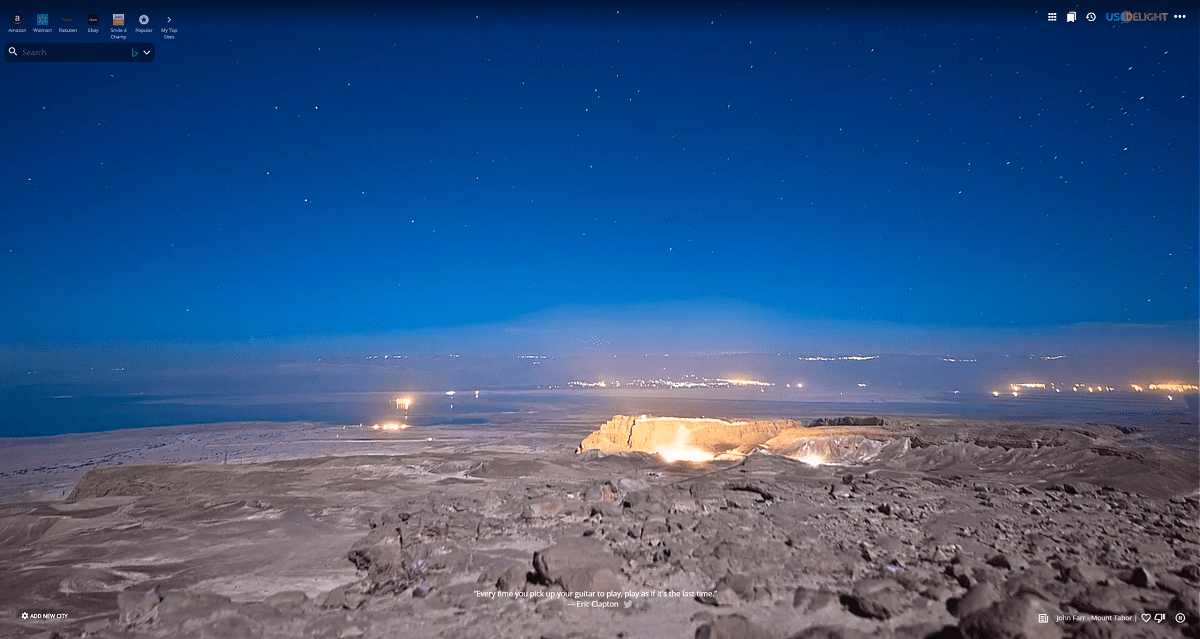
The credits and location of the looping video background can be found in the bottom-right corner.

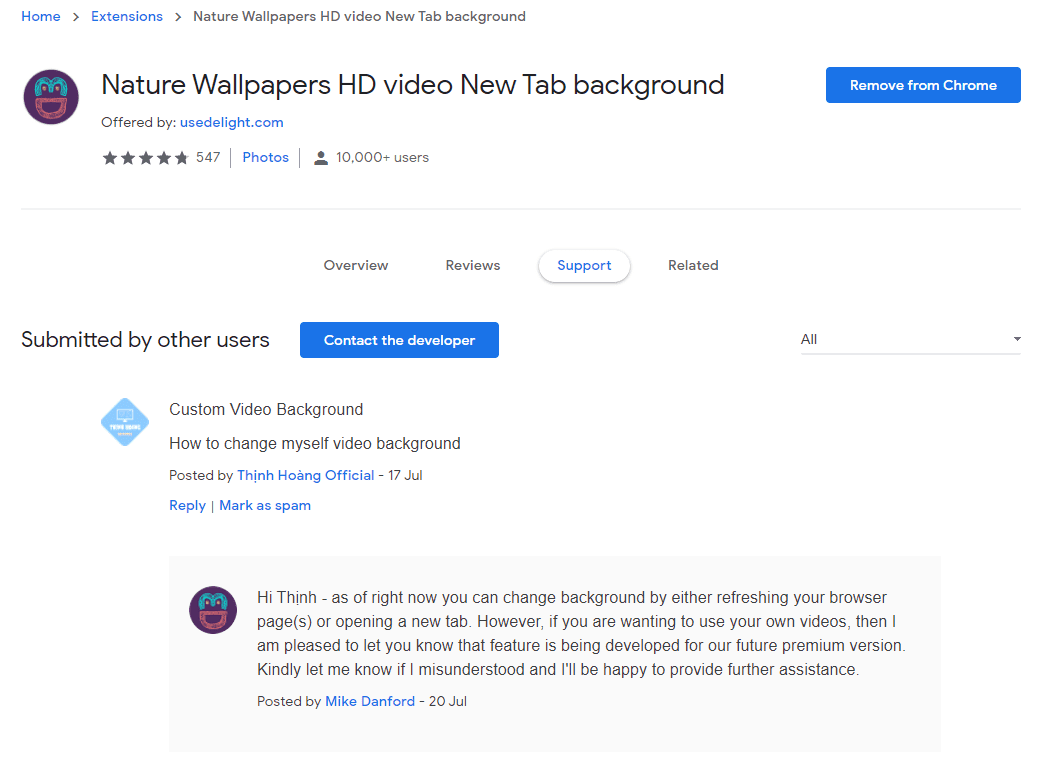
As of the current version (1.3.7) in November 2020, Nature Wallpapers HD video New Tab background doesn’t support adding custom videos. The developer has said, however, that the feature is being worked on as a future premium feature.
While most of the video backgrounds are streamed from the internet when the new tab page opens, five videos actually get saved to your hard drive when the extension is installed. The five videos are saved to the directory “C:\Users\[your_user]\AppData\Local\Google\Chrome\User Data\Default\Extensions\hehbgjdnbibkndghdlilefececadokpb\1.3.6_0\assets\videos”. While we did see some of these videos played in our testing, we were unable to get Infinity New Tab Backgrounds HD to load a custom MP4 video from this directory, although your experience may vary.


Categories: Internet

Author Mel Hawthorne

You Might Also Like

  • Twitter Setting Causes Missing Tweets

    Mitch BartlettInternet
  • Google Duo: How To Configure Which Audio or Video Devices You Use

    Mel HawthorneInternet
  • Slack: How To Disable Public File Sharing

    Mel HawthorneInternet
  • facebook how to hide who you follow

    How to Hide Who You’re Following on Facebook

    Madalina DinitaInternet

Leave a Reply

Your email address will not be published. Required fields are marked *

  • error 400 when signing in

    Encountered Error 400 When Signing In to Microsoft? Here’s What You Can Do 

  • unable to create notebook error in onenote

    We Were Unable to Create Your Notebook Error in OneNote – Common Fixes 

  • error code 0x800704f8 fix

    Error Code 0x800704f8 – How to Fix 

  • back button in browsers doesnt work

    What to Do if the Back Button in Browser Doesn’t Work 

  • could not find this item

    “Could Not Find This Item” When Trying to Remove Files

profile pic

The Experts Behind Technipages

My name is Mitch Bartlett. I've been working in technology for over 20 years in a wide range of tech jobs from Tech Support to Software Testing. I started this site as a technical guide for myself and it has grown into what I hope is a useful reference for all.

Learn More

technipages logo white
linkedin icon

Technipages is part of Guiding Tech Media, a leading digital media publisher focused on helping people figure out technology. Learn more about our mission and team here.

© 2026 Guiding Tech Media All Rights Reserved

  • About Us
  • Contact
  • Terms of Use
  • Privacy Policy

© 2026 Guiding Tech Media All Rights Reserved

Information from your device can be used to personalize your ad experience.
Do not sell my personal information.

Last Updated on November 4, 2020 by Mitch Bartlett