Skip to content
LogoTechnipages
LogoTechnipages
  • Topics
        • Android
        • Browsers
        • Gaming
        • Hardware
        • Internet
        • iPhone
        • Linux
        • macOS
        • Office
        • Reviews
        • Software
        • Windows
        • Definitions
        • All Recent Posts
  • Product Reviews
  • About

Useful Tips to Speed up Google Assistant

Judy SanhzJune 8, 2022 Comments (0)
Google Assistant

Google Assistant is very useful and can help you get the information you need when you need it. You can do things such as send audio messages, and you can even synchronize it with Google Keep. But, like any service, there will come a time when it’s not working as fast as you would like it to.

Contents

  • 1 Google Assistant: How to Make It Work Quicker
    • 1.1 Remove and Add Your Google Account
    • 1.2 Retrain the Assistant to Recognize Your Voice
    • 1.3 Conclusion

Google Assistant: How to Make It Work Quicker

The first thing you can try to speed up Google Assistant is to restart it. You’d be surprised by the number of issues a simple restart can fix. Long-press on the start button until you see the restart option, tap on it, and wait for your device to finish. This would be an excellent time to get that cup of coffee.

Also, make sure that the Google app is running on the latest version. Even if some of your apps update automatically, manually check to see if there are any pending updates. You can do this by opening the Google Play Store and tapping on your profile picture. Tap on Manage apps and devices.
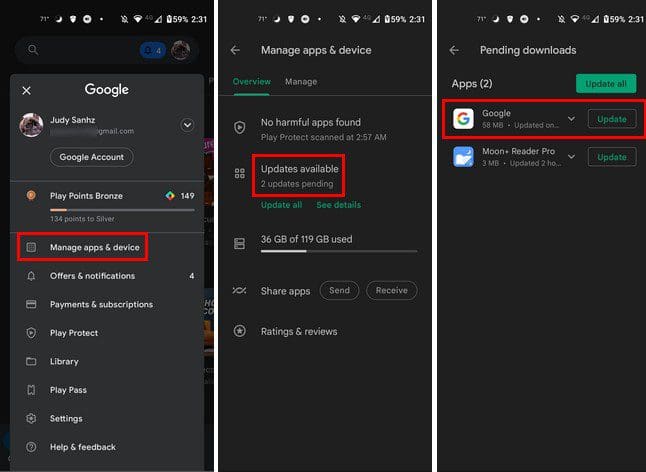
Update Google App

Remove and Add Your Google Account

To remove your Google account go to Settings, followed by Accounts. Choose the Google account you want to temporarily erase. Once it’s selected, choose the Remove account option.
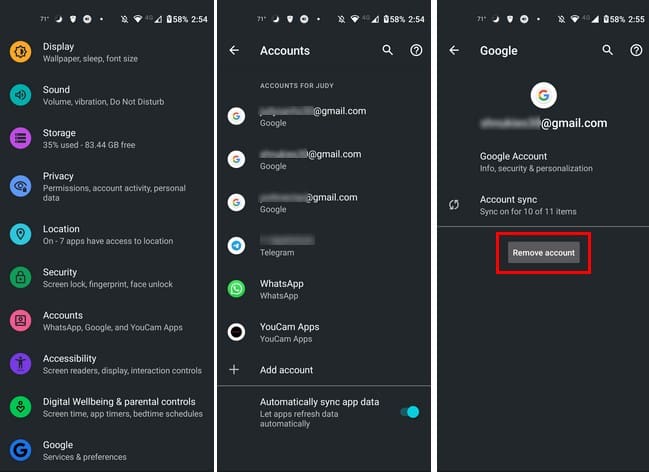
Add Remove Google Account

Once the account is gone, go back to Accounts and tap on the Add Account option at the bottom, and sign back into your account. Hopefully, you didn’t forget your password.

Retrain the Assistant to Recognize Your Voice

If the feature is enabled, then you can try to retrain Google Assistant to recognize your voice and see if that speeds things up a little. To do this, go to the Google app and tap on your profile picture at the top right. Go to Settings > Google Assistant and then Hey Google and Voice Match.
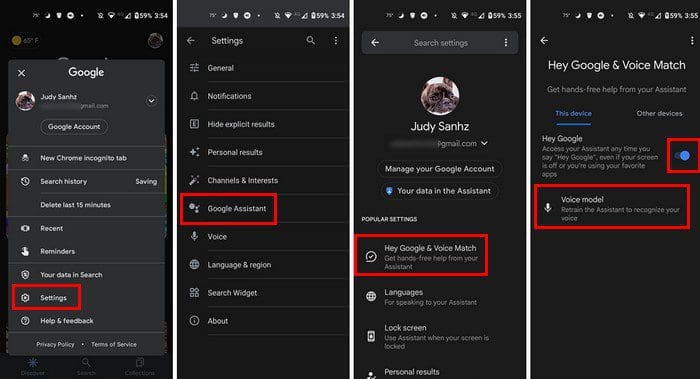
Google Assistant Retrain

Select the retrain model voice option. You’ll be asked to repeat a few phrases, and once you’re done, tap on the finish button at the bottom right. That’s all there is to it.

Conclusion

Google Assistant can help you with a lot of things. But it can be very annoying when it starts to fail because what you may need it to do can be urgent. You’ve tried restarting your Android, but that didn’t work. Good things that there are other tips you can try to help speed up the Google Assistant. How long has the Assistant been giving you problems? Let me know in the comments below, and don’t forget to share the article in the comments below.


Categories: Android

Author Judy Sanhz

I am a tech geek who loves technology. I have been writing about tech for over a decade, covering various devices and programs. I write about Android, Apple, and Windows devices and programs. I stay updated on the latest gadgets, upgrades, features, and news. I aim to make complicated tech information easy for everyone to read. I've been with TechniPages from the beginning to help others fix their tech issues with the easy-to-follow guides.

You Might Also Like

  • Dolphin for Android: How to Change Homepage

    Mel HawthorneAndroid
  • How to Use Android Phone as Google TV Remote

    Andrew MyrickAndroid
  • Android Logo Header

    How to Set up a New Android Phone

    Andrew MyrickAndroid
  • How to Use Multi-Window With Galaxy Tab S8

    Andrew MyrickAndroid

Leave a Reply

Your email address will not be published. Required fields are marked *

  • windows 11 color printing issues

    Fixing the Windows 11 Color Printing Error

  • improve privacy windows 11

    6 Tips for Improving Your Privacy in Windows 11 

  • missing boot manager in bios

    Step‑by‑Step Fix for Missing Windows Boot Manager in BIOS or UEFI

  • power query sharepoint folder error

    Power Query Not Detecting New Files in SharePoint – How to Fix

  • android device can't connect to microsoft 365

    What to Do When Your Android Device Can’t Connect to Microsoft 365

profile pic

The Experts Behind Technipages

My name is Mitch Bartlett. I've been working in technology for over 20 years in a wide range of tech jobs from Tech Support to Software Testing. I started this site as a technical guide for myself and it has grown into what I hope is a useful reference for all.

Learn More

technipages logo white
linkedin icon

Technipages is part of Guiding Tech Media, a leading digital media publisher focused on helping people figure out technology. Learn more about our mission and team here.

© 2026 Guiding Tech Media All Rights Reserved

  • About Us
  • Contact
  • Terms of Use
  • Privacy Policy

© 2026 Guiding Tech Media All Rights Reserved

Information from your device can be used to personalize your ad experience.
Do not sell my personal information.

Last Updated on June 8, 2022 by Judy Sanhz