
Skip to content
LogoTechnipages
LogoTechnipages
  • Topics
        • Android
        • Browsers
        • Gaming
        • Hardware
        • Internet
        • iPhone
        • Linux
        • macOS
        • Office
        • Reviews
        • Software
        • Windows
        • Definitions
        • All Recent Posts
  • Product Reviews
  • About

Twitch.tv: How to Limit Who Can Make Clips of Your Streams

Mel HawthorneDecember 23, 2020 Comments (0)

Clips are a Twitch feature that allows you and your viewers to save a specific portion of a stream as a separate video that can be easily shared as a highlight. Clips are also saved forever and don’t expire after the full stream is no longer available to view.  Often clips are intended to highlight epic, cool, or funny moments, but they also tend to be used to “highlight” misplays, mistakes, and other less glamourous moments.

While generally these types of lowlights can be taken in good fun, if too many clips are negative it can become demotivating and can even become harassing. Even this isn’t an issue that affects you, you may want to restrict the ability to create clips for your long-term fans or want complete creative control over the highlights presented from your channel.

If you want to restrict who has the ability to create clips of your stream, you can do so through the creator dashboard. To open the dashboard, click on your profile picture in the top-right corner, then click on “Creator Dashboard”.
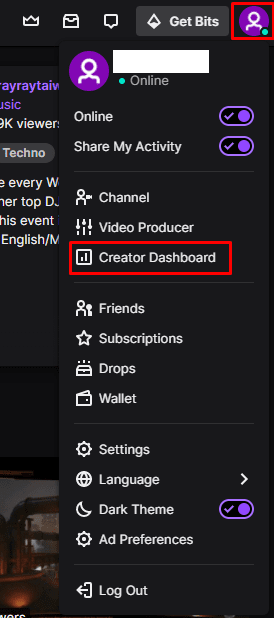
Click on your profile picture, then “Creator Dashboard” to be able to configure restrictions on who can create clips of your channel content.

Once in the creator dashboard, expand the “Preferences” category in the left column, then click on “Channel”. The clip settings can be found in the “Stream Key & Preferences” section. “Enable clips” allows you to toggle the ability to create clips from your stream and past broadcasts.

“Followers-only”, allows you to prevent users who don’t follow your account, or haven’t followed it for a certain amount of time, from creating clips. Setting it to “Off” allows users that don’t follow you to create clips and “Any followers” allows anyone who is following your channel to create clips. The timed options prevent anyone who has been following your account for less than the set time from creating clips from your content.

The “Subscriber-only” slider allows you to prevent anyone who hasn’t subscribed to your channel from creating clips.
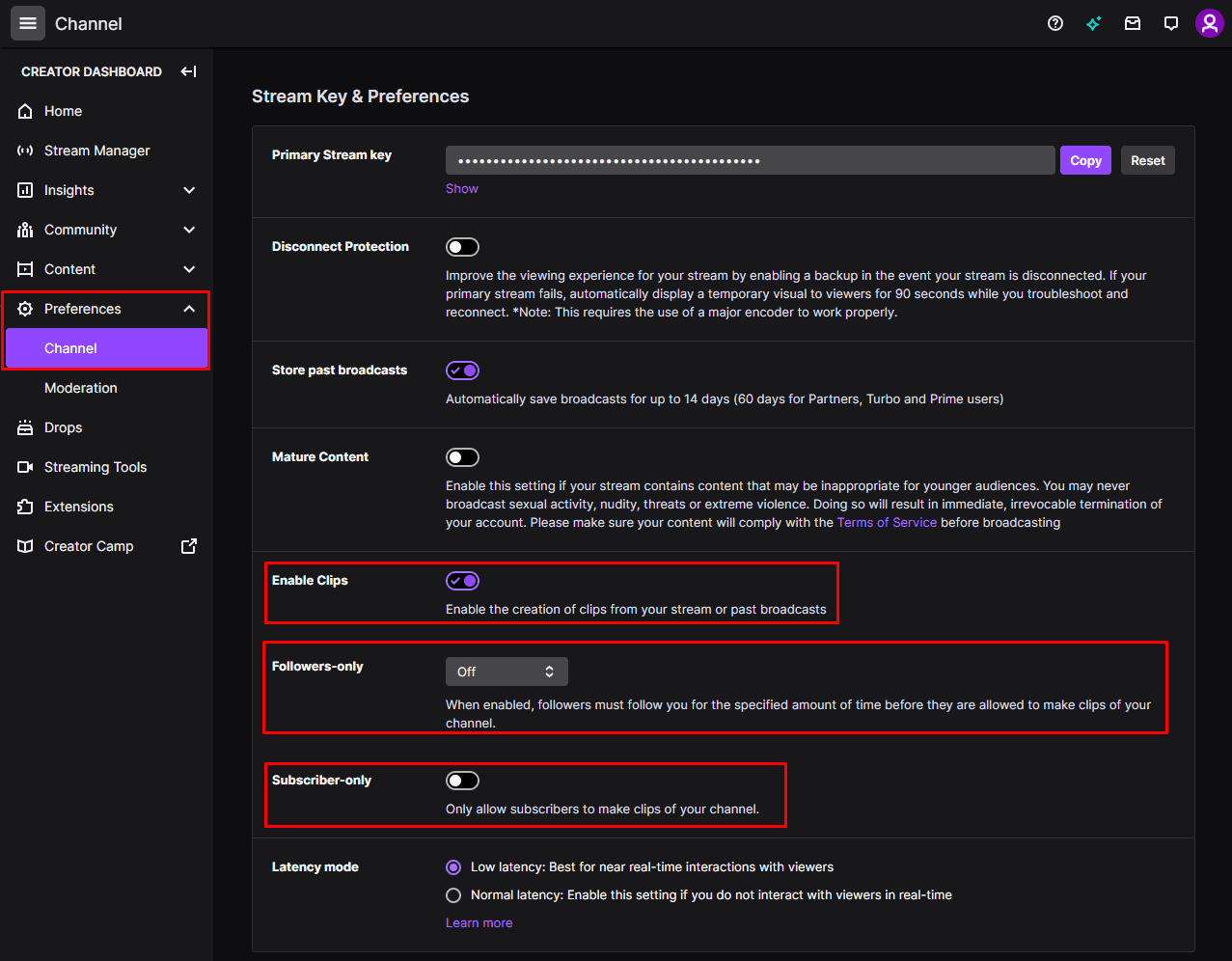
The “Enable clips”, “Followers-only”, and “Subscriber-only” options in the channel preferences allow you to restrict the ability to create clips from your content.

Categories: Internet

Author Mel Hawthorne

You Might Also Like

  • Google Forms Header

    How to Use Data Validation in Google Forms

    Mel HawthorneInternet
  • Facebook Header

    Facebook: Add Admin to Group or Page

    Mel HawthorneInternet
  • Facebook-Tell-if-Someone-Is-Stalking-You

    Facebook: How to Know if Someone Is Stalking You

    Madalina DinitaInternet
  • how-does-google-know-if-store-is-busy

    How to See What Apps Have Access to Your Account

    Judy SanhzInternet

Leave a Reply

Your email address will not be published. Required fields are marked *

  • winload.efi file missing error

    Winload.EFI File Missing Error on Boot – How to Fix

  • fix error 0x9cfc7550

    How to Fix Error 0x9cfc7550 (We Couldn’t Create a New Partition) in Windows 

  • fix error code 0x3000008 1

    How to Fix Error Code 0x3000008 for Remote Desktop Connection

  • fix error code 0x80190001 1

    How to Quickly Fix Error 0x80190001 for Microsoft or Outlook Account Login 

  • fix filecoauth.exe application error

    Fix FileCoAuth.exe Application Error 

profile pic

The Experts Behind Technipages

My name is Mitch Bartlett. I've been working in technology for over 20 years in a wide range of tech jobs from Tech Support to Software Testing. I started this site as a technical guide for myself and it has grown into what I hope is a useful reference for all.

Learn More

technipages logo white
linkedin icon

Technipages is part of Guiding Tech Media, a leading digital media publisher focused on helping people figure out technology. Learn more about our mission and team here.

© 2025 Guiding Tech Media All Rights Reserved

  • About Us
  • Contact
  • Terms of Use
  • Privacy Policy

© 2025 Guiding Tech Media All Rights Reserved

Information from your device can be used to personalize your ad experience.
Do not sell my personal information.

Last Updated on December 23, 2020 by Mitch Bartlett