Skip to content
LogoTechnipages
LogoTechnipages
  • Topics
        • Android
        • Browsers
        • Gaming
        • Hardware
        • Internet
        • iPhone
        • Linux
        • macOS
        • Office
        • Reviews
        • Software
        • Windows
        • Definitions
        • All Recent Posts
  • Product Reviews
  • About

Trello: How to Filter by Label

Madalina DinitaOctober 29, 2020 Comments (0)

When you’re in charge of multiple tasks or you’re managing a team and you need to keep track of the tasks assigned to your team members, you may feel a bit overwhelmed at times.

Luckily, Trello has a nifty feature that allows users to filter cards and boards using specific labels, keywords, and due dates.

How to Filter Trello Boards on iOS and Android

If you tap the magnifying glass, you can filter the board you’re on. If you want to expand your search to all your boards, go to the homepage and then tap the magnifying glass.

It is worth mentioning that this feature is only available on the Android version of the app.

How to Filter Trello Board on PC

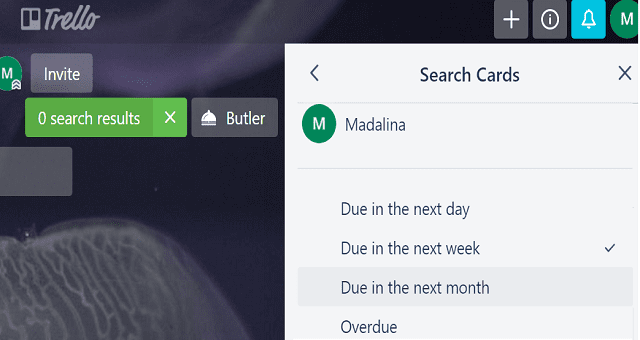
Press the F key on your keyboard to open the filtering menu. You can filter your cards by labels, team members, due dates, or terms. To filter by labels, simply select the label you’re interested in.
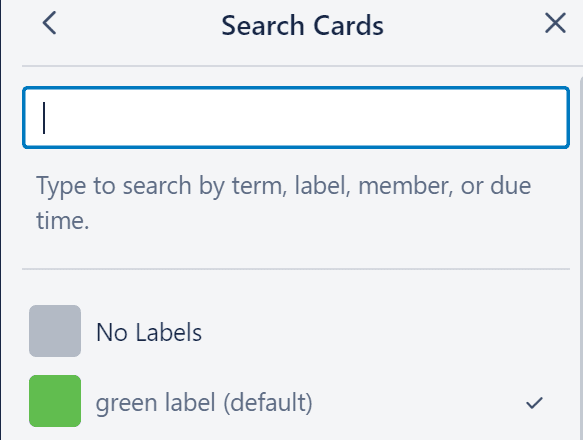
trello filtering options

Select the filter you want to apply and Trello will bring forth the cards and boards containing the respective filter.

What’s the difference between filtering and searching?

If you want to quickly find the information, card, or board you’re interested in, you can either use the filtering option or the search option.

Here are the main differences between the two on Trello:

  • Filtering shows you the cards on their original boards while searching displays the results in a new window.
  • You can use both of these options to find cards assigned to specific members.
  • If you need to search for particular terms, it’s best to use searching because it’s more specific than filtering.
  • You can use filtering on boards you’re not yet a member of.
  • Filtering supports a limited number of options, whereas searching is more versatile and lets you use special operators to broaden your search.
Categories: Software

Author Madalina Dinita

Madalina has been a Windows fan ever since she got her hands on her first Windows XP computer. She is interested in all things technology, especially emerging technologies -- AI and DNA computing in particular.

You Might Also Like

  • Chrome header

    Chrome: Disable Auto Updates

    Mitch BartlettSoftware
  • How to Resize Multiple Images at Once

    Kat ArmstrongSoftware
  • Microsoft-Teams-Error-211-Fix

    How to Fix Microsoft Teams Error 2: 211 on Mac

    Madalina DinitaSoftware
  • fix-signal-app-wont-install

    Fix: Signal App Won’t Install on Android, iOS or PC

    Madalina DinitaSoftware

Leave a Reply

Your email address will not be published. Required fields are marked *

  • unable to create notebook error in onenote

    We Were Unable to Create Your Notebook Error in OneNote – Common Fixes 

  • error code 0x800704f8 fix

    Error Code 0x800704f8 – How to Fix 

  • back button in browsers doesnt work

    What to Do if the Back Button in Browser Doesn’t Work 

  • could not find this item

    “Could Not Find This Item” When Trying to Remove Files

  • no graphics signal on first boot

    No Graphics Signal on First Boot – How to Fix

profile pic

The Experts Behind Technipages

My name is Mitch Bartlett. I've been working in technology for over 20 years in a wide range of tech jobs from Tech Support to Software Testing. I started this site as a technical guide for myself and it has grown into what I hope is a useful reference for all.

Learn More

technipages logo white
linkedin icon

Technipages is part of Guiding Tech Media, a leading digital media publisher focused on helping people figure out technology. Learn more about our mission and team here.

© 2026 Guiding Tech Media All Rights Reserved

  • About Us
  • Contact
  • Terms of Use
  • Privacy Policy

© 2026 Guiding Tech Media All Rights Reserved

Information from your device can be used to personalize your ad experience.
Do not sell my personal information.