When you’re on social media, one of the best things you can do is take advantage of the security settings. That way, you help keep your Snapchat account private and prevent unwanted users from viewing your content.
The good news is that there are several security settings you can change in Snapchat. That way, you can keep your content and account as safe as possible. For example, whenever you’re sending something, it’s always a good idea to double-check and make sure you’re sending it to the right person. Most of us have had to erase a sent message on WhatsApp because we chose the wrong chat. Keep reading to see all the security changes you can make.
Contents
How to Protect Your Privacy on Snapchat
To get to your privacy settings, tap on your profile picture, followed by the cogwheel. Swipe down until you come across the Who Can section. Here you can make all sorts of changes such as:
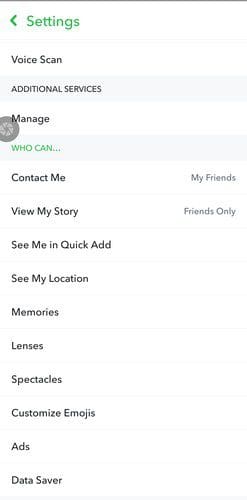
- Contact me
- View my story
- See me in Quick Add
- See My Location
- Memories
- Lenses
- Spectacles
- Ads
- Data Saver
Turn off Birthday
Whenever your birthday comes around, you’ll get bday lenses. Not only that, but your friends get a notification as well. If you would rather hide in the shadows and turn this off, you can do so by:
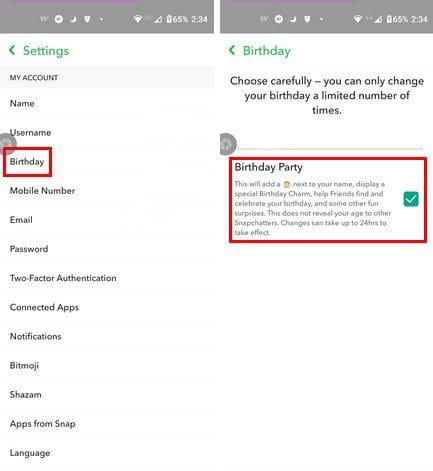
- Tapping on your profile picture
- Cogwheel
- Birthday
At the bottom, make sure to uncheck the Birthday Party box.
Privacy
When you go into Settings and swipe down to the Privacy section, there are quite a few things to change. For example, you can Clear Conversation, Clear, Search History, Contact Syncing, Permissions, and My Data.
Move Snap to My Eyes Only
You can also keep your snaps private by moving them to My Eyes Only. This is a special vault type section where your snaps will be under passcode protection. You can access this area by swiping up from the camera tab. If this is your first time using My Eyes Only, you’ll see a welcoming message.
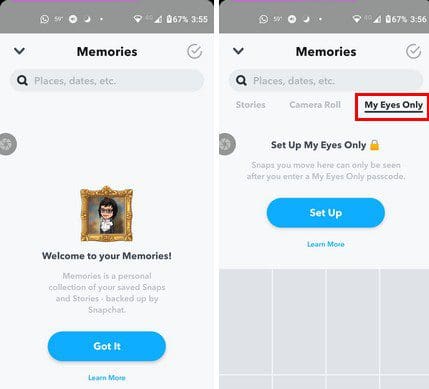
To move a snap to My Eyes Only, you can tap on the checkmark at the top right, or you can long-press on the chat you want to move. Once you’ve made your selection, tap on the Hide option at the bottom, and you’ll get a confirmation message to move them to My Eyes Only. If it’s your first time using it, you’ll need to create a passcode.

Two-Factor Authentication
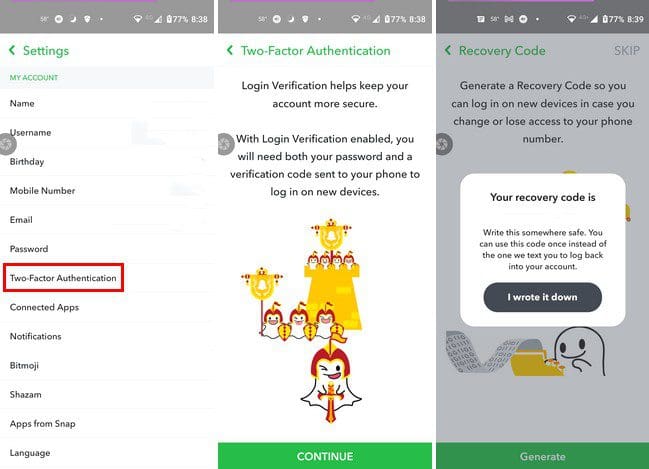
It may take a little longer to access your Snapchat account, but it’ll be more secure. By turning on the two-factor authentication, your account will be more secure. You can enable this security feature by going to Settings > Continue. You’ll be asked how you want to receive the codes. The process is straightforward; simply follow the on-screen instructions.
How to Delete Snapchat Stories
Everyone sooner or later will post something they regret. To erase your snap swipe up from the camera tab and tap on the Stories tab. Tap on the story you want to erase, swipe up and choose the Trash Can option. If you have more than one snap to erase, you’ll need to erase them one by one. This may take some time if you have a lot to erase.
Conclusion
Some users just want to enjoy what Snapchat has to offer but without worrying about the followers part. If you’re going to stay in the shadows when using Snapchat, now you know what you can do. What else do you do to stay safe on social media? Let me know in the comments below, and don’t forget to share the article with others on social media.