

Skip to content
LogoTechnipages
LogoTechnipages
  • Topics
        • Android
        • Browsers
        • Gaming
        • Hardware
        • Internet
        • iPhone
        • Linux
        • macOS
        • Office
        • Reviews
        • Software
        • Windows
        • Definitions
        • All Recent Posts
  • Product Reviews
  • About

Skype for Business: Where to Find the Chat History

Madalina DinitaJanuary 27, 2021 Comments (0)
find conversation history in skype for business

Did you know that, on average, adults have an attention span of 15 to 20 minutes? After 20 minutes, our memory’s efficiency drops, and it’s becoming more and more difficult to hold up new pieces of information. With that in mind, it’s not surprising we can’t remember all the details of our recent Skype chat conversations.

If you need to go back to your Skype for Business conversation to double-check some information, this guide will come in handy. We’ll tell you everything you need to know about your chat history.

Contents

  • 1 Where Can I Find the Conversation History in Skype for Business?
    • 1.1 If There’s No Chat History
    • 1.2 Export Your Skype Chat History
    • 1.3 Conclusion

Where Can I Find the Conversation History in Skype for Business?

The Outlook Conversation Folder

Your Skype for Business conversation history is stored in the Outlook Conversation folder. If you open that folder, you’ll find information such as the date and time the chat messages were sent, the names of the participants, as well as the conversation text itself.

The Conversations Tab

On Windows 10, you can also find the chat history in the Conversations tab of the Skype for Business client.skype for business conversations tab

Click on the Conversations tabs, and you’ll see all your conversation history in chronological order, phone calls, and chat messages included. You can further filter the results by clicking on the two other tabs.

  • Click on Missed to list your 100 most recent missed messages.
  • Click on Calls to display the 100 most recent calls.

Find Previous Conversations

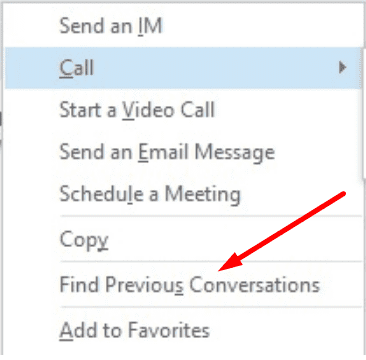
If you want to check the chat history with a specific user, go to your Contacts list and right-click on that person’s name. Then click on Find previous conversations.skype for business find previous conversations
If There’s No Chat History

If the chat history is not available under the Conversations tab or the Outlook Conversation folder, check your Skype for Business settings.

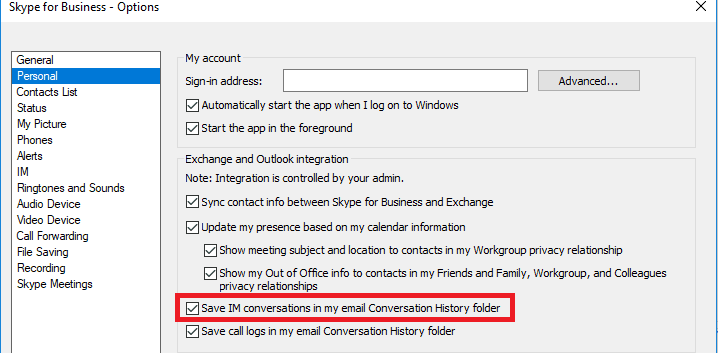
  1. Navigate to Settings → Tools → Options → Personal.
  2. Locate Save IM conversations in my email Conversation History folder.Skype Save IM conversations in Conversation History folder
  3. Tick the checkbox if it’s empty. If this option is not active, you won’t be able to save your Skype conversation history.
We recommend that you enable this option. In this manner, you can always go back to your Skype conversation history to double-check any information you’re unsure of.

Export Your Skype Chat History

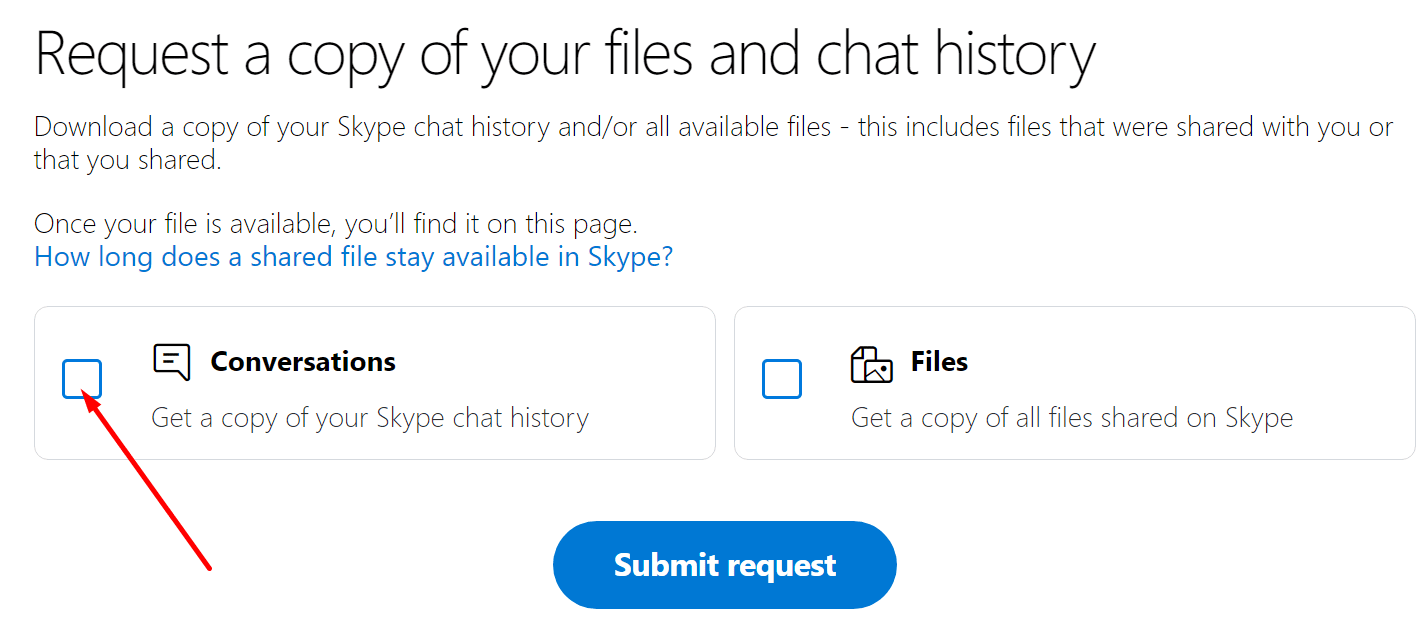
If you want to export your chat history, sign in to your Skype account using this link: https://go.skype.com/export.

To download your messages, click on Conversations. Then hit the Submit request button.request copy of skype conversation history
When the download file is ready, you’ll get a notification with the download link. Hit the Download button to download the chat history.

Conclusion

Storing your Skype for Business conversation history is always good practice. You never know when you need to double-check something. Keep in mind that Skype automatically removes old messages from your chat window after a certain period of time. But you can always use the chat history to view your old messages.

We hope you found this guide helpful. Feel free to drop a comment below and let us know what you think about these tips.


Categories: Software

Author Madalina Dinita

Madalina has been a Windows fan ever since she got her hands on her first Windows XP computer. She is interested in all things technology, especially emerging technologies -- AI and DNA computing in particular.

You Might Also Like

  • convert outlook meeting to teams meeting

    How to Convert Outlook Meetings to Teams Meetings

    Madalina DinitaSoftware
  • Slack: How To Configure Your Email Notification Preferences

    Mel HawthorneSoftware
  • Slack: How To Configure Automatic Slackbot Responses for Your Workspace

    Mel HawthorneInternet
  • Slack: How To Disable Public File Sharing

    Mel HawthorneInternet

Leave a Reply

Your email address will not be published. Required fields are marked *

  • browser screen goes black

    Browser Screen Goes Black Intermittently 

  • computer heating up in hyper v

    Computer Heating Up When Using Hyper-V – How to Fix 

  • clipchamp unexpected application error

    Clipchamp Unexpected Application Error: Here’s the Solution 

  • winload.efi file missing error

    Winload.EFI File Missing Error on Boot – How to Fix

  • fix error 0x9cfc7550

    How to Fix Error 0x9cfc7550 (We Couldn’t Create a New Partition) in Windows 

profile pic

The Experts Behind Technipages

My name is Mitch Bartlett. I've been working in technology for over 20 years in a wide range of tech jobs from Tech Support to Software Testing. I started this site as a technical guide for myself and it has grown into what I hope is a useful reference for all.

Learn More

technipages logo white
linkedin icon

Technipages is part of Guiding Tech Media, a leading digital media publisher focused on helping people figure out technology. Learn more about our mission and team here.

© 2025 Guiding Tech Media All Rights Reserved

  • About Us
  • Contact
  • Terms of Use
  • Privacy Policy

© 2025 Guiding Tech Media All Rights Reserved

Information from your device can be used to personalize your ad experience.
Do not sell my personal information.

Last Updated on January 27, 2021 by Judy Sanhz
