Skip to content
LogoTechnipages
LogoTechnipages
  • Topics
        • Android
        • Browsers
        • Gaming
        • Hardware
        • Internet
        • iPhone
        • Linux
        • macOS
        • Office
        • Reviews
        • Software
        • Windows
        • Definitions
        • All Recent Posts
  • Product Reviews
  • About

How to Enable or Disable Outlook Mail Notification Box

Mitch BartlettNovember 8, 2022 Comments (1)
Outlook Logo Header

We show you how to enable or disable the email notification box that appears in the Windows Taskbar whenever you receive a new message in Microsoft Outlook.

Note: This post is to enable or disable the notification box. For the sound notification, see our post Turn Mail Notification Sound On/Off in Outlook


Contents

  • 1 Fix 1: Outlook Setting
  • 2 Fix 2 – Windows Notification Settings
  • 3 Fix 3 – Check Notifications & Action Settings
  • 4 Fix 4 – Disable Focus Assist

Fix 1: Outlook Setting

  1. In Outlook, select the “File” menu.
  2. Select “Options“.
  3. Choose the “Mail” option in the left pane.
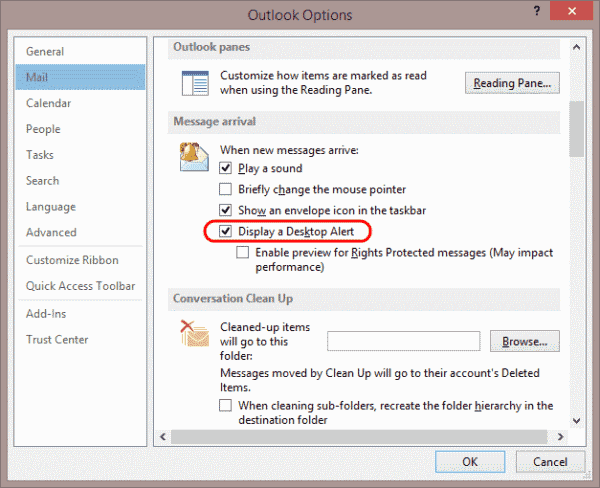
  4. Scroll down to the “Message arrival” section. Check the “Display a Desktop Alert” box if you want a notification box to appear when you receive an email. Uncheck it if you don’t want a notification box to appear. You can also choose “Show an envelope icon in the taskbar” if you wish.
    Outlook 2013 Desktop Alert setting

Fix 2 – Windows Notification Settings

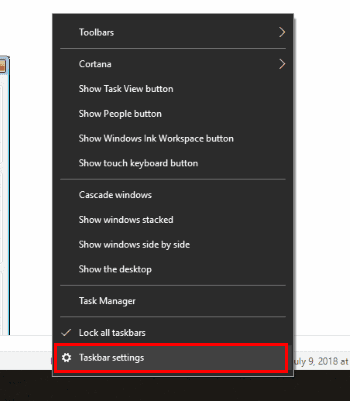
  1. Right-click a blank area on the taskbar, then select “Taskbar settings“.
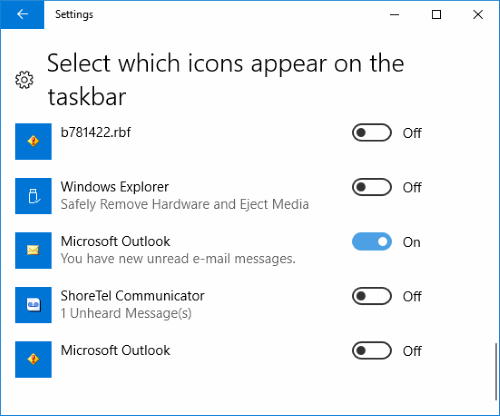
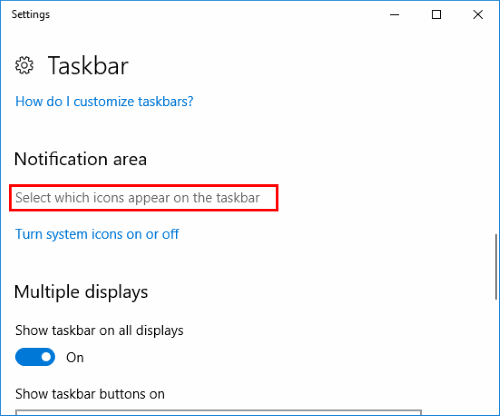
  2. Scroll down to the area that says, “Notification area” and choose the “Select which icons appear on the taskbar“.
  3. Look for “Microsoft Outlook” entry. There may be several but look for the one that says “Microsoft Outlook – You have new unread e-mail messages.” and toggle it to the “On” position to enable it. Turn it “Off” to disable it.
Fix 3 – Check Notifications & Action Settings

  1. Select the Start button then type “notification“.
  2. Select Notifications & Action Settings.
  3. In the Notifications & actions section, ensure that Outlook is turned On or Off as desired.
    Windows Outlook Notification Setting

Fix 4 – Disable Focus Assist

At certain times, the Windows Focus Assist feature may suppress certain notifications.

  1. Select the Start button and type “focus assist“.
  2. Select Focus Assist to open the settings.
  3. If you wish to have notifications displayed at all times, turn everything Off on this screen. Otherwise, you can leave the settings alone.

I hope one of the above fixes has helped you figure out your problems with Outlook notifications. Let me know if something worked for you in the comments section below.

Categories: Office

Author Mitch Bartlett

Through my career that spans over 20 years I have become an expert in Microsoft Systems Administration, Android, and macOS. I started this site as a technical guide for myself and it has grown into what I hope is a useful knowledgebase for everyone.

You Might Also Like

  • Excel Header

    Enable/Disable Display of Formulas in Cells in Excel

    Mitch BartlettOffice
  • Outlook 2010 select meeting

    Outlook: Check Who Accepted Meeting Invite

    Mitch BartlettOffice
  • Outlook 2010 email signature screen

    How to Set the Email Signature in Outlook 365

    Mitch BartlettOffice
  • Outlook Logo Header

    Why is “Junk” Grayed Out in Outlook 365?

    Mitch BartlettOffice

Comments

  1. Anil says:
    December 21, 2022 at 10:38 pm

    Helpful

Leave a Reply

Your email address will not be published. Required fields are marked *

  • how to make chromebook run faster

    8 Ways to Make Your Chromebook Run Faster

  • error code 0xC0000428

    What Is Error Code 0xC0000428 and How to Fix It

  • windows 11 usb tethering

    Your Guide to USB Tethering on Windows 11

  • find the serial number of a laptop

    6 Ways to Find the Serial Number for Your Laptop

  • battery issues after windows 11 update

    Battery Issues After Windows 11 Update? Here’s the Fix

profile pic

The Experts Behind Technipages

My name is Mitch Bartlett. I've been working in technology for over 20 years in a wide range of tech jobs from Tech Support to Software Testing. I started this site as a technical guide for myself and it has grown into what I hope is a useful reference for all.

Learn More

technipages logo white
linkedin icon

Technipages is part of Guiding Tech Media, a leading digital media publisher focused on helping people figure out technology. Learn more about our mission and team here.

© 2026 Guiding Tech Media All Rights Reserved

  • About Us
  • Contact
  • Terms of Use
  • Privacy Policy

© 2026 Guiding Tech Media All Rights Reserved

Information from your device can be used to personalize your ad experience.
Do not sell my personal information.

Last Updated on November 8, 2022 by Mitch Bartlett