
NordVPN is one of the best VPN services out there. You can count on more than 4,700 servers in 62 different countries. One of the things Internet users look for when it comes to choosing a VPN service is the availability of locations and servers.
Switching servers is not as difficult as it may seem since it’s possible with a simple click. In the following guide, you will see beginner-friendly instructions on how you can change location servers without pulling out your hair in distress.
How to Choose a Server from a List of Countries
When the NordVPN window appears, you will see a list of countries whose servers you can connect to. If you don’t see it, click on the All countries drop-down menu.

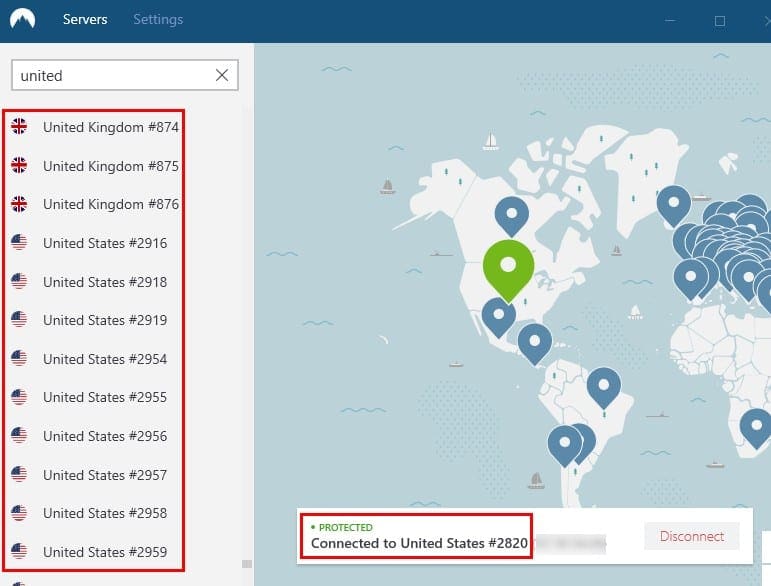
You can either search for a country wither by scrolling or by using the search option at the top. For example, if you use the search bar and type United, you will see servers for the United States and the United Kingdom.
Not just that, but you will also see the specific servers you can connect to. The United States will have a maximum of 3040 servers you can choose from, and the United Kingdom will have 876.
If you place the cursor on a country, you will see three horizontal dots. If you click on it, you can also find the fastest server to connect to, and you can even choose what region that server is from. For example, if you decide to connect to a United States server, you can want to connect to a server from Los Angeles, Chicago Dallas, New York, Etc.
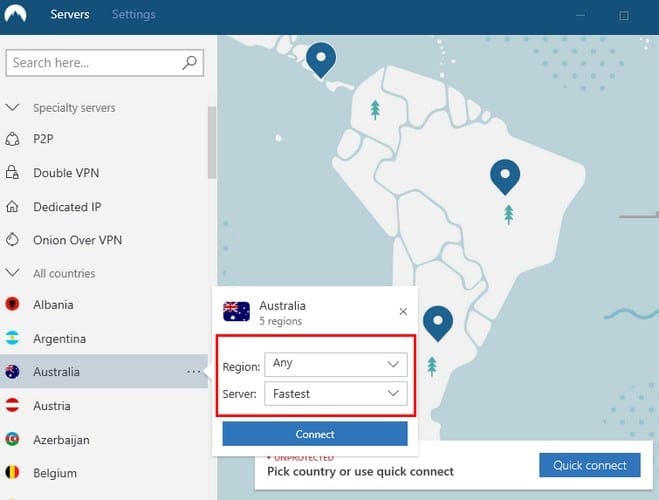
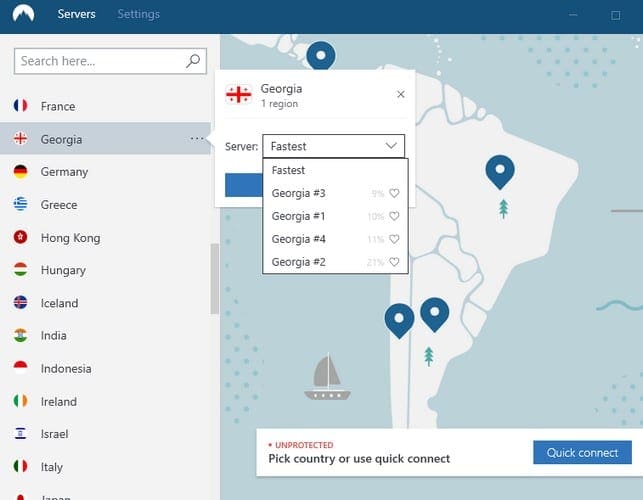
Not all countries will allow you to choose what region the server needs to be from. Certain countries will only offer to connect to the fastest server, and the region will be selected for you.
Another way you can access a server is by choosing one directly from the map. Click and drag to the country you want to connect to and you will be connected to a server automatically. By using this method, you won’t be able to choose the region of the country you’re connecting to, but it will connect you to the fastest one.
How to Connect to a Double VPN NordVPN Server
First things first, What’s a Double VPN on a NordVPN Server? It’s the process of chaining VPN servers and what it does is that it protects your online activity by using several servers through a VPN Tunnel.
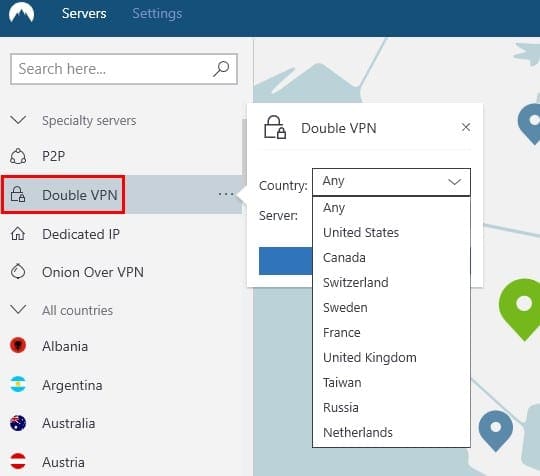
The external IP is modified, and your information is encrypted a total of two times for more security. Under the Specialty servers drop-down menu, you’ll see the Double VPN option. Click on the option if you want it to connect you automatically or click on the three dots if you’re going to choose the region and fastest server.
In the Specialty servers option, you also have the option of connecting to a P2P Server (Peer-to-Peer) and an Onion Over VPN. This last option is a great way to stay safe since your encrypted traffic is sent through a Tor network.
Thanks to the Tor network it’s tough to pinpoint the source of your traffic back to you. Your traffic goes through at least three nodes, and each one will not be able to identify the source of your IP.
NordVPN does not recommend that you use this type of server if you are going to connect with standard browsers. It suggests that you use these types of servers if you are going to go to .onion sites. since .onion network is not the safest place, you can be.
Conclusion
NordVPN has different types of servers you can connect to. Depending on what you want to do, you will either choose one server or another. Either way, you can rest assured that you will remain safe while on the Internet. What country’s server do you like to use?


I don’t see any of this. What is going on?
I could change countries with no problem until about 2 weeks ago. Does NordVPN not allow us to change countries anymore?
Presently receiving news feeds from New York or Miami . Is it possible to receive news feeds from Chicago
My iPad Nord vpn has 4 speciality servers (P2P, Double, Dedicated, Obf servers) but my iPhone and MacBook only has p2p despite using the latest version of apps. Why is that?
and there was a time I saw Nord over Onion in one of my device and it is completely gone now, can’t find it anymore in speciality server list. Why? please kindly explain. Thank you!
I want to be able to change servers, but all it does is tell me a number, which tells me nothing.
I am on firestick and I need to know which city my server is in to be able to change it.
Tell me where I can manually configure setting and what they are for please.
Hello,
Can you tell me why I do not have the map and option to choose a different server for each country ?
Does it depend on the nordVPN plan ?
thank you.
Is there a way to tell which USA server I’m connected to? A name / location, not just a number such as United States #1111…
Hi. Is it better to use the double vpn or just stay within my own country?
Many thanks..John.
Unfortunately, when you use the nodvpn app on a android box it does not give you the above interface. I only have the option of clicking the country and the app will automatically connect to a server without me even having a choice. There is no map and there is no list of servers. If I knew this was what I was getting into I would have not purchased the 3 year subscription that I did.
i can not bring down all countries or type in one, It looks like I have the old formate
Thank you for useful information, I already have a Nordvpn subscription, but I am still a new user, so that was really helpful. Answering your question, mostly I use US servers because I watch a lot of Netflix shows and Nord works pretty well with it. As I know, this vpn have a lot of different locations all around the world, and with it, you can unblock Netflix in every country.