Skip to content
LogoTechnipages
LogoTechnipages
  • Topics
        • Android
        • Browsers
        • Gaming
        • Hardware
        • Internet
        • iPhone
        • Linux
        • macOS
        • Office
        • Reviews
        • Software
        • Windows
        • Definitions
        • All Recent Posts
  • Product Reviews
  • About

Microsoft Teams: Mouse Scroll Wheel Not Working

Madalina DinitaJanuary 14, 2021 Comments (1)
microsoft teams mouse scroll not working

If Microsoft Teams stopped responding to your mouse scroll, don’t hit your mouse against the desk. Instead, use the solutions you’ll find in this guide to fix the problem.

Contents

  • 1 Fix Microsoft Teams Not Responding to Mouse Scroll
    • 1.1 Quick Fixes
    • 1.2 Enable Scroll Inactive Windows
    • 1.3 Use the Bluetooth Troubleshooter
    • 1.4 Update or Reinstall Your Mouse Driver

Fix Microsoft Teams Not Responding to Mouse Scroll

Quick Fixes

  • Move your mouse cursor to another tab. Then go back to your chat window.
  • Log out and then sign back into your Microsoft Teams account.
  • Unplug your mouse and check the batteries and make sure they’re not weak or depleted.
  • Try a different USB port if you’re using a USB mouse.
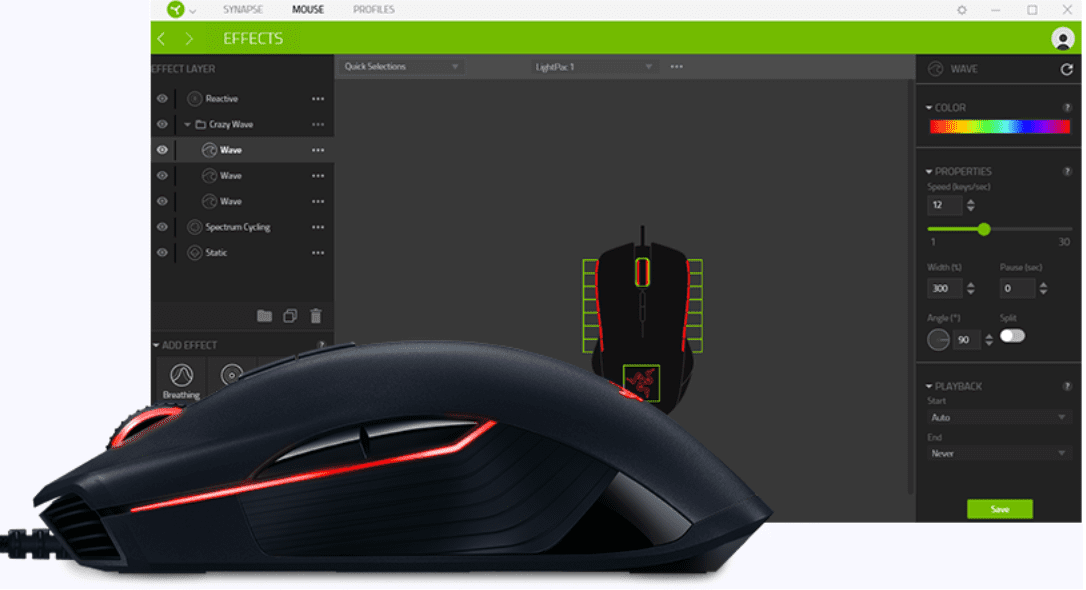
  • If you’re using a mouse controller program, disable it. These tools may change your mouse behavior when you’re using Teams.

Enable Scroll Inactive Windows

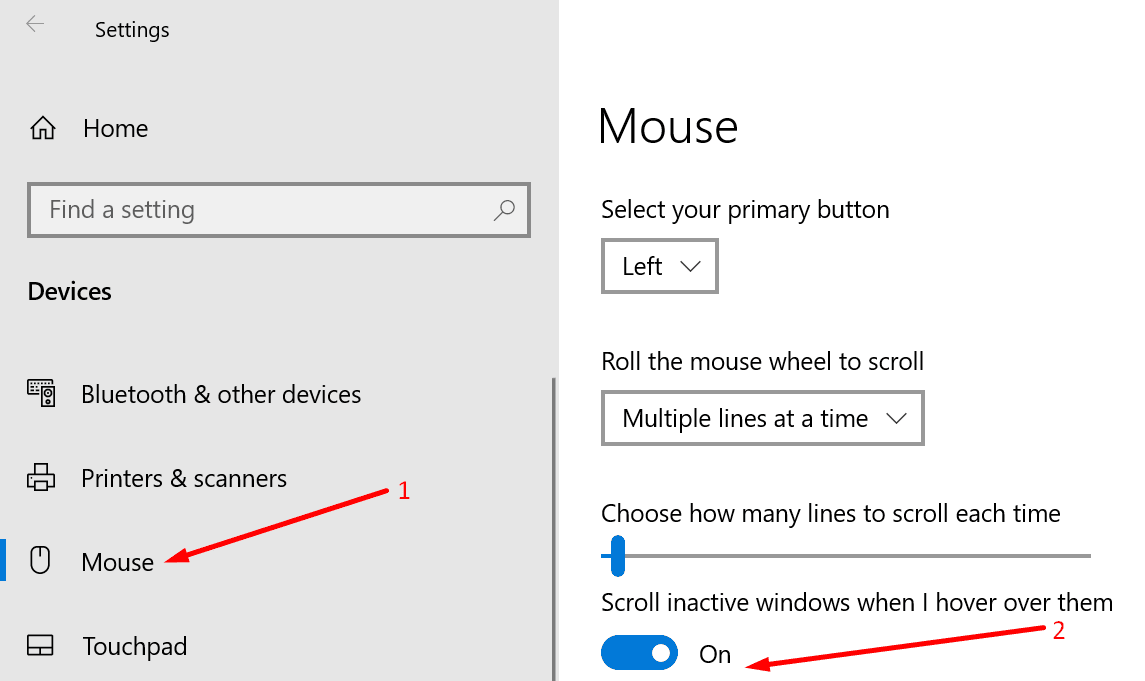
Check your mouse settings and make sure you can scroll inactive windows when you’re hovering over them.

  1. Go to Settings → Devices → select Mouse.
  2. Locate the option Scroll inactive windows when I hover over them.scroll inactive windows when I hover over them
  3. Turn this option on if it’s off. If it’s already active, disable it, restart your computer and then re-enable it.
Use the Bluetooth Troubleshooter

If you’re using a Bluetooth mouse, run the Bluetooth troubleshooter. If you’re using a USB mouse, run the Hardware and Devices troubleshooter.

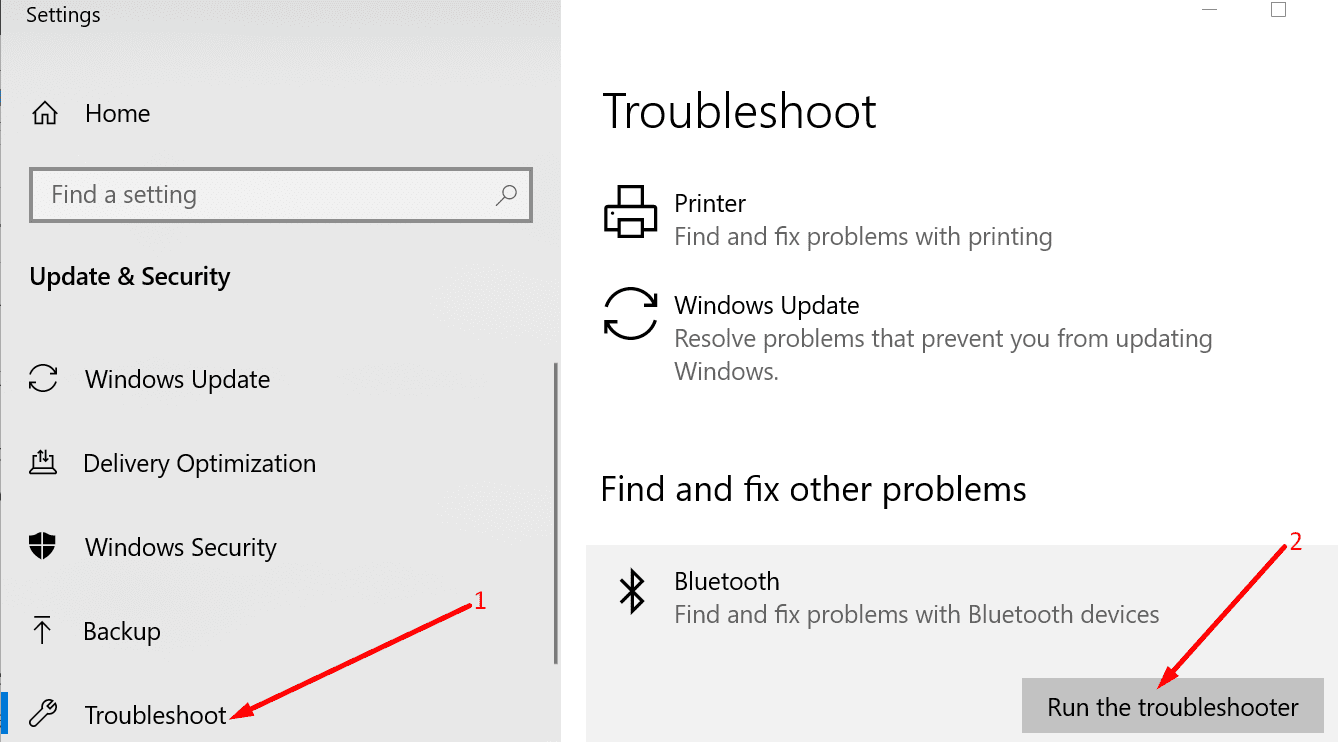
  1. Go to Settings → Update and Security.
  2. Then click on Troubleshoot.
  3. Run the Bluetooth troubleshooter.windows 10 bluetooth troubleshooter
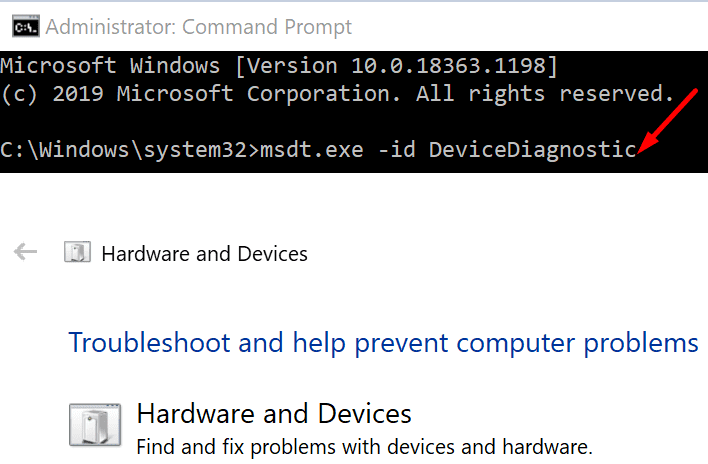
  4. To run the Hardware and device troubleshooter, launch Command Prompt (admin).
  5. Enter the msdt.exe -id DeviceDiagnostic command. Press Enter.
  6. Click on the Hardware and Devices troubleshooter and launch it.run hardware troubleshooter windows 10

Update or Reinstall Your Mouse Driver

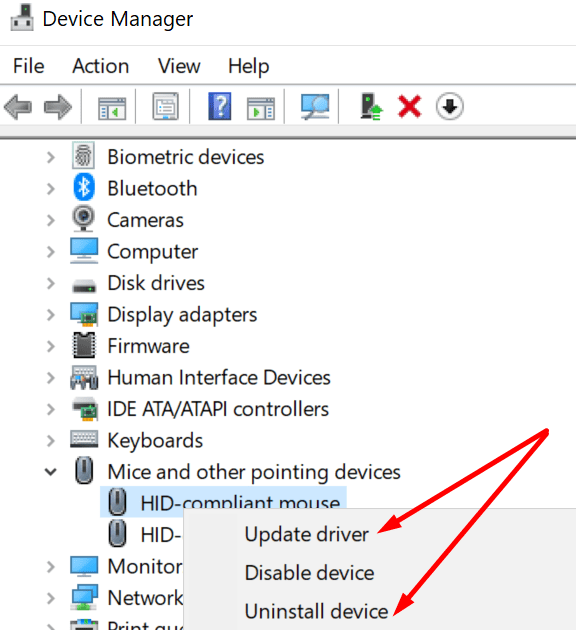
To make sure your mouse is working properly, update its driver. If that did not work, uninstall and reinstall the mouse driver.

  1. Launch the Device Manager and click on Mice and other pointing devices.
  2. Right-click on your mouse driver and select Update Driver. Check if Teams is responsive to mouse scrolling.update reinstall mouse driver
  3. If it’s not, right-click on the mouse driver again and select Uninstall device. Restart your computer to automatically download the latest mouse drivers.
Categories: Software

Author Madalina Dinita

Madalina has been a Windows fan ever since she got her hands on her first Windows XP computer. She is interested in all things technology, especially emerging technologies -- AI and DNA computing in particular.

You Might Also Like

  • Google Maps Not Available in Your Country

    Why Google Maps is Not Available in Your Country

    Madalina DinitaSoftware
  • Razer Synapse 3.0: How to Bind a Second Action to a Key With Hypershift

    Mel HawthorneGaming
  • message failed to send snapchat

    Fix Message Failed to Send in Snapchat

    Madalina DinitaSoftware
  • Zoom: How to Enable a Reminder Before a Meeting

    Mel HawthorneSoftware

Comments

  1. RayLin Stephens says:
    January 28, 2021 at 7:54 pm

    No : (
    My wheel scrolls but it will not open links when I press it. Very frustrating.

Leave a Reply

Your email address will not be published. Required fields are marked *

  • browser screen goes black

    Browser Screen Goes Black Intermittently 

  • computer heating up in hyper v

    Computer Heating Up When Using Hyper-V – How to Fix 

  • clipchamp unexpected application error

    Clipchamp Unexpected Application Error: Here’s the Solution 

  • winload.efi file missing error

    Winload.EFI File Missing Error on Boot – How to Fix

  • fix error 0x9cfc7550

    How to Fix Error 0x9cfc7550 (We Couldn’t Create a New Partition) in Windows 

profile pic

The Experts Behind Technipages

My name is Mitch Bartlett. I've been working in technology for over 20 years in a wide range of tech jobs from Tech Support to Software Testing. I started this site as a technical guide for myself and it has grown into what I hope is a useful reference for all.

Learn More

technipages logo white
linkedin icon

Technipages is part of Guiding Tech Media, a leading digital media publisher focused on helping people figure out technology. Learn more about our mission and team here.

© 2025 Guiding Tech Media All Rights Reserved

  • About Us
  • Contact
  • Terms of Use
  • Privacy Policy

© 2025 Guiding Tech Media All Rights Reserved

Information from your device can be used to personalize your ad experience.
Do not sell my personal information.

Last Updated on January 14, 2021 by Judy Sanhz