Skip to content
LogoTechnipages
LogoTechnipages
  • Topics
        • Android
        • Browsers
        • Gaming
        • Hardware
        • Internet
        • iPhone
        • Linux
        • macOS
        • Office
        • Reviews
        • Software
        • Windows
        • Definitions
        • All Recent Posts
  • Product Reviews
  • About

LinkedIn: How to Prevent Others from Knowing You Saw Their Profile

Judy SanhzJuly 15, 2022 Comments (0)
LinkedIn

If you see someone on LinkedIn that might have the experience you need, you look at their profile. While looking, you see they are not exactly what you’re looking for. But, after a while, you notice that they also viewed your profile. How did they know you viewed their profile first?

What happens on LinkedIn is that when you view someone’s profile, the social network sends the other person a notice it was you. That’s how they know you viewed their profile. This doesn’t happen on other social networks such as Twitter or Facebook. So, is there anything you can do to stop this?

Contents

  • 1 How to Stop Others from Knowing You Viewed Their Profile
    • 1.1 How to View the History of Who’s Seen Your LinkedIn Profile
    • 1.2 Conclusion

How to Stop Others from Knowing You Viewed Their Profile

Note: LinkedIn will still notify the other person that their profile has been viewed; they won’t know it’s you since your name will be hidden. You can permanently block them if you want nothing to do with this person.

Once you’ve signed into your LinkedIn profile, click on the Me dropdown menu and go to Settings and Privacy.

LinkedIn Privacy

On your left, you should see various options. Click on Visibility, and choose the Profile viewing options to your right.

LinkedIn Profile options

By choosing the Private mode option, your name will not appear in the notification. The other person will still be notified that someone on LinkedIn viewed their profile, but this time they won’t know who. Remember that since others won’t know that you saw their profile, you won’t know who saw yours.

The Private mode options go both ways. If you’re good with that, enjoy the feature. You can also see who viewed your profile in the notification icon at the top. Even if it’s not marked, if you click on it, you should see it.

How to View the History of Who’s Seen Your LinkedIn Profile

You decided to go Private Mode, but you remembered that someone of interest saw your profile last week. Since you recently went private mode, it will still be listed, but where? Go to your home page, and under your profile picture, you should see the option that says Who’s viewed your profile.
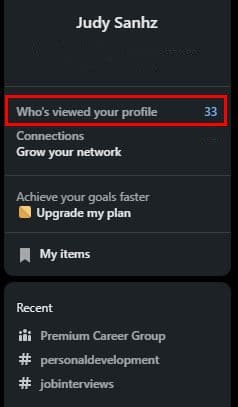
Who's viewed your profile LinkedIn

Click on that, and on the next page, you’ll see the listing of everyone who has seen your LinkedIn profile. At the top, you’ll see a chart showing your profile views. You’ll also see filters you can use if you want to know how many views you got from a specific company. The existing filters will be a company, industry, and location filter. Choose an option and click on the show results option.
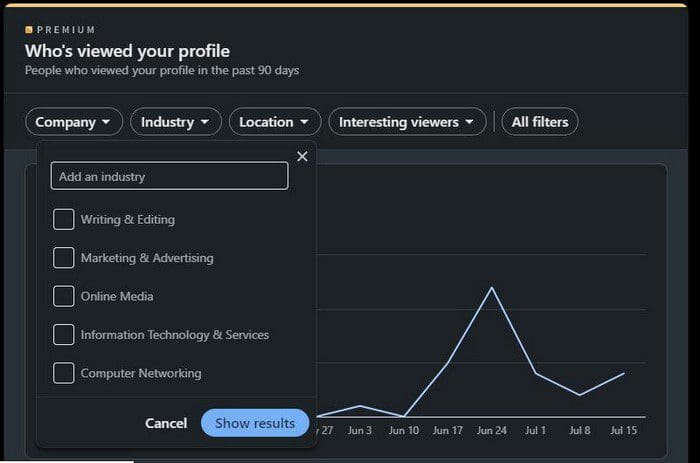
Profile filter LinkedIn

If you want to see or add more filters, click on the All filters option. A side window will appear. Each section will have a button to add another option. You’ll also see a reset button at the bottom.
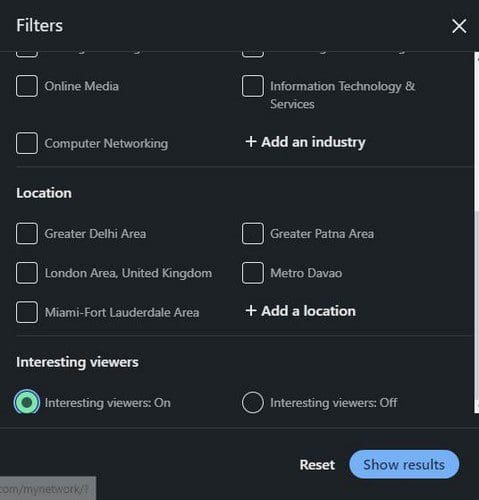
Add Profile filters LinkedIn

Conclusion

By switching to private mode on LinkedIn, no one will see that you saw their profile. They will get a notification letting them know that someone viewed it, but they won’t get a name. So you can say goodbye to looking at someone’s profile and having them look at your 5 minutes later. Do you think that this is a permanent change? Share your thoughts in the comments below, and don’t forget to share the article with others on social media.

Categories: Hardware

Author Judy Sanhz

I am a tech geek who loves technology. I have been writing about tech for over a decade, covering various devices and programs. I write about Android, Apple, and Windows devices and programs. I stay updated on the latest gadgets, upgrades, features, and news. I aim to make complicated tech information easy for everyone to read. I've been with TechniPages from the beginning to help others fix their tech issues with the easy-to-follow guides.

You Might Also Like

  • Oculus

    VR Oculus Quest 2: How to Troubleshoot Hand-Tracking Issues

    Mel HawthorneGaming
  • Oculus

    VR Oculus Quest 2: How to Change the Color of Your Guardian Boundary

    Mel HawthorneGaming
  • fix-chromebook-not-connecting-to-bluetooth-device

    Fix: Chromebook Won’t Connect to Bluetooth Devices

    Madalina DinitaHardware
  • Must-Have Google Lens Alternatives – Android

    Judy SanhzHardware

Leave a Reply

Your email address will not be published. Required fields are marked *

  • error 400 when signing in

    Encountered Error 400 When Signing In to Microsoft? Here’s What You Can Do 

  • unable to create notebook error in onenote

    We Were Unable to Create Your Notebook Error in OneNote – Common Fixes 

  • error code 0x800704f8 fix

    Error Code 0x800704f8 – How to Fix 

  • back button in browsers doesnt work

    What to Do if the Back Button in Browser Doesn’t Work 

  • could not find this item

    “Could Not Find This Item” When Trying to Remove Files

profile pic

The Experts Behind Technipages

My name is Mitch Bartlett. I've been working in technology for over 20 years in a wide range of tech jobs from Tech Support to Software Testing. I started this site as a technical guide for myself and it has grown into what I hope is a useful reference for all.

Learn More

technipages logo white
linkedin icon

Technipages is part of Guiding Tech Media, a leading digital media publisher focused on helping people figure out technology. Learn more about our mission and team here.

© 2026 Guiding Tech Media All Rights Reserved

  • About Us
  • Contact
  • Terms of Use
  • Privacy Policy

© 2026 Guiding Tech Media All Rights Reserved

Information from your device can be used to personalize your ad experience.
Do not sell my personal information.

Last Updated on July 15, 2022 by Judy Sanhz