Skip to content
LogoTechnipages
LogoTechnipages
  • Topics
        • Android
        • Browsers
        • Gaming
        • Hardware
        • Internet
        • iPhone
        • Linux
        • macOS
        • Office
        • Reviews
        • Software
        • Windows
        • Definitions
        • All Recent Posts
  • Product Reviews
  • About

How to Turn a Microsoft Word Picture Into SmartArt

Evan MercerApril 20, 2026 Comments (0)
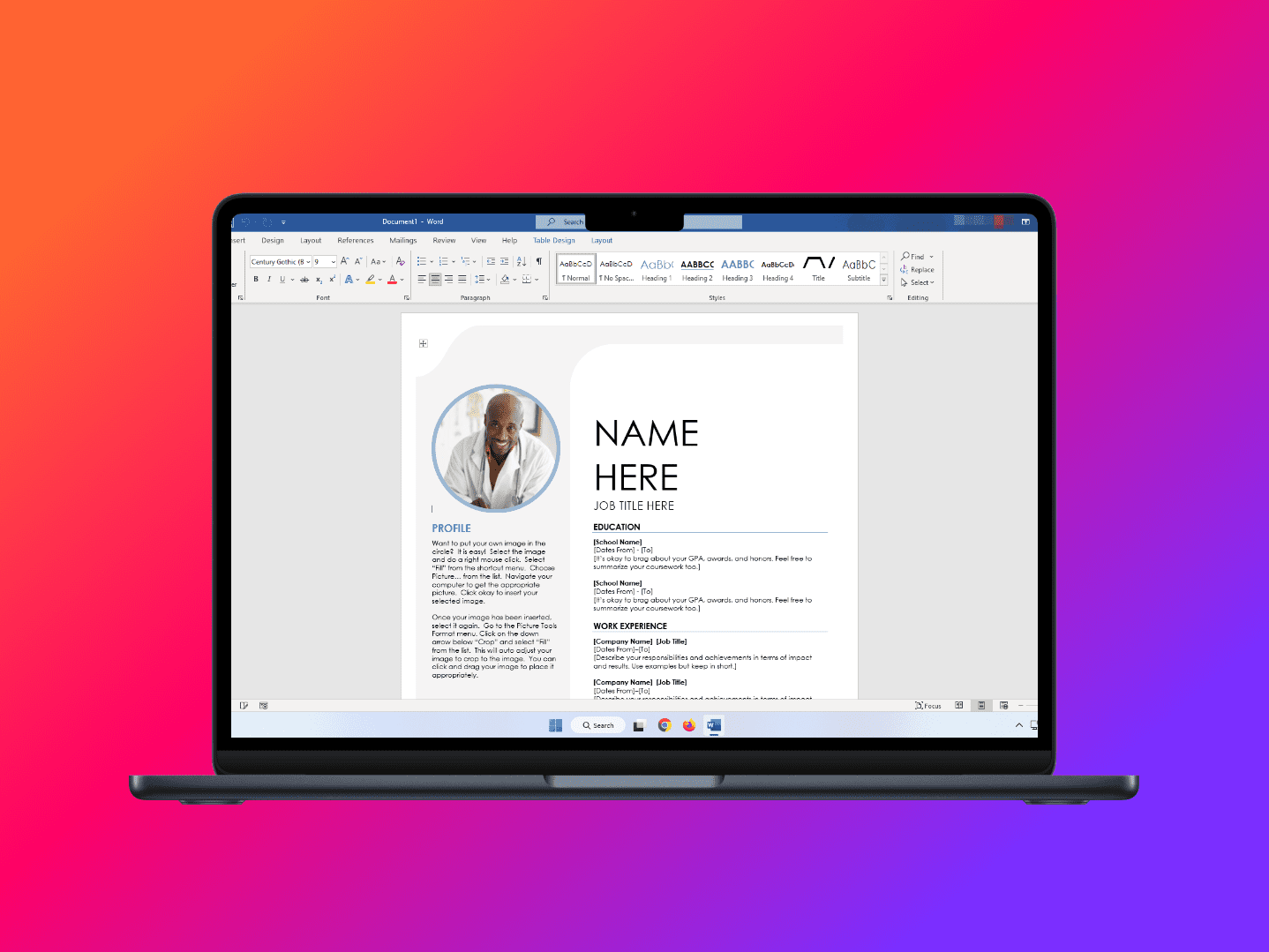
convert picture to smartart word

SmartArt is a handy way to represent data and thoughts into a coherent and appealing visual representation. What happens, though, when you already have an image? While full conversion of an image into SmartArt in Microsoft Word isn’t possible, it can definitely be remade as such or worked into art. So if you want to convert picture to SmartArt, Word lets you do that.

Contents

  • 1 What Pictures Work Best for SmartArt?
  • 2 Different Ways to Convert Picture to SmartArt – Word
    • 2.1 Incorporating a Picture Into SmartArt
    • 2.2 Do Things Manually
    • 2.3 Convert the Picture to Shapes

What Pictures Work Best for SmartArt?

Seeing as SmartArt deals more with data and ideas than actual pictures, it’s best to use images that conform to this format. While you can definitely work in photos and illustrations, graph images, charts, and simplified vectors are much better suited to the task. You’ll be able to do more with these using the Microsoft SmartArt process.

Different Ways to Convert Picture to SmartArt – Word

Let’s take a look at the different ways to remake and incorporate Word pictures into your SmartArt:

Incorporating a Picture Into SmartArt

If you want to work a pasted picture in Word into SmartArt, then you can incorporate it in the following way:

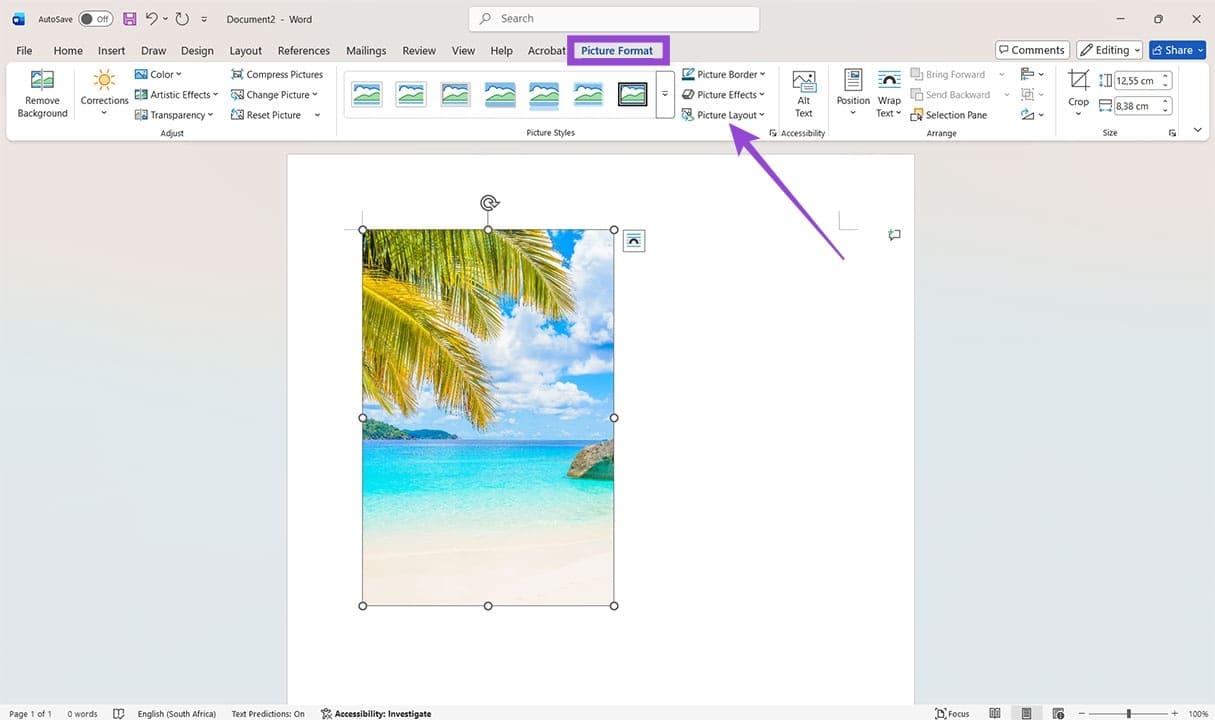
Step 1. Click the image to select it.

Step 2. In the “Picture Format” tab, click the “Picture Layout” button in the “Picture Styles” subsection.
How to Turn a Microsoft Word Picture Into SmartArt 1

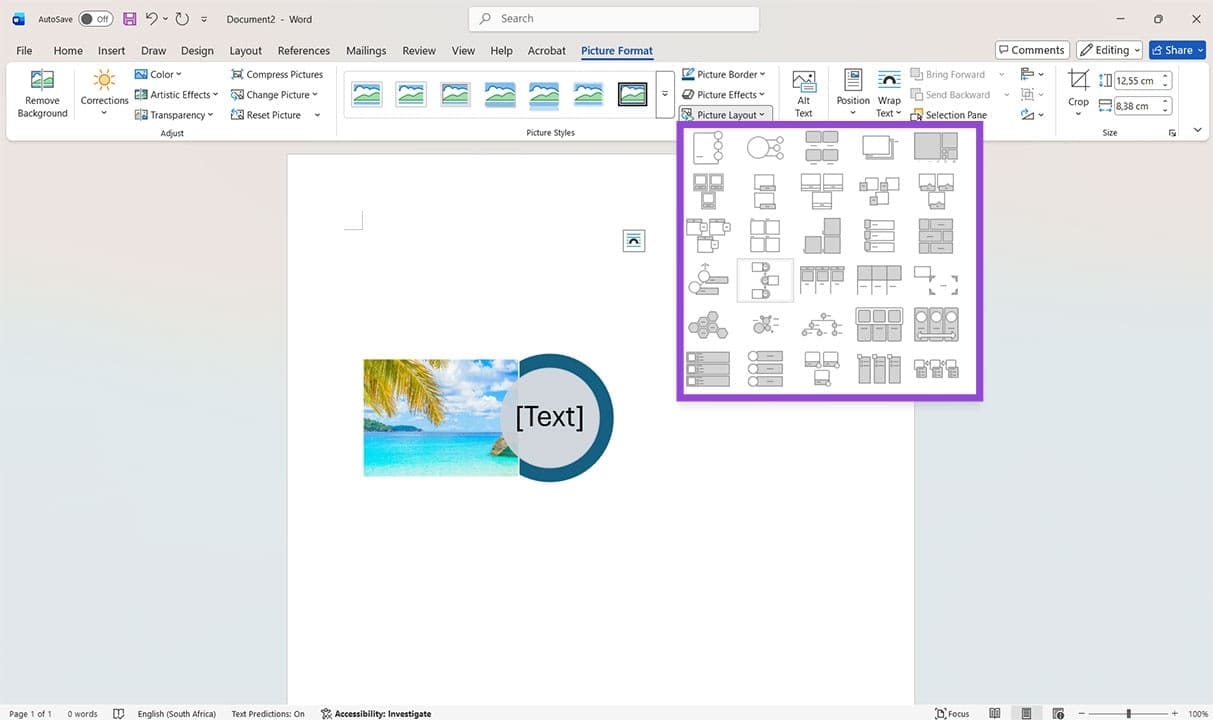
Step 3. Choose a layout from the SmartArt options provided. Hovering your mouse over an option will give you a preview. To finalize, click the option you want.
How to Turn a Microsoft Word Picture Into SmartArt 2

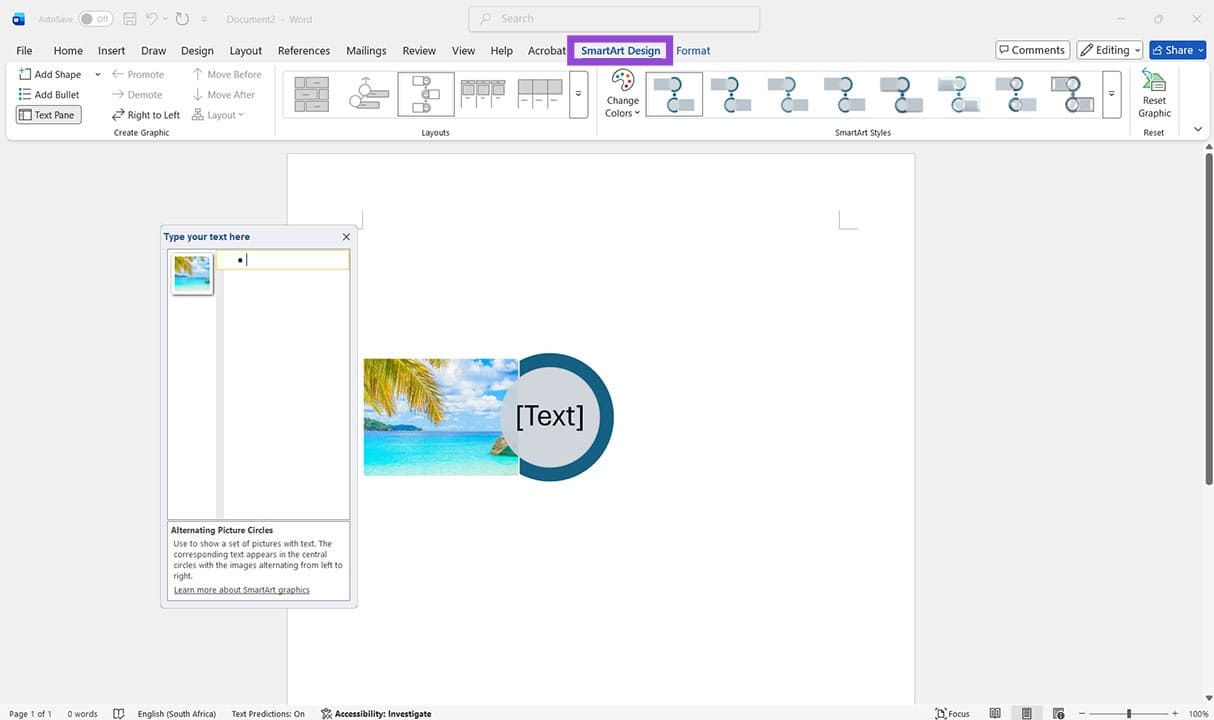
Step 4. Once done, you can change your layout again in “Layouts,” including changing the colors, fine-tuning styles, or adjusting the position in the “SmartArt Design” toolbar.
How to Turn a Microsoft Word Picture Into SmartArt 3

It’s important to note that the image won’t be read as SmartArt, just incorporated as one element of it.

Do Things Manually

If your existing image is a graph, chart, or simplified diagram, then your best bet for making it SmartArt is to make it from scratch. This isn’t ideal, but Microsoft Word does offer templates and tools to make things easier. Here’s what you need to do:

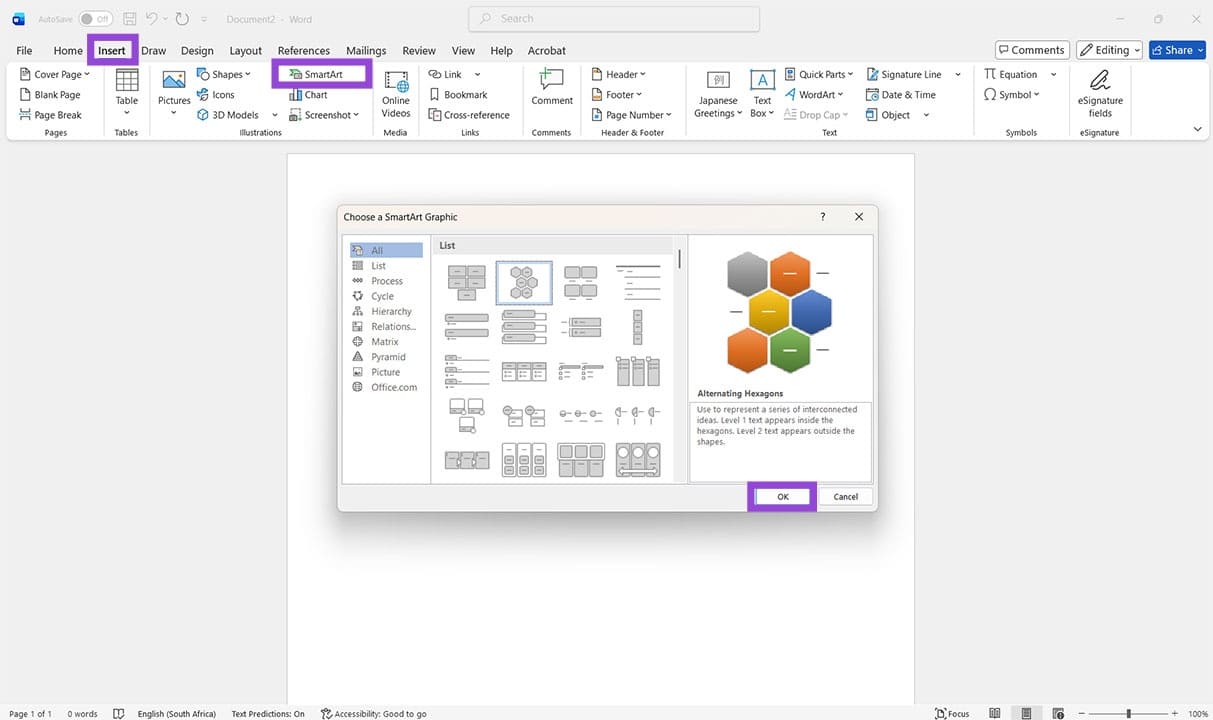
Step 1. Head to the “Insert” tab and click the “SmartArt” option.

Step 2. A window will pop up. Choose your template from the options and categories provided. Press “OK” to insert it.
How to Turn a Microsoft Word Picture Into SmartArt 4

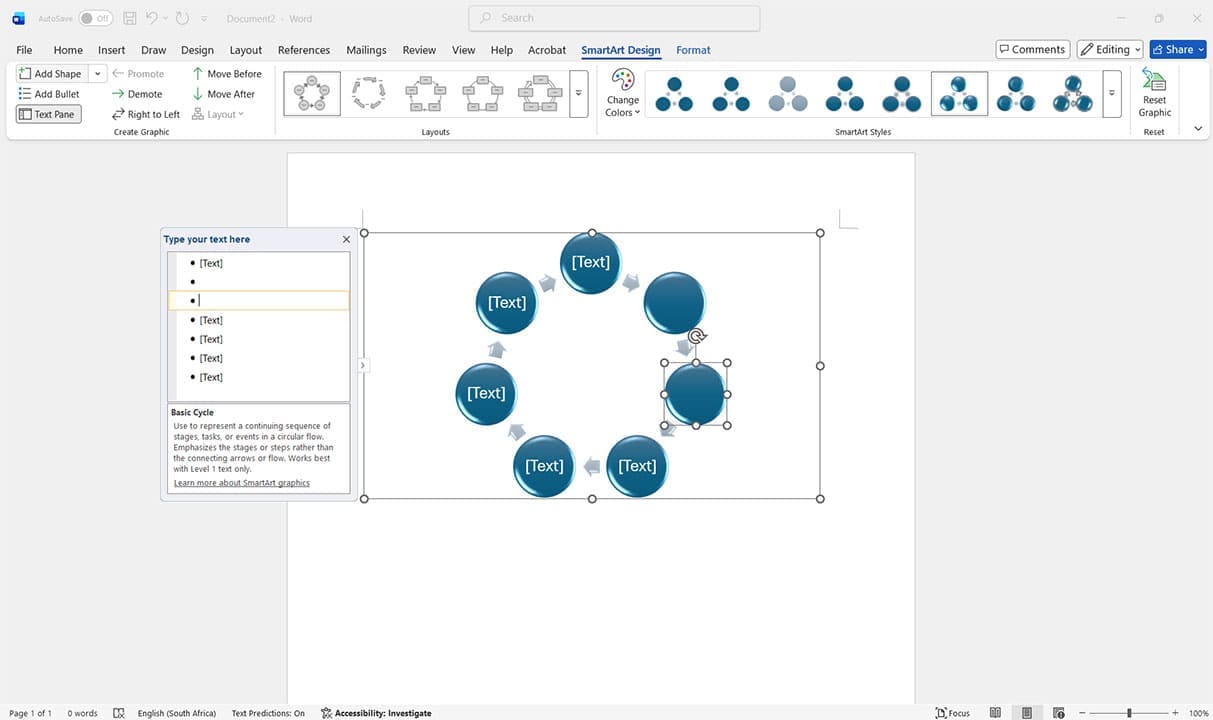
Step 3. With the SmartArt inserted, you can edit it in the “SmartArt” toolbar. Add more shapes (“Add Shape”), change the visual style, and edit the text via the pop-up window or directly in SmartArt.
How to Turn a Microsoft Word Picture Into SmartArt 5

Convert the Picture to Shapes

Our final option isn’t the Microsoft SmartArt process per se, but it works with Shapes, which can easily be edited and altered. If your image is vector-based, a “.svg” file, then you can convert it and edit shape aspects individually. Here’s how:

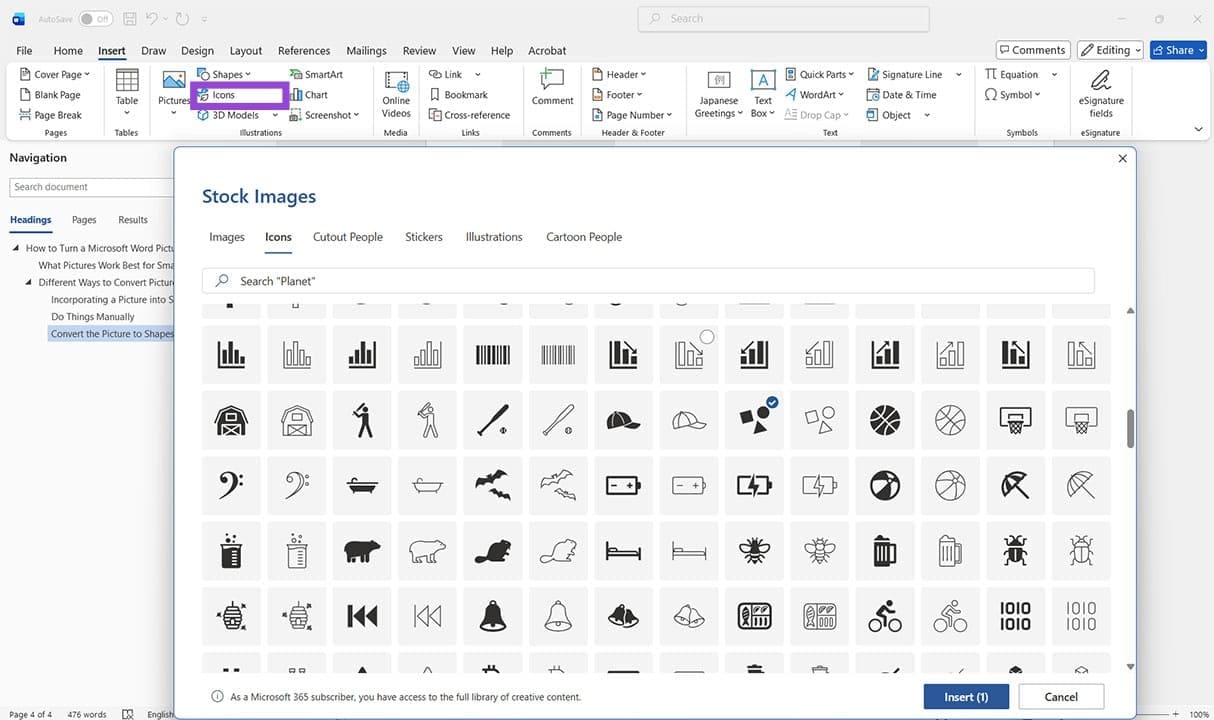
Step 1. Insert your “.svg” file into your Word document or insert a preset by choosing “Icons” in the “Illustrations” subsection.
How to Turn a Microsoft Word Picture Into SmartArt 6

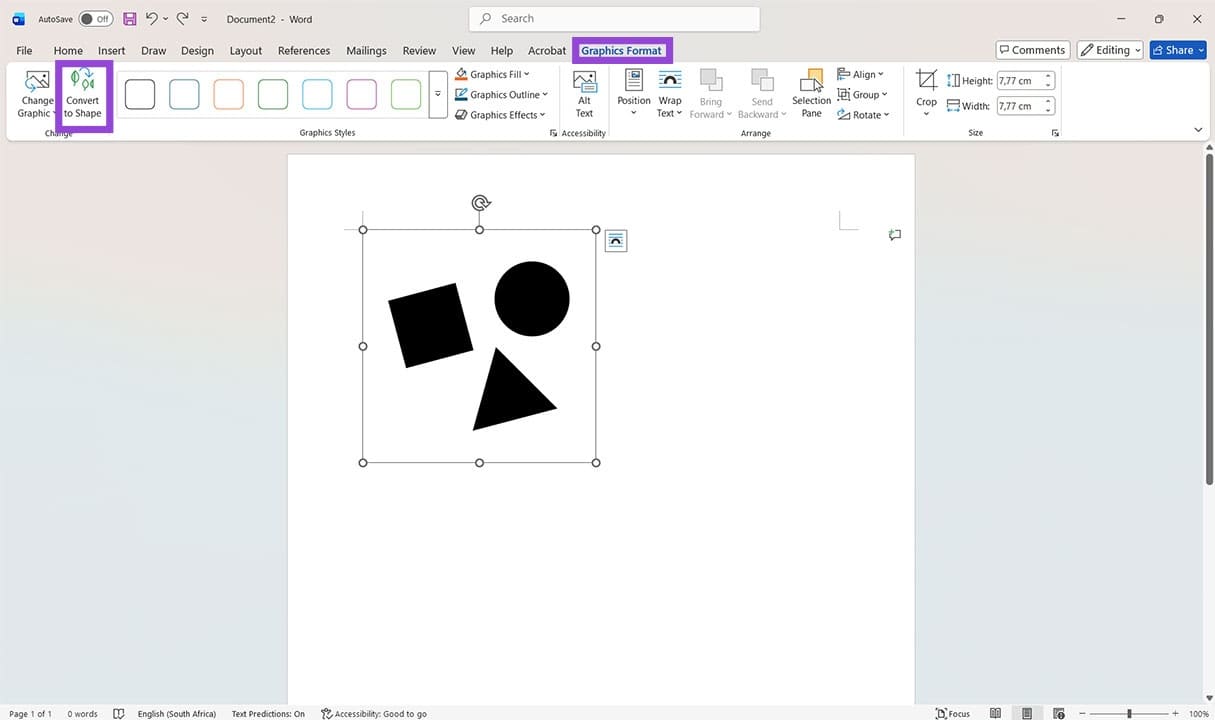
Step 2. With the vector inserted, click the image, and then, in the “Graphics Format” tab, click “Convert to Shape.” Your vector image will be converted. Keep in mind, it can’t be changed back once edited.
How to Turn a Microsoft Word Picture Into SmartArt 7

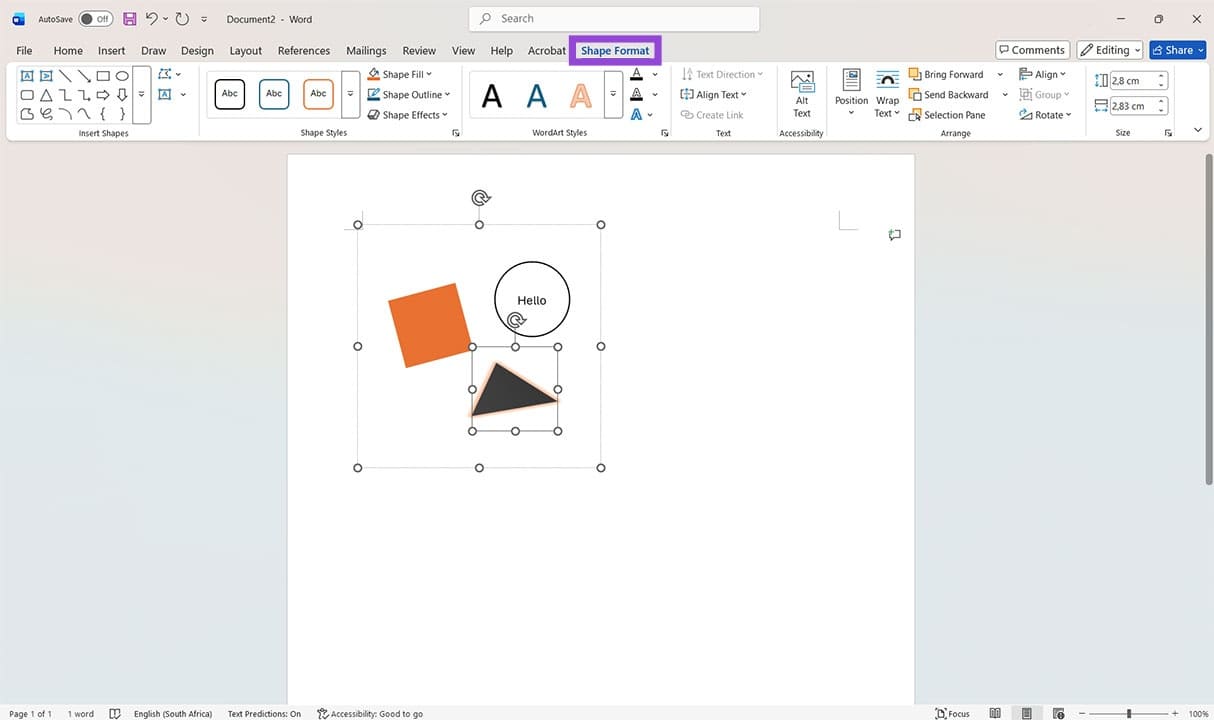
Step 3. You should now be able to click individual elements of the graphic to edit as you please. In the “Shape Format” tab, you can change colors, add effects, turn shapes into custom textboxes, and much more.
How to Turn a Microsoft Word Picture Into SmartArt 8
Categories: Office

Author Evan Mercer

I’m a computer science grad who loves to tinker with smartphones and tablets in my spare time. When I’m not writing about how to fix techy problems, I like hanging out with my dogs and sipping nice wine after a tough day.

You Might Also Like

  • Text Getting Overwritten in Word featured image

    Why is Text Getting Overwritten in Word?

    Mitch BartlettOffice
  • Outlook Logo Header

    How to Send Vote Email from Outlook

    Mitch BartlettOffice
  • Outlook 2019/365: Show BCC Field

    Mitch BartlettOffice
  • Office: Fix “The clipboard cannot be emptied. Another program may be using the clipboard.”

    Mitch BartlettOffice

Leave a Reply

Your email address will not be published. Required fields are marked *

  • link to a master sheet in excel

    How to Link to a Master Sheet in Excel

  • sound in xbox party chat on pc

    How to Change Sound Input and Output Devices in Xbox Party Chat on PC

  • bluetooth toggle missing windows 11

    What to Do When Your Bluetooth Toggle Is Missing (Windows 11)

  • microsoft paint features

    Unleash Your Inner Artist – Advanced Microsoft Paint Features You Might Not Know About

  • how to make chromebook run faster

    8 Ways to Make Your Chromebook Run Faster

profile pic

The Experts Behind Technipages

My name is Mitch Bartlett. I've been working in technology for over 20 years in a wide range of tech jobs from Tech Support to Software Testing. I started this site as a technical guide for myself and it has grown into what I hope is a useful reference for all.

Learn More

technipages logo white
linkedin icon

Technipages is part of Guiding Tech Media, a leading digital media publisher focused on helping people figure out technology. Learn more about our mission and team here.

© 2026 Guiding Tech Media All Rights Reserved

  • About Us
  • Contact
  • Terms of Use
  • Privacy Policy

© 2026 Guiding Tech Media All Rights Reserved

Information from your device can be used to personalize your ad experience.
Do not sell my personal information.

Last Updated on April 20, 2026 by Evan Mercer