
Usually, OneDrive should run silently in the background, uploading and downloading recently changed files. But now and then, its resource usage might spike to the point where it’s competing with other applications. Here are some troubleshooting steps for OneDrive high CPU usage Windows 11 users can try to remedy the issue.
Fix 1 – Perform a Restart to Fix OneDrive High CPU Usage
OneDrive usually runs in the background, but you can exit it by opening the taskbar icon, expanding the “Pause Syncing” option, then selecting “Quit OneDrive.”

Alternatively, you can use the Task Manager if the app doesn’t respond.
Step 1. Open Task Manager (you can right-click on the taskbar and click on “Task Manager”).
Step 2. Right-click on “Microsoft OneDrive” and select “End task.”
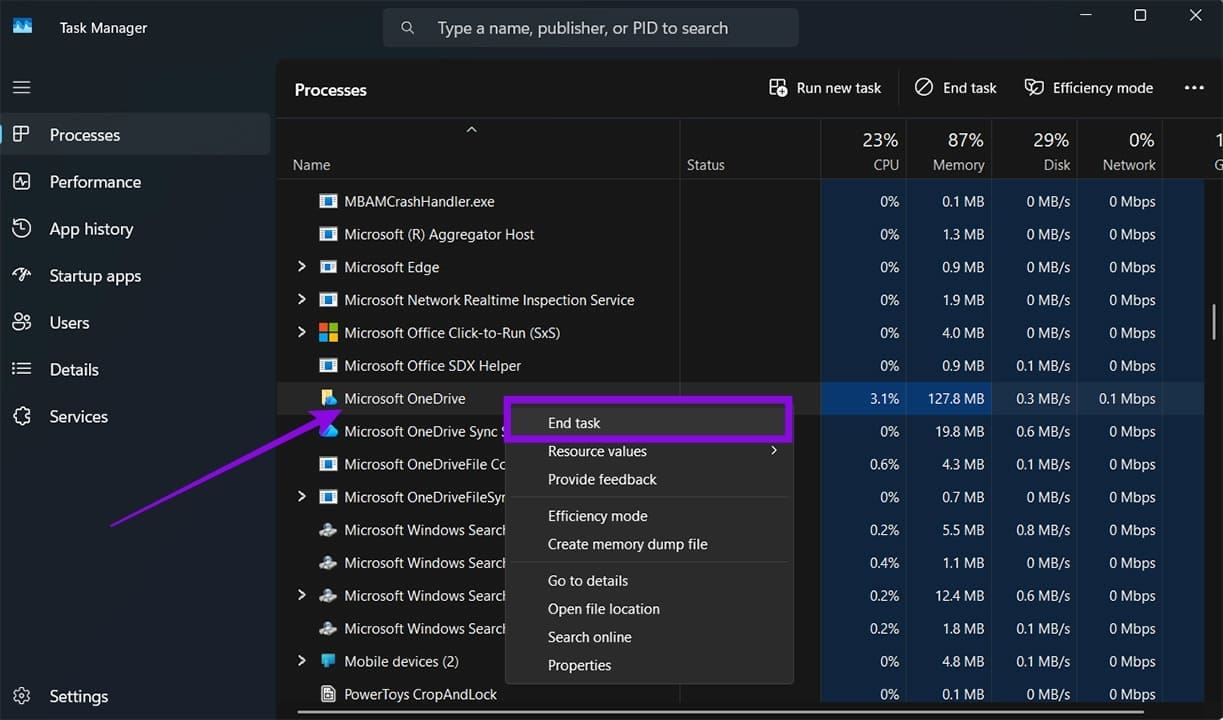
Step 3. Also, close “Microsoft OneDrive Sync Service.”
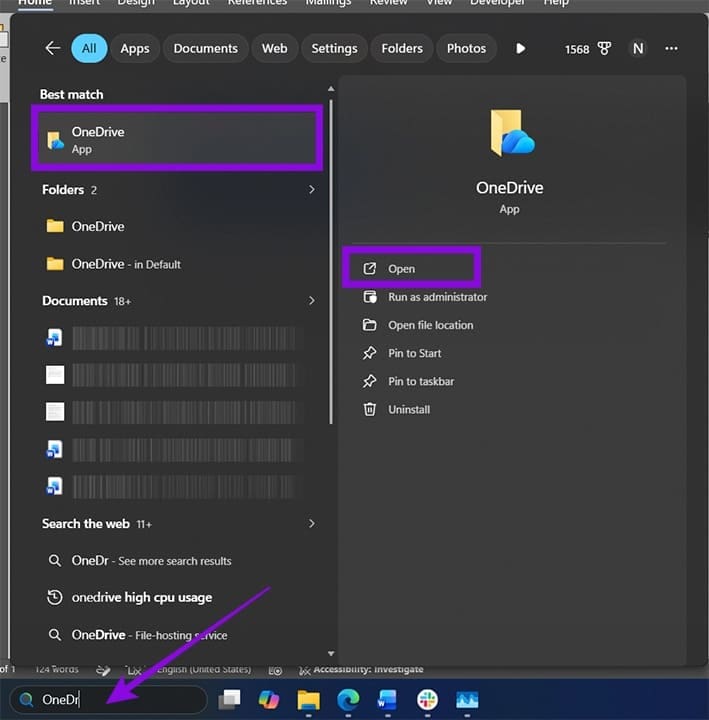
Step 4. Search for OneDrive and open the app manually.
Fix 2 – Reset OneDrive
Resetting OneDrive clears the app’s cache, preventing files from continuously downloading. It also forces it to recheck the file versions to prevent excessive uploads. A reset shouldn’t delete any files on your device or in cloud storage.
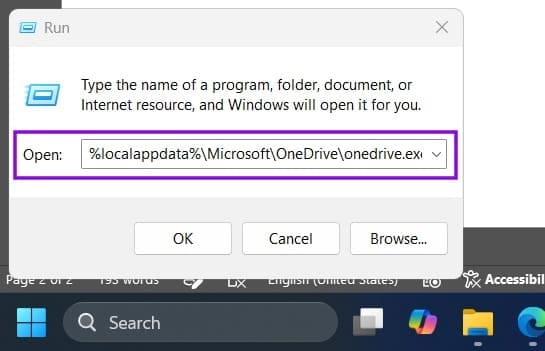
Step 1. Open the Run dialog with “Win + R.”
Step 2. Paste the following command in the textbox and hit “Enter”:
%localappdata%\Microsoft\OneDrive\onedrive.exe /reset
Step 3. The OneDrive icon should disappear from the taskbar, then reappear after the app resets.
Step 4. If OneDrive doesn’t open automatically, you can find it in Search. Once it does, expect it to use more CPU for a bit, but that should normalize quickly.
Fix 3 – Check Synced Files
If you have a lot of files, OneDrive might continuously recheck their status. This is particularly resource-intensive if the files are large or updated frequently. You can change which folders are checked.
Step 1. Open OneDrive via the taskbar icon.
Step 2. Click on the top-right icon and select “Settings.”
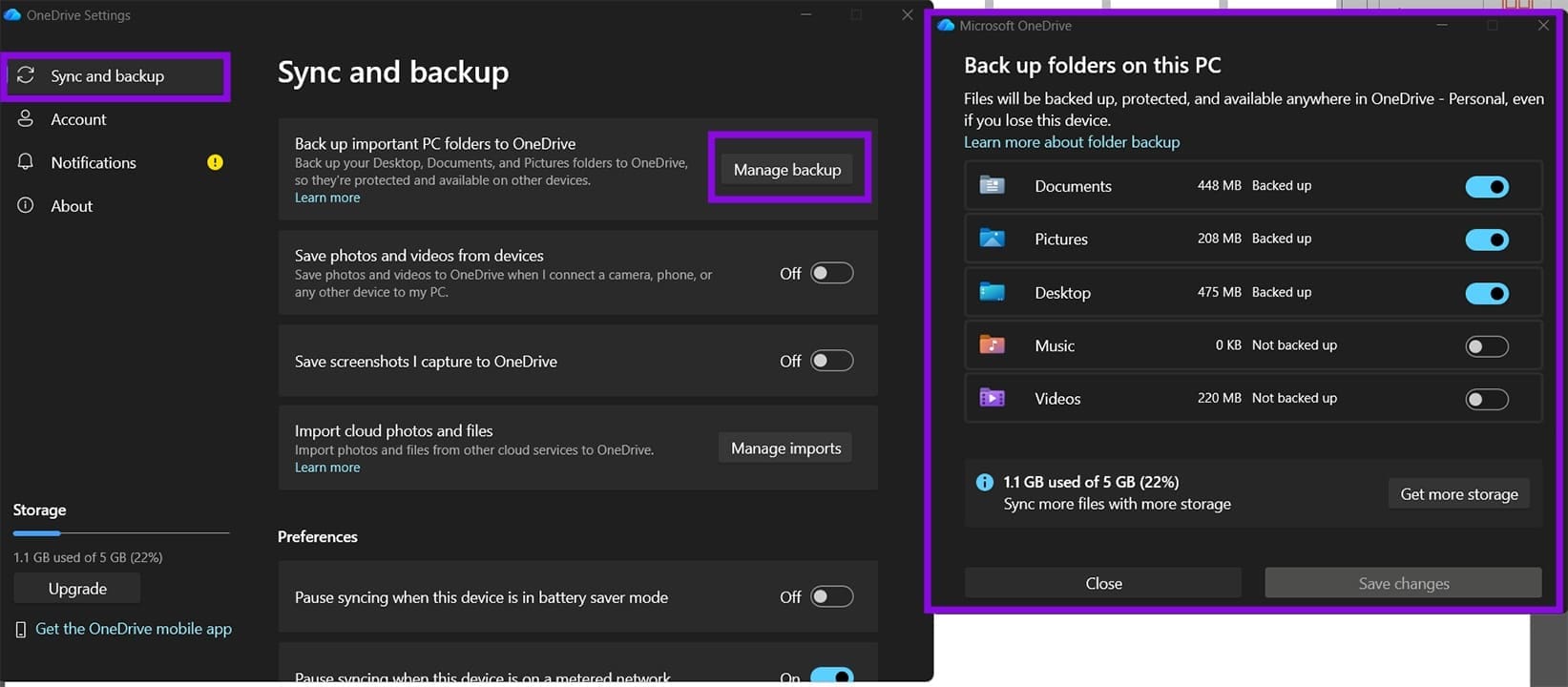
Step 3. In the “Sync and backup” tab, go to “Manage backup,” then change which folders are automatically synced.
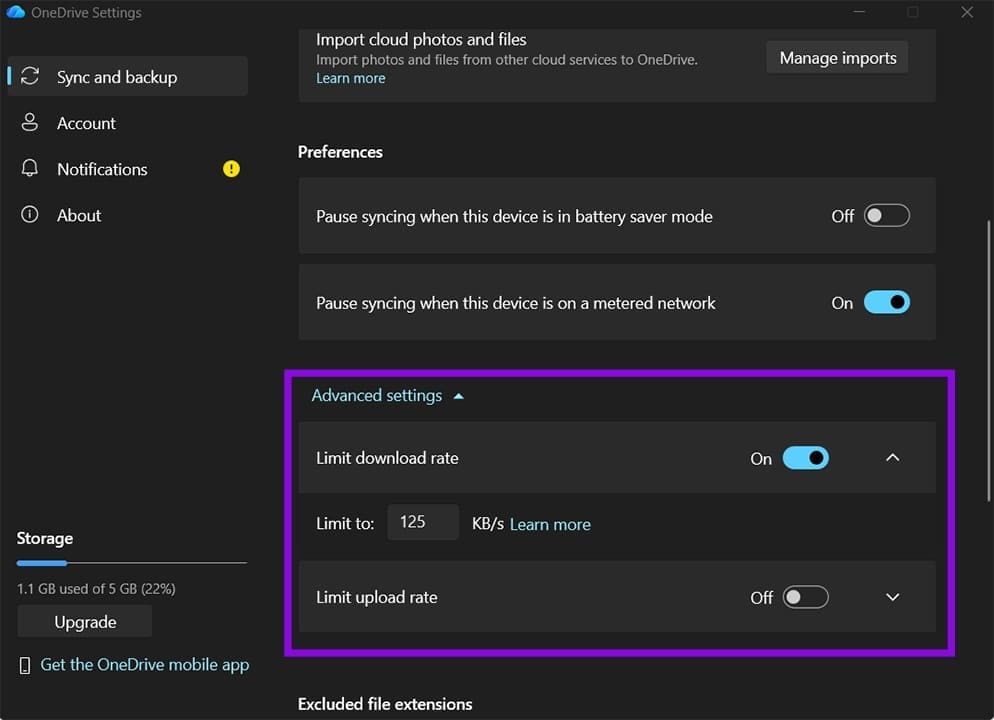
Step 4. Go to “Advanced settings,” then toggle and set the “Limit download rate” if you experience frequent CPU spikes that correspond with browser activity.
Fix 4 – Disable Telemetry
In some cases, disabling telemetry (optional data sent to Microsoft for collection and troubleshooting) can help with OneDrive high CPU usage.
If you’re running on Windows 11 Pro or Enterprise, the option to disable telemetry is located in the Group Policy Editor. Navigate to “Computer Configuration” > “Administrative Templates” > “Windows Components” > “Data Collection and Preview Builds.” Alternatively, you can use “Sync and Backup” > “Advanced Settings” > “Optional Diagnostic Data.”
For Windows 11 Home, you can try downloading a third-party app like the Ultimate Windows Tweaker, which allows you to search for the option manually. You can also try to enable the Group Policy Editor on Windows Home.
Fix 5 – Unlink Your Account
You can also try to unlink the PC from OneDrive to force it to stop syncing, then force it to update when you add it back.
Step 1. Open OneDrive and go to “Settings.”
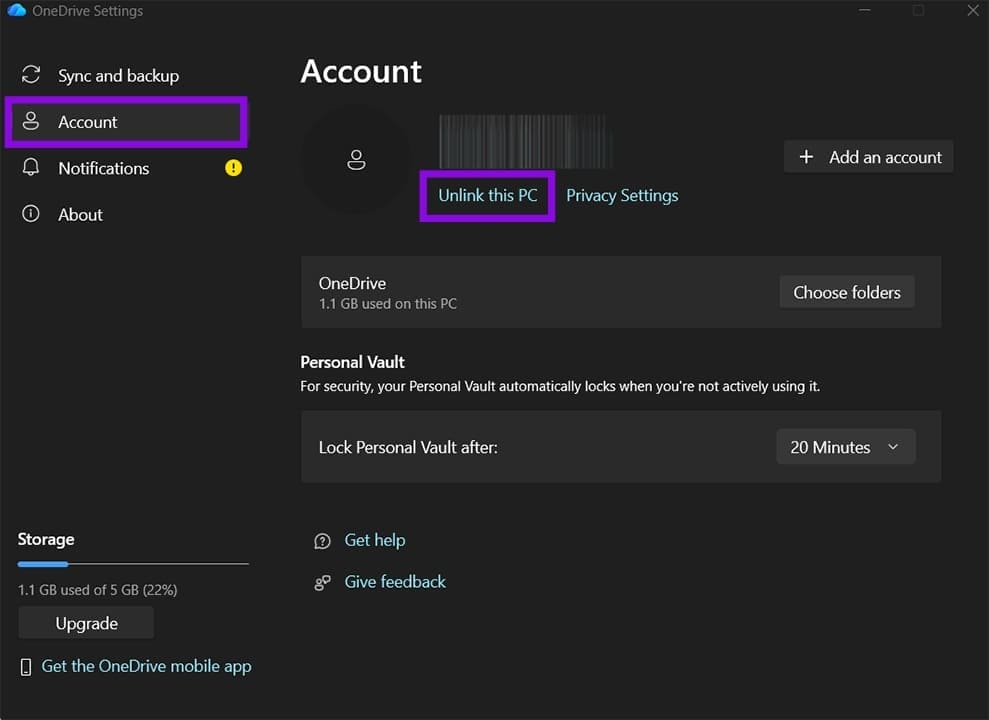
Step 2. Select “Account” and click on “Unlink this PC.”
Step 3. OneDrive should log out. Log back in and choose folders to start syncing.