When you have a lot to say on social media (in this case, Mastodon), your posts won’t be as visible as they once were. The newer ones will replace the older ones. But if one of those older posts is still important to you, you can prevent it from getting lost. If you’re new to Mastodon, you’ll be happy to know that the process is easy. You’ll also see the steps to unpin those posts for those times when you think the post is no longer necessary.
How to Pin a Post in Mastodon
You have a post that (for now) you want always to be able to see, so you want to in it on your profile. There are two types of posts you can choose from. There are private posts only your followers can see, and then there are public ones. If someone is not your follower, they can only see your private posts when they start following you. If you’re not too familiar with Mastodon, ensure that you follow the steps using the web version since you will not find the pinning option in the Android app.
You can’t pin a post you haven’t published. If you’ve already published it, click on your username. You’ll be taken to a new page where you’ll need to scroll down until you come across the post you want to pin. Click on the three dots to the right of the pin.

You’ll see a series of options when you click on the dots. Make sure to click on the Pin to Profile option from the list.
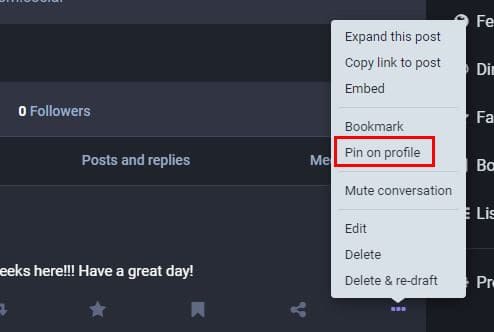
That’s all there is to it when it comes to pinning a specific post. You’ll need to repeat the process to pin any other posts. Don’t forget to refresh the page to see your newly pinned posts. For that time, when you’re ready to part ways with your posts, you can always unpin them so you can make room for newer posts.
How to UnPin Posts in Mastodon
Unpinning a post in Mastadon is just as easy as pinning it. Once you’ve decided on the post you want to unpin, click on the three dots you’ll see on the right. Click on the Unpin option, and that’s all there is to it.
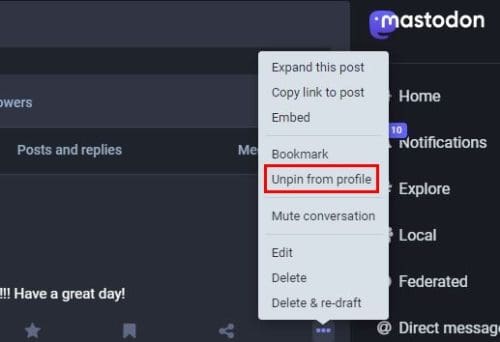
That’s all there is to it. You can always have the most important ones close by pinning your posts. If you ever feel that you don’t need the post anymore and want to remove it from your profile, you can do at any time. You can pin various posts to your profile.
Further Reading
Speaking of pinning things, we’ve got you covered if you ever need to see how you can pin This PC to the Taskbar on your Windows 11 computer. You can also see how you can pin or spotlight someone while in a Zoom meeting. Then there is the issue that Windows users come across when their computer shows them a message telling them that their PIN is no longer available. Happy reading!
Conclusion
There will always be a reason to pin a post on Metadon. The good news is that you can pin various posts, and when you no longer need them, you can always unpin them when you don’t need them anymore. Remember about those three dots to the right of the post since that is where you’ll find the options you’ll need to pin and pin the post. How many posts do you think you’re going to pin? Share your thoughts in the comments below, and don’t forget to share the article with others on social media.