
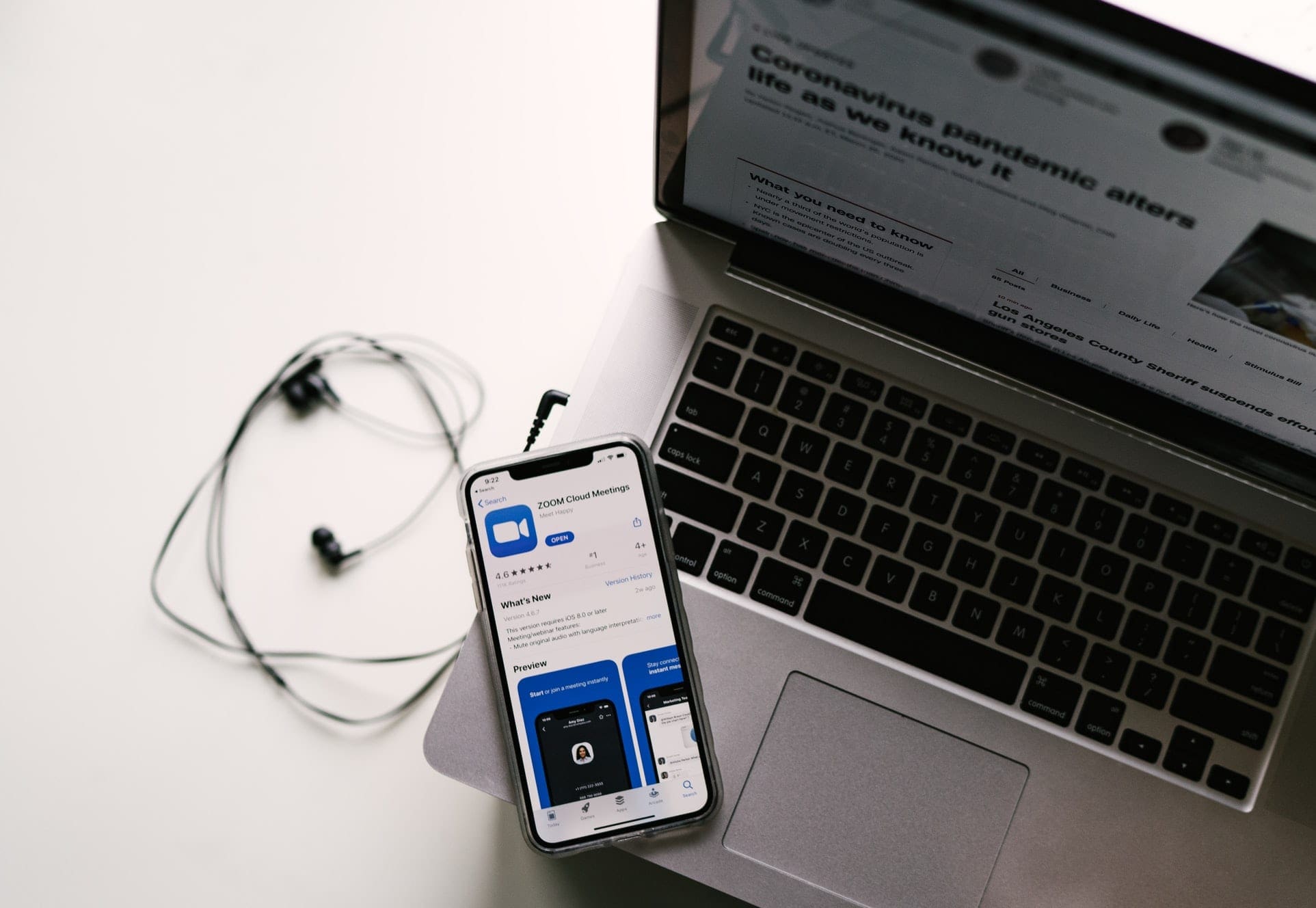
As the novel coronavirus, Covid-19, takes the world by storm, many business, platforms, and education systems are now turning to Zoom, a video conferencing platform to hold important meetings, classes, webinars, and other communication sessions. Adhering to the implementation of social distancing, Zoom video conferences allow congregations of co-workers, friends, and students without direct interactions and potential spread of the virus.
These meetings take place in various forms, from small group discussions to large webinars and during many of these meetings, there can be several mishaps which occur for a variety of reasons. Sometimes, there are internet connection issues where communication is limited by choppy speech and incomprehensible volume. Other times, people have loud noises in the background. There are also times when other people appear in the background and off guard as the camera catches uncomfortable scenes which one might prefer to be private.
Pausing Zoom Video for Interruptions
Prior to experiencing such mishaps, this article discusses some of the ways in which Zoom video can be paused to limit unfortunate occurrences. In order to explain the solutions properly, several examples of sample circumstances will be provided.
Unexpected Guests
If you are a student enrolled in a small seminar class with only 16 other participants, it might be fairly easy for a professor to have a full view of each of your faces and surrounding backgrounds during your facilitated discussion. As you discuss, however, an interesting sight appears out of the corner of your eye. Unaware of your call, earbuds in, walking towards the living room and passing through your camera’s vicinity comes your sister with messy hair and pajamas. Knowing that she would be utterly mortified to find herself on camera, and knowing your professor’s tendency to call out interesting backgrounds, you panic. To avoid the rather awkward situation, you must simply do one thing.
When you see her passing by, simply go towards the bottom left hand corner of your screen and click “stop video” for the brief moments during which she passes. Once she recognizes your video conference, hurries out of the frame, and is safely seated in the living room and away from the camera, reclick in the very same location, “start video,” and it is as if you had never left. Your professor is unlikely to comment on your seconds-long absence and if anything, you are better focused and more awake after your scare.
Natural Placeholder
While you cannot pause the live camera on your face, there are other more technical methods of doing so. For one, you can take a picture from your computer camera of yourself with a neutral facial expression. From there, you can click on the carrot-like arrow to the right of the “start/stop video” option and then select virtual background. Select the image which you have just taken and set the computer up against a neutral color background.
As long as nothing interferes and you are out of the frame, the virtual background can briefly stimulate your appearance in the video conference. To make this more realistic, it might be helpful to record a video from your computer with blinking. This would make a more realistic virtual background through the appearance of some motion. This is the best way in which you might pause the video on your face.
To pause a screen share, where you share your screen with other viewers, we can consider another example. Imagine that you are presenting to your fellow coworkers about a business proposition. You are on a MacBook and realize that in order to open the slides without several messages of profanity from your college reunion meet-up chat popping out, you have to mute the chat without anyone noticing. You are already screen sharing and it is too late to leave the screen share without some sense of explanation. To fix this situation, simply direct your mouse to the top of the screen until the slide-down bar appears. This bar does not appear for your audience in the screen share.
On this slide down bar, click on “pause share.” During this time, you can explain the basics of your proposition, introduce yourself, or stall with some opening questions. While this is happening, quickly open messages and mute the chats which have these unwanted notifications. When you are all done, switch back to the slides screen and return to the slide down bar. At this time, you can now comfortably click on “resume share.” gone are your worries about unprofessional texts appearing as notifications throughout the presentation. You can now focus on the task at hand and present your information with the professional backgrounds which you intend to use.
Using some of these tricks to pause video on Zoom are definitely helpful during some of the aforementioned at-home near disasters. Take these tips and use them effectively, whilst having a safe quarantine.





Ok seems a bit complicated, I’ve been using FreezingCam much better solution.