If you like to control everything you have on your Android device, you might like Google Files. This free app helps you keep your device in tip-top shape by erasing unnecessary files and showing you what’s taking up your device’s storage space.
The Google Files app lets you find images and videos you probably forgot you had. Maybe you’ve been meaning to erase them but keep forgetting. Keep reading to see what the Google Files app can do for your Android device.
How to Clean out the Junk on Any Android Device
When you first open the app, you’re going to see three tabs: Clean, Browser, and Share. Tap on the Clean tab, and you’ll see all sorts of cleaning suggestions from the app. For example, you might see a message letting you know there are junk files you can erase to free up storage space.
The app will also show different types of files it thinks you might want to erase. These junk files are under the section called Cleaning suggestions. You can browse through files such as:
- Memes
- Duplicates
- Old Screenshots
- WhatsApp Media
- Downloaded Files
- Large Files
- Move File to SD Card
Google Files app will also show you content from apps you have on your device that it thinks you might want to erase. Each section will have a Select files button.
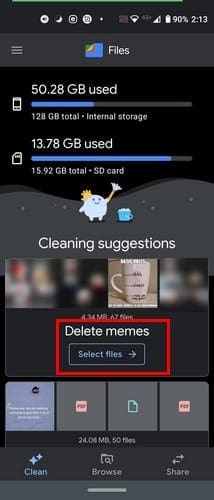
Once you tap on the Select Files button, tap on the files you want to erase. Each file will be marked by a checkmark. You can see the files in grid or list mode. To the far right, there’s also an option to sort the files by:

- Newest date first
- Oldest date first
- Largets first
- Smallest first
- Name A-Z
- Name Z-A
Once you’ve selected the files you want to erase, tap on the blue Delete button at the bottom. When you’ve erased a few files, swipe down to refresh the app. At the top, you’ll see how much storage your phone currently has available.

How to Take Advantage of the Browse Tab in Google Files
You’re going to see quite a few options in the Browse tab. For example, at the top, the app will show you the recent files you looked at. The next section down, Categories, will divide your files into different sections such as:

- Downloads
- Images
- Videos
- Audio
- Document and other
- Apps
When you choose one of these sections, they’ll have different options. Most of these categories will give you a large variety of options when you tap on the dots to the right of a specific file. In videos, for example, you need to select a video before seeing any additional options. You can choose from options such as:

- Select
- Copy to SD card
- Move to SD card
- Rename
- Share
- Open with
- Move to Safe Folder
- Back up to Google Drive
- File info
- Add to favorites
- Delete
The Google Files app also has useful options when it comes to managing your apps. In the App category, you’ll see a list of your installed apps. Tap on the dots to the right, and you can do things such as:

- Share
- Select
- App info
- Delete junk Files
- Uninstall – The app will be uninstalled without having to visit the Google Play Store.
Google Files will also keep all the files you mark as Favorite in a section called, yup, you guessed it, Favorites. At the bottom, you’ll also see how much storage space you have left on your device and SD card if you have one installed. To see what files you have, tap on either one. To take action with a specific file, tap on the dots to the right.

Safe Folder
The Safe Folder will help you keep sensitive information secure. The Safe Folder will have a 4-digital pin that you’ll choose to lock the files you move there. If you ever want to change the Secure Folder pin, you’ll need to go into the app’s settings.
Tap on the three-lined menu at the top left and tap on Settings. Swipe down until you get to the Browse section. In that part, the Safe Folder option will be the last one on the list.

Tap on the Change lock option. You’ll be asked to enter your current pin before being able to assign a new one.

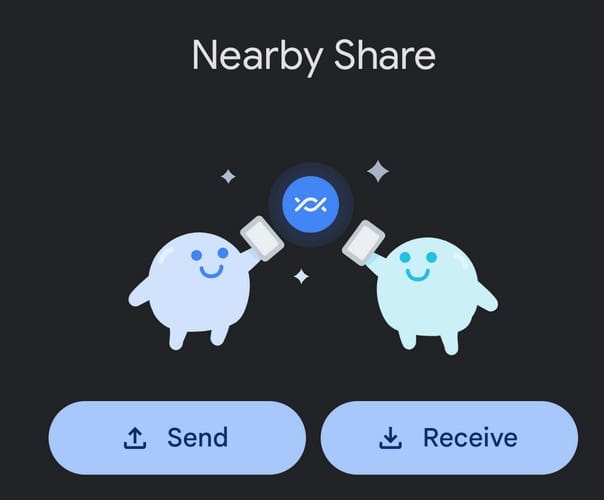
The Share option is beneficial. You can send files to someone without an Internet connection. Both of you need to have the app open. You need to tap on the send button while your friend needs to tap on the receive button. Your friend will need to add his or her name, and when they do, that’s the name you’ll see in the People Nearby list.
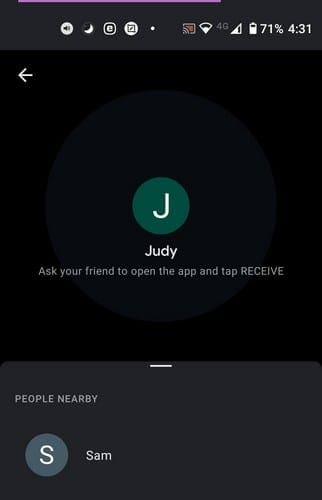
Once the connection is made, you’ll need to choose what files you’re going to send. Select them and tap on the send button at the bottom. That’s all there is to it.
Conclusion
With the Google Files app, you get a lot of great features for free. You can stay in control of what’s taking up your storage space and remove the unnecessary files. How useful do you find the app? Let me know in the comments below.