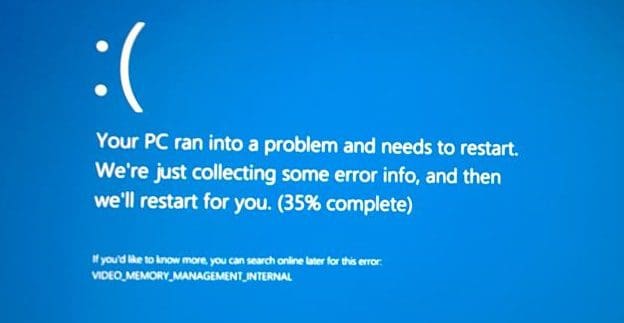
When you try to install the latest cumulative updates for Windows 11, error code 0x8024a206 may sometimes pop up on the screen. This error indicates your computer failed to download the updates. Restart your device, hit the Retry button, and check if the issue persists. If you still can’t update your machine, follow the troubleshooting steps below.
How Do I Fix Error 0x8024a206 on Windows 11?
Check Your Network Connection
Before we dive into any system-related troubleshooting steps, be sure to check your Internet connection. Make sure it’s working correctly. Here’s what you can do:
- If you’re using a wireless connection, switch to a cable connection.
- Free up more bandwidth by disconnecting all the other devices connected to the network.
- Unplug your router, wait for 30 seconds, and plug it back into the wall outlet.
- Temporarily disable your VPN and firewall.
- Switch to a different connection, and check if the error persists.
Run the Windows Update Troubleshooter
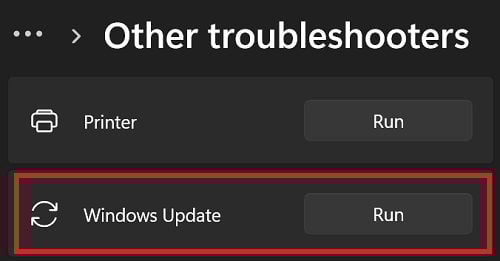
Windows 11 comes with a handy Update Troubleshooter that you can use to fix update-related issues automatically.
- Navigate to Settings.
- Select System.
- Scroll down to Troubleshoot.
- Click on Other troubleshooters.
- Locate and run the Windows Update troubleshooter.
Reset the Windows Update Components
Reset the Windows update components, including the Software Distribution folder.
- Launch Command Prompt or PowerShell with admin privileges.
- Enter the commands below one by one, and hit Enter after each command:
net stop bitsnet stop wuauservnet stop appidsvcnet stop cryptsvcDel "%ALLUSERSPROFILE%\Application Data\Microsoft\Network\Downloader\*.*"rmdir %systemroot%\SoftwareDistribution /S /Qrmdir %systemroot%\system32\catroot2 /S /Qregsvr32.exe /s atl.dllregsvr32.exe /s urlmon.dllregsvr32.exe /s mshtml.dllnetsh winsock resetnetsh winsock reset proxynet start bitsnet start wuauservnet start appidsvcnet start cryptsvc
- Restart your computer and try to install the problematic updates again.
Disable Third-Party Apps
Third-party apps, especially third-party antivirus programs, might sometimes prevent your computer from downloading the latest Windows 11 cumulative updates. The quickest way to check if this is the root cause of the problem is simply to disable third-party apps before checking for updates.
- Launch the Task Manager.
- Then, click on the Processes tab.
- Locate all third-party apps.
- Right-click on the app you want to force-stop.
- Select End task.

Alternatively, you can also clean boot your computer and check for updates. As a quick reminder, a clean boot means that you boot up your machine using only a minimum set of programs and drivers. As a result, the risk of third-party apps interfering with the Windows Update process is significantly reduced.
Sometimes, you may need to completely uninstall third-party antivirus and antispyware software from your computer to fix your Windows Update issues.
Free up Some Drive Space and Disconnect All Peripherals
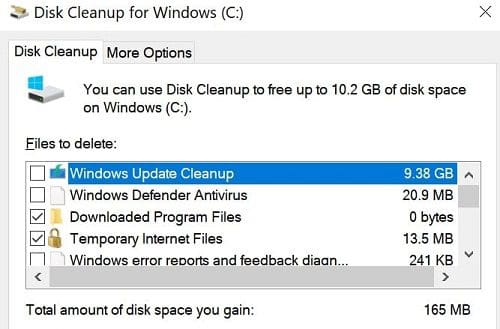
Speaking of things that could be interfering with Windows Update, be sure to disconnect all the external devices connected to your computer. Additionally, free up some space on your hard drive.
- Uninstall all the apps and files that you no longer need.
- Then, click on the Search icon and type Disk Cleanup.
- Click on Cleanup system files.
- Select your OS drive.
- Select the files you want to remove, including data from previous installations of Windows.

- Hit OK.
- Restart your machine, and try to install the problematic updates again.
Fix Hard Drive Issues
Repair corrupted system files and disk errors, and check if this solution does the trick for you.
- Launch Command Prompt as an administrator.
- Then, run the commands below one by one:
DISM.exe /Online /Cleanup-image /Restorehealthsfc /scannowchkdsk/f C:
- Restart your computer, and try again.
Conclusion
To fix Windows Update error 0x8024a206, check your Internet connection and restart your router. Then, run the Windows Update troubleshooter, and reset the Windows Update components. Additionally, disable third-party apps,
free up some space on your OS drive, and disconnect your peripherals. If the error persists, repair corrupted system files and disk errors using DISM, SFC, and the chkdsk/f command.
Did you manage to get rid of error code 0x8024a206? Which of the solutions above worked for you? Let us know in the comments below.