Skip to content
LogoTechnipages
LogoTechnipages
  • Topics
        • Android
        • Browsers
        • Gaming
        • Hardware
        • Internet
        • iPhone
        • Linux
        • macOS
        • Office
        • Reviews
        • Software
        • Windows
        • Definitions
        • All Recent Posts
  • Product Reviews
  • About

How to Fix OneDrive Error 0x8004de40 on Windows

Madalina DinitaJuly 23, 2021 Comments (3)
Onedrive-Error-0x8004de40-Windows

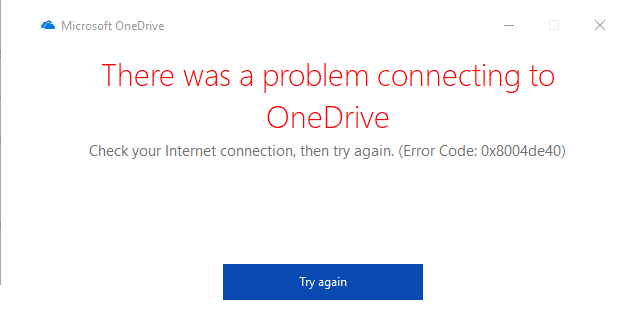
OneDrive error code 0x8004de40 indicates your sign-in was unsuccessful, probably because the app failed to connect to the cloud. As a quick workaround, you can restart the app and try to log in again. If the error persists, pursue the troubleshooting solutions below.

Contents

  • 1 How Do I Fix OneDrive Error 0x8004de40?
    • 1.1 Check Your Internet Connection
    • 1.2 Check Your TLS Protocol Settings
    • 1.3 Run Microsoft’s Easy Fix Tool
    • 1.4 Reset OneDrive
    • 1.5 Conclusion

How Do I Fix OneDrive Error 0x8004de40?

Check Your Internet Connection

First things first, make sure your connection is stable. An unstable or low-bandwidth connection could explain why OneDrive failed to connect to the cloud.

  • Unplug your router. Wait for two minutes to remove flea power. Then power up your network device and check the results.
  • If you’re on Wi-Fi, switch to a cable connection. If that’s not possible, go to your router settings, and switch to a different wireless channel.
  • Disconnect all the other devices using the connection.
  • Additionally, switch to s different connection, such as a mobile hotspot, and check the results.

Check Your TLS Protocol Settings

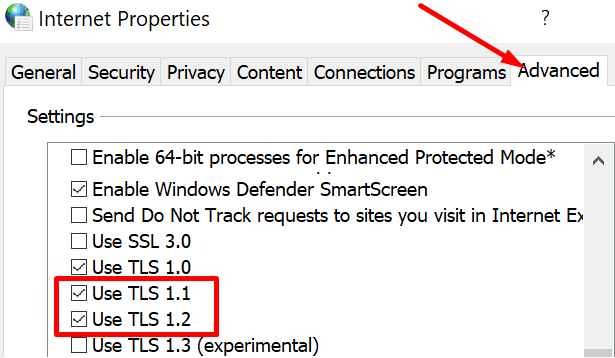
Ensure all of your TLS protocols are active, except TLS 1.3, an experimental protocol.

  1. Press the Windows and X keys and type inetcpl.cpl in the Windows Start search field.
  2. Double-click on the Control Panel item to open Internet Properties.
  3. Click on the Advanced tab.
  4. Locate and enable all three TLS protocols (TLS 1.0, TLS 1.1, and TLS 1.2).TLS internet properties
  5. Save the changes, restart OneDrive, and check if the issue persists.
Run Microsoft’s Easy Fix Tool

You can also use the Easy Fix tool to automatically enable the SecureProtocols in your Registry Editor and add them to your Internet Settings. First, you need to exit OneDrive. Then, you can download Easy Fix from Microsoft. When the File Download box appears on the screen, click Run and follow the on-screen steps. Restart your computer and relaunch OneDrive.

Reset OneDrive

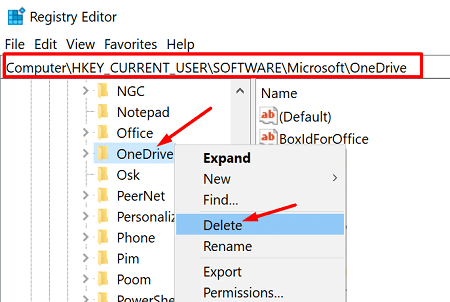
  1. Type regedit in the Windows Start Search field and double-click on the Registry Editor.
  2. Navigate to HKEY_CURRENT_USER\Software\Microsoft.
  3. Expand the folder and right-click on the OneDrive folder. Select Delete.onedrive-folder-registry-editor
    • Note: This action removes your current OneDrive configuration. You don’t lose any data.
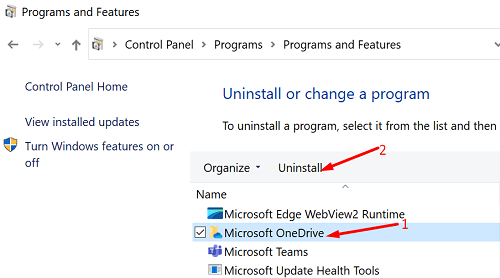
  4. Launch Control Panel, and select Uninstall a program.
  5. Select OneDrive, and hit the Uninstall button.uninstall-onedrive-control-panel
  6. Restart your computer.
  7. Go to OneDrive’s official page and download the latest app version.
Conclusion

To fix OneDrive error code 0x8004de40, check your Internet connection, or switch to a different connection. If the issue persists, install Microsoft’s Easy Fix tool, and reset OneDrive. Additionally, go to Internet Settings, and enable the TLS 1.0, TLS 1.1, and TLS 1.2 protocol settings. Which of these solutions worked for you? Let us know in the comments below.


Categories: Windows

Author Madalina Dinita

Madalina has been a Windows fan ever since she got her hands on her first Windows XP computer. She is interested in all things technology, especially emerging technologies -- AI and DNA computing in particular.

You Might Also Like

  • Remote Desktop Won’t Save Username and Password

    MonaWindows
  • Windows Settings Header

    Windows 11: Fix “This publisher has been blocked from running software…”

    Mitch BartlettWindows
  • TP Gear Header

    Fix: Unpinned Apps Keep Reappearing on Windows 11

    Madalina DinitaWindows
  • onedrive-error-code-0x8004da9a

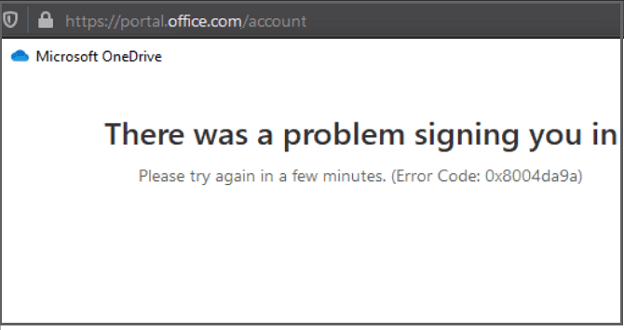
    How to Fix OneDrive Error Code 0x8004da9a

    Madalina DinitaWindows

Comments

  1. neel says:
    October 10, 2022 at 7:14 pm

    none of this method works,

  2. Miro says:
    October 4, 2021 at 2:40 pm

    non of those worked for me. I have win 7 SP1.
    I have tried all fixes that I found online…. no success.

  3. katumba says:
    July 25, 2021 at 10:55 am

    Let me try to download if it works I let u know.

Leave a Reply

Your email address will not be published. Required fields are marked *

  • service outage message on Xbox

    What to Do With a Service Outage Message on Xbox

  • signs your hdd is failing

    Signs That Your HDD Is Failing

  • how to fix error code 0x800705b4 in windows 11

    How to Fix Error Code 0x800705b4 in Windows 11

  • does chromebook need an antivirus

    Does Chromebook Need an Antivirus?

  • top vpns

    Top 5 VPNs to Keep Your Information Private in 2026

profile pic

The Experts Behind Technipages

My name is Mitch Bartlett. I've been working in technology for over 20 years in a wide range of tech jobs from Tech Support to Software Testing. I started this site as a technical guide for myself and it has grown into what I hope is a useful reference for all.

Learn More

technipages logo white
linkedin icon

Technipages is part of Guiding Tech Media, a leading digital media publisher focused on helping people figure out technology. Learn more about our mission and team here.

© 2026 Guiding Tech Media All Rights Reserved

  • About Us
  • Contact
  • Terms of Use
  • Privacy Policy

© 2026 Guiding Tech Media All Rights Reserved

Information from your device can be used to personalize your ad experience.
Do not sell my personal information.

Last Updated on July 23, 2021 by Judy Sanhz