Skip to content
LogoTechnipages
LogoTechnipages
  • Topics
        • Android
        • Browsers
        • Gaming
        • Hardware
        • Internet
        • iPhone
        • Linux
        • macOS
        • Office
        • Reviews
        • Software
        • Windows
        • Definitions
        • All Recent Posts
  • Product Reviews
  • About

How Do I Change My Default Browser in Windows 11?

Madalina DinitaOctober 19, 2021 Comments (0)
windows-11-change-default-browser

Microsoft really hopes Windows 11 will convince more people to use the Edge browser. The company introduced many new features, including sleeping tabs, to make the OS more responsive. But many users still prefer to use third-party browsers instead of Windows 11’s native browser.

If you want to change your default browser in Windows 11, you have some menu digging to do. Finding the option to edit your browser settings is not that obvious.

How to Change Your Default Browser in Windows 11

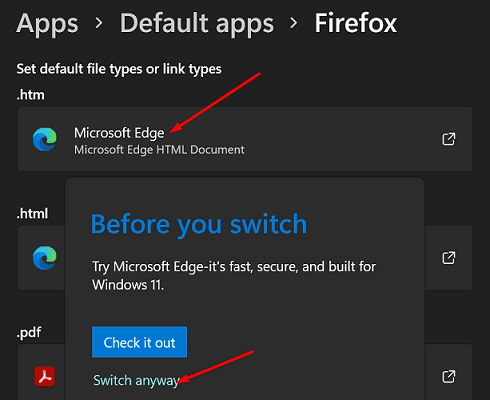
  1. Go to Settings, select Apps, and then go to Default Apps.
  2. Scroll down and select the browser you want to set as your default web browser.
  3. Then scroll down to the HTTPS section.
  4. Select this option to instruct the OS to open HTTPS files using your default browser.
  5. Hit the Switch Anyway button and confirm you want to use that specific browser to open HTTPS files.
change-default-browser-windows-11
When you select the default browser option, Windows also lists all the file types you can open with your default browser. You need to repeat the steps above for HTML, HTM, and other web files that you frequently use.
You read that right; you need to repeat these steps for all the files you want to open with your default browser.

As you can see, Microsoft has made it more difficult for Windows 11 users to change their default browsers. You need to go through a series of additional steps to get the job done. Unfortunately, these steps are pretty counter-intuitive and require a couple of minutes to complete.

Conclusion

To change your default browser on Windows 11, go to Default Apps and select your new browser. Then manually select the file types you want to open with the new browser. Save the settings and restart your computer.

What do you think about the Windows 11 UI? Do you think Microsoft is trying to discourage users from switching to a different browser? Comment down below.


Categories: Windows

Author Madalina Dinita

Madalina has been a Windows fan ever since she got her hands on her first Windows XP computer. She is interested in all things technology, especially emerging technologies -- AI and DNA computing in particular.

You Might Also Like

  • Windows 10: Block Apps From Using Microphone

    Mel HawthorneWindows
  • Microsoft-Protection-Definition-Update-Failed

    Fix: Protection Definition Update Failed

    Madalina DinitaWindows
  • Windows-11-Not-Displaying-Weather-Widget

    Windows 11: Different Options to Clear the Caches

    Judy SanhzWindows
  • Fix-Windows-11-Remember-My-Apps-Greyed-Out

    Windows 11: How to Remove the Taskbar Search Button

    Judy SanhzWindows

Leave a Reply

Your email address will not be published. Required fields are marked *

  • error 400 when signing in

    Encountered Error 400 When Signing In to Microsoft? Here’s What You Can Do 

  • unable to create notebook error in onenote

    We Were Unable to Create Your Notebook Error in OneNote – Common Fixes 

  • error code 0x800704f8 fix

    Error Code 0x800704f8 – How to Fix 

  • back button in browsers doesnt work

    What to Do if the Back Button in Browser Doesn’t Work 

  • could not find this item

    “Could Not Find This Item” When Trying to Remove Files

profile pic

The Experts Behind Technipages

My name is Mitch Bartlett. I've been working in technology for over 20 years in a wide range of tech jobs from Tech Support to Software Testing. I started this site as a technical guide for myself and it has grown into what I hope is a useful reference for all.

Learn More

technipages logo white
linkedin icon

Technipages is part of Guiding Tech Media, a leading digital media publisher focused on helping people figure out technology. Learn more about our mission and team here.

© 2026 Guiding Tech Media All Rights Reserved

  • About Us
  • Contact
  • Terms of Use
  • Privacy Policy

© 2026 Guiding Tech Media All Rights Reserved

Information from your device can be used to personalize your ad experience.
Do not sell my personal information.

Last Updated on October 19, 2021 by Judy Sanhz