
Skip to content
LogoTechnipages
LogoTechnipages
  • Topics
        • Android
        • Browsers
        • Gaming
        • Hardware
        • Internet
        • iPhone
        • Linux
        • macOS
        • Office
        • Reviews
        • Software
        • Windows
        • Definitions
        • All Recent Posts
  • Product Reviews
  • About

How to Download New Themes for Microsoft Edge

Judy SanhzApril 7, 2021 Comments (0)
Microsoft Edge Browser

When you add a specific theme to Microsoft Edge, you give it your own personal touch. If you’re not happy with the themes you currently have, you can always download more. Maybe you might even download themes that you may not use now but might sometime in the future.

You have the option of downloading themes from the app store for Edge, or you can install Chrome themes. So, if you’re not happy with one store, you can always visit the other one. Let’s see how you can install that theme.

Contents

  • 1 How to Install New Themes on Microsoft Edge
  • 2 Microsoft Edge Themes
    • 2.1 Conclusion

How to Install New Themes on Microsoft Edge

To get those new themes on your browser, click on the dots at the top right and go to Settings.
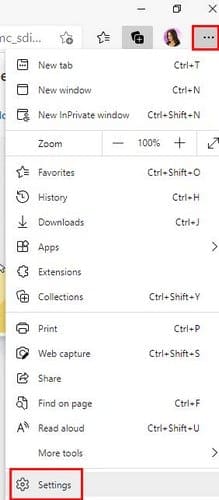
Once you’re in Settings, click on the three-lined menu option at the top left. When the new options appear, look for and click on Appearance.

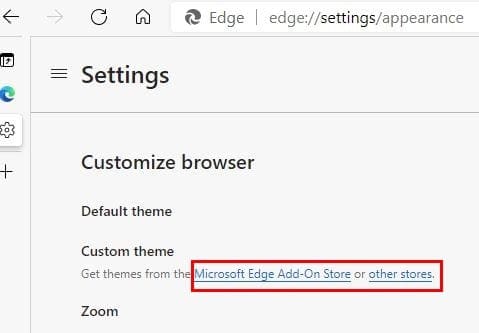
In appearance, you’ll find everything you need to give Microsoft Edge your own personal touch. If you click on where it says Microsoft Edge Add-On Store, you’ll be taken to the browser’s app store. But, if you click on the Other Stores option, you can install Chrome material. Click on this last option.
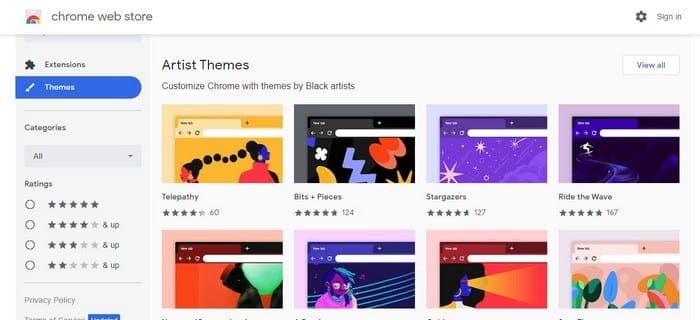
Here you can choose from all kinds of themes for the Edge browser. There’s an option for you to search for themes by artist or by Google at the top left. You can also search by top-rated themes if you want to add a popular theme to the browser. You’ll see a total of eight themes at a time. If you don’t see any you like, make sure to click on the See All button for more options.
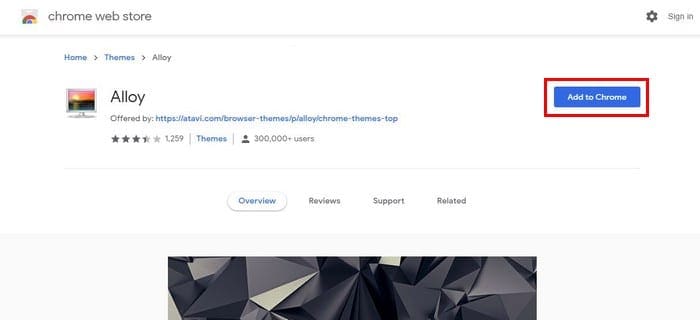
Once you’ve found the theme you’re looking for, click on it. If you don’t see an Add to Chrome button to the right, that means that you have to give Edge permission to add themes from the Chrome Store. At the top of your display, you’ll see the option to give Edge permission. Once you’re done with that, go to the theme you want to add, and the Add button should be there.
Microsoft Edge Themes

You just might like the Microsoft Themes better than the Chrome ones. It all depends on your likes and dislikes, but you can find themes such as Halo and more in the Edge Store.
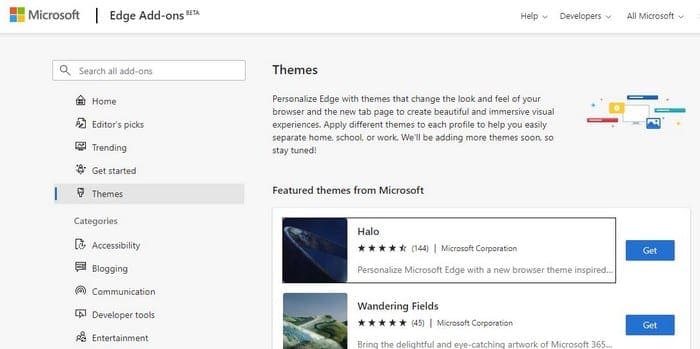
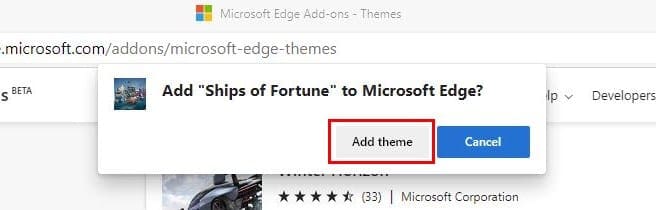
Microsoft will show you the feature themes first. There are quite a few to choose from. If you don’t see any you, you can always use the search option to the left and type the word that best describes the themes you’re looking for. When you find one, click on the Get button and confirm your download.
Conclusion

Giving the Edge browser your own personal touch is a must for some. Whenever you get bored of the current theme, you know various other themes are waiting to be installed. What kind of themes will you be starting with? Let me know what theme you install in the comments below, and don’t forget to share this post with others.


Categories: Internet

Author Judy Sanhz

I am a tech geek who loves technology. I have been writing about tech for over a decade, covering various devices and programs. I write about Android, Apple, and Windows devices and programs. I stay updated on the latest gadgets, upgrades, features, and news. I aim to make complicated tech information easy for everyone to read. I've been with TechniPages from the beginning to help others fix their tech issues with the easy-to-follow guides.

You Might Also Like

  • Slack: How To Configure the Default “One-Click Reactions” in Your Workspace

    Mel HawthorneInternet
  • Google Duo: How To Review Your Blocked Users

    Mel HawthorneInternet
  • fix dropbox not showing download option

    Fix: Dropbox Not Showing Download Option

    Madalina DinitaInternet
  • facebook how to hide who you follow

    How to Hide Who You’re Following on Facebook

    Madalina DinitaInternet

Leave a Reply

Your email address will not be published. Required fields are marked *

  • fix error 0x9cfc7550

    How to Fix Error 0x9cfc7550 (We Couldn’t Create a New Partition) in Windows 

  • fix error code 0x3000008 1

    How to Fix Error Code 0x3000008 for Remote Desktop Connection

  • fix error code 0x80190001 1

    How to Quickly Fix Error 0x80190001 for Microsoft or Outlook Account Login 

  • fix filecoauth.exe application error

    Fix FileCoAuth.exe Application Error 

  • fix error code 0x80010002 in windows update

    How to Fix 0x80010002 Error in Windows Update 

profile pic

The Experts Behind Technipages

My name is Mitch Bartlett. I've been working in technology for over 20 years in a wide range of tech jobs from Tech Support to Software Testing. I started this site as a technical guide for myself and it has grown into what I hope is a useful reference for all.

Learn More

technipages logo white
linkedin icon

Technipages is part of Guiding Tech Media, a leading digital media publisher focused on helping people figure out technology. Learn more about our mission and team here.

© 2025 Guiding Tech Media All Rights Reserved

  • About Us
  • Contact
  • Terms of Use
  • Privacy Policy

© 2025 Guiding Tech Media All Rights Reserved

Information from your device can be used to personalize your ad experience.
Do not sell my personal information.

Last Updated on April 7, 2021 by Judy Sanhz