Skip to content
LogoTechnipages
LogoTechnipages
  • Topics
        • Android
        • Browsers
        • Gaming
        • Hardware
        • Internet
        • iPhone
        • Linux
        • macOS
        • Office
        • Reviews
        • Software
        • Windows
        • Definitions
        • All Recent Posts
  • Product Reviews
  • About

How to Turn Hardware Acceleration Off or On in Google Chrome

Mitch BartlettJanuary 6, 2019 Comments (3)
Chrome header

Turn Hardware Acceleration Mode on or off for Google Chrome with these options.

Contents

  • 1 Option 1 – Chrome Settings
  • 2 Option 2 – Via Registry (Windows)
  • 3 Option 3 – Terminal Command (MacOS)

Option 1 – Chrome Settings

  1. Launch Chrome, then select “Menu”  > “Settings“.
  2. Scroll down to the bottom and select the “Advanced” option.
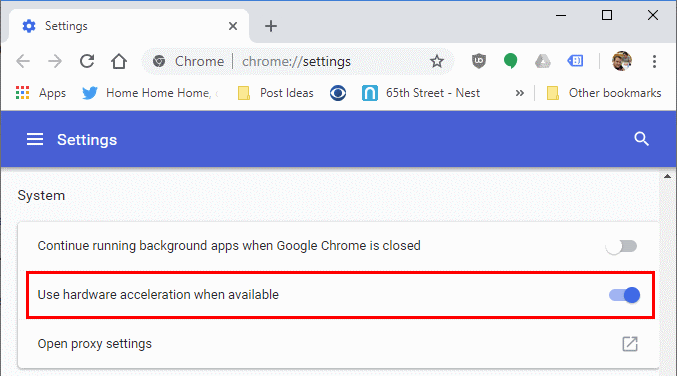
  3. Scroll to the “System” section and toggle “Use hardware acceleration when available” on or off as desired.
    Chrome Hardware Acceleration Setting

Option 2 – Via Registry (Windows)

  1. Hold down the Windows Key and press “R” to bring up the Run window.
  2. Type “regedit“, then press “Enter” to bring up the Registry Editor.
  3. Navigate to:
    HKEY_LOCAL_MACHINE \ SOFTWARE \ Policies \ Google \ Chrome \
    Note: You may have to create the “Google” and “Chrome” folders.
  4. Right-click “Chrome” and select “New” > “DWORD 32-bit value“
  5. Give the value a name of “HardwareAccelerationModeEnabled“.
  6. Set the value data to “0” to disable Hardware Acceleration. Set it to “1” to enable it.

You may have to restart the computer for this setting to take effect.


Option 3 – Terminal Command (MacOS)

  1. Close Chrome.
  2. From the Finder, select “Go” > “Utilities“.
  3. Launch “Terminal“.
  4. Type the following command, then press “Enter“:
    defaults write com.google.chrome HardwareAccelerationModeEnabled -integer n
    Where n is 1 or 0. 1 will enable Hardware Acceleration. 0 will disabled it.

Once you restart your computer after these steps, Hardware Acceleration settings will be changed.

Categories: Software

Author Mitch Bartlett

Through my career that spans over 20 years I have become an expert in Microsoft Systems Administration, Android, and macOS. I started this site as a technical guide for myself and it has grown into what I hope is a useful knowledgebase for everyone.

You Might Also Like

  • fix caa70007 microsoft teams

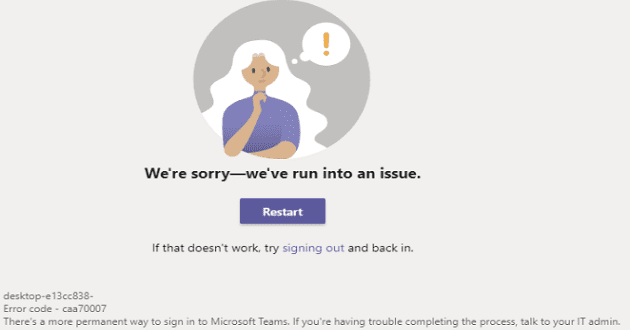
    Troubleshooting Microsoft Teams Error caa70007

    Madalina DinitaSoftware
  • MS Teams Header

    Microsoft Teams: How to Disable Animations

    Madalina DinitaSoftware
  • microsoft teams Enable Logging For Meeting Diagnostics

    Teams: Enable Logging for Meeting Diagnostics

    Madalina DinitaSoftware
  • stream microsoft teams to facebook live

    How to Stream Microsoft Teams to Facebook Live

    Madalina DinitaSoftware

Comments

  1. Cleiton da Silva says:
    March 23, 2022 at 11:34 pm

    Have you ever been told that you are a genius today? Thank you very much

  2. Charles Karefa-Smart says:
    July 10, 2020 at 7:32 am

    Yes, Gave it insight that has made all of it relevant.

  3. strongrad says:
    February 20, 2019 at 11:23 am

    I remote desktop quite a bit. To get Chrome to recognize Clear Type it appears that I have to toggle the hardware acceleration. it really does not matter whethter it is on or off. I just have to switch it each time I remote from a new computer. It would be great if there is a command line or other way to simply toggle the state.

Leave a Reply

Your email address will not be published. Required fields are marked *

  • system32 folder opens on startup

    System32 Folder Opens on Startup – How to Fix

  • browser keeps opening hp support

    Browser Keeps Opening HP Support Assistant Tabs 

  • camera not working in vmware

    Camera Not Working in VMware – How to Fix

  • browser screen goes black

    Browser Screen Goes Black Intermittently 

  • computer heating up in hyper v

    Computer Heating Up When Using Hyper-V – How to Fix 

profile pic

The Experts Behind Technipages

My name is Mitch Bartlett. I've been working in technology for over 20 years in a wide range of tech jobs from Tech Support to Software Testing. I started this site as a technical guide for myself and it has grown into what I hope is a useful reference for all.

Learn More

technipages logo white
linkedin icon

Technipages is part of Guiding Tech Media, a leading digital media publisher focused on helping people figure out technology. Learn more about our mission and team here.

© 2026 Guiding Tech Media All Rights Reserved

  • About Us
  • Contact
  • Terms of Use
  • Privacy Policy

© 2026 Guiding Tech Media All Rights Reserved

Information from your device can be used to personalize your ad experience.
Do not sell my personal information.