

Keeping track of your upcoming meetings allows you to better organize your time and prioritize your tasks. If you know you’ve got an important meeting coming up in just a couple of days’ time, you’ll do your best to prepare for it. But if Zoom fails to list upcoming meetings, you may even forget about it. Let’s explore how you can fix upcoming meetings not showing up on Zoom.
Fix: Can’t See Upcoming Meetings in Zoom
Sync Your Calendars
One of the most common reasons why Zoom won’t show upcoming meetings is that you forgot to enable calendar sync.
On PC
- Visit zoom.us and sign in to your Zoom account.
- Navigate to Profile.
- Go to the Calendar and Contact Integration section.
- Then select Connect to Calendar and Contacts Service.

- Select the service you want to use and change the permissions.
- Hit the Next button and then follow the on-screen instructions to complete the process and allow Zoom to access your calendar.
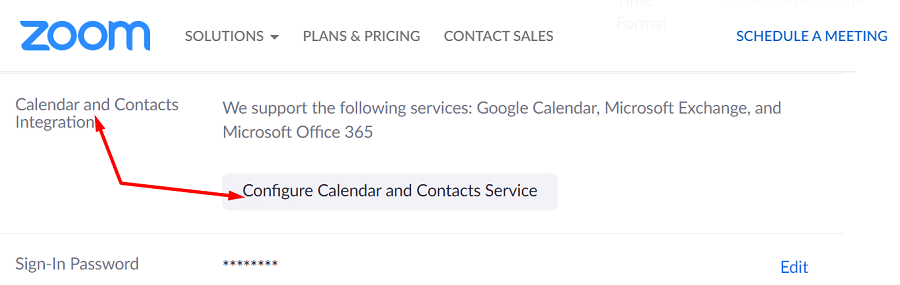
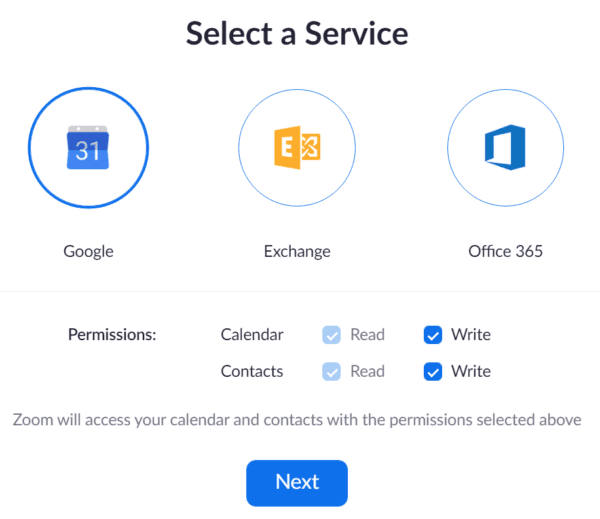
Keep in mind that Zoom supports the following calendar services: Google Calendar, Microsoft Exchange, and Microsoft Office 365. You may not be able to integrate other calendar platforms.
The calendar integration feature is enabled by default. However, if you can’t link your Google or Microsoft calendar to your Zoom account, contact your IT admin for further help. They may have blocked the feature. Ask them to enable calendar integration (read and write) for your account.
On Mobile
If you use the Zoom mobile app, follow the steps below to sync your calendar.
- Log in to your Zoom mobile app.
- Navigate to Settings, and select Meeting.
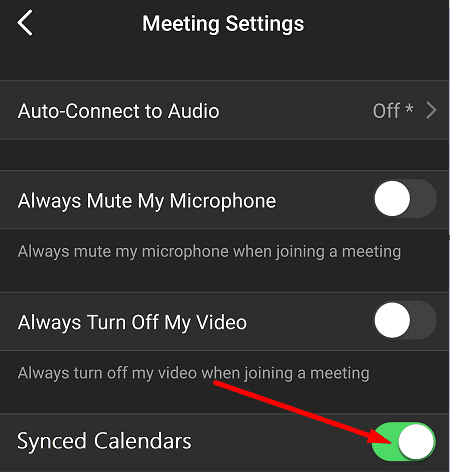
- Tap Synced Calendars.

- Enable Sync Zoom Meetings from Calendars.
- Select the calendars you want to sync with Zoom.
- Once your calendars synced, tap the Upcoming button to check upcoming meetings.
Update Zoom
Make sure you’re running the latest Zoom app version on your device. Certain features may not be available if you’re running outdated app versions. Click on your Zoom profile picture and select Check for updates.

Install the updates, log out of your account, restart your device, log back in and check if Zoom shows up your meetings now.
⇒ Quick tip: I personally use an old-fashioned method to keep track of important meetings. It’s called pen and paper. I have a small daily planner that I carry around with me everywhere I go. Unexpected glitches can affect even the best of systems whereas my good old paper planner is immune to tech glitches and bugs.
Conclusion
If Zoom won’t show upcoming meetings, check your account settings and make sure your calendars are properly synced with the service. Then update your Zoom app, log out of your account and sign back in. Did you find other solutions to troubleshoot this problem? Share your ideas in the comments below.


This did not work. I still cannot see upcoming meetings in zoom.
No the solutions given do NOT help.
Zoom DOES NOT show upcoming RECURRING meetings ON THE HOME TAB of Zoom.
It shows upcoming recurring meetings ONLY on the MEETINGS TAB. Please FIX THIS MAJOR PROBLEM.
I am running the latest version of Zoom desktop on Mac.
Thanks a lot, an immediate resolution to my problem! Keep up the good work!
No Does not work. I have no meetings showing, yet every Friday my meeting automatically starts. I don’t want my meetings in my calendar, I want it on my Zoom login.
Does not work.
Unimpressed
Why can´t I see my upcoming meetings in Zoom anymore? They´re correctly added to Google calendar but I want to see them in my Zoom account….. Anyone?
saying “go to settings” to fix something is a start, but more direction would be helpful.
My zoom is only showing recurring meetings not upcoming meetings. How can I fix this?
Why can’t I see meeting I scheduled using zoom app in zoom meeting website portal?
In the zoom desktop app when you are on the meeting tab, how come you have to scroll to find your meetings, why doesn’t zoom wipe out the meetings that have already occurred instead of having to scroll through a list of meetings and find the one you want. Anyone know how to resolve this its annoying?
I have the same problem as Alison on 19th January. Please can you help?
For me, my Zoom only shows my upcoming meetings where I am the host, i.e. scheduled by me. It no longer shows or reminds me of my upcoming zoom meetings that I have accepted from others. Help?
For me, my Zoom only shows my upcoming meetings where I am the host, i.e. scheduled by me. It no longer shows or reminds me of my upcoming zoom meetings that I have accepted from others. Help?
This is not a good solution for my situation.
I schedule the meetings on my personal computer.
But then Zoom is run from a shared computer at the meeting time.
As a result my email and calendar are not on the machine attempting to start a Zoom meeting.
Are the scheduled meetings nowhere stored on Zoom servers? That way the scheduled meetings can be matched to a Zoom login on any desktop or laptop whether Windows or Mac, personal or public?
helpful
Perfect Its work for me when I choose Microsoft Office