Skip to content
LogoTechnipages
LogoTechnipages
  • Topics
        • Android
        • Browsers
        • Gaming
        • Hardware
        • Internet
        • iPhone
        • Linux
        • macOS
        • Office
        • Reviews
        • Software
        • Windows
        • Definitions
        • All Recent Posts
  • Product Reviews
  • About

Fix Trello Board Not Updating

Madalina DinitaNovember 13, 2020 Comments (1)

When you create a new Trello board, update the existing ones, or delete one of your boards, you should be able to see the changes immediately.

Here’s what you can do if your Trello board is not updating.

Contents

  • 1 Troubleshooting Trello Board Update Issues
    • 1.1 Refresh the board
    • 1.2 Use the mobile app
    • 1.3 Log out of your account
    • 1.4 Clear the cache or use a different browser

Troubleshooting Trello Board Update Issues

Refresh the board

The first thing you should do is jump to a different board, and thus force a reload of the problematic board.

Then, refreshing your page is one of the simplest workarounds that you can use to solve this problem. Of course, use this method if you’re using Trello in your browser. Simply click on the browser refresh button and this will force Trello to update your boards with the latest changes.

Use the mobile app

This board update problem seems to occur more frequently on the browser version of the app. Launch the mobile app and check if the changes are visible there.

Log out of your account

Another quick workaround for this problem is to simply log out of your Trello account. Wait a few seconds and then you can log back in to check if the board has been updated.

If there’s some stale session data, simply logging out and then logging back in should fix the problem.

Clear the cache or use a different browser

Your Trello board may fail to update because your browser is keeping an older version of the respective board. If your browser can’t replace the older board version stored in the cache with the new version, try clearing the browser cache.

To do this, click on the browser menu, select History, and then locate and click on the Clear browsing data button.
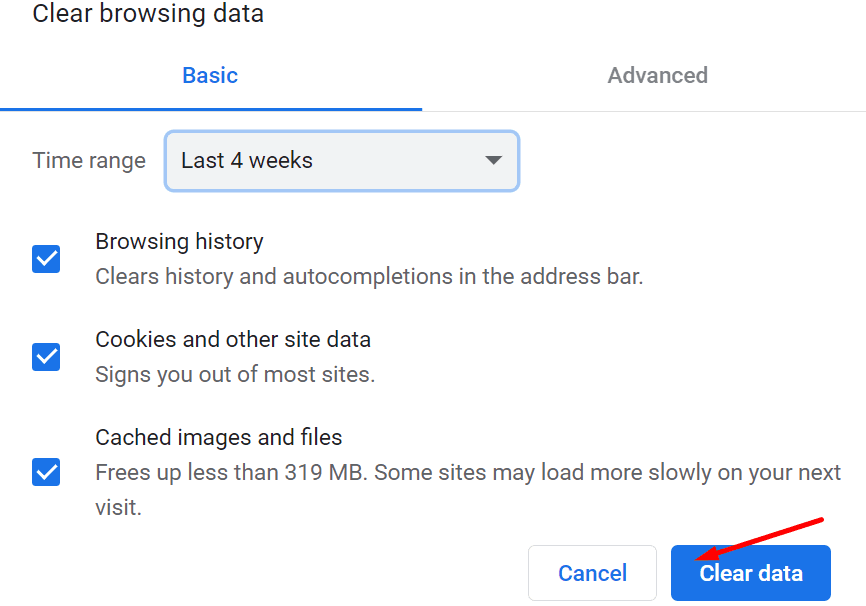
clear browsing data chrome

If your board still won’t update, try using a different browser and check if that works.

If nothing worked, contact Trello support and let them know about your problem.

Categories: Software

Author Madalina Dinita

Madalina has been a Windows fan ever since she got her hands on her first Windows XP computer. She is interested in all things technology, especially emerging technologies -- AI and DNA computing in particular.

You Might Also Like

  • How to Fix FaceTime Static

    MonaSoftware
  • Android 10: How to Update Your Device with ColorOS 7

    MonaSoftware
  • “Your Connection Is Not Private” in Google Chrome – Here’s How to Fix It

    Judy SanhzSoftware
  • fix discord camera not working

    Fix Discord Can’t Access Camera

    Madalina DinitaSoftware

Comments

  1. Villy says:
    August 7, 2022 at 6:13 am

    My mobile app does not update the order of the cards which have been reordered on desktop.

    I restart the app several times. I updated it with no success.

    Logging in and out is not much of an option as we use a Trello constantly :(

    Is there another thing I could try?

    I’d really appreciate it as I am totally addicted to Trello :) and need it up to date on all to my devices.

    Thanks in advance

Leave a Reply

Your email address will not be published. Required fields are marked *

  • stolen photo checker tools

    5 Best Tools to Track Down Stolen Photos

  • difference between bitlocker and device encryption

    What’s the Difference Between BitLocker and Device Encryption in Windows 11?

  • restrict explicit music apple music

    How to Restrict Explicit Content on Apple Music in Windows 11 

  • onedrive high cpu usage

    How to Fix OneDrive High CPU Usage

  • how to fix your device ran into a problem

    How to Fix “Your Device Ran Into a Problem and Couldn’t Be Repaired” Error

profile pic

The Experts Behind Technipages

My name is Mitch Bartlett. I've been working in technology for over 20 years in a wide range of tech jobs from Tech Support to Software Testing. I started this site as a technical guide for myself and it has grown into what I hope is a useful reference for all.

Learn More

technipages logo white
linkedin icon

Technipages is part of Guiding Tech Media, a leading digital media publisher focused on helping people figure out technology. Learn more about our mission and team here.

© 2026 Guiding Tech Media All Rights Reserved

  • About Us
  • Contact
  • Terms of Use
  • Privacy Policy

© 2026 Guiding Tech Media All Rights Reserved

Information from your device can be used to personalize your ad experience.
Do not sell my personal information.

Last Updated on November 13, 2020 by Mitch Bartlett