

“The request is not supported” is one of the most confusing error messages that can pop up on your Windows computer. First of all, it doesn’t say much about the root cause of the problem. Secondly, this error can affect various programs and processes. For example, the alert may pop up when you boot up your computer, or when you launch the Device Manager, Skype, Teams, and other apps.
Let’s explore what troubleshooting solutions you can use to get rid of this error.
What to Do if Your PC Says “The Request Is Not Supported”

Repair Your Drive
Corrupted system files may cause Windows to behave strangely. Repair your drive, restart your computer, and check if you notice any changes.
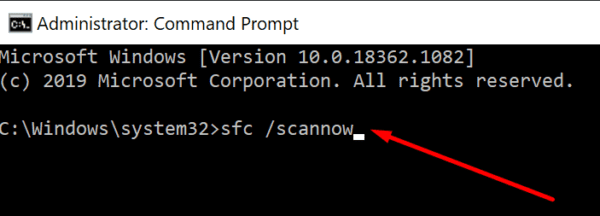
- Launch Command Prompt with admin rights.
- Run the following commands one by one:
- DISM.exe /Online /Cleanup-Image /Restorehealth
- sfc /scannow

- Restart your computer and check the results.
If the error persists, go to This PC, right-click on your OS drive, and select Properties. Go to the Tools tab and hit the Check button under the Error Checking section.
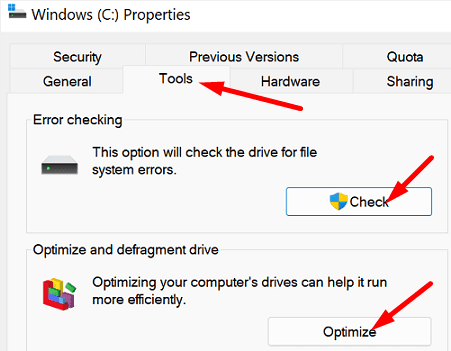
Additionally, you can also optimize and defragment your drive to improve its performance.
Check for Malware
Run an in-depth antivirus scan to detect and remove malicious code. Malware may cause all sorts of issues on your machine. To solve the problem, update your antivirus to the latest version, and then scan absolutely all the files stored on your machine.
Disconnect All Peripherals and Check for Updates
Disconnect all the external devices connected to your computer, including Bluetooth devices. Then, go to Windows Update and check for updates. Additionally, launch the Device Manager and update your drivers to the latest version. Pay particular attention to your graphics and USB device drivers.
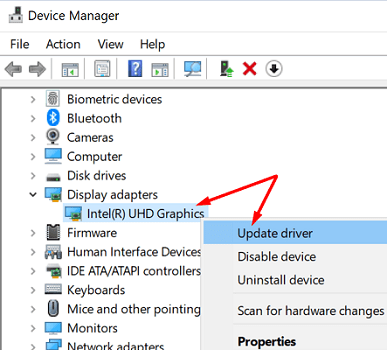
Restart your computer, and check the results.
Clean Boot Your Computer
If the “Request is not supported” error shows up when you try to launch a particular program, maybe another program is interfering with it. Launch the Task Manager, click on the Processes tab, and force-stop all the background programs that you no longer need or use.
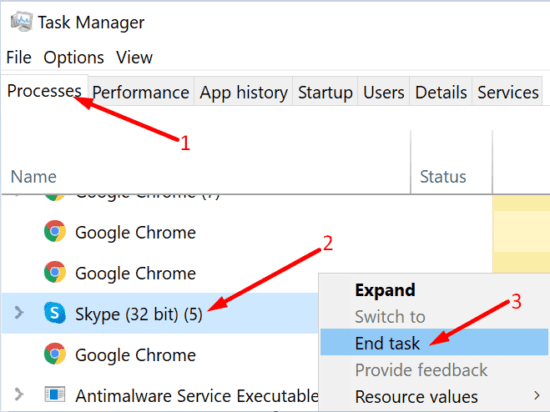
Alternatively, you can also clean boot your machine. In this manner, your computer will restart using only a minimum set of drivers and processes to avoid software conflicts.
Clean Install Windows
If nothing works, try clean installing the OS. Before you do that, make sure to back up your data, so that you can restore it in case anything goes wrong.
First, you need to download the official Windows ISO files from Microsoft’s website.
Then, use the ISO files to create a bootable USB flash drive that you can then use to perform a clean install of Windows.
Conclusion
To fix “The Request Is Not Supported” error, run DISM and SFC to check your drive for system file errors. Additionally, check for updates, run an in-depth malware scan, and clean boot your computer. If the issue persists, disconnect all peripherals, and clean install Windows.
Did you manage to solve the problem? Hit the comments below and let us know which solution worked for you.


I get “The Request Is Not Supported” Windows Error when attempting anything that would require elevation. I continue to get this even after the clean install. I will try the download of win 10 from MS as suggested. But the message shows up if I try to turn on UAC open task manager anything. I would like to use DISM and SFC. I think that is a quick fix if I can get the admin back.
Does not help when the error doesn’t allow you to get elevate priviedges.