
Skip to content
LogoTechnipages
LogoTechnipages
  • Topics
        • Android
        • Browsers
        • Gaming
        • Hardware
        • Internet
        • iPhone
        • Linux
        • macOS
        • Office
        • Reviews
        • Software
        • Windows
        • Definitions
        • All Recent Posts
  • Product Reviews
  • About

Fix: Slack File Upload Not Working

Madalina DinitaMarch 16, 2021 Comments (0)

Millions of users rely on Slack to collaborate with their colleagues and clients. If you need to work together on the same files, you can upload them to your Slack workspace. Users can then bookmark the respective files, share them with other users or download them on their devices.

Unfortunately, Slack may sometimes fail to upload your files. These unexpected events can negatively impact your productivity, forcing you to put your current workflow on hold to troubleshoot the problem.

Contents

  • 1 What to Do If You Can’t Upload Files to Slack
    • 1.1 Upload Fewer Files
    • 1.2 Update or Reinstall the App
    • 1.3 Check Your Browser
    • 1.4 Create a New File and Disable Your Security Tools
    • 1.5 Conclusion

What to Do If You Can’t Upload Files to Slack

Upload Fewer Files

Keep in mind that the files you upload to Slack cannot exceed 1GB in size. Additionally, don’t upload tens of files at once. Drag and drop up to ten files in the message field. So, whether you’re on PC, Android or iOS, don’t upload more than ten images or files in one go.

Update or Reinstall the App

If you’re using the stand-alone Slack app, check if there’s a newer version available. Maybe the old app’s affected by known file upload issues that Slack patched in a newer app version. If your app got corrupted, the best solution is to simply uninstall it and restart your device. You can then download and reinstall Slack on your device.

Check Your Browser

On the other hand, if you’re using Slack on the Web, try clearing your browser cache and cookies. Click on your browser menu, and select History. Go to Clear browsing data, select the time range, and hit the Clear data button.
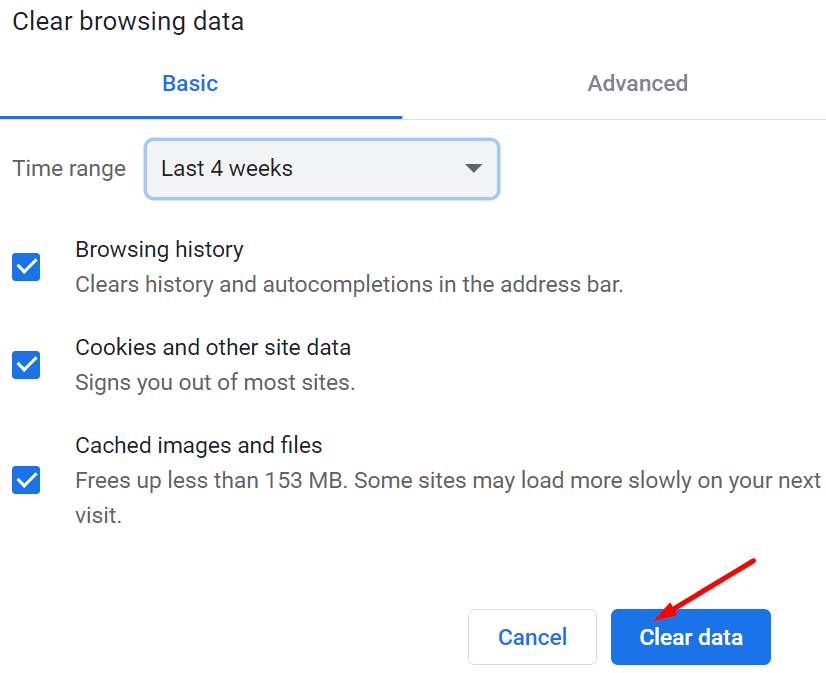
clear browser cache cookies chrome

Alternatively, you can launch an Incognito window and go to Slack.com.

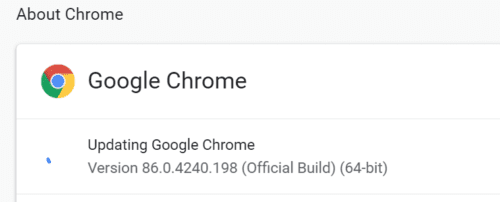
Don’t forget to update your browser. If you’re using a Chromium-based browser, click on your browser menu, go to Help or Help and Feedback, and select About [insert browser name] to check for updates.update google chrome
Then click on the browser menu again, select Extensions (or Tools and then Extensions), and disable all your browser extensions. Check if you can upload files to Slack after following all these steps.
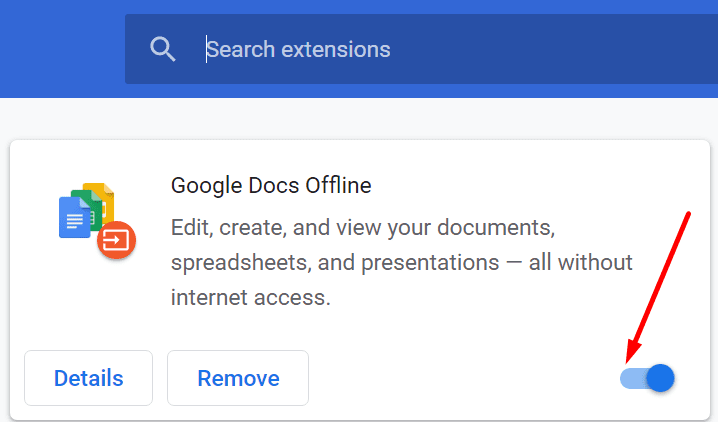
disable browser extensions chromium

Create a New File and Disable Your Security Tools

If the problem persists and you still can’t upload files to Slack, copy the problematic file’s content into a document. Save the new file and try to upload it to your workspace. Additionally, you can use a different file format and check the results.

Your antivirus and firewall could prevent you from uploading files to Slack. Disable your security software and check if the issue is gone.

Conclusion

If you can’t upload anything to Slack, try adding fewer files and update the app. If you use Slack from your web browser, clear the cache, update your browser and disable your extensions. Additionally, disable your antivirus and firewall and check if that helps. Use the comments below and let us know which solution did the trick for you.


Categories: Software

Author Madalina Dinita

Madalina has been a Windows fan ever since she got her hands on her first Windows XP computer. She is interested in all things technology, especially emerging technologies -- AI and DNA computing in particular.

You Might Also Like

  • Turn on Downloading for Spotify Songs

    MonaSoftware
  • How to Disable Word Wrap in Sublime Text 3

    Mel HawthorneSoftware
  • 15 Best ChatGPT Alternatives for 2023 for Relevant Answers

    15 Best ChatGPT Alternatives for 2023 for Relevant Answers

    Tamal DasSoftware
  • iMovie Windows Header

    9 Best iMovie Equivalents for Windows 11

    Tamal DasSoftware

Leave a Reply

Your email address will not be published. Required fields are marked *

  • error 400 when signing in

    Encountered Error 400 When Signing In to Microsoft? Here’s What You Can Do 

  • unable to create notebook error in onenote

    We Were Unable to Create Your Notebook Error in OneNote – Common Fixes 

  • error code 0x800704f8 fix

    Error Code 0x800704f8 – How to Fix 

  • back button in browsers doesnt work

    What to Do if the Back Button in Browser Doesn’t Work 

  • could not find this item

    “Could Not Find This Item” When Trying to Remove Files

profile pic

The Experts Behind Technipages

My name is Mitch Bartlett. I've been working in technology for over 20 years in a wide range of tech jobs from Tech Support to Software Testing. I started this site as a technical guide for myself and it has grown into what I hope is a useful reference for all.

Learn More

technipages logo white
linkedin icon

Technipages is part of Guiding Tech Media, a leading digital media publisher focused on helping people figure out technology. Learn more about our mission and team here.

© 2026 Guiding Tech Media All Rights Reserved

  • About Us
  • Contact
  • Terms of Use
  • Privacy Policy

© 2026 Guiding Tech Media All Rights Reserved

Information from your device can be used to personalize your ad experience.
Do not sell my personal information.

Last Updated on March 16, 2021 by Judy Sanhz