Skip to content
LogoTechnipages
LogoTechnipages
  • Topics
        • Android
        • Browsers
        • Gaming
        • Hardware
        • Internet
        • iPhone
        • Linux
        • macOS
        • Office
        • Reviews
        • Software
        • Windows
        • Definitions
        • All Recent Posts
  • Product Reviews
  • About

Four Different Ways to Reset Numbering in Word

Evan MercerApril 20, 2026 Comments (0)
reset numbering in word

Want to create a new numbered list, or just unhappy with the old one? There are a few ways to insert and handle numbering in Microsoft Word, and that includes resetting things. In this article, we’ll be showing you four ways to reset numbering in Word.

Contents

  • 1 Reset Numbering in Word
    • 1.1 Restart the List
    • 1.2 Set Numbering Value
    • 1.3 Deactivate and Reactivate Numbering
    • 1.4 Resetting Multilevel Lists

Reset Numbering in Word

Let’s get right to it and take a look at ways to reset or restart numbered lists in different ways.

Restart the List

If you’re looking for the simplest way how to reset numbering in Word document, it’s easy as 1, 2, 3. Here’s what to do:

Step 1. Right-click the specific number you want to change.
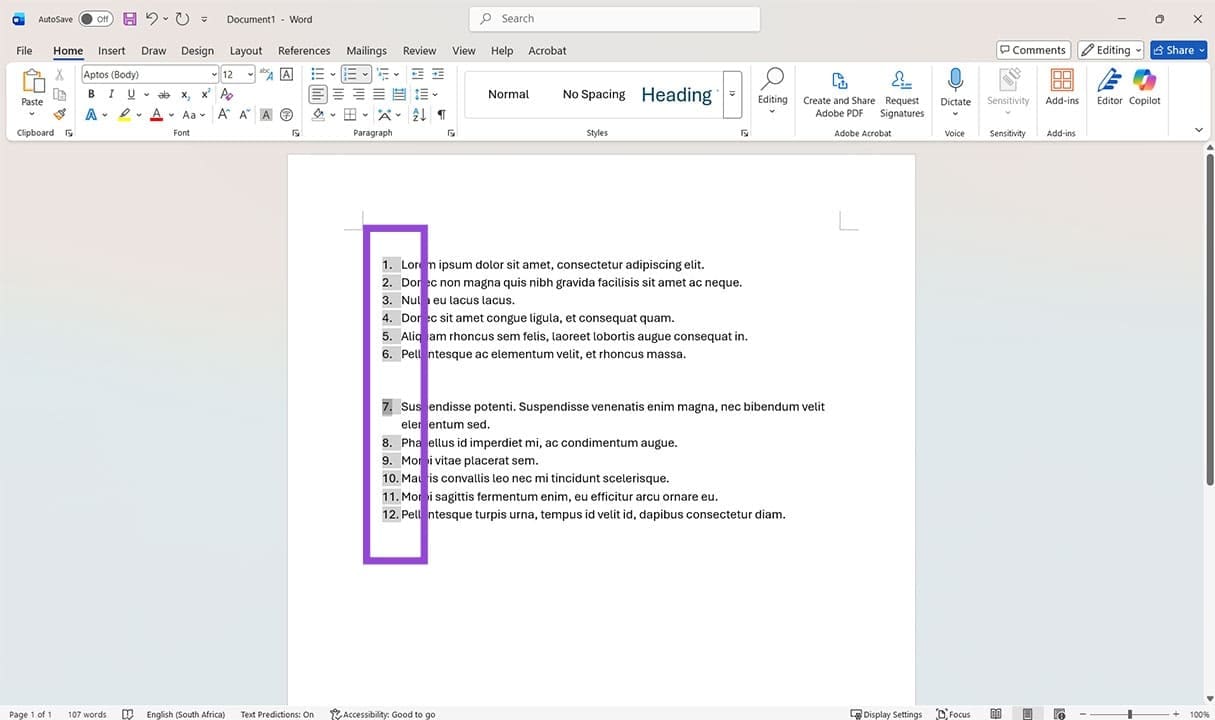
Different Ways to Reset Numbering in Word 1

Step 2. Right-click the number that you want to reset. This will work in split lists and continuous lists.
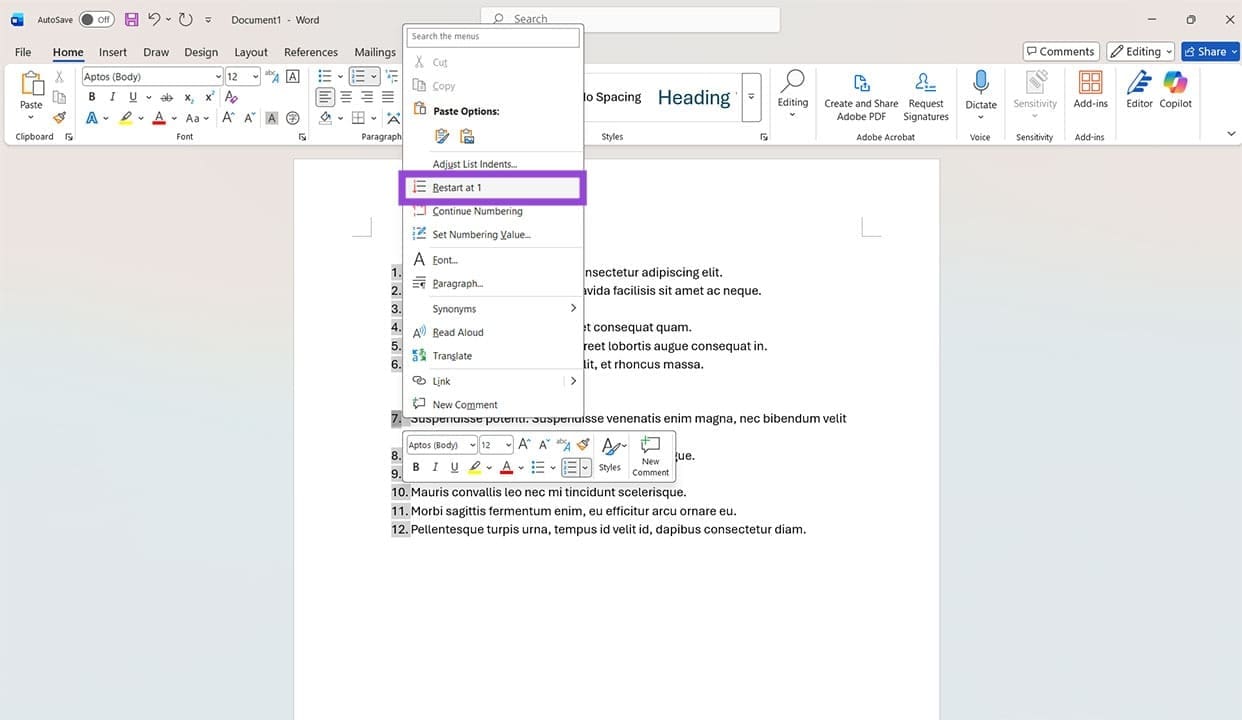
Different Ways to Reset Numbering in Word 2

Step 3. Click “Restart at 1” to reset the list from the number you chose.
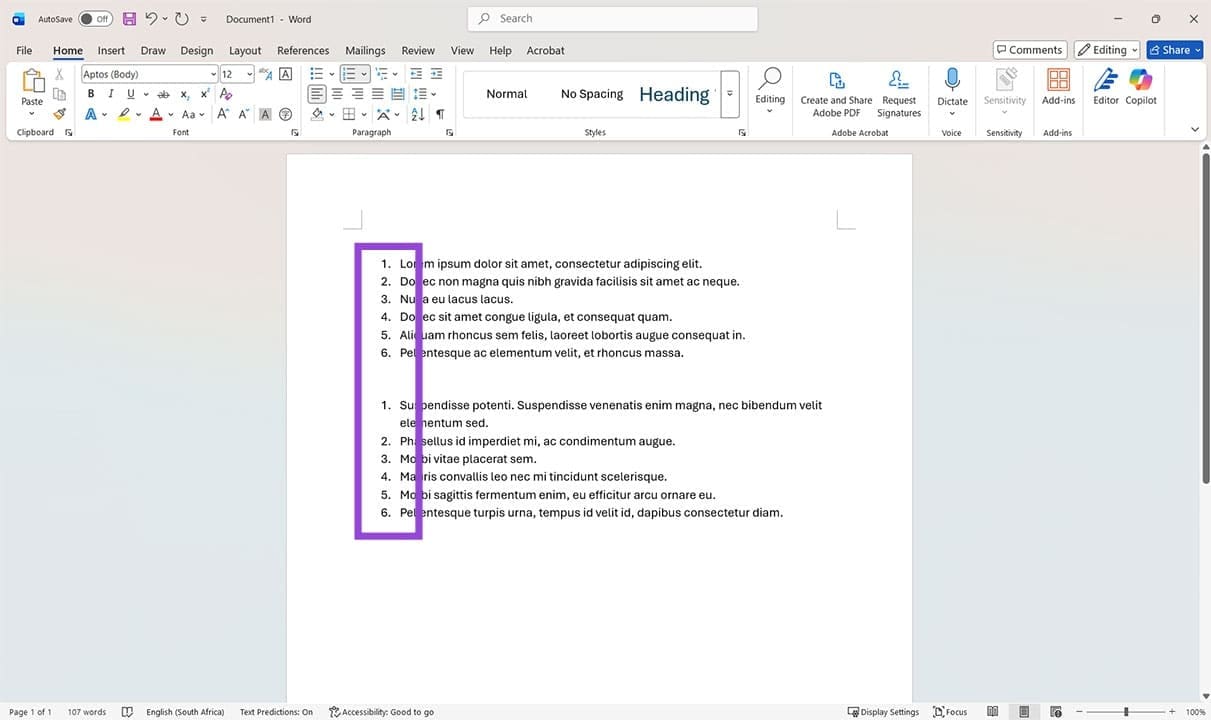
Different Ways to Reset Numbering in Word 3

Set Numbering Value

If you want more control over how you reset your list, or don’t want to necessarily start from one, you can use the “Set numbering value” feature to restart things. This is also useful if the list is running into formatting problems. Here’s what to do:

Step 1. Double-click the numbers in the list to select everything.

Step 2. Right-click the number that you want to change the value of to bring up the context menu.

Step 3. Click “Set Numbering Value.”
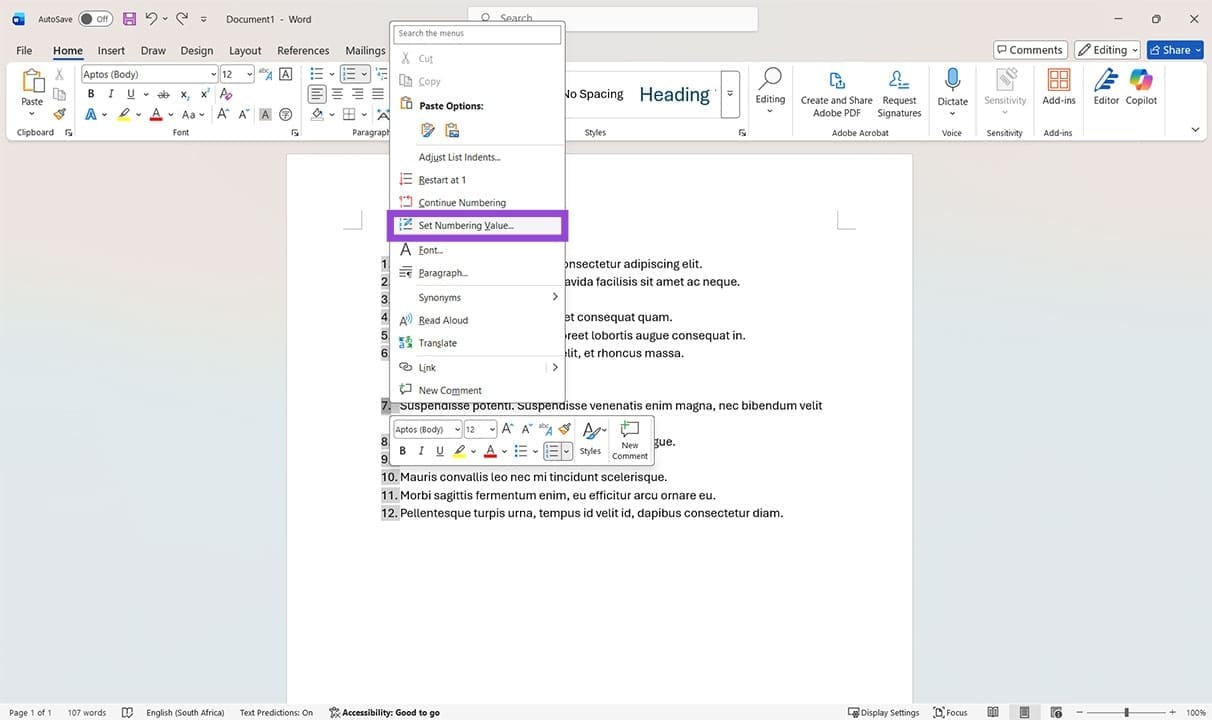
Different Ways to Reset Numbering in Word 4

Step 4. A new window will pop up, and you can choose your values. “Start new list” is the best way to reset your numbering. Choose your custom value under “Set value to” and click “OK” to finalize.
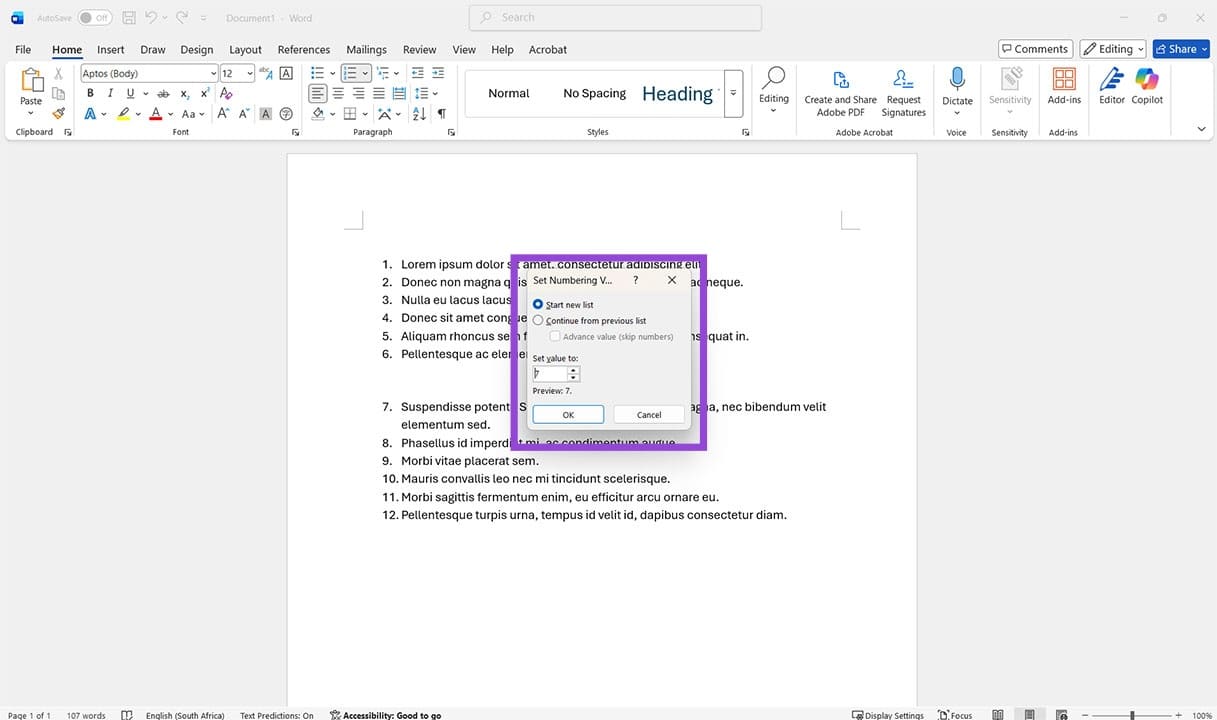
Different Ways to Reset Numbering in Word 5

Deactivate and Reactivate Numbering

If your numbered list just isn’t cooperating, it could be an issue with metadata. In this case, turning numbering off and on again can be a quick solution to the problem. Here’s how:

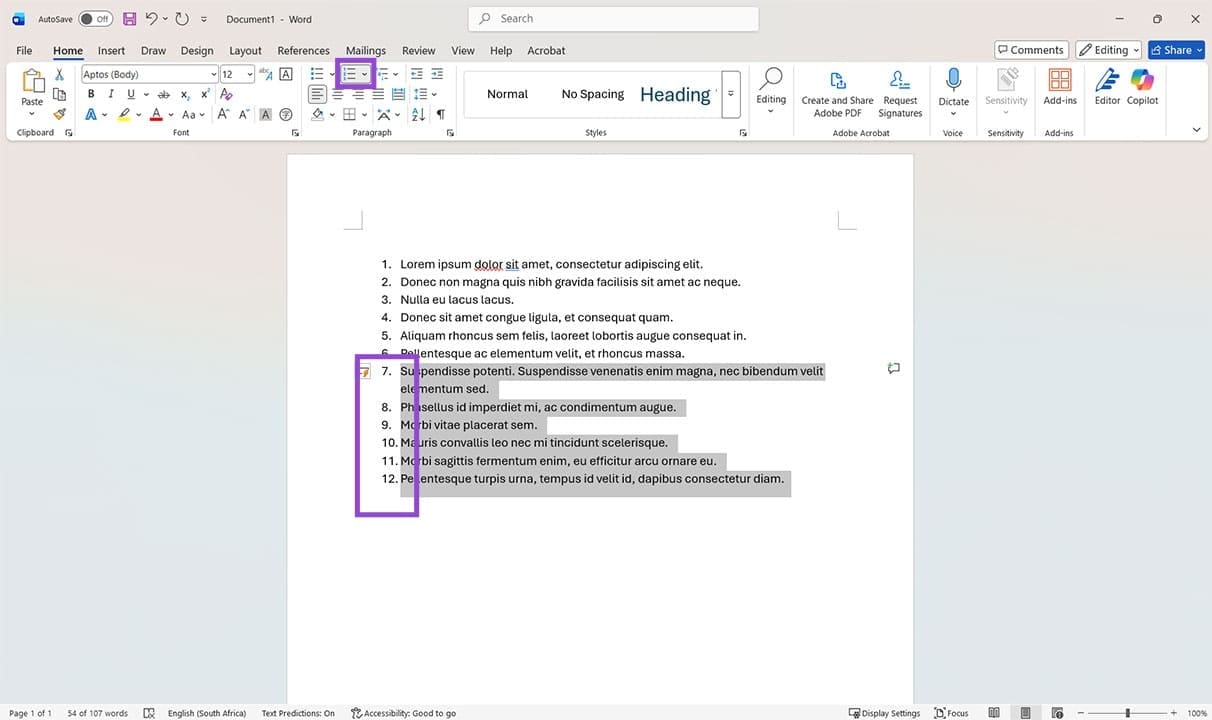
Step 1. Drag select all items on your numbered list.
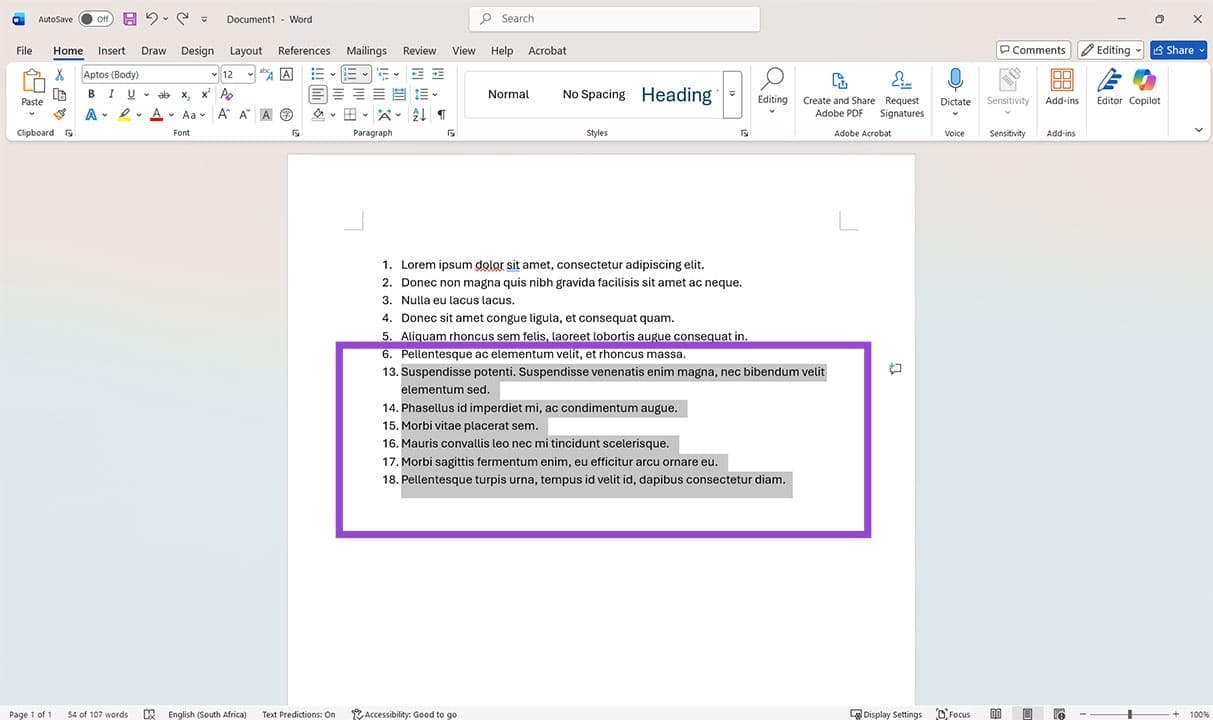
Different Ways to Reset Numbering in Word 6

Step 2. Click the “Numbering” icon in the “Paragraph” subsection of the “Home” tab. The numbers should disappear.
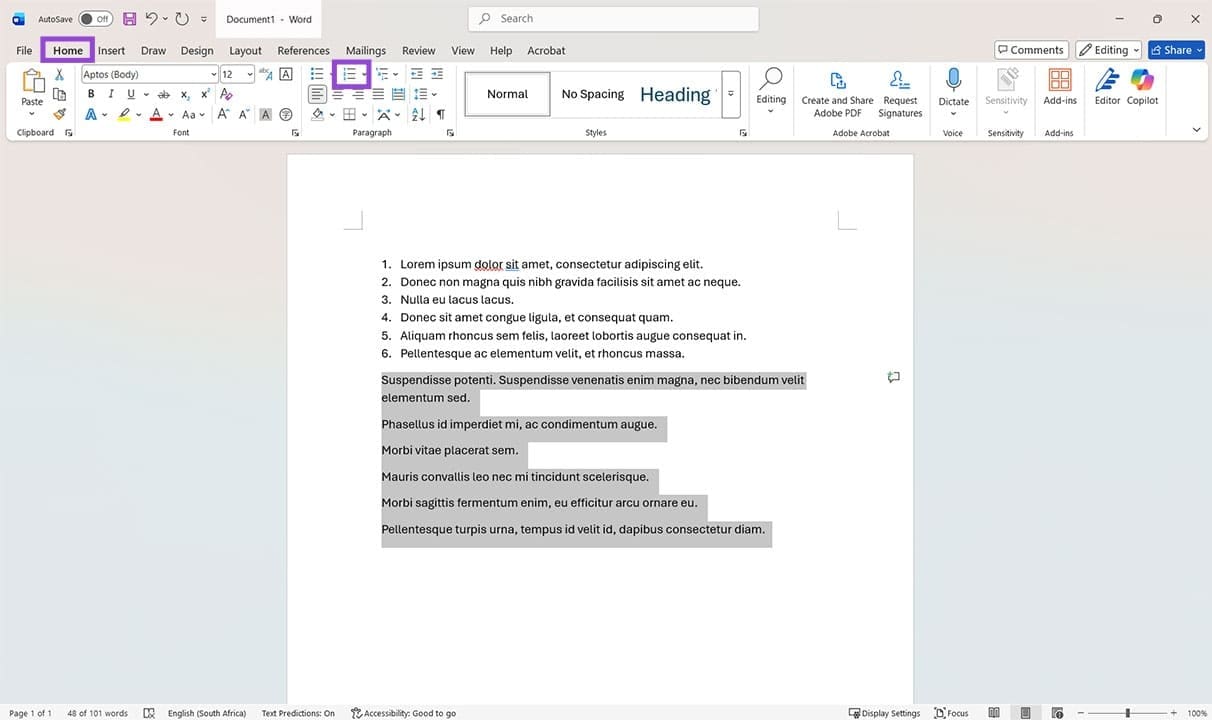
Different Ways to Reset Numbering in Word 7

Step 3. Click the “Numbering” icon again, and the list should be reset or a continuation of the previous list.
Different Ways to Reset Numbering in Word 8

Resetting Multilevel Lists

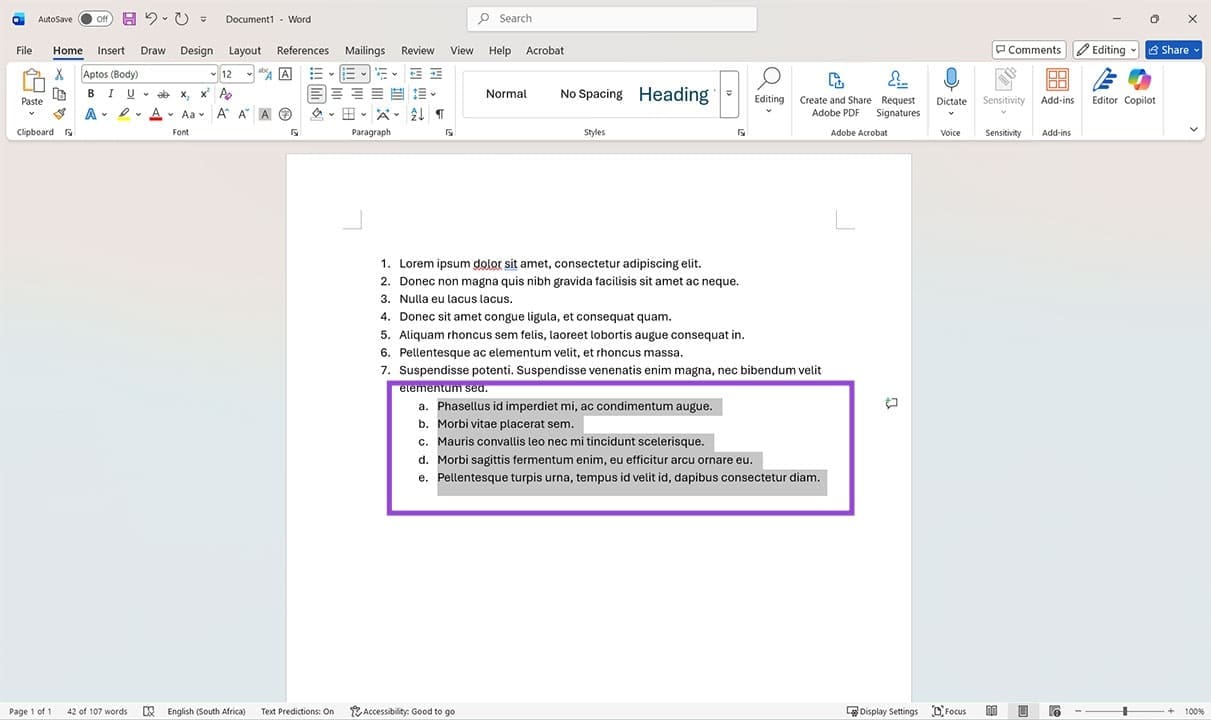
Multilevel lists can get tricky when trying to start fresh. Letters can replace numbers, and some numbers will refuse to cooperate. Thankfully, Word also includes tools to help you get this done in the “Multilevel List” icon. Here’s how you can reset things:

Step 1. Select all options in the list you want to reset.
Different Ways to Reset Numbering in Word 9

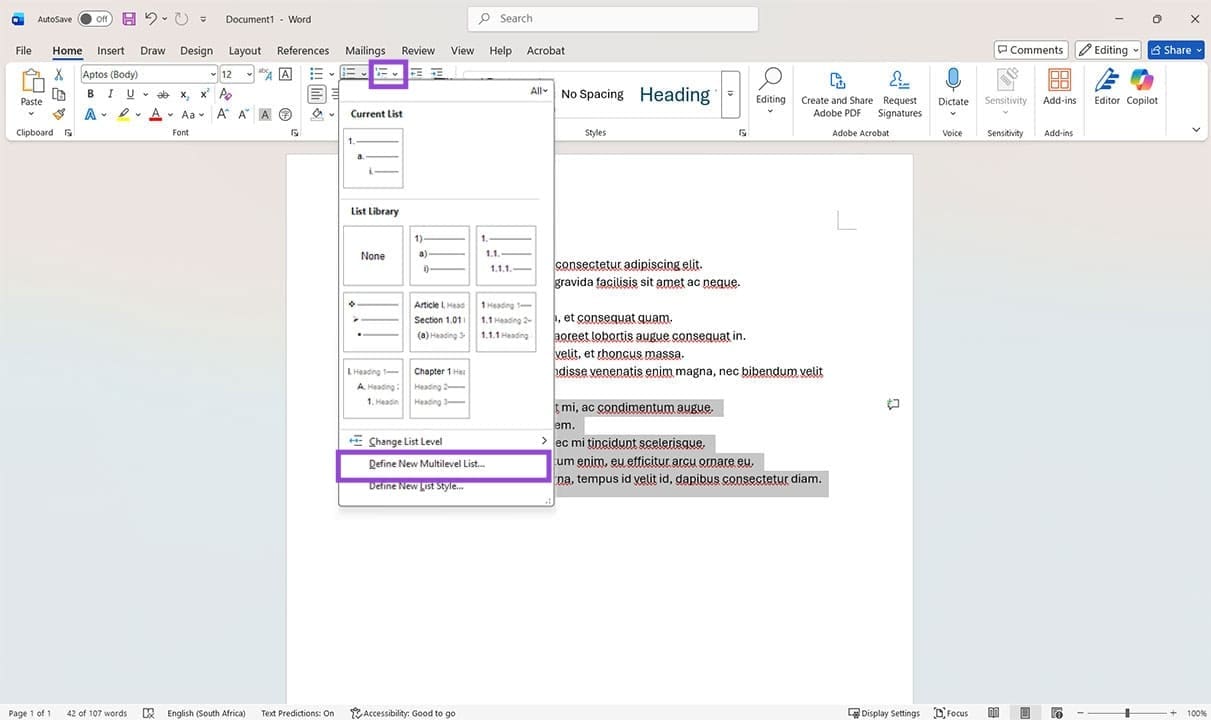
Step 2. Click the “Multilevel List” icon at the top and select “Define New Multilevel List” from the dropdown menu that appears.
Different Ways to Reset Numbering in Word 10

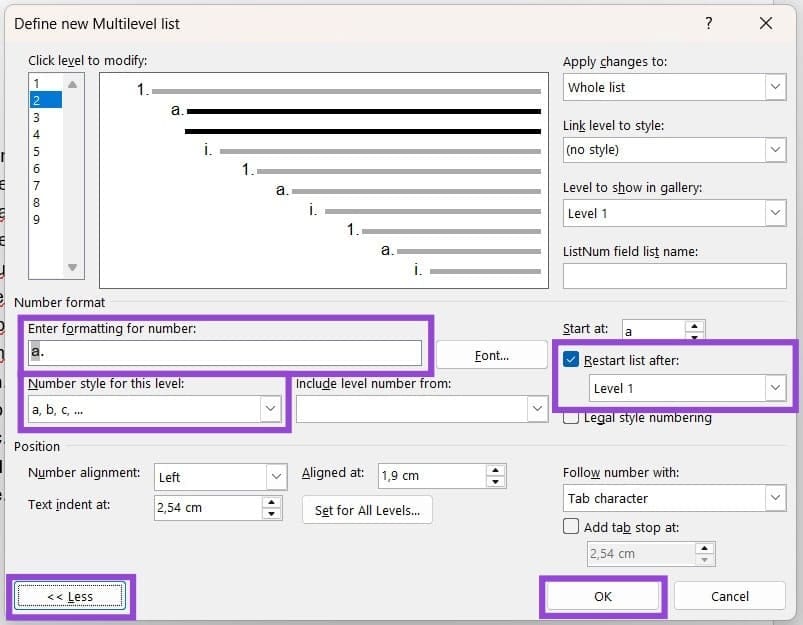
Step 3. In the new window, click the “More” button to bring up the advanced options.
Different Ways to Reset Numbering in Word 11

Step 4. Ensure that “Restart list after” is set to the level you want to reset. If your current format is in letters, change the “Enter formatting for number” and “Number style for this level.”

Step 5. Click “OK” to finalize.
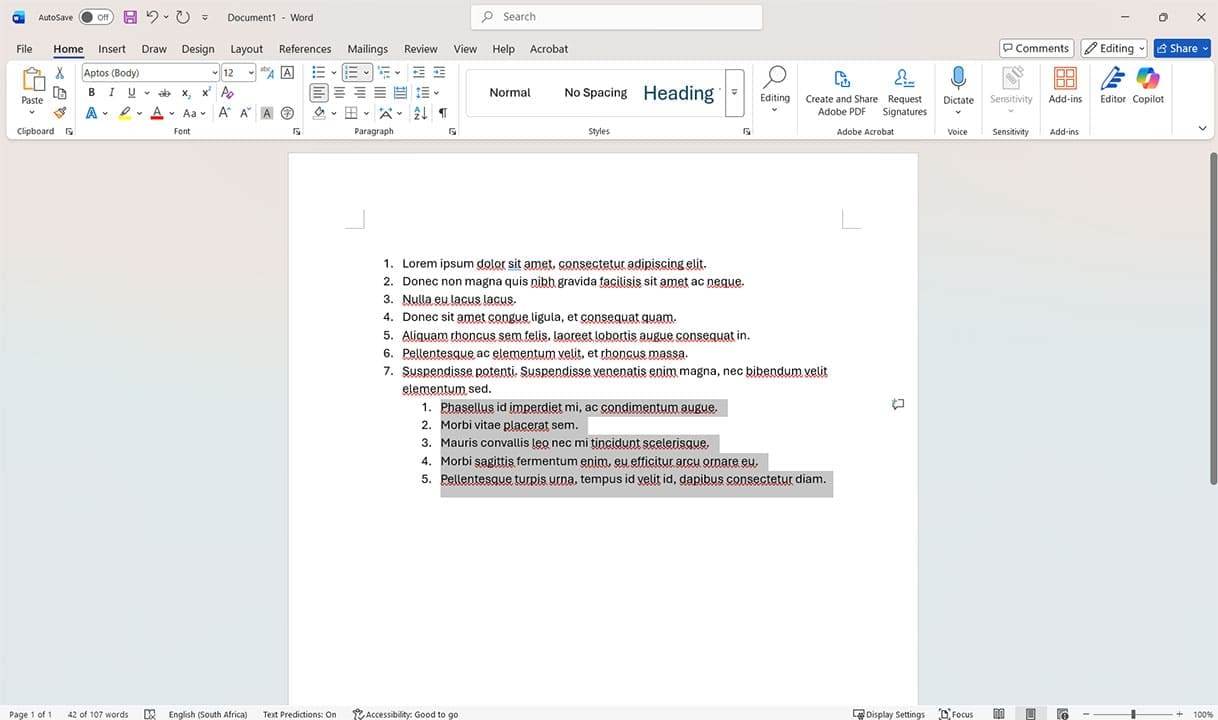
Different Ways to Reset Numbering in Word 12
Categories: Office

Author Evan Mercer

I’m a computer science grad who loves to tinker with smartphones and tablets in my spare time. When I’m not writing about how to fix techy problems, I like hanging out with my dogs and sipping nice wine after a tough day.

You Might Also Like

  • Excel Header

    Copy and Paste Values Without Formulas in Excel 365

    Mitch BartlettOffice
  • Outlook: Error “An OLE registration error occurred. The program is not correctly installed…”

    Mitch BartlettOffice
  • Outlook Logo Header

    How to Change View to HTML or Plain Text in Outlook 2019, 2016, and 365

    Mitch BartlettOffice
  • Excel Calendar Template 2023 The 9 Best Sources You Must Know

    Excel Calendar Template 2023: The 9 Best Sources You Must Know

    Susan SheffieldOffice

Leave a Reply

Your email address will not be published. Required fields are marked *

  • convert picture to smartart word

    How to Turn a Microsoft Word Picture Into SmartArt

  • link to a master sheet in excel

    How to Link to a Master Sheet in Excel

  • sound in xbox party chat on pc

    How to Change Sound Input and Output Devices in Xbox Party Chat on PC

  • bluetooth toggle missing windows 11

    What to Do When Your Bluetooth Toggle Is Missing (Windows 11)

  • microsoft paint features

    Unleash Your Inner Artist – Advanced Microsoft Paint Features You Might Not Know About

profile pic

The Experts Behind Technipages

My name is Mitch Bartlett. I've been working in technology for over 20 years in a wide range of tech jobs from Tech Support to Software Testing. I started this site as a technical guide for myself and it has grown into what I hope is a useful reference for all.

Learn More

technipages logo white
linkedin icon

Technipages is part of Guiding Tech Media, a leading digital media publisher focused on helping people figure out technology. Learn more about our mission and team here.

© 2026 Guiding Tech Media All Rights Reserved

  • About Us
  • Contact
  • Terms of Use
  • Privacy Policy

© 2026 Guiding Tech Media All Rights Reserved

Information from your device can be used to personalize your ad experience.
Do not sell my personal information.

Last Updated on April 20, 2026 by Evan Mercer