

If you need to share your screen with the other meeting attendees, Skype lets you do that in just two clicks.
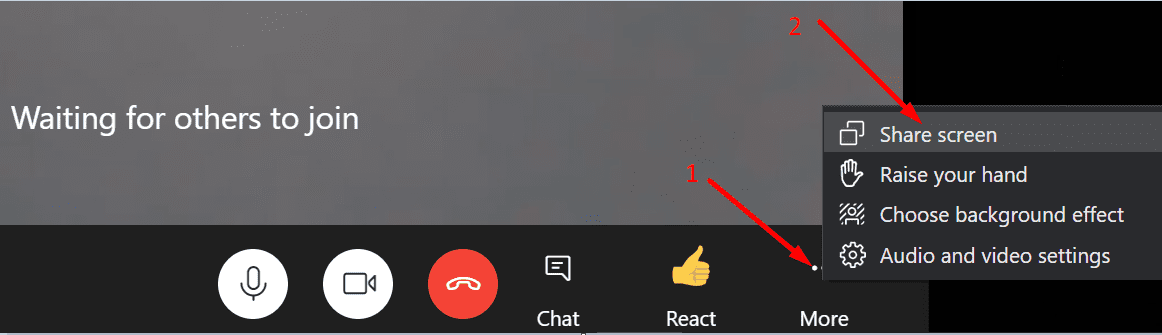
All you need to do is click on More options and select Share screen.
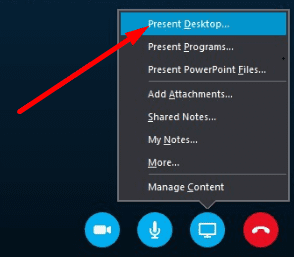
If you’re using Skype for Business, click on the monitor icon and select Present desktop.
So, irrespective of the app version you’re using, you can quickly share your screen in just two clicks.
But sometimes, this functionality won’t work and Skype fails to share your desktop. Well, you can use the troubleshooting methods below to solve the problem. These solutions apply to both Skype for Home and Skype for Business.
Check Your Network
Make sure your network connection is stable and you have enough bandwidth to share your screen. As you already know, sharing video images is a bandwidth-intensive activity. If you don’t have enough bandwidth, Skype will throw the following error message: “We couldn’t connect to the presentation because of network issues. Please try again later“.
Use a cable solution and disconnect other devices using the connection to free up more bandwidth for Skype. Ensure you have a decent upload speed.
Then disable your firewall and check if you can present now. Maybe your firewall is blocking Skype’s ports.
Additionally, if you’re using a proxy, type ‘internet options‘ in the Windows search bar to open Internet Options. Then click on Connections and select LAN Settings.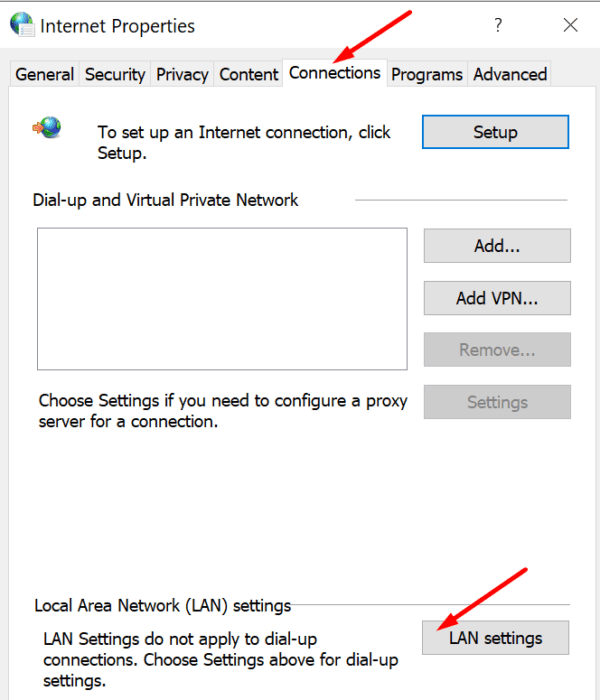
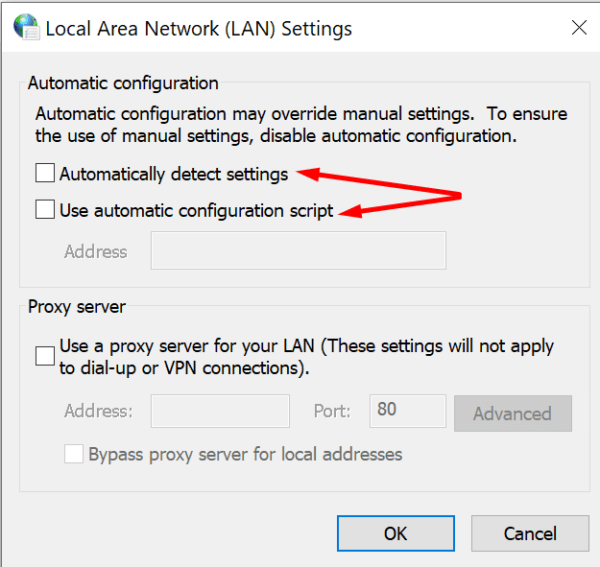
Check if Automatically detect settings or Use automatic configuration script is enabled. Disable these options as they may override your manual proxy settings.
Repair Office
Skype for Business is part of the Microsoft 365 Suite. Consequently, if your Office installation files got corrupted, Skype will be affected as well.
- Launch the Control Panel and go to Programs.
- Then select Programs and Features and click on Microsoft 365.
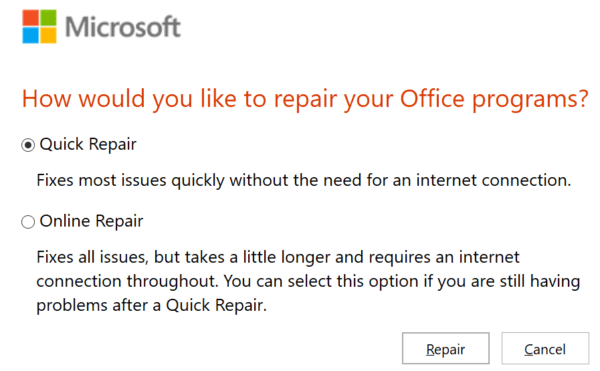
- Select the Change button and check the Online Repair option.

- Close Skype, launch it again, and check the results.
Additionally, you can also download and run the Microsoft Support and Recovery Assistant to automatically repair your Office files.
Tweak Your Registry
- Type regedit in the Windows Search bar and press Enter to launch the Registry Editor.
- Then navigate to HKLM\SYSTEM\CurrentControlSet\Services\Tcpip\Parameters.
- Right-click on the right-hand pane and add a new DWORD key.
- Name it MaxUserPort and set its value to 15000 (decimal) and 3A98 (hex). Alternatively, you can also enter 5000 as the decimal value – check which option works best for you.

- Apply the changes and check if you can present your desktop on Skype.

Disable AIP
Use this solution if you can’t share your screen on Skype for Business. Try uninstalling Azure Information Protection (AIP). This cloud-based tool prevents users from sharing content with unauthorized third-parties.
For example, if you open a document that’s protected by AIP, you won’t be able to share your screen while the file is visible on your desktop. You’ll need to either close the respective document to be able to present your desktop or disable AIP.
Clear Skype for Business Cache
- Exit Skype for Business completely.
- Go to %UserProfile%\AppData\local\Microsoft\Office\16.0\Lync.
- Then delete all the files from the Lync folder.
- Launch Skype for Business again and check if it makes any difference.
Conclusion
If your network connection is unstable, or your Office installation files got corrupted, you won’t be able to share your screen on Skype. Additionally, if you’re using Skype for Business, and you opened a confidential document, the AIP client may prevent you from sharing your screen.
Drop us a comment below and let us know if you managed to fix your screen sharing problem on Skype.





Yes, just closed and reopened SKYPE for Business. Now screen sharing is working.