
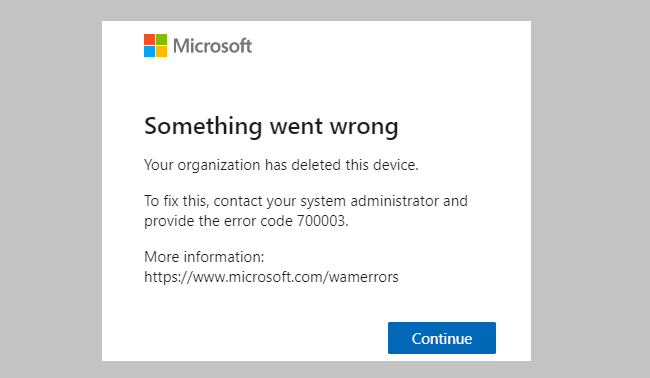
Not being able to sign in onto your Office 365 account can be really annoying, especially if you’re also getting error code 700003: ‘Something went wrong
Your organisation has deleted this device. To fix this, contact your system administrator and provide the error code 700003′.
Contents
How to Fix Office 365 Error 700003
1. Use Office 365 online
If you really need to use your Office 365 account and you don’t have enough time to try to troubleshoot this issue, you can access Word or Excel online.
Error code 700003 prevents Office apps from running on the desktop, but everything should work just fine online.
2. Disconnect the problematic account
Disconnecting the account that triggered error 70003 is another quick solution that could potentially solve this problem.
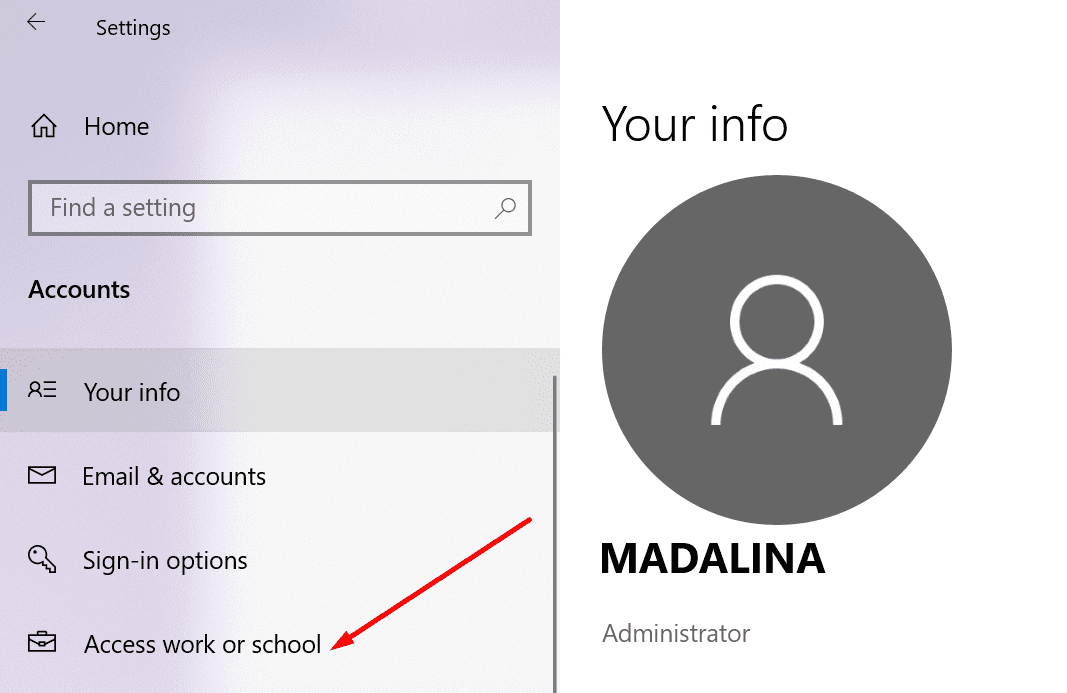
- Open the Settings app
- Go to Accounts
- Select Access work or school

- Find the account that you can’t use and select Disconnect
- Wait until the account is disconnected
- Try to login to Office again using your regular username and password.
3. Delete the problematic account
If disconnecting the account didn’t work, you can try to delete it from your computer.
- Launch the Settings app
- Navigate to Accounts
- Select the Access work or school option
- Delete the account
- Sign into your Outlook profile again.
4. Remove the device completely
This solution is a complex one. Use it only if you’re an advanced user or an IT admin.
- Disable group policy for automatic device registration.
- If the respective setting is already configured in your environment, you should find it on the machine. If the entry is not available, that means it’s not configured on your machine and you don’t need to do anything.
- Download the Psexec tool and extract it to the PSTools folder
- Launch Command Prompt as an administrator
- Open the PSexec folder
- Run the psexec -sid cmd.exe command
- A new command prompt will appear on the screen (in a system context)
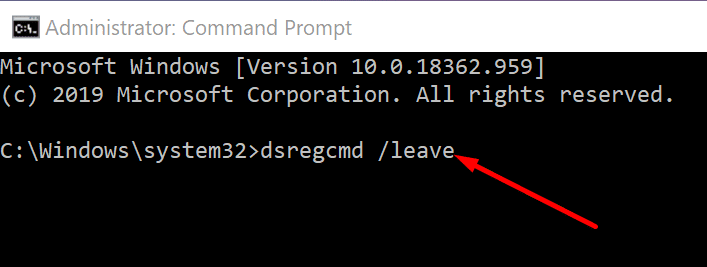
- To un-register the device, run the dsregcmd /leave command
- Restart your machine
- Check your machine’s status using dsregcmd /status.
5. Remove the account and the device
This solution is some sort of a hybrid between the third and the fourth solutions. For some users, utilizing the respective solutions individually didn’t work. But they were able to fix the problem after combining steps from both the methods.
Here’s what you need to do:
- Go to Settings → Accounts → Access Work or School and remove the account
- Launch Command Prompt or PowerShell as an administrator
- Enter the dsregcmd /leave command

- Enter the dsregcmd /status command to make sure the device no longer appears listed under Azure AD
- Register the problematic device again.
Let us know which solution worked for you.





Thank you so much. I have disconnected the account and reconnected it and it has done me great. It has sorted the problem. I greatly appreciate.
Thank you for this, it fixed the problem
Thanks Michael Maertzdorf, this one fixed mine easily :)
Something went wrong
Your organization has deleted this device.
To fix this, contact your system administrator and provide the error code 700003.
More information: https://www.microsoft.com/wamerrors
Thank you for this, it fixed the problem
Yes this was very helpful
I was able to resolve this using the following steps:
For Azure AD joined devices Windows 10 devices, take the following steps:
Open the command prompt as an administrator
Enter dsregcmd /forcerecovery (You need to be an administrator to perform this action).
Click “Sign in” in the dialog that opens up and continue with the sign in process.
Sign out and sign in back to the device to complete the recovery.
https://docs.microsoft.com/en-us/azure/active-directory/devices/faq
Just for good measure I gave user temporarly administrator priviledges & followed the steps initially to remove the device
e.g.
1) dsregcmd /debug /leave
2) Reboot
3) Add user to local-admins
4) Log-off & on again
5) dsregcmd /forcerecovery (I was unable to use the GUI, it did not “work” e.g. no sign-in screen showed.)
Hi I went for solution 4 and now I shut out of my computer. It does not recognise the password any longer. (I double checked it on the phone and the password is correct).
Could you please provide support?
Thx