Skip to content
LogoTechnipages
LogoTechnipages
  • Topics
        • Android
        • Browsers
        • Gaming
        • Hardware
        • Internet
        • iPhone
        • Linux
        • macOS
        • Office
        • Reviews
        • Software
        • Windows
        • Definitions
        • All Recent Posts
  • Product Reviews
  • About

Fix: 1Password Not Offering to save Password

Madalina DinitaMarch 25, 2021 Comments (0)
1password not offering to save password

Many users complained 1Password doesn’t always prompt them to save their newly created passwords when they login to a website for the first time. This bug can slow down your workflows, forcing you to manually save the password. In this guide, we’ll explore what you can do if 1Password no longer asks you to save new passwords.

Contents

  • 1 How to Fix 1Password Not Saving New Passwords
    • 1.1 Enable New Password Detection
    • 1.2 Disable Your Browser Extensions
    • 1.3 Disable Browser Password Autofill
    • 1.4 Reinstall 1Password
    • 1.5 Conclusion

How to Fix 1Password Not Saving New Passwords

⇒ Quick Fix: If you want 1Password to save your new login, click on the 1Password icon in your browser toolbar and select Save Login. Name it, select your vault, and hit the Save button.

1password manually save login

Enable New Password Detection

Check your app settings and make sure 1Password can detect new usernames and passwords.

  1. Launch the main 1Password app and enter your master password when prompted.
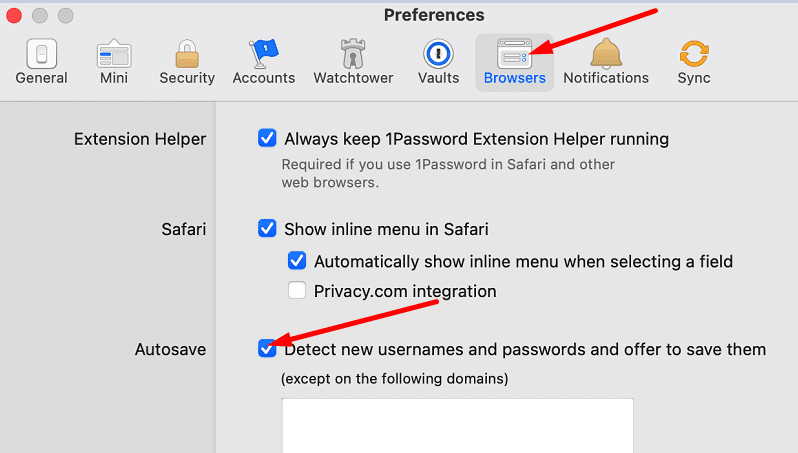
  2. Navigate to Preferences and select the Browsers tab.
  3. Enable the option that says Detect new usernames and passwords and offer to save them.1password Detect new usernames and passwords
  4. Close and relaunch the app. Check if your password manager asks you to save new passwords.
Disable Your Browser Extensions

Go ahead and disable all your browser extensions except 1Pasword. Maybe one of your extensions is interfering with 1Password preventing the tool from saving new passwords.

If you use a Chromium-based browser, click on your browser menu and select More tools. Go to Extensions and toggle off all your extensions.
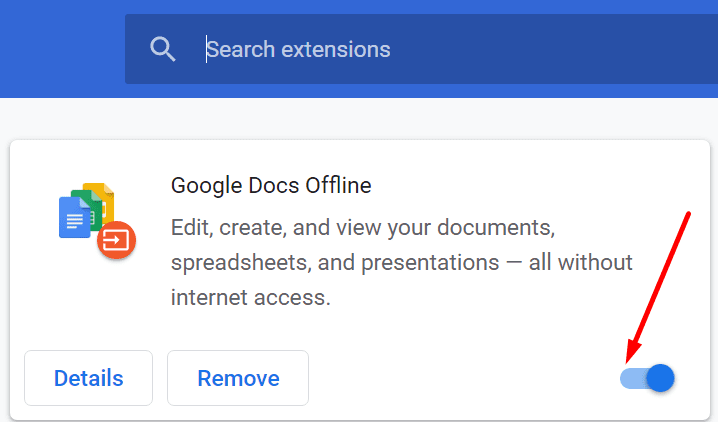
disable browser extensions chromium

If you’re on Safari, go to Preferences, and select Extensions. To disable your extensions, simply uncheck their individual checkboxes.
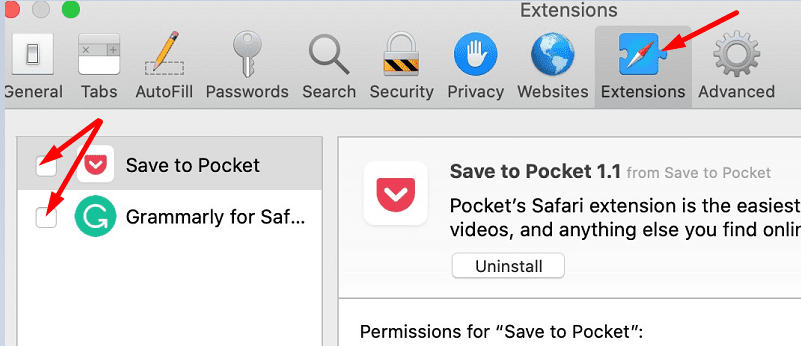
disable extensions safari

Disable Browser Password Autofill

If your browser’s password autofill feature is on, it might supersede 1Password. Disable your browser’s password-saving option and check the results.

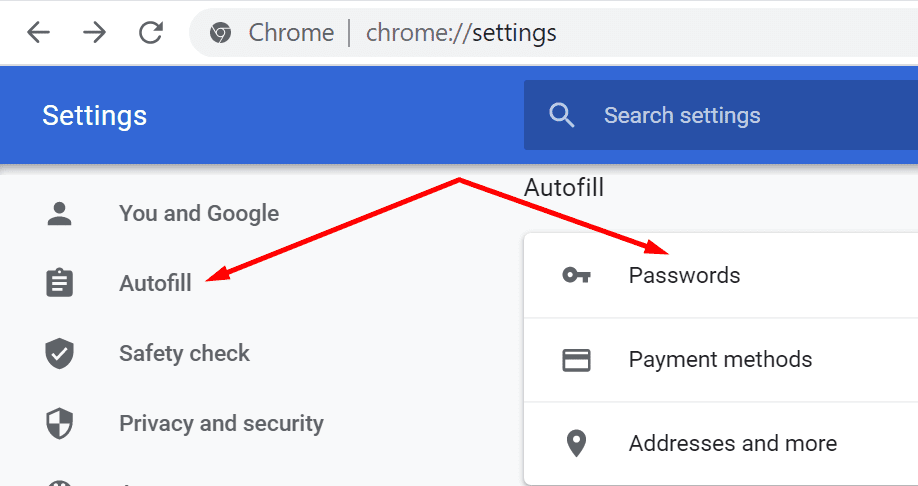
  1. Launch Chrome, click on the three dots and go to Settings.
  2. Go to the Autofill section and click on Passwords.chrome autofill passwords
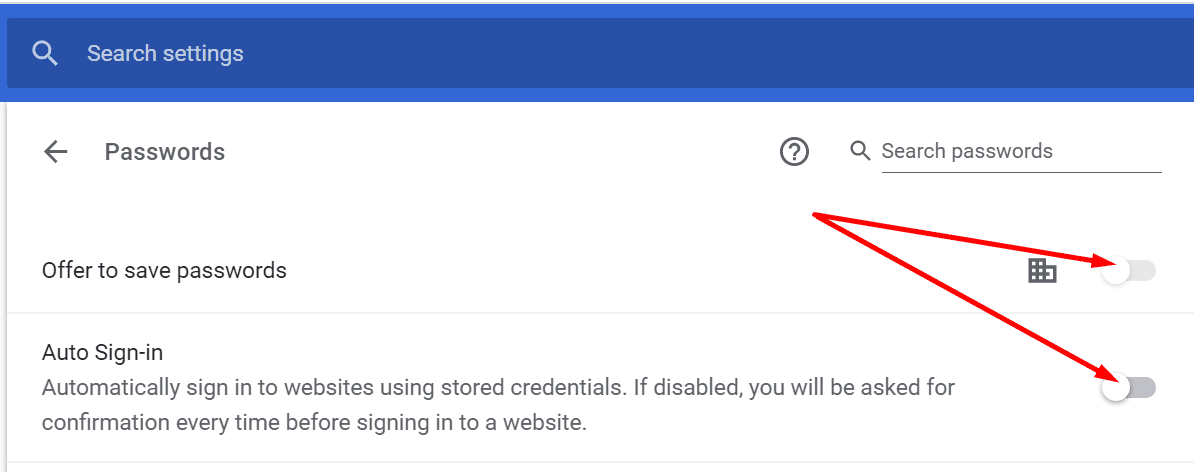
  3. Then disable the following two settings: Offer to save passwords and Auto Sign-in.chrome disable offer to save passwords
  4. Refresh your browser, launch 1Password and check if this solution worked for you.
If you use Safari, go to Preferences and select the AutoFill icon. Then disable the AutoFill settings. Make sure to turn off the following options: Using info from my contacts, User names and passwords, Credit cards, and Other forms.
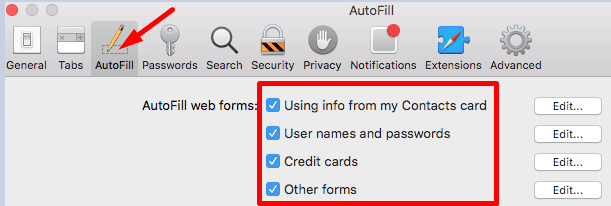
safari disable autofill settings

Reinstall 1Password

If the issue persists, uninstall 1Password and restart your device. Download the password manager again and reinstall it on your device. Make sure you have your master password at hand when you reinstall the tool.

Conclusion

If 1Password doesn’t offer to save your new passwords, make sure the tool can detect new logins and passwords. Then disable your browser extensions and turn off the autofill option in your web browser. Did you find other solutions to fix 1Password? Feel free to list the steps to follow in the comments below.

Categories: Software

Author Madalina Dinita

Madalina has been a Windows fan ever since she got her hands on her first Windows XP computer. She is interested in all things technology, especially emerging technologies -- AI and DNA computing in particular.

You Might Also Like

  • Zoom: How to Hide Call Participants Who Aren’t Using a Webcam

    Mel HawthorneInternet
  • microsoft teams how secure is it

    How Secure Is Microsoft Teams?

    Madalina DinitaSoftware
  • Google Duo: How To Prevent Other People From Seeing Your Video Before They Pick up Your Call

    Mel HawthorneInternet
  • microsoft teams emojis not working fix

    Microsoft Teams Emojis Not Working

    Madalina DinitaSoftware

Leave a Reply

Your email address will not be published. Required fields are marked *

  • unable to create notebook error in onenote

    We Were Unable to Create Your Notebook Error in OneNote – Common Fixes 

  • error code 0x800704f8 fix

    Error Code 0x800704f8 – How to Fix 

  • back button in browsers doesnt work

    What to Do if the Back Button in Browser Doesn’t Work 

  • could not find this item

    “Could Not Find This Item” When Trying to Remove Files

  • no graphics signal on first boot

    No Graphics Signal on First Boot – How to Fix

profile pic

The Experts Behind Technipages

My name is Mitch Bartlett. I've been working in technology for over 20 years in a wide range of tech jobs from Tech Support to Software Testing. I started this site as a technical guide for myself and it has grown into what I hope is a useful reference for all.

Learn More

technipages logo white
linkedin icon

Technipages is part of Guiding Tech Media, a leading digital media publisher focused on helping people figure out technology. Learn more about our mission and team here.

© 2026 Guiding Tech Media All Rights Reserved

  • About Us
  • Contact
  • Terms of Use
  • Privacy Policy

© 2026 Guiding Tech Media All Rights Reserved

Information from your device can be used to personalize your ad experience.
Do not sell my personal information.

Last Updated on March 25, 2021 by Judy Sanhz