
Skip to content
LogoTechnipages
LogoTechnipages
  • Topics
        • Android
        • Browsers
        • Gaming
        • Hardware
        • Internet
        • iPhone
        • Linux
        • macOS
        • Office
        • Reviews
        • Software
        • Windows
        • Definitions
        • All Recent Posts
  • Product Reviews
  • About

Dropbox: How to View How Much of Your Space You’re Using

Mel HawthorneFebruary 17, 2021 Comments (2)

Dropbox is one of the most popular cloud storage solutions globally. But it’s limited. Free, or paid there is a limit to how much you can store in your Dropbox account. It’s always smart to keep an eye on how much you’re already using. Knowing how much space you have makes sure that you don’t run out at the wrong moment and leave yourself stranded when you need to transfer something important quickly.

Or maybe you just want to know when it’s time to throw out old and unnecessary files again. In any case, knowing how to check what percentage of your Dropbox is in use is a great way to avoid unpleasant cloud surprises. Here’s how to check how much of your Dropbox storage space you’re using.

Contents

  • 1 Check Dropbox Storage Using the App
  • 2 Check Dropbox Storage Space on the website
    • 2.1 Conclusion

Check Dropbox Storage Using the App

You can see how much of your storage space you’re using in the account settings in the Dropbox app.  You first need to click on the cogwheel icon at the bottom of the column on the left to get there.
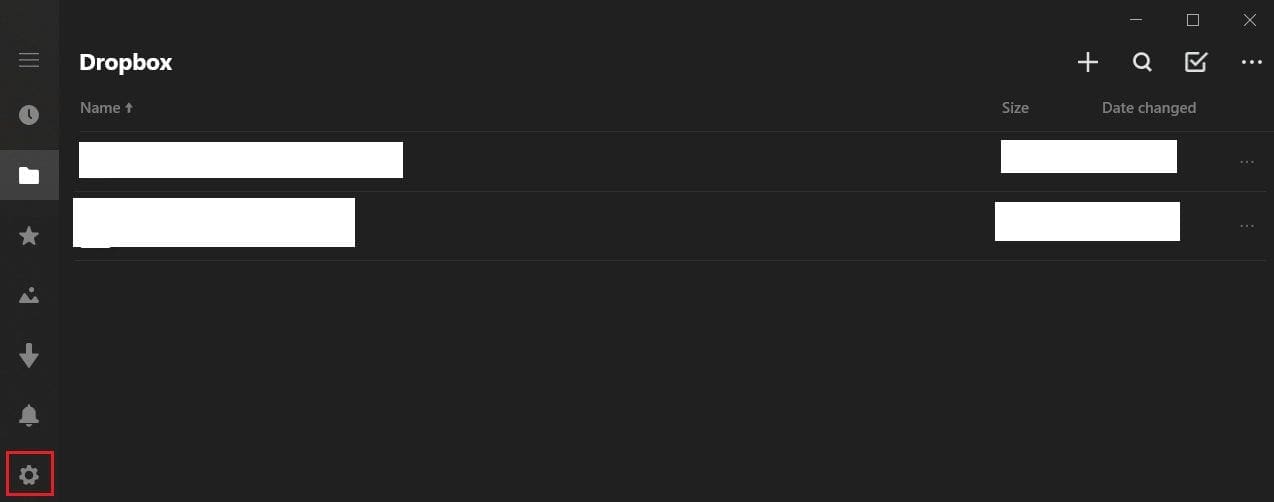
Click on the cogwheel icon to open your settings.

In the settings, click on “account” to open the account settings.
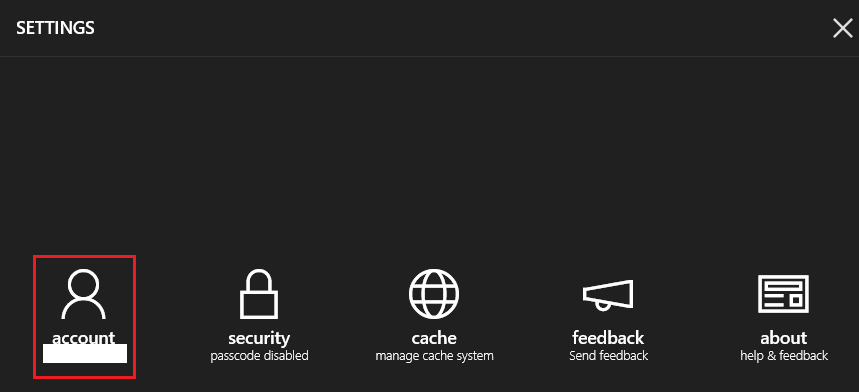
Click on “account” to open the account settings.

You can find the amount of storage you’re using in the top-right, just under your email address in the account settings.
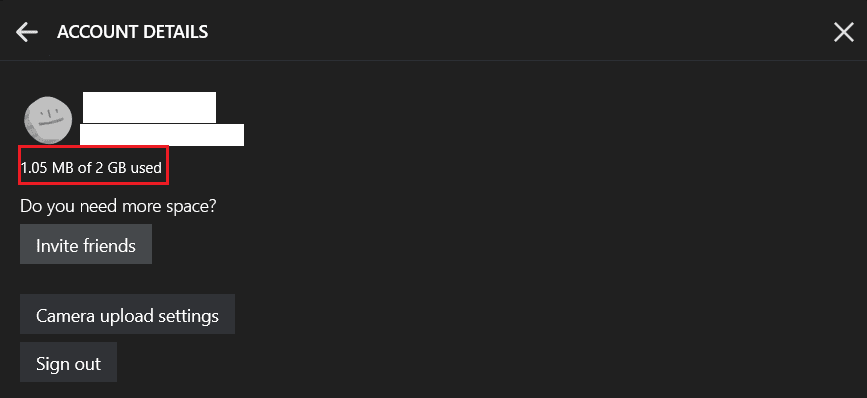
You can find your used storage listed just under your email address.

Check Dropbox Storage Space on the website

On the Dropbox website, you need to go into your plan settings to see your storage usage. To do so, click your profile icon in the top-left corner, then click “Settings.” In the settings, switch to the “Plan” tab.

Here you can find a breakdown of your storage usage in the “Personal Dropbox space” section. This graph shows how much of the storage is used by standard files, shared files, and left unused.
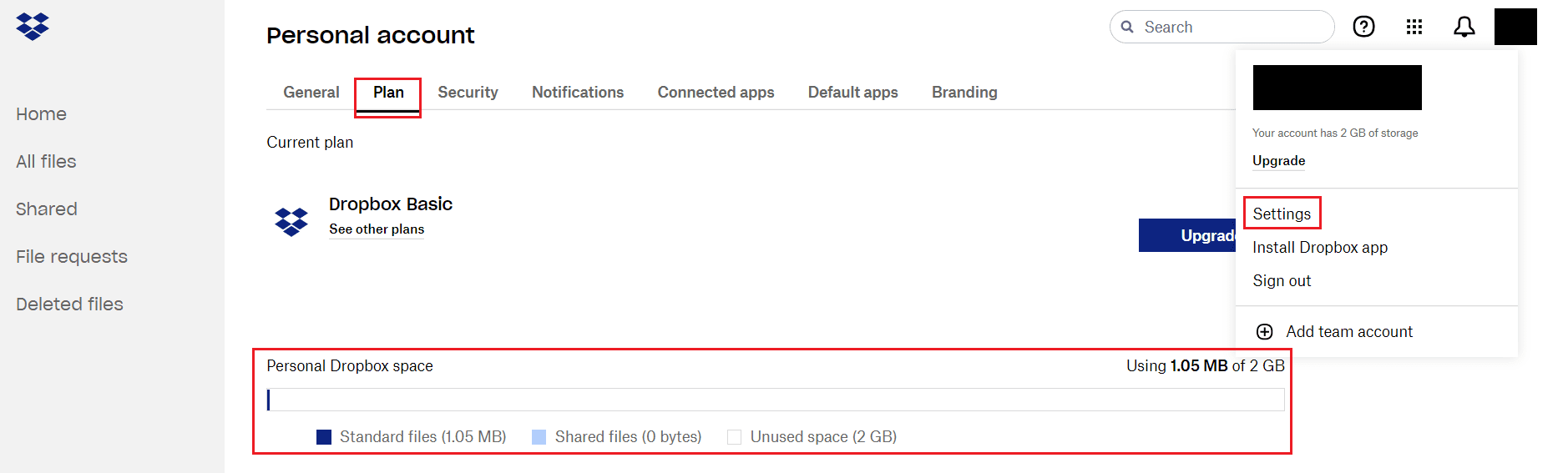
You can find your storage usage statistic in the “Plan” tab of the settings.

Conclusion

It’s a good idea to keep an eye on how much of your cloud storage allocation you’re using. By following the steps in this guide, you can check how much of your Dropbox storage you’re using either in the desktop app or on the website.


Categories: Internet | Software

Author Mel Hawthorne

You Might Also Like

  • How to Use Burp Suite Repeater

    Mel HawthorneInternet
  • Zoom: How to See Your Webcam When You’re Talking

    Mel HawthorneInternet
  • Slack: How To Configure the Default “One-Click Reactions” in Your Workspace

    Mel HawthorneInternet
  • Slack: How To Configure Who Can See the Email Addresses of Workspace Members

    Mel HawthorneInternet

Comments

  1. Bob says:
    February 10, 2023 at 6:57 am

    These instructions are out of date and no longer useful.

  2. David says:
    December 7, 2021 at 7:18 am

    The Dropbox app (I press Windows key, type “Dropbox” and see “Dropbox” and the phrase “app” under that. It doesn’t look at all like your screen shots. As expected, it look like Windows Explorer (since that’s what it is). Are you using an old version? Newer version? Windows 11 (not yet installed here)? What’s up?

Leave a Reply

Your email address will not be published. Required fields are marked *

  • fix error 0x9cfc7550

    How to Fix Error 0x9cfc7550 (We Couldn’t Create a New Partition) in Windows 

  • fix error code 0x3000008 1

    How to Fix Error Code 0x3000008 for Remote Desktop Connection

  • fix error code 0x80190001 1

    How to Quickly Fix Error 0x80190001 for Microsoft or Outlook Account Login 

  • fix filecoauth.exe application error

    Fix FileCoAuth.exe Application Error 

  • fix error code 0x80010002 in windows update

    How to Fix 0x80010002 Error in Windows Update 

profile pic

The Experts Behind Technipages

My name is Mitch Bartlett. I've been working in technology for over 20 years in a wide range of tech jobs from Tech Support to Software Testing. I started this site as a technical guide for myself and it has grown into what I hope is a useful reference for all.

Learn More

technipages logo white
linkedin icon

Technipages is part of Guiding Tech Media, a leading digital media publisher focused on helping people figure out technology. Learn more about our mission and team here.

© 2025 Guiding Tech Media All Rights Reserved

  • About Us
  • Contact
  • Terms of Use
  • Privacy Policy

© 2025 Guiding Tech Media All Rights Reserved

Information from your device can be used to personalize your ad experience.
Do not sell my personal information.

Last Updated on February 17, 2021 by Judy Sanhz