Skip to content
LogoTechnipages
LogoTechnipages
  • Topics
        • Android
        • Browsers
        • Gaming
        • Hardware
        • Internet
        • iPhone
        • Linux
        • macOS
        • Office
        • Reviews
        • Software
        • Windows
        • Definitions
        • All Recent Posts
  • Product Reviews
  • About

How to Delete Search History on Instagram

Madalina DinitaJanuary 4, 2021 Comments (1)
see who viewed instagram profile

If you don’t want your friends or family members to accidentally see your Instagram search history, it’s best to delete it. You may feel embarrassed for looking up certain IG profiles. Or you may simply care too much about your privacy to let anyone see your search history.

Contents

  • 1 Steps to Delete Instagram Search History
    • 1.1 On Android and iPhone
    • 1.2 On a Computer
    • 1.3 Delete Your Browsing History

Steps to Delete Instagram Search History

On Android and iPhone

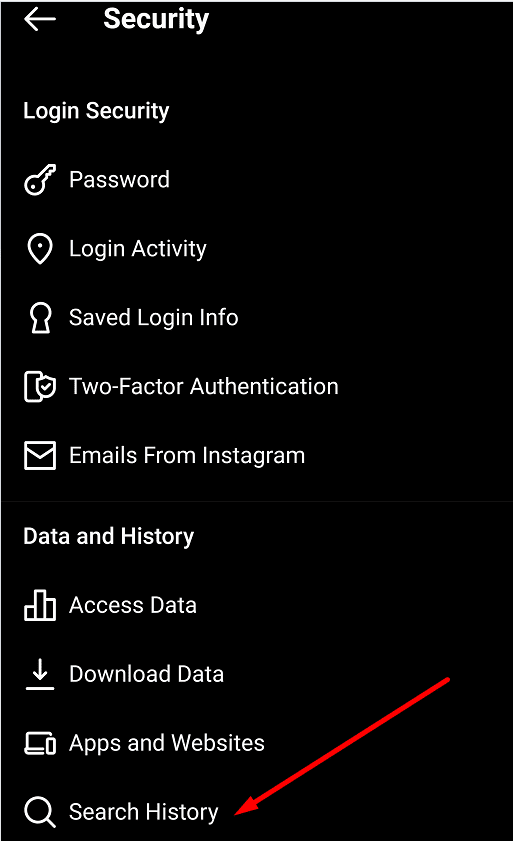
  1. Tap the three lines in the right-hand corner to open the menu.
  2. Then navigate to Settings.
  3. Select Security.
  4. And then tap Search History (the last option on the list).instagram security search history
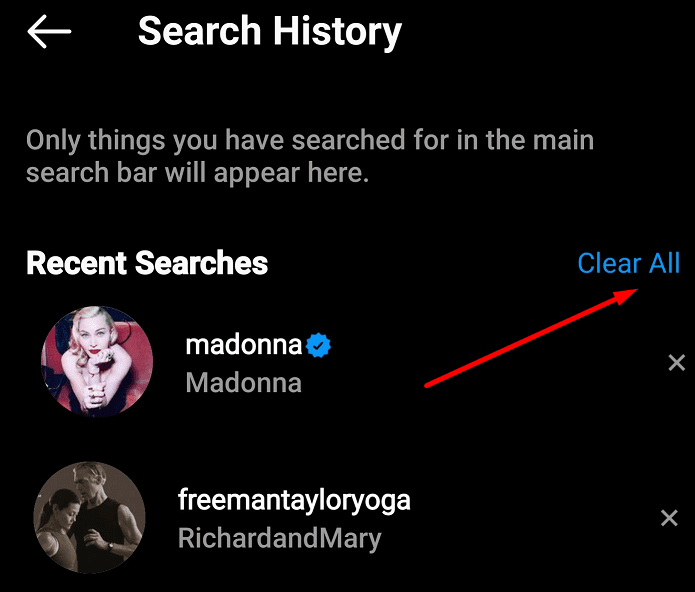
  5. Tap Clear All to permanently delete all your IG search history.
instagram clear all search history

On a Computer

  1. Click on your profile picture and go to Settings.
  2. After that, click on Privacy and Security.
  3. Go to View Account Data.
  4. Locate the Search history option and select View all.
  5. Hit Clear Search History and confirm your choice.

Keep in mind that once you select the Clear All option, there’s no turning back. You cannot undo the action. However, the IG profiles you looked up may sometimes appear as suggested accounts.

That’s the magic of Instagram. Just like any other social media platform, IG wants you to spend as much time as possible scrolling through various profiles and photos.

So, the app might suggest you check out certain profiles you visited before although you deleted them from your search history.

Delete Your Browsing History

If you also use your computer browser to scroll through Instagram, don’t forget to clear your browsing history as well. The most important part is selecting the right time range so as to include your IG history.

However, if you’re unsure about the time range, then delete all your browsing history. The steps to follow are pretty much the same, irrespective of the browser you’re using.

  1. Click on your browser menu.
  2. Select History.
  3. Then click on the option that allows you to clear the browsing data.
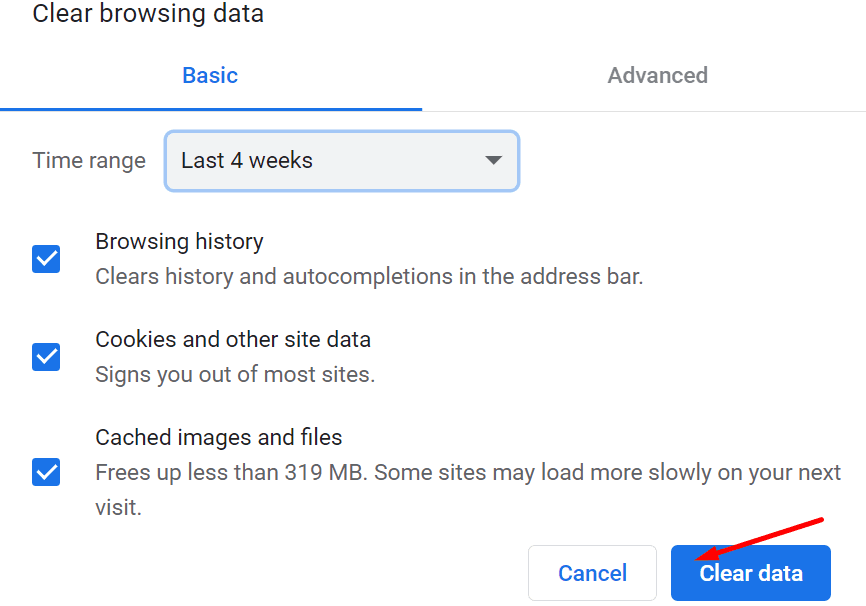
  4. Select the time range and check the Browing history checkbox.
    • Note:Don’t tick the Cookies and other site data option. You’ll get signed out of most sites. clear browsing data chrome
  5. Hit the Clear data option. Restart your browser.
Keep in mind that Instagram does not clear your search history automatically when you close the app. If you want to avoid embarrassing moments, it’s always best to regularly clear the search history.


Categories: Software

Author Madalina Dinita

Madalina has been a Windows fan ever since she got her hands on her first Windows XP computer. She is interested in all things technology, especially emerging technologies -- AI and DNA computing in particular.

You Might Also Like

  • Chrome header

    Chrome: Disable Auto Updates

    Mitch BartlettSoftware
  • How to Fix Dropbox Preview Not Working

    Madalina DinitaSoftware
  • Microsoft-Teams-Error-211-Fix

    How to Fix Microsoft Teams Error 2: 211 on Mac

    Madalina DinitaSoftware
  • fix-signal-app-wont-install

    Fix: Signal App Won’t Install on Android, iOS or PC

    Madalina DinitaSoftware

Comments

  1. Ron says:
    February 18, 2022 at 11:08 am

    Your instructions for clearance of search history do not work on my Instagram settings. Buttons completely different

Leave a Reply

Your email address will not be published. Required fields are marked *

  • why is ram so expensive

    Why Is RAM Suddenly So Expensive?

  • how to fix error code 0x800f0922 windows 11

    How to Fix Error Code 0x800f0922 in Windows 11

  • service outage message on Xbox

    What to Do With a Service Outage Message on Xbox

  • signs your hdd is failing

    Signs That Your HDD Is Failing

  • how to fix error code 0x800705b4 in windows 11

    How to Fix Error Code 0x800705b4 in Windows 11

profile pic

The Experts Behind Technipages

My name is Mitch Bartlett. I've been working in technology for over 20 years in a wide range of tech jobs from Tech Support to Software Testing. I started this site as a technical guide for myself and it has grown into what I hope is a useful reference for all.

Learn More

technipages logo white
linkedin icon

Technipages is part of Guiding Tech Media, a leading digital media publisher focused on helping people figure out technology. Learn more about our mission and team here.

© 2026 Guiding Tech Media All Rights Reserved

  • About Us
  • Contact
  • Terms of Use
  • Privacy Policy

© 2026 Guiding Tech Media All Rights Reserved

Information from your device can be used to personalize your ad experience.
Do not sell my personal information.

Last Updated on January 4, 2021 by Mitch Bartlett