There are different reasons why you may need certain pictures to be a specific size. Maybe you’re working on a project and need the images to all be the same size. The good news is that you can use various Android apps to get the job done. They are all free, so if it’s not what you expected, you can uninstall it.
5 Useful and Free Android Apps
The following apps will all have the option to make all the images the same size. But, you’ll also see other useful features you can use. Since you already have the app installed for that specific features, why not take advantage of everything the app offers? Some apps will require that you upgrade to Pro to use all the features, but all of them provide the option to resize the image for free.
1. Photo and Picture Resizer
One popular app you’ll find on Google Play to resize your pictures is Photo and Picture Resizer. The app is free to use, but if you want full access to the app, you’ll need to subscribe. The app allows you to use some Pro features if you’re willing to watch an ad. The ads can range from 15 to 30 seconds.
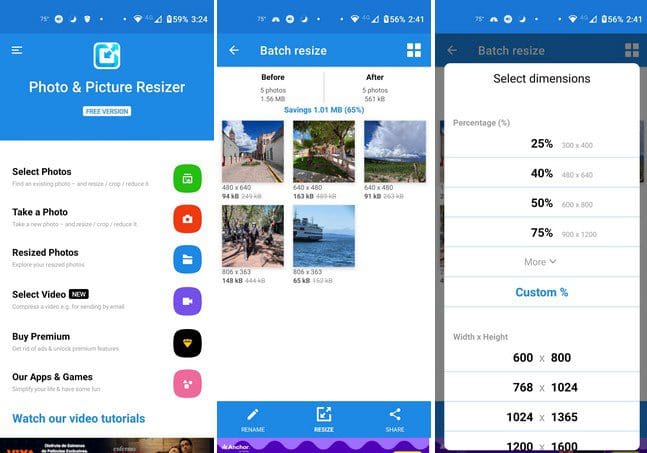
When you first open the app, you can choose to upload pictures from your device’s gallery, or you can take a new one on the spot. Let’s say that you upload the images from the gallery app. Once you’ve selected and added your pictures, tap on the resize option at the bottom.
The next step is to choose the percentage, Width, Height, File Size, Resolutions, and Print. You can select the custom option if you’re unhappy with the listed options. Some will be free, but you’ll need to watch an ad to use others. When the app is done resizing, you’ll see the preview of your apps, but with their new size beside them. If you’re happy with the new sizes, you can use the share icon to do that.
2. Image Size – Photo Resizer
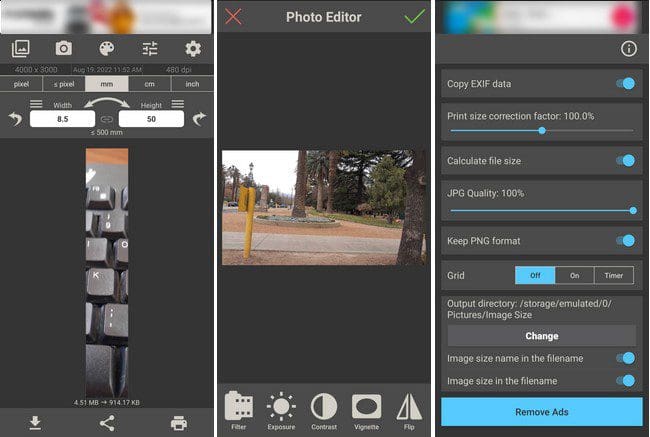
The Image Size Photo Resizer app only lets you resize one picture at a time. Once you’ve uploaded your picture, you’ll see different options to adjust the size of your image. You can change the width and height in inches, centimeters, millimeters, or pixels.
You have the options to upload pictures from your device’s gallery, or you can take a new picture on the spot. It’s also possible to choose a background color for the photo. If you go into settings, you can change things such as the quality of the image, print size correction factor, keep PNG format, enable grid, change directory, and calculate file size.
Suppose you tap on the Photo Editor icon. In that case, you can do things such as adjust the exposure, add filters, change contrast, vignette, flip the image, adjust the saturation, sharpness, and warmth, draw, and add stickers and text. When you’re done with your image, you can find it in your device’s gallery app. The app won’t give an indication that it’s done downloading the app.
On the app’s main page, you can choose to upload the images from your device’s gallery app or take a new one. That’s where you’ll also find the pictures you’ve already resized, just in case you need them in the future for something else. When you’ve added your pictures, you can change the image format if you need to do so. Tap on the cogwheel and choose from options such as:
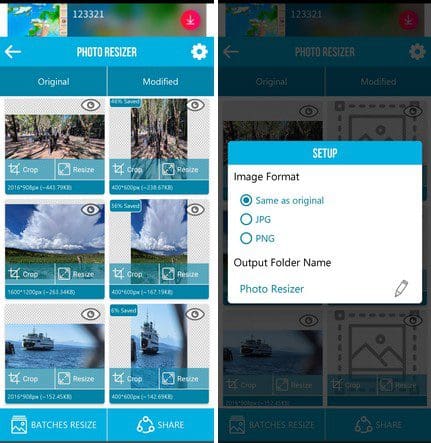
- Same as original
- JPG
- PNG
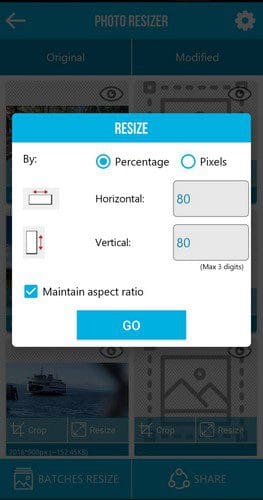
Below those options, you’ll also see the option to change the name of the output folder. Simply tap on the pencil icon and give your new folder a name. You can resize your images by percentage or pixels by tapping on the Batches Resizes option at the bottom left. Fill in the boxes for horizontal and vertical. You’ll also see the option to go Premium on the main page.
4. Resize Me! – Photo Resizer
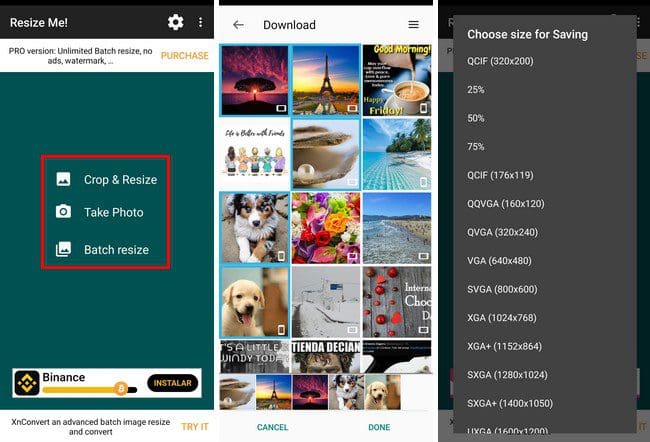
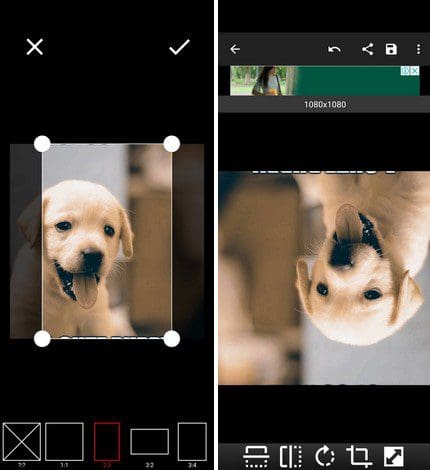
With Resize Me! – Photo Resizer you can resize one picture or batch resize. Choose the option you want when you first open the app. When you want to crop first, the app lets you do it manually, or you can choose from the listed options at the bottom.
Don’t forget to tap on the checkmark at the top right to save your changes. You can also do things such as flip the image in different directions.
5. Photo Compressor and Resizer
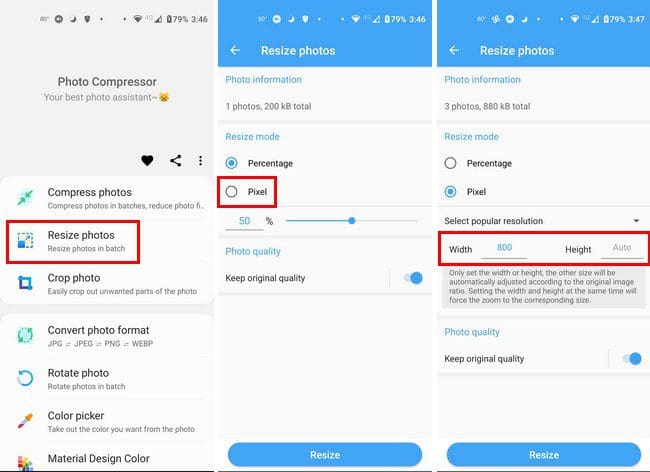
Photo Compressor and Resize is another excellent option you can go with. On the app’s main page, you can choose from various options such as:
- Compress Photos
- Resize Photos
- Crop photo
- Convert photo format
- Rotate Photo
- Color Picker
Tap on the Resize option and choose your images. Tap on the blue next button at the bottom. In the Resize options, tap on the Pixel option so you can adjust the width and height of the image. Once that’s done, tap on the Resize button at the bottom. The app will process the images, and you’ll see information on how much your images have been resized. That’s all there is to it.
Conclusion
Whether you need to compress or change the width/height of an image. You’ll find an app you can use to help you with that. All the apps on the list are free to use, so if they are not what you’re looking for, you can always erase them. Besides resizing the images, the apps also offer other useful features that you might find useful. Which app do you think you’re going to go with first? Share your thoughts in the comments below, and don’t forget to share the article with others on social media.