
You can connect your Samsung Galaxy S8 smartphone to your TV and watch videos on a bigger screen. Just follow these steps.
Option 1 – Miracast Adapter
- Obtain a Miracast Adapter like this one and plug it into the HDMI port on your TV and a power source.
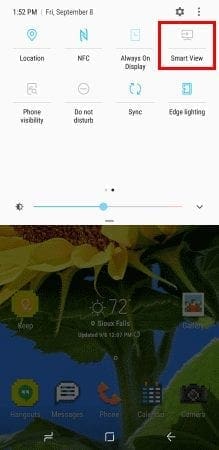
- On the S8, swipe down the quick menu by swiping with 2 fingers from the top of the screen down.
- Swipe left, then choose “Smart View“.

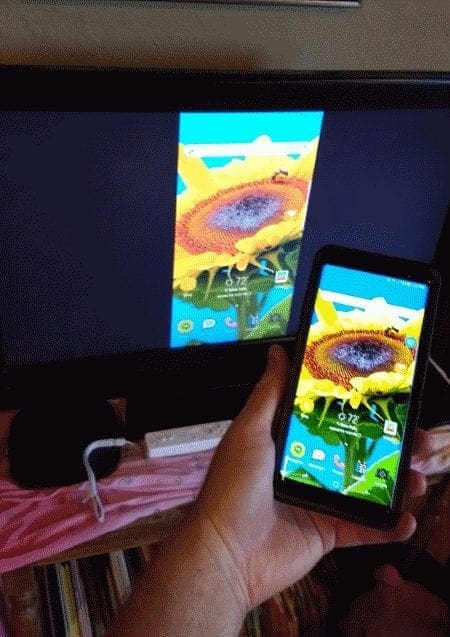
- Select the Miracast device in the list, and you’re mirroring to the TV.

Option 2 – Roku or Fire TV
- Purchase a Roku or Fire TV device.
- Enable mirroring.
- Roku – “Settings” > “Advanced” > “Mirroring“
- Fire TV – “Home” > “Mirroring“.
- Apps like Netflix and YouTube will now have a “Cast”
 button within the app that you can use to send the video to the Chromecast and TV. If you want to mirror everything on the device, swipe down the quick menu from the top of the screen, swipe left, then choose “Smart View“.

Option 3 – ChromeCast
- If you do not have a smart TV that supports Chromecast, you can acquire a
Google Chromecast Adapter and connect it to the HDMI port on your TV. - Ensure the Chromecast and Galaxy S8 are connected to the same Wi-Fi network.
- Install the Google Home app on the Galaxy S8.
- Follow the wizard to setup your device with your TV.
- Apps like Netflix and YouTube will now have a “Cast” button within the app that you can use to send the video to the Chromecast and TV. If you want to mirror everything on the device, open the Google Home app, select , then choose “Cast screen / audio“
Option 4 – Wired Connection
This option will provide the best frame rate.
- Connect a Samsung USB-C to HDMI Adapter to the USB port on your phone.
- Connect a standard HDMI cable between the adapter and TV, and you’re ready to run.
FAQ
Does the Galaxy S8 support an MHL cable connection?
Unlike many Samsung Galaxy predecessors, the Galaxy S8 does not support an MHL cable connection.

good it works
I have an S8 that I am trying to connect via HDMI converter to my tv. I have tried several adapters and never get anything on the screen. Are there any settings in the phone that need to be set a certain way? I am currently trying a Blackweb model: BWA 18W1026. Any help would be greatly appreciated.
Hi, I just tried hooking up my friends TV to her galaxy 8+ phone By using a USB C HDMI adapter. I was able to get her phone screen on the TV screen however it kept Displaying a message on the screen saying something about fitting the picture to the corners and to use the display settings on the monitor or TV and then it gave me the option to click OK.
Underneath the OK button and it said do not show this again with a box to check. So I don’t know how to get that screen out of the way so that she can start watching movies. Would appreciate any assistance. Marna
I’m trying to use a USB cable to watch movies I downloaded on my phone on the tv
I am trying to connect my S8 with a USB-C to HDMI cable. The TV seems to know the phone is there but it won’t mirror the phones image. It is quite an old TV. Is there trick or better way to do it?
I want to use it in my home gym for YouTube and other fitness apps that run on my phone. Thanks James
How do i connect the s8 active to a insignia 55 in tv
Samsung Link is no longer available as of [08:00 AM, 1st November 2016,