
There are several different ways you can make sure that a window stays on top of other ones. You’ll need to download an external program to accomplish this. There are several out there, but one of the best ones is DeskPins.
Follow the steps below to quickly and easily pin something to the top of your screen.
It’s free open-source software that lets you pin any application to the top, no matter what it is. Go to the DeskPins website and download the relevant version for your machine. Run the executable and install the program in your location of choice.
- Run the Program.
Once you’ve finished installing it, locate the deskpins.exe file in the folder where you installed it and run it. A new icon will appear in your taskbar. Right-clicking on it will bring up a menu and let you select ‘Options’.

- Set Hotkeys and other Options
Under the Hotkey tab, you can set up specific key combinations and hotkeys. Set them to whatever you would like and adjust any additional settings you want to change as well. When you are happy with your settings, close the options window.
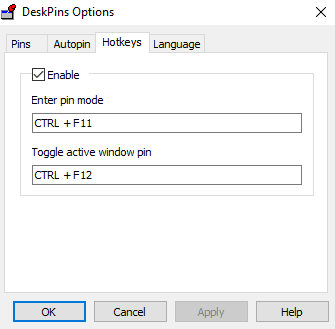
Adjusting the tracking rate can help if DeskPins slows down your computer – a higher rate means less impact on the performance. A lower value makes the pin more responsive. You have an Autopin function available as well – it lets you automatically pin certain types of windows when they are opened – for example, you could set a rule that automatically pins all instances of Notepad being open.
- Pin your preferred Window
In order to pin a window, right-click on the icon in your tray again and enter Pin Mode. Your cursor will change to a pin – click on the title bar of the window you want to always keep on top, and a pin will appear on that bar. It’ll be the color you set in the options menu earlier. By default, it will be red.

In order to unpin the window, you can either click on the colored pin again or right-click on the tab icon and select Remove all Pins. You can pin multiple windows – they will follow the same pattern of use as normal, that is to say, the most recent one will be on top, while all non-pinned windows will be below them.




microsoft should added this a lot of years ago even linux have this function.
this was very useful thank u so much guys
This is a really good little app.
Solves a lot of my problems and it is very easy to use.
Thank you
Ah, thank you. Only if I’d done this months ago
clean simple and powerful post thanks to deliver the information quickly
DeskPins works really bad on Windows 10 and the project is deprecated. They released the latest version in 2015.
I found new program called WindowTop and it is not deprecated unlike DeskPins and in addition, it is much more easy to use.
It have portable version also… and it also have a very nice transparency function (in addition to pin window on top) and
as an artist I am using it a lot. Really recommend this handy tool.