Skip to content
LogoTechnipages
LogoTechnipages
  • Topics
        • Android
        • Browsers
        • Gaming
        • Hardware
        • Internet
        • iPhone
        • Linux
        • macOS
        • Office
        • Reviews
        • Software
        • Windows
        • Definitions
        • All Recent Posts
  • Product Reviews
  • About

Windows 10: Set CPU Priority to Prefer Foreground Apps

Mel HawthorneMay 4, 2020 Comments (0)

A slow running computer can be really frustrating to use. It’s one thing when you’re asking a lot of the computer -for example, if you’ve got hundreds of tabs open in Chrome, it’s expected that your computer will struggle. But, it’s quite another, when you struggle to do something simple, like checking your email without Windows using its resources for something else in the background that you don’t really want.

It’s possible to configure Windows to prioritise foreground apps or background services. This guide will cover how to ensure that Windows 10 is configured to prioritise processing power for foreground applications.

To ensure that Windows prioritises programs over background services you need to open the Windows Performance options. You can open this menu by pressing the Windows key, typing “Adjust the appearance and performance of Windows” and hitting enter.

The processor priority options are on the “Advanced” tab of the Performance options. Once in the Advanced tab, ensure that “Adjust for best performance of:” is set to Programs.
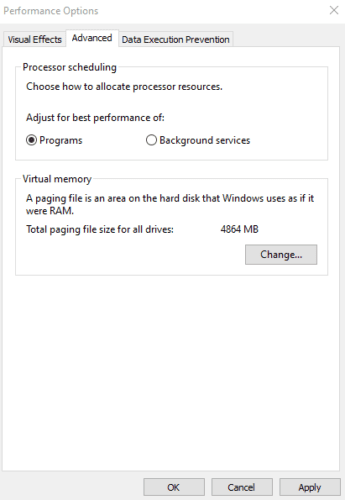
Ensure that the processor scheduling is set to adjust for best performance of programs.

Tip: By default, Windows is configured to prioritise programs over background services. However, checking that this setting has not been accidentally changed can be a good idea as this may resolve some performance issues.

Doing this makes sure that when there is a choice of a foreground app and a background service, resources go to the foreground one first!


Categories: Windows

Author Mel Hawthorne

You Might Also Like

  • Active Directory logo

    How to Find Computer Locking Active Directory Account

    Mitch BartlettWindows
  • What to Do When the Taskbar Won’t Hide in Windows 10

    Judy SanhzWindows
  • Windows-11-cant-move-taskbar-fix

    Windows 11: 3 Helpful Tips to Fix Taskbar Not Moving

    Madalina DinitaWindows
  • windows-11-widgets-not-working-fix

    Windows 11: What to Do When the Widgets Stop Working

    Madalina DinitaWindows

Leave a Reply

Your email address will not be published. Required fields are marked *

  • system32 folder opens on startup

    System32 Folder Opens on Startup – How to Fix

  • browser keeps opening hp support

    Browser Keeps Opening HP Support Assistant Tabs 

  • camera not working in vmware

    Camera Not Working in VMware – How to Fix

  • browser screen goes black

    Browser Screen Goes Black Intermittently 

  • computer heating up in hyper v

    Computer Heating Up When Using Hyper-V – How to Fix 

profile pic

The Experts Behind Technipages

My name is Mitch Bartlett. I've been working in technology for over 20 years in a wide range of tech jobs from Tech Support to Software Testing. I started this site as a technical guide for myself and it has grown into what I hope is a useful reference for all.

Learn More

technipages logo white
linkedin icon

Technipages is part of Guiding Tech Media, a leading digital media publisher focused on helping people figure out technology. Learn more about our mission and team here.

© 2026 Guiding Tech Media All Rights Reserved

  • About Us
  • Contact
  • Terms of Use
  • Privacy Policy

© 2026 Guiding Tech Media All Rights Reserved

Information from your device can be used to personalize your ad experience.
Do not sell my personal information.

Last Updated on May 4, 2020 by Mitch Bartlett