If your computer is running slowly or is producing a lot of heat, it’s likely that at least one program is hogging your system resources. Depending on which resources are being hogged the exact symptoms of the issue can vary, but if any resource is being hogged it can result in other programs running slowly.
The symptoms of resource hogging
Computers have five main resources: CPU, Memory, Disk, Network, and GPU. The CPU or Central Processing Unit is the core processor of the computer. If the CPU is being used heavily, other programs and the entire operating system can start to run slowly. Additionally, the CPU can output a lot of heat, causing your cooling fans to speed up.
Your computer’s memory is also known as the RAM, it’s used to store data that the operating system and active programs need to run. If one app takes up too much RAM, then some programs can end up having their data pushed out of RAM. This can cause those apps to become very slow to load or open back up if they were minimised, in some cases, it can also cause apps to crash.
The disk is the long-term storage or hard drive of your computer. If an app is hogging the use of a hard drive, then other apps trying to use that hard drive will be very slow as they can’t actively read or write data until the disk is free for new requests.
Network usage is the utilisation of your network connection. The percentage measure is not a measure of your device’s network usage as compared to your internet download speed, instead, it’s a measure against how fast your network card can transmit data. For example, if a network card can transmit data at up to 1000Mb/s but you only have a download speed from your ISP of 100Mb/s then you will only ever reach 10% utilisation. This means that you’re very unlikely to reach 100% even when your network connection is being hogged by a single app. If your network connection is being hogged, then you’re likely to see other apps being slow at loading data from the internet.
The GPU or Graphics Processing Unit is responsible for handing graphics tasks such as rendering your desktop, apps, and video games. If your GPU is being hogged, then it will likely produce a lot of heat. It’s unlikely that you’ll see much performance impact, however, as computers are very smart at determining which apps need priority access to the GPU. You may occasionally notice some graphically intensive tasks running slowly when the GPU is under heavy load, but this generally doesn’t happen outside of the app that is actively hogging the GPU.
How to identify which apps are hogging system resources
Identifying which app or apps are hogging system resources is generally pretty easy using the default Windows tool “Task Manager”. To open Task Manager press the keyboard shortcut Ctrl + Shift + Esc.
Task manager should open with seven tabs available at the top: Processes, Performance, App history, Start-up, Users, Details, and Services.
Tip: If you can’t see these tabs you may be in the streamlined view. Click the “More details” arrow in the bottom-left corner to open the full Task Manager view.
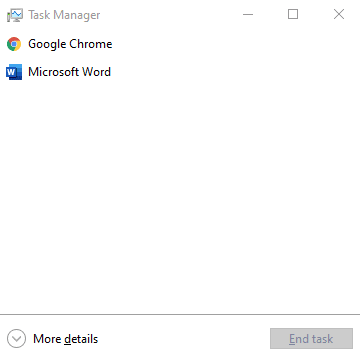
To identify which apps are hogging system resources, you want to open the “Processes” tab. Here you can see a column for each of the previously mentioned system resources and the usage statistics for each app.
Tip: If you can’t see all of the mentioned system resource columns, then right-click on the column headers and tick the missing resources.
You can click on each of the column headers to sort the apps by resource usage, either in ascending or descending order. By sorting columns in descending order, you can see if any apps are using an unusually large amount of system resources.

How to deal with an app hogging resources
Realistically for the best performance in an app, you want it to be able to make the most use of at least one of the system resources, with the exception of the RAM. For example, an antivirus tool will scan your hard drive, if it’s not using most or all of the drive’s read speed, then it’s not running as fast as it could be. If a video game isn’t using 100% of your GPU, then you’re not getting the highest framerate or quality that you could be.
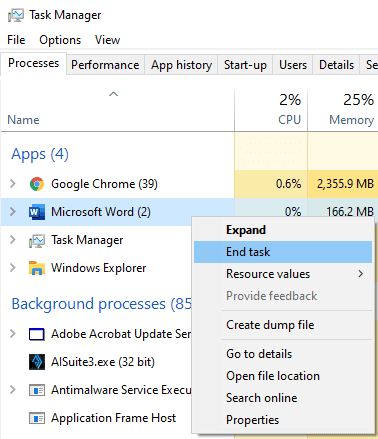
Obviously, if one app is hogging a system resource, then access to this resource is restricted for other apps, which can cause a system slowdown. If this access is necessary, and you want to speed up other processes, then you may want to consider ending the resource-hogging task, by right-clicking on it, and selecting “End task”.
Tip: Be careful ending tasks. Ending system tasks could cause Windows to crash. Ending other tasks like Microsoft Word, could also lead to data loss if you haven’t saved – always think before you end a task!