
If your computer screen starts flickering when you’re moving the mouse cursor, this issue can be really distracting.
If you already restarted your computer but the problem persists, we’ve got a series of troubleshooting solutions that can help you to fix this issue for good.
What causes screen flickering?
Screen flickering is usually caused by outdated or corrupted display drivers. That’s why updating or reinstalling the display driver is a solution that worked for many users.
Troubleshooting Screen Flickering on Cursor Move
Use Alt + Tab
An interesting and quick method to fix this problem consists of pressing the Alt and Tab buttons to switch between programs without using your mouse. Many users confirmed this simple workaround did the trick for them. Do give it a try before diving into more complex troubleshooting methods.
Check your display driver
As stated above, updating, reinstalling, or rolling back the display drivers did the trick for many users.
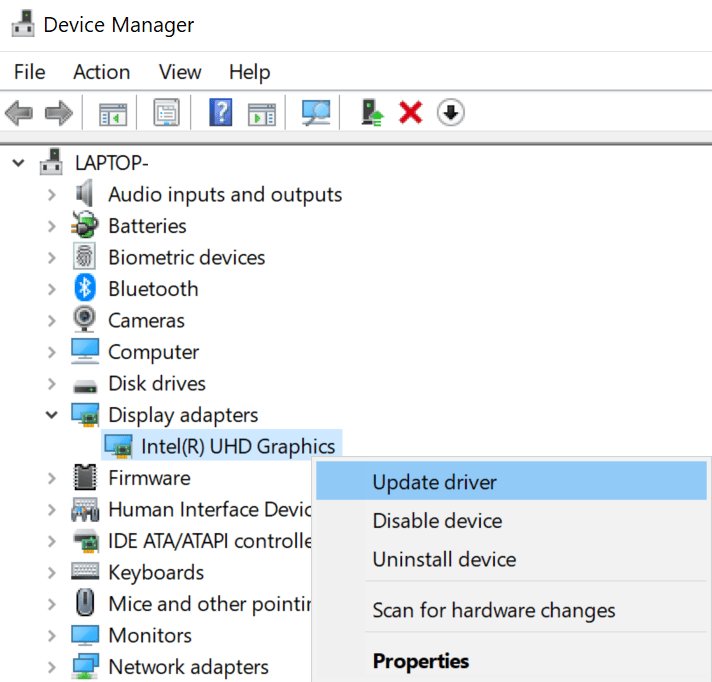
- Open the Device Manager.
- Then locate the Display adapters and expand the list.
- Next, right-click on your display driver.
- If you want to update the driver, select Update driver.
- To reinstall the driver, select Uninstall Device.

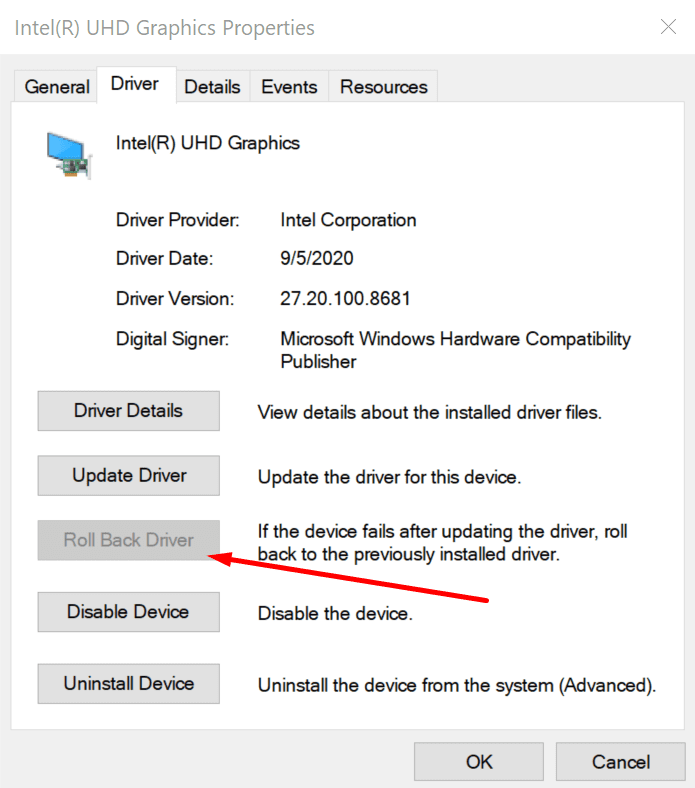
- If you want to roll back the driver to a previous version, select Properties. Click on the Driver tab and then hit the Roll back driver button (if it’s not greyed out).

Note: If the screen flickering issue occurred shortly after updating Windows, you may want to roll back the display driver first.
Uninstall incompatible apps
Incompatible programs can also trigger this problem. The good news is that this is easy to spot. You should notice the screen flickering issue shortly after installing the respective programs.
To check if an incompatible app or program is causing your screen to flicker, open the Task Manager by pressing Ctrl + Alt + Delete.
If the Task Manager does not flicker, this indicates an incompatible app is causing this problem. So, you can either update or uninstall the problematic app.
If you downloaded that app from the Microsoft Store, then open the Store and check for updates there.
If this is a third-party app that’s not coming from the Store, go to the manufacturer’s office webpage site and check for updates.
To uninstall an app, launch the Control Panel, go to Programs and Features and select Uninstall a program.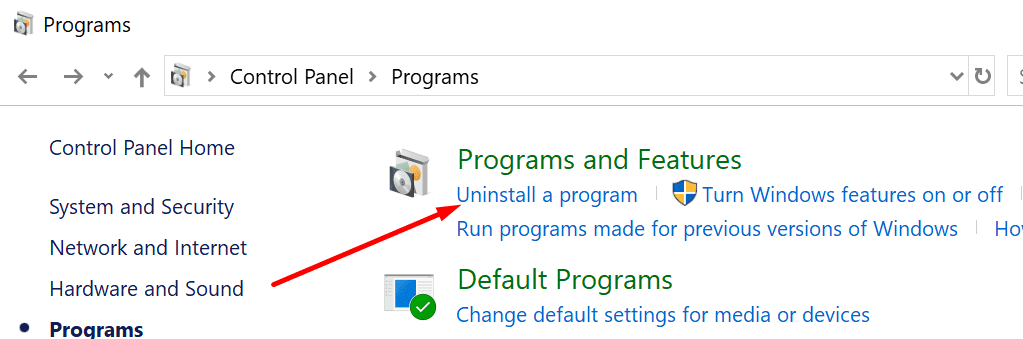
You can also clean boot your computer to test if the screen still flickers with just a minimum set of drivers and system processes running. If there’s no screen flickering in clean boot mode, that’s definitely an incompatible app issue.
If the Task Manager flickers as well, then most likely this is a display driver issue. You can fix that by using the first solution.
Uninstall Windows updates and opt-out of the Insider Program
If this problem occurred after updating Windows and rolling back the display driver did not work, try uninstalling the OS updates you recently installed.
- To do that, open the Control Panel, select Programs and Features and select View installed updates.

- Then select the recently installed updates, and hit the Uninstall button.
- Restart your computer and check if the issue is gone.

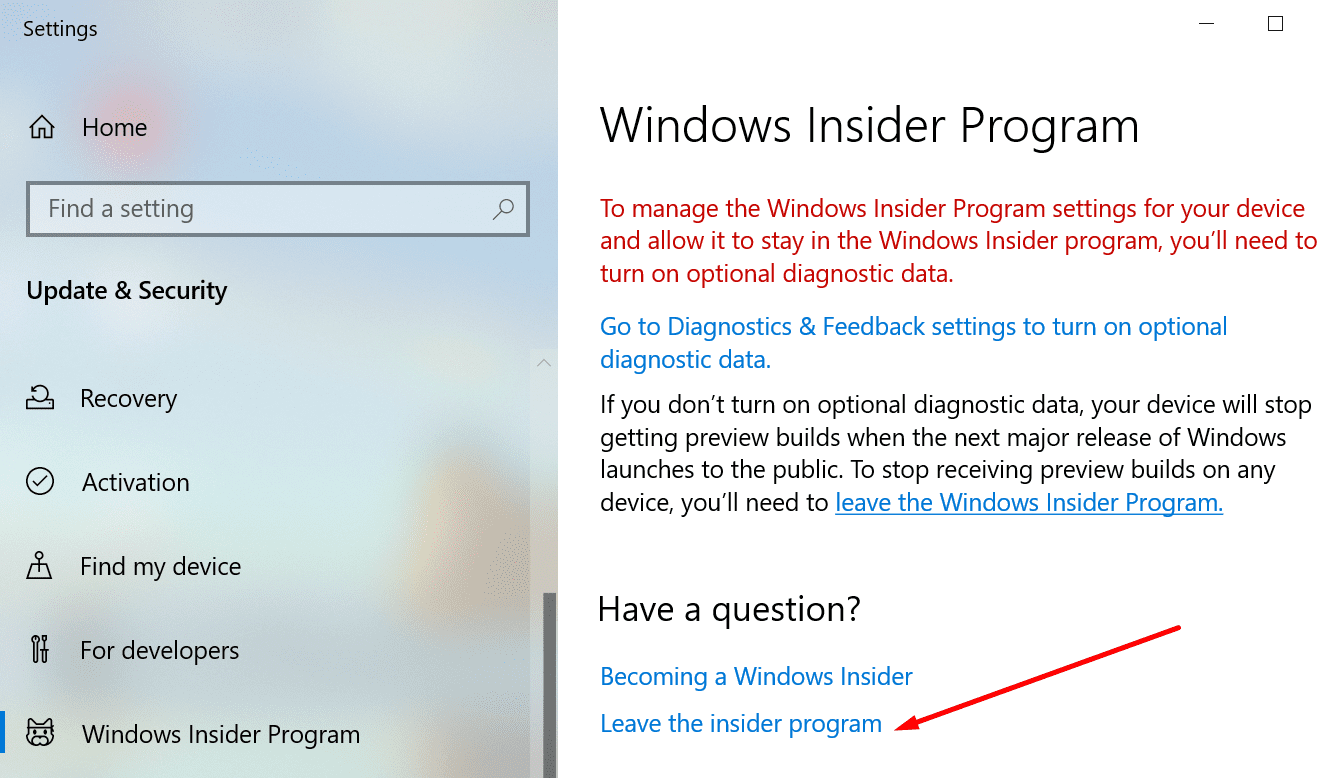
If you’re also enrolled in the Windows Insider Program, it may be a good idea to opt-out. Insiders get to test unfinished and potentially bugged OS versions that may sometimes bring unexpected issues to the table.
Go to Settings, click on Update & Security, select Windows Insider Program in the left-hand pane, and click on Leave the insider program.
Let us know if you managed to fix the screen flickering problem.



Rollback driver then search for an update helped me
Rolling back display drivers fixed my problem as well. Thank you so much!
This happens on my nuclear gaming rig if I’m mousing over a dark background on an Odyssey G7. No rhyme or reason. I believe it’s something else, like a correction setting or something software related? This is frustrating.
Well, it worked after I clicked the roll back display drivers. Thanks!
No still stuck on lock screen can’t log in this has been going on science yesterday nothing seams to help
Idk what happened but everytime i roll back driver or update it. it doesnt work. Whenever i leave my laptop for a bit (turned off) it goes away but then comes back within 1 hour or 30 mins. Idk what to do, i even factory reset my laptop. Can anyone help?
The fun part is that this problem occur with a fresh windows 10 installation. When i have access to the desktop (so with no driver installed) everything works fine. When windows automatically install the driver for the VGA (integrated, it’s a RV510 A08), it start flickering when i move the mouse or when there’s something that change in the screen.
After roll back of display drivers, screen flickering is stopped.