Skip to content
LogoTechnipages
LogoTechnipages
  • Topics
        • Android
        • Browsers
        • Gaming
        • Hardware
        • Internet
        • iPhone
        • Linux
        • macOS
        • Office
        • Reviews
        • Software
        • Windows
        • Definitions
        • All Recent Posts
  • Product Reviews
  • About

WhatsApp Self-Destructing Messages: How to Set Them Up

Judy SanhzNovember 23, 2020 Comments (1)

When you think of something that’s going to self-destruct, you can’t help think of Tom Cruise and his Mission Impossible team. But, this time, the star is WhatsApp. It has finally added the feature where your messages will erase on their own, but you might not be too happy about how long that’s going to take.

The time most people expect self-destructing messages to go away usually ranges within a few minutes like in Telegram. The app lets you choose between one second, 15 seconds, 30 seconds, One minute, One hour, One day, or one week. But, in the WhatsApp self-destructing messages, you might not find the option you’re looking for.

Contents

  • 1 How to Make WhatsApp Messages Erase Automatically
  • 2 Tips to Stay Safe When Using Disappearing WhatsApp Messages
  • 3 Conclusion

How to Make WhatsApp Messages Erase Automatically

To enable the feature, open WhatsApp and go to the chat where you want to self-destruct messages to work. Once you have the chat of that contact, open tap on their name at the top of the chat.

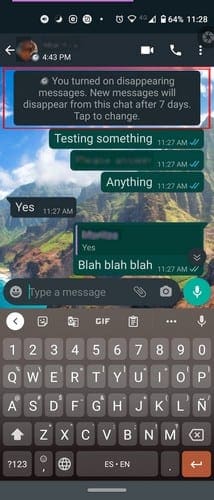
A few options down, you’re going to see the Disappearing messages option. Tap on the option, and you’ll see the options to turn it off or on. Tap On and go back to the chat’s main page. You’ll notice something different now with that chat; that it’s going to have a clock on it.

That means that you’ve enabled the disappearing messages for that specific chat. Not to worry about previous messages you’ve sent or received. Those messages will stay there permanently. This feature can also be used in groups, but only group administrators can turn it on or off.

If for some reason, the other person doesn’t check their WhatsApp messages in seven days, the message will disappear. But, the message will still be visible in the notifications bar. Any disappearing messages that are forwarded when the feature is off won’t be erased.

Tips to Stay Safe When Using Disappearing WhatsApp Messages

If you’re going to be using disappearing messages to send sensitive or semi-sensitive information, make sure to only send it to people you trust since you never know if they might take a screenshot of the chat. Also, save any data from disappearing messages to think is important as soon as possible. If you leave it for later, you could forget and lose the information.
Even if media is erased from the chat, it’ll still be found in your device’s storage if auto-download is on. If you’ve turned auto-download off to save storage space, make sure that you download the file before the seven-day time limit.

Conclusion

Seven days for a self-destruction message is a bit too long, but hopefully, WhatsApp will add more options soon. At least the feature is available and will only get better with time. Will the self-destructing messages be a feature you’ll regularly use?


Categories: Android

Author Judy Sanhz

I am a tech geek who loves technology. I have been writing about tech for over a decade, covering various devices and programs. I write about Android, Apple, and Windows devices and programs. I stay updated on the latest gadgets, upgrades, features, and news. I aim to make complicated tech information easy for everyone to read. I've been with TechniPages from the beginning to help others fix their tech issues with the easy-to-follow guides.

You Might Also Like

  • Galaxy Note 5: Connect to PC

    Mitch BartlettAndroid
  • Google: How to Check Traffic to Work or Home

    Mitch BartlettAndroid
  • Play Classic Arcade Games On Your Android With MAME4droid

    Mitch BartlettAndroid
  • fix-onedrive-android-camera-upload-not-working

    Fix: OneDrive Android Camera Upload Not Working

    Madalina DinitaAndroid

Comments

  1. Monic says:
    May 14, 2021 at 12:43 pm

    How can one turn off the self distract messages of a particular chat

Leave a Reply

Your email address will not be published. Required fields are marked *

  • why is ram so expensive

    Why Is RAM Suddenly So Expensive?

  • how to fix error code 0x800f0922 windows 11

    How to Fix Error Code 0x800f0922 in Windows 11

  • service outage message on Xbox

    What to Do With a Service Outage Message on Xbox

  • signs your hdd is failing

    Signs That Your HDD Is Failing

  • how to fix error code 0x800705b4 in windows 11

    How to Fix Error Code 0x800705b4 in Windows 11

profile pic

The Experts Behind Technipages

My name is Mitch Bartlett. I've been working in technology for over 20 years in a wide range of tech jobs from Tech Support to Software Testing. I started this site as a technical guide for myself and it has grown into what I hope is a useful reference for all.

Learn More

technipages logo white
linkedin icon

Technipages is part of Guiding Tech Media, a leading digital media publisher focused on helping people figure out technology. Learn more about our mission and team here.

© 2026 Guiding Tech Media All Rights Reserved

  • About Us
  • Contact
  • Terms of Use
  • Privacy Policy

© 2026 Guiding Tech Media All Rights Reserved

Information from your device can be used to personalize your ad experience.
Do not sell my personal information.

Last Updated on November 23, 2020 by Mitch Bartlett