You may have already been using it on Facebook, but recently it’s possible to use your avatar on WhatsApp. It’s not necessary to install a third-party app to use it since it’s integrated into WhatsApp. You can finally express your feelings with something that looks like you, not an emoji. You’ll still have the option of using stickers and emojis, but avatars are also great. You can go back and change things at any time. You’ll also see the option of erasing the avatar.
How to Make an Avatar on WhatsApp
WhatsApp just improved with the option to create your avatar to express your feelings. You can create your avatar by going to Settings in WhatsApp. You can do this by tapping on the dots at the top right and choosing Settings.
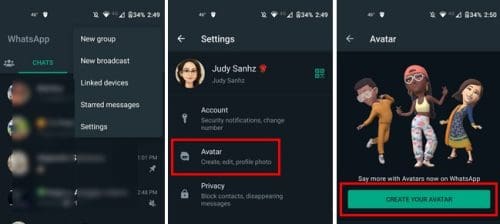
The second option from the list will be the Avatar option, Select it and tap on the Create Your Avatar button. Meta will show you some text you should read, and if you’re ok with what you see, you’ll start customizing your WhatsApp avatar. You’ll start with the skin tone and then with other options such as hair, body, face, and accessories.
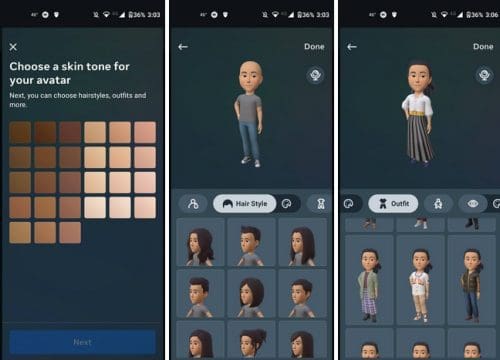
With each option, you’ll see a color palette to the right where you can select your color. For example, tap on the color palette and set your hair color if you choose your hair. Once you’re done choosing one thing, swipe left and tap on the next thing you want to modify on your avatar. As you change your avatar, you’ll see a preview of all the things you’ve added so you can see if you need to go back and change anything.
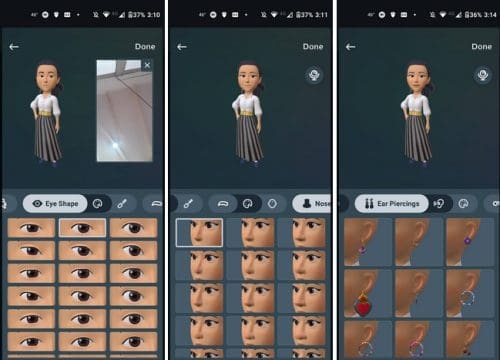
Each option, such as eyes, hair, and accessories, will have various options below that you’ll need to swipe through. Once you find the one you like, the changes will be applied automatically without the need to restart WhatsApp. When you’ve reached the end, you’ll see the option to save your changes, or you can keep editing, Don’t worry if you change your mind later. You can always go back and make as many changes as you want.
More Options
You’ll see a mirror icon at the top right throughout the customization process. By tapping on it, a small window will appear where the front-facing camera will be turned on so you can see yourself and choose the options that will make the avatar look like you. When you want to close this mirror, tap on the X next to it. You can repeat the process as many times as you want.
How to Use Your WhatsApp Avatar
Once you’re done customizing your avatar, it’s time to use it. Open a chat where you would like to use your avatar. Since it will be your first time using it, WhatsApp will make the avatar icon blink, so you know where you need to tap. Make sure you’ve tapped the emoji icon to the left of the message bar. The avatar icon will only be highlighted the first time you use it, but it’s still going to be easy to find.
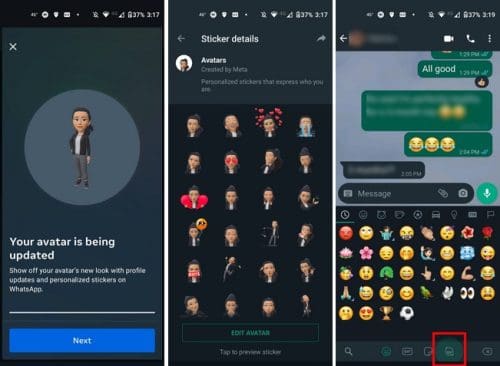
In the WhatsApp chat, you can easily find the emotion you’re looking for since it will be divided into different sections. The avatars will be separated into feelings such as:

- All
- Love
- Happy
- Sad
- Angry
- Reaction
- Lifestyle
You’ll also see a pencil icon to the right of the last option. This is another way to access the area where you can edit your avatar. At the bottom, you’ll see options to switch from emojis to stickers or back to your avatar.
How to Set Your WhatsApp Avatar as Your Profile Picture
If your avatar and you want everyone to see it, you can also set it as your profile picture. You can do this by tapping on the dots at the top right and going to Settings. Tap on your current profile picture, followed by the camera icon at the bottom right of the profile picture. Tap on the avatar option from the three options you’ll see, and your avatar will come up. You can choose from nine available options, and below the avatars, you can choose from seven colors.
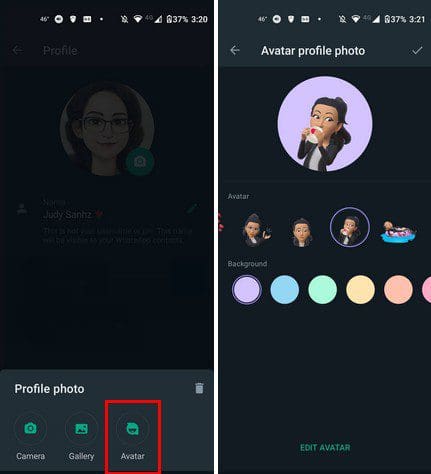
At the bottom, you’ll see the option to edit your avatar once more. WhatsApp gives you various ways to edit your avatar if you feel it still needs some changes. When you’re done, don’t forget to tap the checkmark at the top right. If you decide that you want to change your profile picture later, you can do so at any time since these changes are not permanent.
Conclusion
Avatars are a lot of fun to use and may even express how you feel better than an emoji. There may not be as many options as you would like, but hopefully, the list will get longer soon. If you want to change something about the avatar, you can do so at any time since the changes are not permanent. Are you happy with how your avatar came out? Let me know in the comments below, and don’t forget to share the article with others on social media.