Skip to content
LogoTechnipages
LogoTechnipages
  • Topics
        • Android
        • Browsers
        • Gaming
        • Hardware
        • Internet
        • iPhone
        • Linux
        • macOS
        • Office
        • Reviews
        • Software
        • Windows
        • Definitions
        • All Recent Posts
  • Product Reviews
  • About

iPhone: How to Turn Off VPN

Mel HawthorneMay 20, 2020 Comments (1)

Configuring a VPN on your phone is a great way to ensure that your browsing activity remains private from your mobile data provider. At some point though, you will likely want to disable your VPN. There are many reasons to want to turn a VPN off. For example, you could be switching to a different VPN provider or connecting to your home network. There are a number of ways to turn off a VPN on your iPhone, this guide will walk you through the options.

From the Settings

The easiest way to disconnect from a VPN is in the Settings app. Directly underneath the “Personal Hotspot” settings near the top of the Settings app, you’ll find a “VPN” slider, tap it once to disable, or enable your default VPN.

Tip: The process of disabling a VPN will generally happen instantly, however, connecting to one may take some time. Make sure your connection to the VPN has completed before you start browsing, as you could interrupt the process and remove your protection otherwise. We recommend waiting a minute or two, just to be sure.
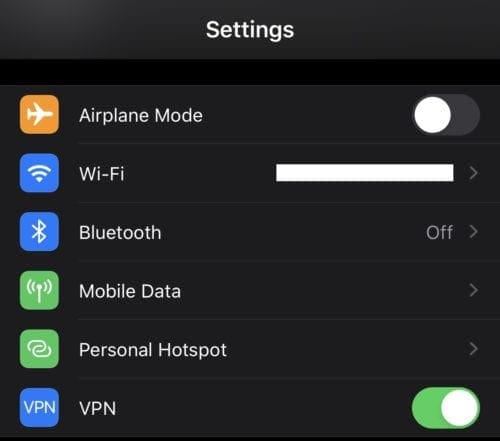
Tap the VPN slider near the top of the Settings app to disconnect from a VPN.

There is a second way to disconnect from a VPN in the Settings app, under Settings > General > VPN. To disconnect from your VPN, tap the “Status” slider at the top of the page, to set it to the “Off” position.

Tip: These are the general VPN settings; you can see a list of profiles here. If you have multiple VPNs installed on your phone, you can also choose which profile you want to be the default. The default VPN can be activated by tapping the above “Status” slider. To activate a non-default VPN, you’ll have to open the VPN app, or temporarily change the default.
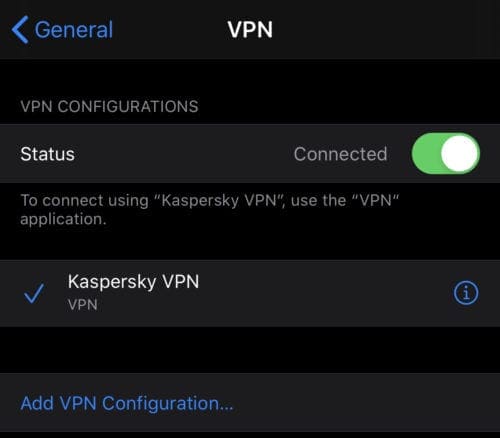
Tap the “Status” slider at the top of the VPN settings to disconnect from a VPN.

From within an app

The final way to turn off a VPN on your iPhone is to do so from within the VPN app. Each VPN app will look different, so the instructions may vary depending on which app you use. It’s also possible that your VPN app doesn’t include a button to connect and disconnect from its VPN.

Open your VPN app, then locate its button to connect and disconnect from the VPN. The button will likely be on the home page of the app or otherwise be very easily accessible as it is a key feature. Tap the button once you’ve found it to disconnect from the VPN. If you receive a confirmation prompt, confirm that you want to disconnect from the VPN.

Tap the “Turn off”, or similarly titled, button in your VPN app to disconnect from the VPN.

Categories: iPhone

Author Mel Hawthorne

You Might Also Like

  • How to Transfer Songs From CD to iPod, iPhone, or iPad

    Mitch BartlettiPhone
  • No Ringer Header

    iPhone: No Ringer Sound On Incoming Calls

    Mitch BartlettiPhone
  • Apple logo

    App Store Icon is Missing From iPhone or iPad

    Mitch BartlettiPhone
  • Microphone Missing from Keyboard on iPhone or iPad

    Mitch BartlettiPhone

Comments

  1. brook says:
    November 1, 2020 at 9:22 pm

    see i did this already a few weeks ago and somehow my dad got it back on my phone but its not in settings and there are no apps on my phone that i would have to delete do you know what i could do

Leave a Reply

Your email address will not be published. Required fields are marked *

  • system32 folder opens on startup

    System32 Folder Opens on Startup – How to Fix

  • browser keeps opening hp support

    Browser Keeps Opening HP Support Assistant Tabs 

  • camera not working in vmware

    Camera Not Working in VMware – How to Fix

  • browser screen goes black

    Browser Screen Goes Black Intermittently 

  • computer heating up in hyper v

    Computer Heating Up When Using Hyper-V – How to Fix 

profile pic

The Experts Behind Technipages

My name is Mitch Bartlett. I've been working in technology for over 20 years in a wide range of tech jobs from Tech Support to Software Testing. I started this site as a technical guide for myself and it has grown into what I hope is a useful reference for all.

Learn More

technipages logo white
linkedin icon

Technipages is part of Guiding Tech Media, a leading digital media publisher focused on helping people figure out technology. Learn more about our mission and team here.

© 2026 Guiding Tech Media All Rights Reserved

  • About Us
  • Contact
  • Terms of Use
  • Privacy Policy

© 2026 Guiding Tech Media All Rights Reserved

Information from your device can be used to personalize your ad experience.
Do not sell my personal information.

Last Updated on May 20, 2020 by Mitch Bartlett