Skip to content
LogoTechnipages
LogoTechnipages
  • Topics
        • Android
        • Browsers
        • Gaming
        • Hardware
        • Internet
        • iPhone
        • Linux
        • macOS
        • Office
        • Reviews
        • Software
        • Windows
        • Definitions
        • All Recent Posts
  • Product Reviews
  • About

Troubleshooting WhatsApp Not Showing Names

Madalina DinitaSeptember 17, 2020 Comments (7)
whatsapp not displaying contacts names

Did you know that the average person has 300 contacts on their phone? These persons are family members, friends, colleagues or simple acquaintances.

Now, how many phone numbers do you know by heart? Five, maybe? That’s why WhatsApp showing numbers instead of your contacts’ names is a really big issue.

Oftentimes, if WhatsApp shows your contacts’ numbers instead of their names, this indicates the app could not sync with your Contacts. Most likely, there’s a sync problem between WhatsApp and your Contacts app.

Contents

  • 1 WhatsApp Doesn’t Display Contact Names
    • 1.1 1. Reset WhatsApp sync with your contacts
    • 1.2 2. Refresh your Contacts list
    • 1.3 3. Check your phone’s settings
    • 1.4 4. Update WhatsApp

WhatsApp Doesn’t Display Contact Names

1. Reset WhatsApp sync with your contacts

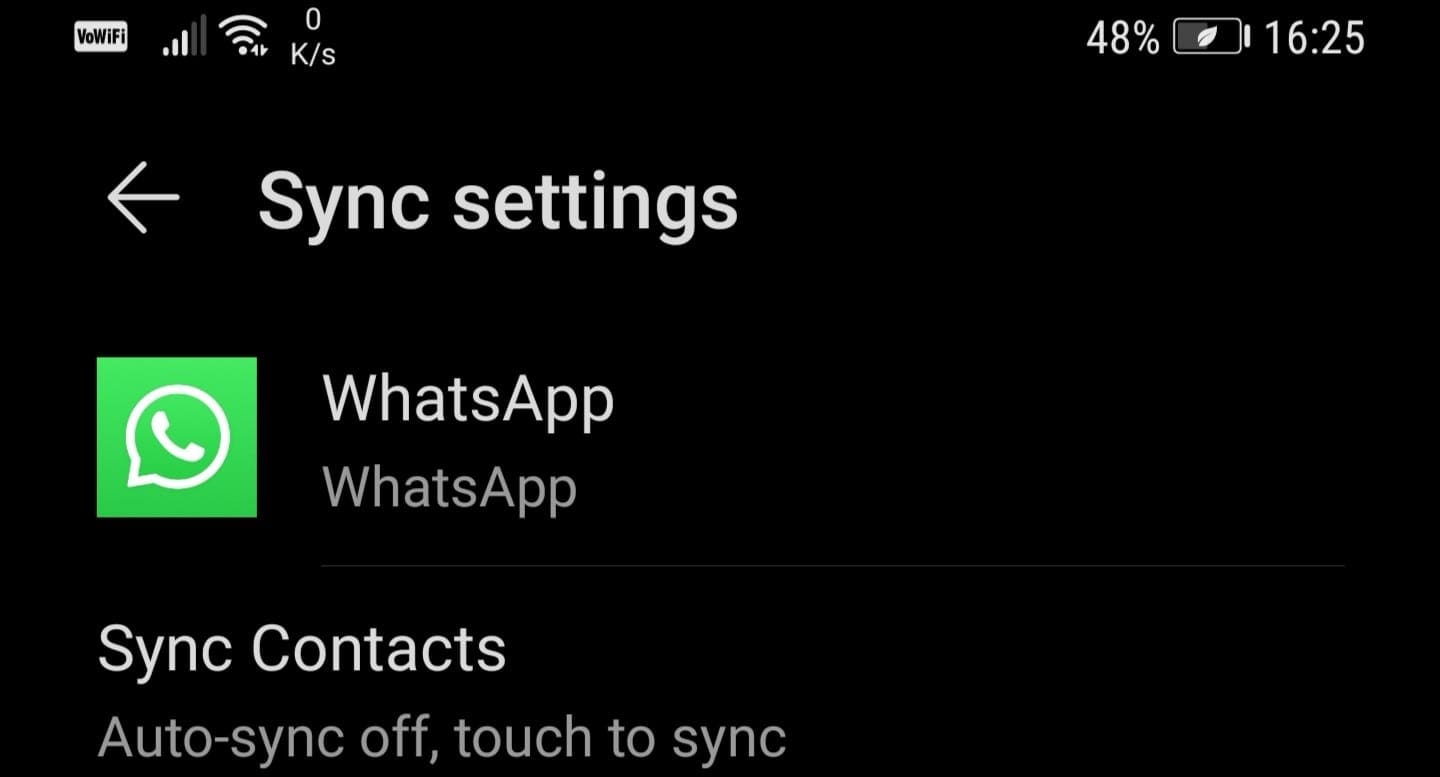
Since the root cause of this problem is often a sync issue, you can fix it by forcing WhatsApp to resync with your Contacts app.

  1. Open your phone’s Settings app
  2. Go to Users & accounts and select WhatsApp
  3. Tap the Sync option to force WhatsApp to sync contacts.whatsapp sync contacts

2. Refresh your Contacts list

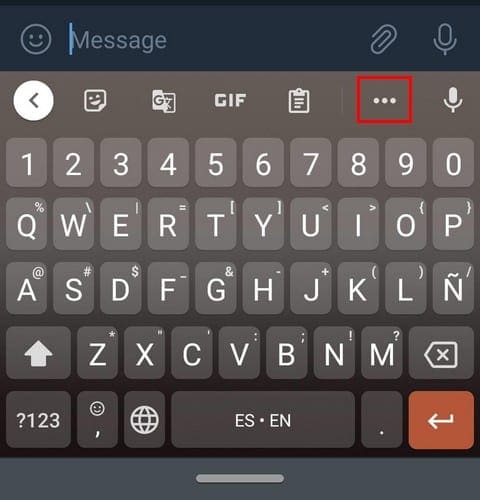
There’s a very handy Refresh button that you can use to refresh your Contacts list on WhatsApp. To use this feature:

  1. Launch WhatsApp again, and open a new chat by tapping on the New Chat icon
  2. Select the three-dot menu (More options) in the new window
  3. Tap the Refresh button to quickly refresh your Contacts list and the information related to your contacts.whatsapp refresh new chat

3. Check your phone’s settings

If you resynced WhatsApp and the Contacts app, yet the issue persists, check your phone settings. Maybe you accidentally enabled certain settings that are preventing WhatsApp from functioning as it should.

If you disabled certain permissions for WhatsApp, the app may fail to access your list of contacts.

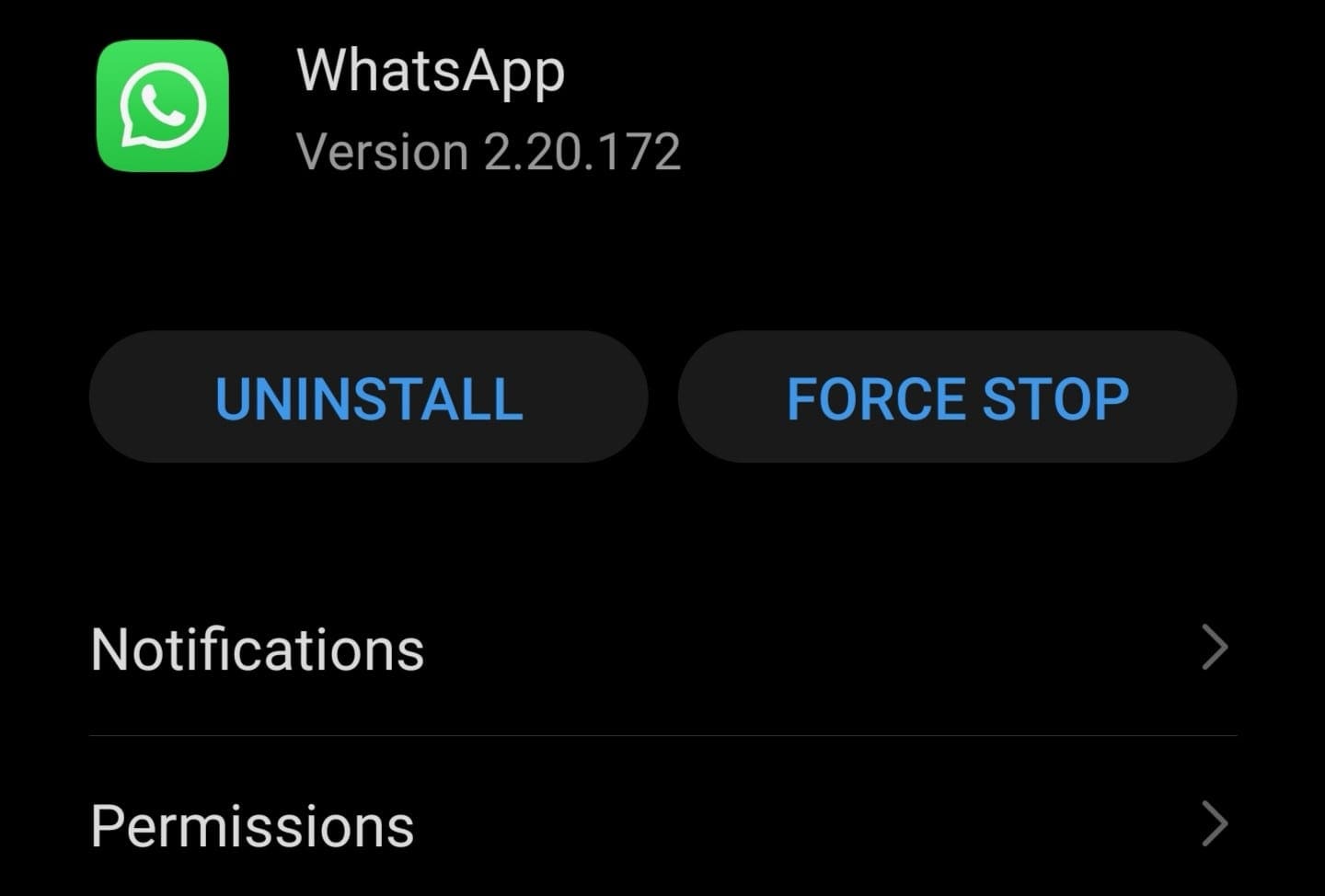
  1. Go to your phone’s Settings, select Apps, and then tap WhatsApp
  2. Check the app permissions, and ensure all of the permissions have been enabledwhatsapp permissions
    • Under Permissions, select Contacts and make sure the Contacts access for the app is enabled.
4. Update WhatsApp

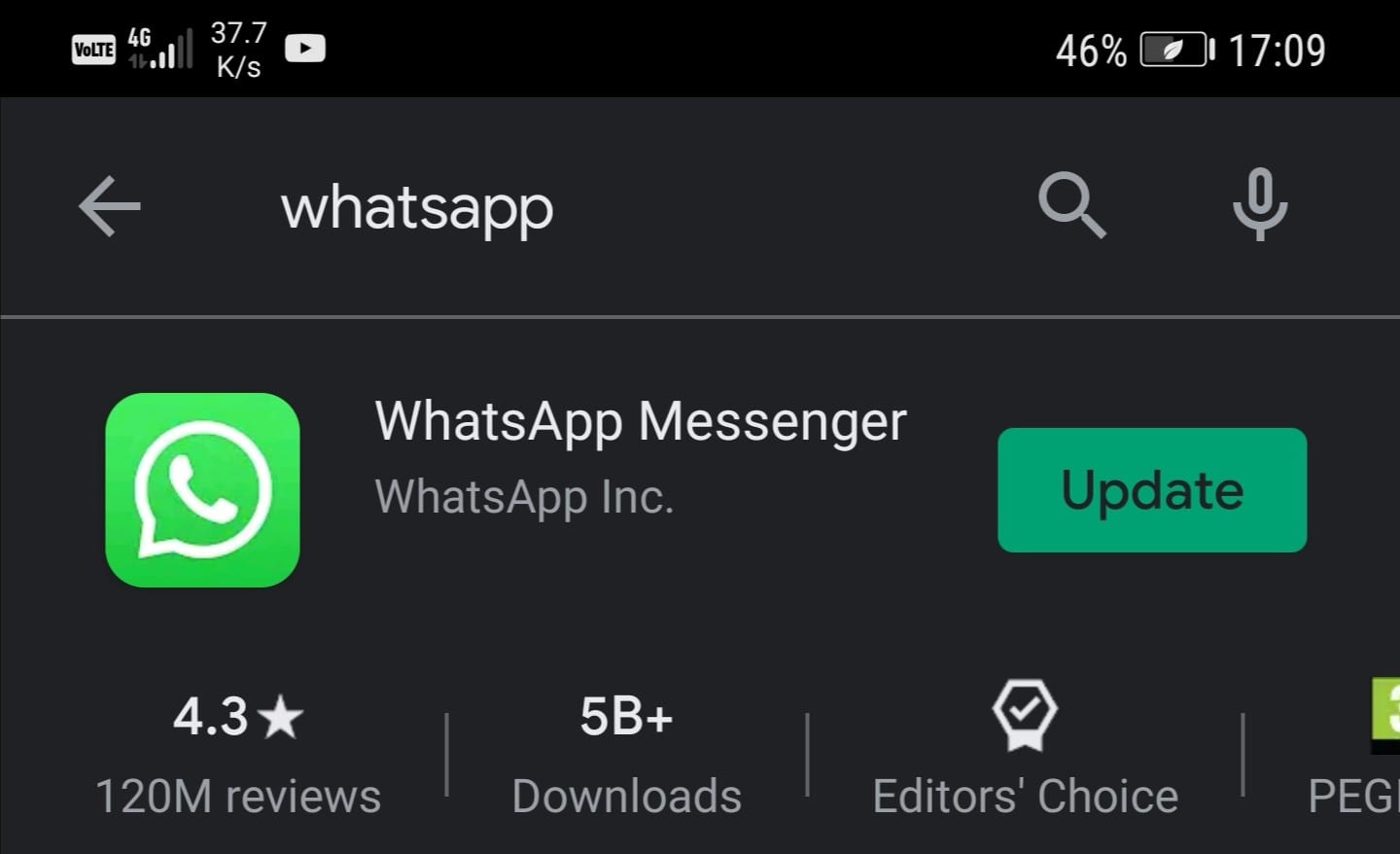
Updating your app could solve this problem, especially if you’re not running the latest WhatsApp version on your phone.

To update WhatsApp, open Google Play Store, search for WhatsApp using the search option and if you see an Update icon next to the app, tap on it to launch the update process.update whatsapp
If nothing worked, you can uninstall and reinstall WhatsApp.

Categories: Android

Author Madalina Dinita

Madalina has been a Windows fan ever since she got her hands on her first Windows XP computer. She is interested in all things technology, especially emerging technologies -- AI and DNA computing in particular.

You Might Also Like

  • Android: Setup RoadRunner Email

    Mitch BartlettAndroid
  • Amazon Fire Tablet Header

    Amazon Fire: How to Add and Remove Email Accounts

    Mitch BartlettAndroid
  • Gboard

    How to Remove Suggestion Strip in Gboard

    Judy SanhzAndroid
  • fix-android-error-code-192

    How to Fix Android Error Code 192

    Madalina DinitaAndroid

Comments

  1. Annette says:
    October 28, 2022 at 3:46 am

    New chat, refresh and all back again????. Brilliant thank you.

  2. Tahis says:
    September 23, 2022 at 9:52 am

    Yes and thanks

  3. Katari sunitha says:
    May 30, 2022 at 2:38 am

    Why was another caller name showing instead of caller name

  4. avril says:
    April 24, 2022 at 5:27 am

    great clear explanation, thank you

  5. Bubucate says:
    April 3, 2022 at 8:42 pm

    I just did it i hope it works because wow my WhatsApp has been giving me problems…i had to save contacts everyday. But only to find out tomorrow they are numbers again.

  6. Taipan Lalo says:
    June 29, 2021 at 9:47 am

    These options do not work with my Whatsapp on my iPhone! Help!

  7. Alex says:
    June 8, 2021 at 12:30 pm

    Hi u are a star. By using option 2 and refreshing whatsapp all problems were solved.

Leave a Reply

Your email address will not be published. Required fields are marked *

  • top vpns

    Top 5 VPNs to Keep Your Information Private in 2026

  • npu power management bug

    What Is the NPU Power Management Bug and How Do You Fix It?

  • pc can't enroll for windows 10 extended security updates

    PC Can’t Enroll for Windows 10 Extended Security Updates – How to Fix

  • hdd better than an ssd

    When Is an HDD Better Than an SSD?

  • top graphics cards for 2026

    Top 5 Graphics Cards for 2026

profile pic

The Experts Behind Technipages

My name is Mitch Bartlett. I've been working in technology for over 20 years in a wide range of tech jobs from Tech Support to Software Testing. I started this site as a technical guide for myself and it has grown into what I hope is a useful reference for all.

Learn More

technipages logo white
linkedin icon

Technipages is part of Guiding Tech Media, a leading digital media publisher focused on helping people figure out technology. Learn more about our mission and team here.

© 2026 Guiding Tech Media All Rights Reserved

  • About Us
  • Contact
  • Terms of Use
  • Privacy Policy

© 2026 Guiding Tech Media All Rights Reserved

Information from your device can be used to personalize your ad experience.
Do not sell my personal information.

Last Updated on September 17, 2020 by Mitch Bartlett