
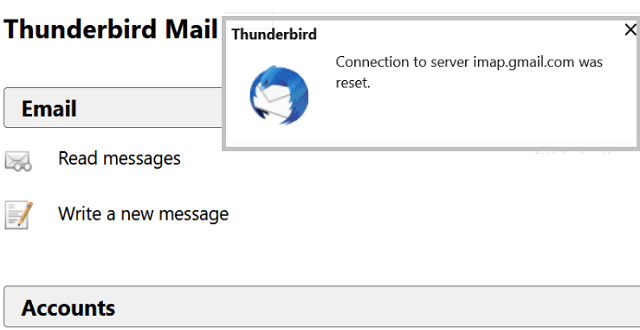
Thunderbird may sometimes throw an error that says the connection to the server was reset. This error message can take users by surprise. Usually, it occurs all of a sudden without any tell-tale signs.
If you’re looking for a solution to fix this problem, you’ve got a series of potential solutions below.
How to Fix Thunderbird Server Connection Was Reset
Turn Off Email Shield in AVG Antivirus
Many users noticed the server reset error occurred mainly on computers running AVG Antivirus. It seems the error is triggered by a conflict between the two programs.
Disabling the AVG Email Shield solved this problem for many users. Go to Basic Protection and disable the Email Shield.
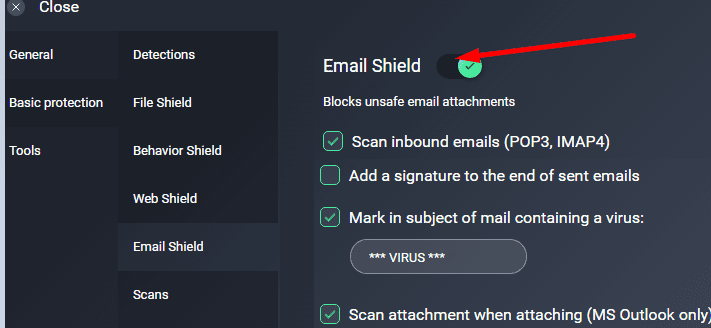
However, you need to turn off the Email Shielf every time you power up your computer. Apparently, the error re-appears after every shutdown. So, this is only a temporary workaround. But it’s a handy one nevertheless.
Reinstall AVG
Reinstall AVG and check if this solves the problem. Maybe some AVG files got corrupted. Check if the server connection still gets reset with a fresh copy of AVG installed.
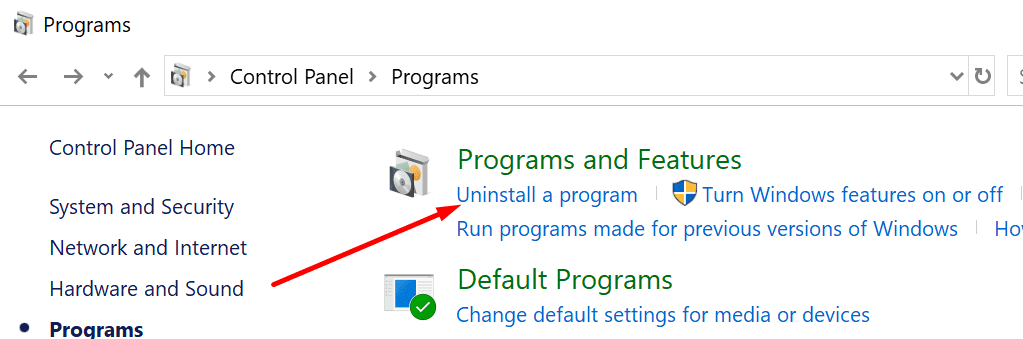
- To uninstall AVG, launch the Control Panel.
- Click on Programs and Features.
- Then select Uninstall a program.

- Select AVG and click on the Uninstall button.
- Restart your computer.
- Download AVG again and install the program.
Disable Your Antivirus
If you’re using a different antivirus, disable it and test if you’re still getting the same error on Thunderbird.
If the antivirus you’re using has a built-in email shield similar to AVG’s, go ahead and disable it. You can also whitelist Thunderbird in your antivirus settings.
The steps to follow are different for each antivirus tool. For detailed instructions, go to your antivirus official support page.
Edit the Network DNS Settings
Changing the network DNS settings is a solution that worked for many users. You can either disable IPv6 or accept only IPv4 domains.
- Launch Thunderbird and click on Options.
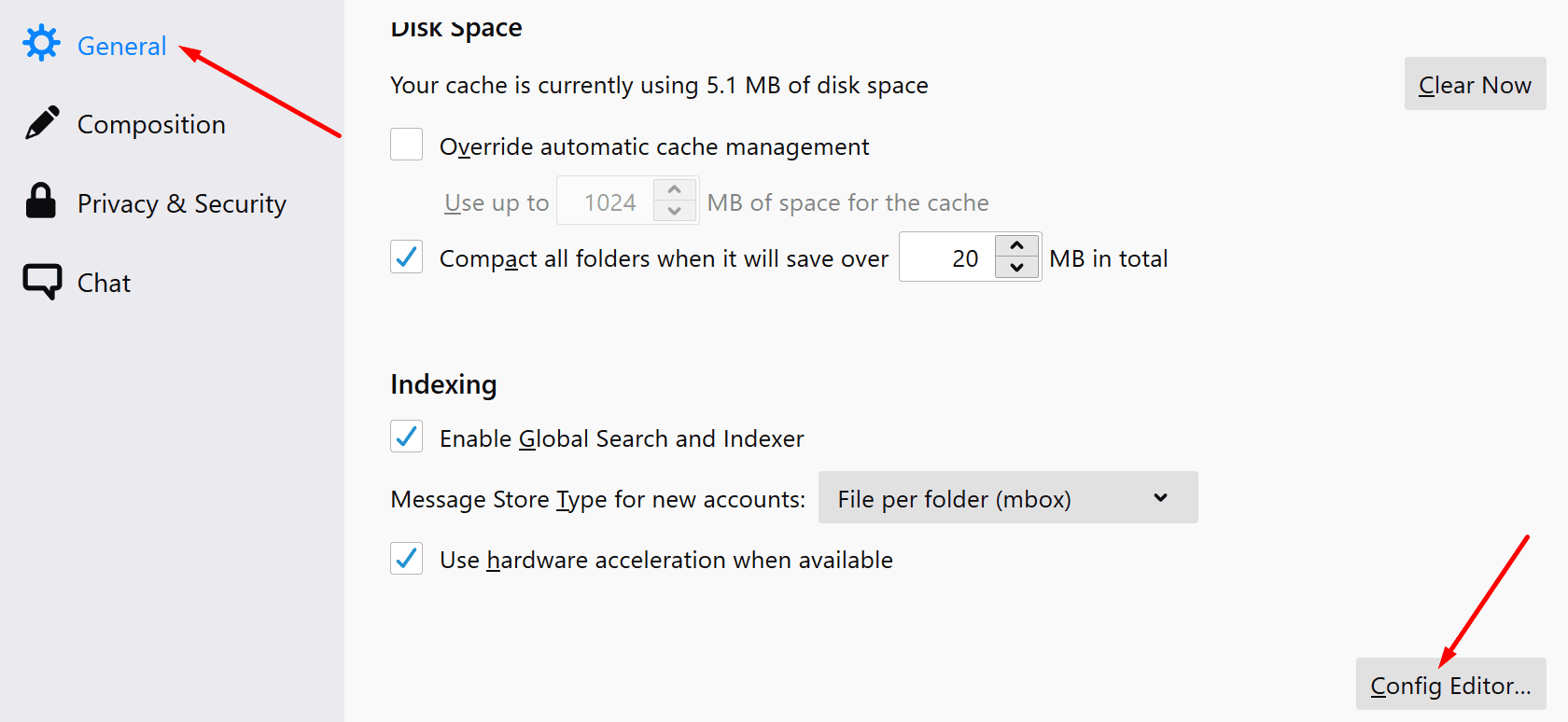
- Then select General.
- Scroll down to Config Editor (lower right-hand corner).

- Accept the risks of changing the settings.
- Type IP in the search box and locate the settings below. Use only one of the two variants:
- network.dns.disableIPv6. Set it to True.
- network.dns.ipv4OnlyDomains. Set it to gmail.com.
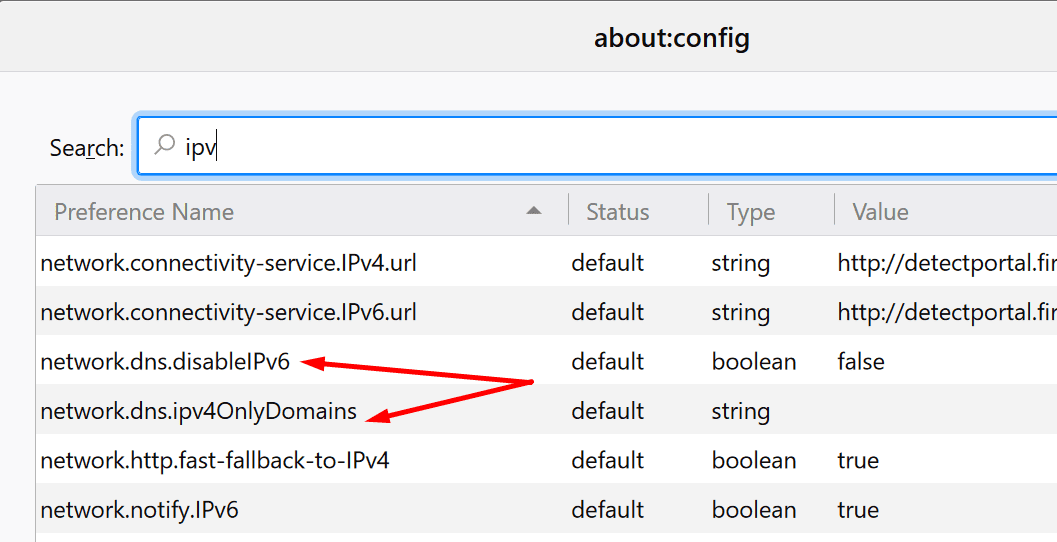
The network.dns.isableIPv6 setting is simpler to use than setting the domain to Gmail. So, if you want a simpler solution, edit the IPv6 setting.
Then close Thunderbird and launch it again. Check if this method ironed out the error.
Disable Your VPN
If you’re using a VPN program, go ahead and disable it. Many users solved this problem by simply turning off their VPN.
It seems that VPN tools, and NordVPN particularly, often interfere with Thunderbird.
If nothing worked, you may want to temporarily switch to a different email service. Maybe Thunderbird is affected by a server problem that Mozilla has yet to acknowledge. Check if other users complained about the same problem recently.
Let us know if your connection to the email server is stable now. Do tell us which solution worked for you!



This is Bill again. I did not give all info you might need. POP is gmail .com. and I get from google connection to server timed out. If POP is google.com I get connection to server was reset. I do have AVG but I have turned the email shield off until I reset computer. I changed newmail. to 1000. I also changed the network.dsn.disabelIPv6 to true. TB server settings is POP gmail.com. port 995. STMP out going is gmail.com port is 465 but I have also tried port 586 from gmail. Still no go. I hope this helps a little more. Thanks. Bill
No it did not. I have tried all and still no go. I am a big TB user and do not want to switch. I had to change to gmail because provider closed. New provider uses gmail. I did my profile and got it across folders and contacts but I can not get TB to talk to gmail or how about this gmail will not talk to TB. I just do not know what else to do I do not want to use gmail I love my TB. Thanks! Bill