Skip to content
LogoTechnipages
LogoTechnipages
  • Topics
        • Android
        • Browsers
        • Gaming
        • Hardware
        • Internet
        • iPhone
        • Linux
        • macOS
        • Office
        • Reviews
        • Software
        • Windows
        • Definitions
        • All Recent Posts
  • Product Reviews
  • About

Slack: How to Configure the Slack Call Settings for Your Workspace

Mel HawthorneFebruary 5, 2021 Comments (0)

Everyone who has used or heard of Slack will be aware that it’s a primarily text-based communications platform. Many users may not be aware that Slack also supports voice calls and video calls. Slack supports making these calls within the app itself. But it also allows you to select from a broad range of communication apps that you may already use and have integrated into your communications.

For example, if a company already has a business-wide Microsoft Teams licence and uses it for all internal calls, then you can install the Microsoft Teams app in Slack which will allow you to enable the integration.

How to Default Call App on Slack

To select which communication app you want to use for voice and video calls from Slack, you need to go into the workspace settings. To get there, you first need to click on the workspace name in the top-right corner. Next, in the dropdown menu, select “Settings & administration”, then “Workspace settings” to open the workspace settings in a new tab.

To get to the workspace settings, click on the workspace name in the sidebar, then select “Settings & administration” and “Workspace settings”.

In the default “Settings” tab, click on the “Expand” button for the “Calls” settings that can be found near the bottom of the list.

Click on the “Expand” button for the “Calls” settings.

In the “Calls” settings, tick the checkbox for the app you want to use for calls. If you want to disable the ability to make calls entirely, untick the checkbox labelled “Allow video calls in Slack”.
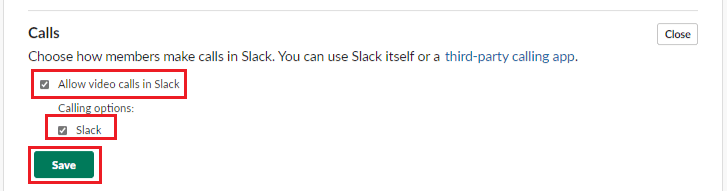
Tick the checkbox for the application you want to use for calls via Slack.

If the app you want to use for calls isn’t in the settings list, you can add it to Slack by browsing to Slack’s app directory and adding the app you want to Slack. To do so, click on the “Voice & Video” category, then select the app you want to add to Slack and click “Add to Slack”.

If the app you want isn’t in the list you can add it to Slack via Slack’s app directory.

Despite primarily being a text-based communication app, Slack supports voice calls and video calls too. By following the guide’s steps, you can choose to integrate and use a third-party call app via Slack.


Categories: Software

Author Mel Hawthorne

You Might Also Like

  • Chrome header

    Chrome: Disable Auto Updates

    Mitch BartlettSoftware
  • How to Resize Multiple Images at Once

    Kat ArmstrongSoftware
  • File Header

    What Are ABW Files?

    Mel HawthorneSoftware
  • fix-signal-app-wont-install

    Fix: Signal App Won’t Install on Android, iOS or PC

    Madalina DinitaSoftware

Leave a Reply

Your email address will not be published. Required fields are marked *

  • error 400 when signing in

    Encountered Error 400 When Signing In to Microsoft? Here’s What You Can Do 

  • unable to create notebook error in onenote

    We Were Unable to Create Your Notebook Error in OneNote – Common Fixes 

  • error code 0x800704f8 fix

    Error Code 0x800704f8 – How to Fix 

  • back button in browsers doesnt work

    What to Do if the Back Button in Browser Doesn’t Work 

  • could not find this item

    “Could Not Find This Item” When Trying to Remove Files

profile pic

The Experts Behind Technipages

My name is Mitch Bartlett. I've been working in technology for over 20 years in a wide range of tech jobs from Tech Support to Software Testing. I started this site as a technical guide for myself and it has grown into what I hope is a useful reference for all.

Learn More

technipages logo white
linkedin icon

Technipages is part of Guiding Tech Media, a leading digital media publisher focused on helping people figure out technology. Learn more about our mission and team here.

© 2026 Guiding Tech Media All Rights Reserved

  • About Us
  • Contact
  • Terms of Use
  • Privacy Policy

© 2026 Guiding Tech Media All Rights Reserved

Information from your device can be used to personalize your ad experience.
Do not sell my personal information.

Last Updated on February 5, 2021 by Judy Sanhz