Skip to content
LogoTechnipages
LogoTechnipages
  • Topics
        • Android
        • Browsers
        • Gaming
        • Hardware
        • Internet
        • iPhone
        • Linux
        • macOS
        • Office
        • Reviews
        • Software
        • Windows
        • Definitions
        • All Recent Posts
  • Product Reviews
  • About

Microsoft Teams: How to Hand In Assignments

Madalina DinitaJanuary 4, 2021 Comments (0)
microsoft teams how to hand in assignments

Microsoft Teams is one of the most popular tools for remote learning. Millions of teachers and students worldwide rely on Teams for hosting or attending online classes and tracking assignments.

Speaking of assignments, if you’re not sure what are the steps to follow to turn in assignments in Microsoft Teams, this guide is for you.

How to Hand In Assignments in Microsoft Teams

  1. First, go to your classroom.
  2. Then select the General channel.
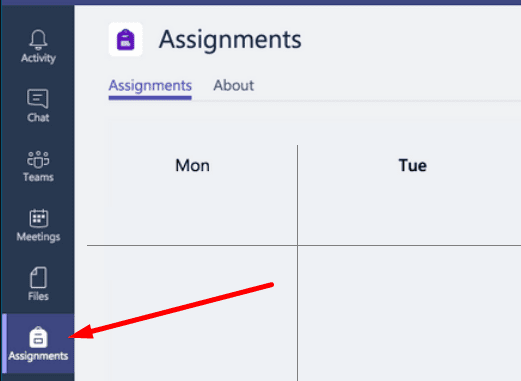
  3. Click on Assignments. microsoft teams assignments
  4. The list of your assignments will appear on the screen. It’s filtered by the due date. In this manner, you’ll know what assignments are urgent and which can wait.
  5. Select your assignment card. Open it and check the assignment details.
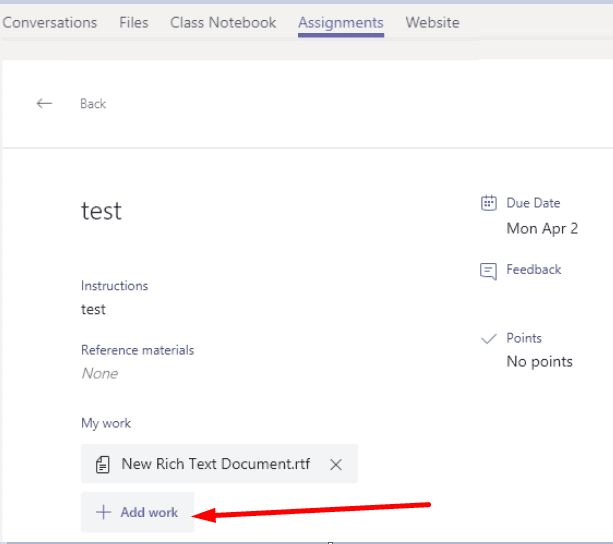
  6. To hand in documents and files related to your assignment, click on the +Add work button and upload your files.hand in assignment microsoft teams add work
  7. Hit the Turn in button to submit your assignment. Your teacher can now check your assignment and the files you attached to it.
Keep in mind that the maximum file size is 500MB. You can add up to 10 additional resources for each assignment.

The Assignment Hand-In Status

The status of the Turn in button may vary depending on whether you met the deadline or not.

  • Turn in late. This status indicates you’re submitting your assignment after the due date. The good news is that your teacher has allowed late hand-ins. You’re lucky.
  • Not turned in. This status is visible if you failed to meet the deadline for handing the assignment in. The bad news is that your teacher hasn’t allowed late turn-ins.
  • Undo turn in. Use this button if you need to edit the assignment you already handed in.
  • Turn in again. You can use this button to upload the edited version of an assignment you previously submitted.

Make sure to always hand in your assignment on time. Stay organized and try to meet the deadline.

Categories: Software

Author Madalina Dinita

Madalina has been a Windows fan ever since she got her hands on her first Windows XP computer. She is interested in all things technology, especially emerging technologies -- AI and DNA computing in particular.

You Might Also Like

  • Removing Location Sharing on Google Hangouts

    MonaSoftware
  • Change Canvas Settings on Spotify

    MonaSoftware
  • How to Fix FaceTime Static

    MonaSoftware
  • Android 10: How to Update Your Device with ColorOS 7

    MonaSoftware

Leave a Reply

Your email address will not be published. Required fields are marked *

  • fix ERROR_SYSTEM_SHUTDOWN

    How to Fix ERROR_SYSTEM_SHUTDOWN

  • cant set a new default browser

    Can’t Set a New Default Browser Automatically? Here’s What to Do

  • fix error 0x8000ffff

    How to Fix Error 0x8000ffff

  • how to fix this device cannot start code 10

    This Device Cannot Start (Code 10) – How to Fix

  • steam games wont launch after windows update

    Steam Games Won’t Launch After Windows Update 24H2 

profile pic

The Experts Behind Technipages

My name is Mitch Bartlett. I've been working in technology for over 20 years in a wide range of tech jobs from Tech Support to Software Testing. I started this site as a technical guide for myself and it has grown into what I hope is a useful reference for all.

Learn More

technipages logo white
linkedin icon

Technipages is part of Guiding Tech Media, a leading digital media publisher focused on helping people figure out technology. Learn more about our mission and team here.

© 2025 Guiding Tech Media All Rights Reserved

  • About Us
  • Contact
  • Terms of Use
  • Privacy Policy

© 2025 Guiding Tech Media All Rights Reserved

Information from your device can be used to personalize your ad experience.
Do not sell my personal information.

Last Updated on January 4, 2021 by Mitch Bartlett