You never want to miss out on new music on Spotify. That’s why you set things up so that you get a push notification or an email letting you know whenever there is new music from an artist you’re following. But, when it comes to notifications, Spotify can help you stay on top of many other things. You can even choose how you want to get those notifications.
You may already know some of the tips and tricks that Spotify offers. But how does never missing out on new episodes or playlist updates sound? You can learn more about this and other topics by going into the app’s settings. If you ever want to make any changes, you only need to go back into settings and make the necessary changes.
How to Get Notifications on What Matter to You on Spotify
Spotify may not always recommend the best music, but sometimes they do. If it recommends a song you don’t like, all you have to do is ignore it. But what if you’re missing out on listening to your new favorite song by not giving this option a try. If you don’t think you can live with that feeling, the good news is that there’s an easy fix.
Open the Android app to see everything you can get notified about on Spotify. Tap on the cogwheel and when you’re in Settings, scroll down until you come across the notifications section. Choose the Notifications option, and you’ll see a list of everything you can get notified about. As you can see, it’s not a long list that will take up too much time to manage.
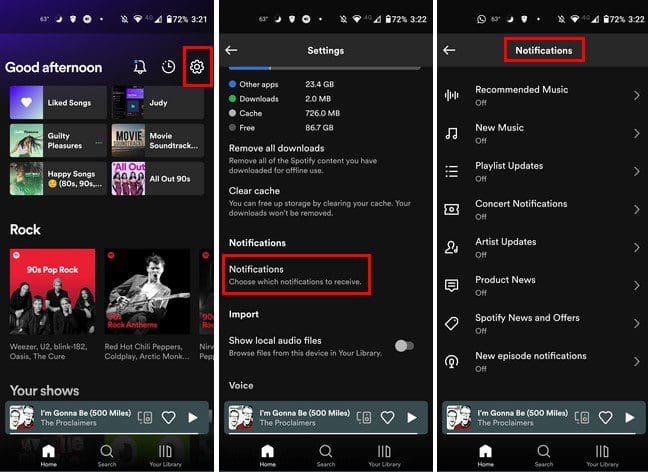
You can get notified about things such as:
- Recommended music – Spotify will send you a push notification or an email when it finds music it thinks you might like.
- New Music – Get notified when your favorite artist has a new song.
- Playlist updates – Get notified when a playlist you follow gets updated.
- Concert notifications – Get notified about updates about virtual and live shows by artists you like, online or in places near you.
- Artist updates – Get the latest news on artists you listen to or artists Spotify thinks you might like.
- Product news – Find out about new features that’ll be added and other products updates.
- Spotify News and Offers – You’ll receive information on news, promos, and events for you.
- New episode notifications – Know when there is a new episode on your favorite shows or podcasts. Here you’ll see a list of the shows you follow. To get a notification for a specific show, toggle on the option on the right.
All the options listed will offer the option to get notified either by push notification or email. You can change this at any time. It would be nice if there was a message waiting for when you open Spotify about what you never want to miss. It being displayed as a list you can easily dismiss.
Conclusion
You’ll never miss out on what matters to you by managing the Spotify notifications to your liking. If you ever change your mind and want to turn it off, all you have to do is follow the steps and turn off the notifications. The steps you have to follow are easy to remember so that you don’t have to waste time trying to figure it out.
You can choose if you want to get notified by push notification or email. Those are the only two options available, but you never know; Spotify might add more options in the future. Hopefully, the notifications won’t get out of control. Did you make some changes? Let me know in the comments below, and don’t forget to share the article with others on social media.