Notifications can be handy. You can be notified when someone posts something on Facebook. Or, you can always take a break from notifications and snooze them when notifications are too much. Telegram offers the same option of disabling your notification, or you can customize them to your liking. You can choose the ringtone of your choice to enjoy the notification sound.
How to Personalize Your Telegram Notifications
To start personalizing your Telegram notifications, you’ll need to tap on the three-lined menu at the top left—tap on Settings, followed by Notifications and Sounds.
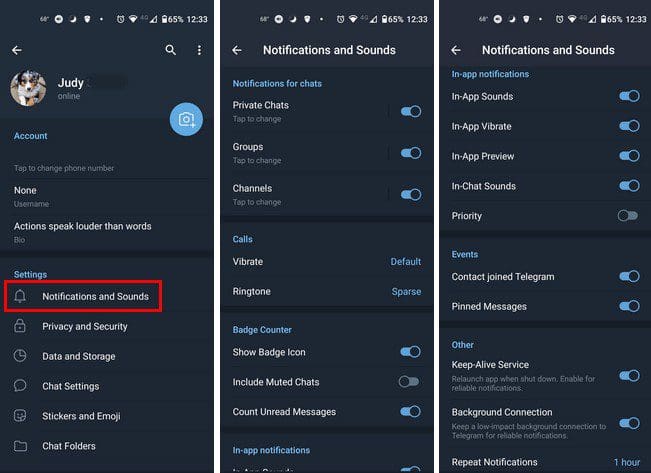
In Notification and Sounds, everything is going to be divided into different sections, such as:
- Notifications for Chats
- Calls
- Badge Counter
- In-app notifications
- Events
- Other
- Reset
In the Notifications for chats section, you can make adjustments for Private chats, Groups, and Channels. The three have the same options when it comes to personalizing. You can turn on/off the notifications, show message previews, change light color, vibrate pop-up notification, sound, and priority, and add an exception.
Mute Notifications
If you want to take a break from the notifications or make them go away altogether, tap on the Notifications for private messages, and when a small window appears, you can choose to:
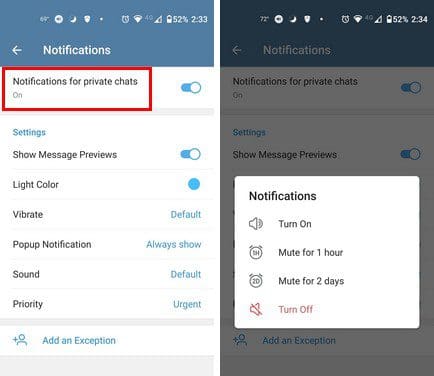
- Turn off
- Turn on
- Mute for one hour
- Mute for two days
Other Changes
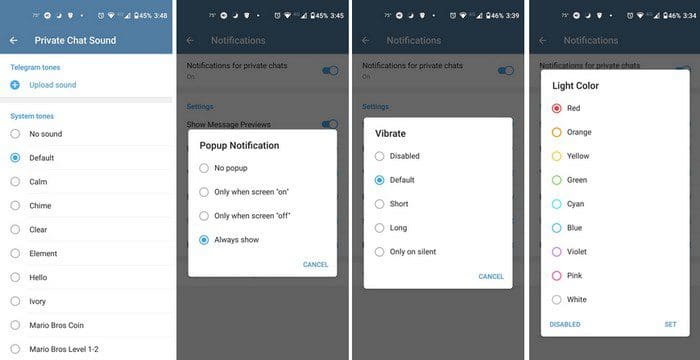
You can also change the light color and how long your phone vibrates when you get a notification. The vibrate can be long, short, only on silent, or you can disable it altogether. When it comes to the pop-up notification, you can only have them appear when the screen is off/off; always show. To choose a sound, you have various options to choose from. But if you don’t find one you like, you can always upload a tone from your device.
Since there are notifications you can’t miss, you can set them to a high priority by tapping on the last option. The notifications for calls are easy and have the same options as before regarding how long you want the notification to vibrate.
You can easily toggle on options such as show badge icon, include muted chats, and count unread messages. Other options include:
- In-App Sounds
- In-App Vibrate
- In-App Preview
- In-Chat Sounds
- Priority
- Contact joined Telegram
- Pinned Messages
- Keep-Alive Service – Relaunch app when shut down. Enable for reliable notifications.
- Background Connection
- Repeat Notifications – Off, five minutes, 10 minutes, 30 minutes, one hour, two hours, and four hours.
At the bottom of the list, you’ll see the option to reset all the changes you’ve made to your notifications. If you ever want to start from scratch, this is your option.
Conclusion
The notifications are not as annoying when you have them set up the way you want. Telegram allows you to ma various changes to how you receive your notifications. What changes will you be making? Let me know in the comments below, and don’t forget to share the article with others on social media.