
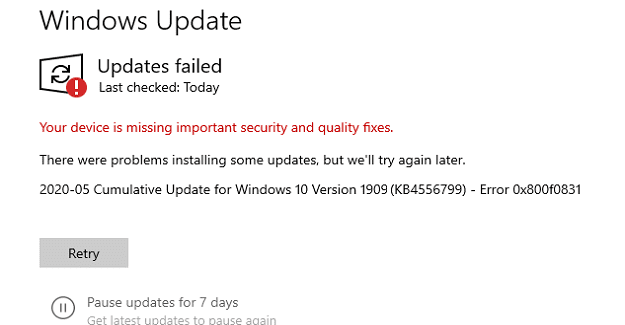
When you’re trying to install a new Windows cumulative update, error code 0x800f0831 may sometimes pop up on the screen. This error indicates your computer could not access Microsoft’s Update servers or the update services stopped working. Restart your computer and check if the error persists. If it does, follow the steps below to fix the problem.
Contents
How Do I Fix Windows Upgrade Error 0x800f0831?
Check Your Connection
Unplug your router and wait for two minutes to get rid of flea power. Meanwhile, restart your computer. Then plug the router back in and wait until your computer goes back online. Make sure to disconnect all the other devices using the connection. If you’re on Wi-Fi, temporarily switch to a cable connection if that’s possible.
Run the Update Troubleshooter
The Update troubleshooter can automatically detect and fix the issues that are causing error code 0x800f0831.
- Go to Settings, and select Update and Security.
- Click on the Troubleshoot option in the left-hand pane.
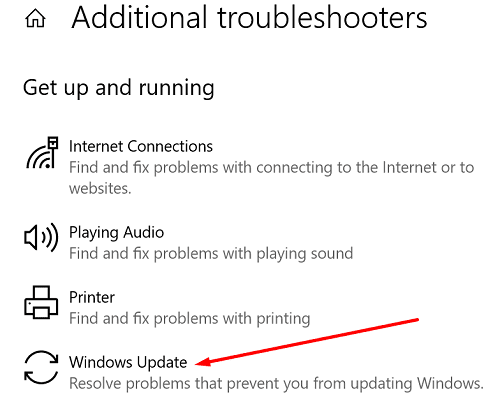
- Then select Show additional troubleshooters.
- Launch the Update troubleshooter and let it scan and fix your system.

- Check for updates again.
Restart the Update Services
You can quickly restart the Windows Update services via Command Prompt. This will help you establish a new connection to Microsoft’s Update servers.
- Press the Windows and X keys, and select Command Prompt (Admin).
- Then run the commands below one by one. Hit Enter after each command and wait until CMD finishes running the current command before entering a new one:
net stop bitsnet stop wuauservnet stop appidsvcnet stop cryptsvcDel "%ALLUSERSPROFILE%\Application Data\Microsoft\Network\Downloader\*.*"rmdir %systemroot%\SoftwareDistribution /S /Qrmdir %systemroot%\system32\catroot2 /S /Qnet start bitsnet start wuauservnet start appidsvcnet start cryptsvc
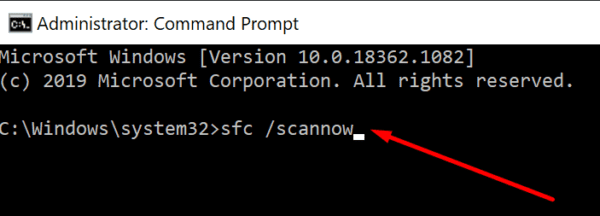
Additionally, scan and repair your disk with the help of the commands below:
dism.exe /Online /Cleanup-image /Restorehealthsfc /scannow
Restart your computer and check for updates again.
Manually Install the Updates
Alternatively, you can install the stubborn updates manually using Microsoft’s Update Catalog website. Close all the unnecessary programs, and open a new browser tab. Then go to Microsoft’s Update Catalog and enter the update’s KB number in the search field. Hit the Download button and check if your computer can install the update.
Conclusion
If error code 0x800f0831 prevents you from installing the latest Windows updates on your computer, restart your router and computer. If the issue persists, manually download the updates from Microsoft’s Update Catalog webpage, and check if your machine can install them. Additionally, run the Update Troubleshooter, and restart the Update Services. If you found other ways to fix Windows Update error 0x800f0831, feel free to share your ideas in the comments below.


Agree ShawnL. Thanks so much John Behringer. I spent hours trying to resolve the error and Microsoft (themselves) had the fix – Windows 10 update assistant! Microsoft’s Troubleshooter is such a waste of time! I went around and around in circles!!!!
The Windows 10 update assistant worked for me. Thanks!
The Update Assistant suggested fix in the comments does not work if the machine is already on the latest Feature Update. I was also going to roll back the Feature Update on the one I am looking at and it would not.
Hope this works!. Spent hours trying to download missing Windows 10 files from windows update catalogue. – probably more than 40 files. Some would not download, others would – but would only install about 60% then fail.
Am currently waiting to see if your fix works for me. Appreciate your sharing nature!!! Kiss the baby for me.
Thanks, John Behringer! That works! I can’t believe how far I’ve had to search and for how long. Even Microsoft’s own troubleshooter and website never suggested this. It’s literally a program that they made. This question is asked so many times on so many websites and no one has even mentioned the Update Assistant.
Had the same problem with Windows 10 21H1 update, tried all sorts of DISM and other fixes listed on the Internet that didn’t work. Finally found Windows 10 update assistant and installed that. Install took awhile and it creates a new Windows folder (renames the previous to Windows.old) much like a reset but took care of the Windows update problem. You can download the update assistant here. https://www.microsoft.com/en-us/software-download/windows10 just click on the Update now button to download. Hope this helps!!
I have been fighting this problem since 21H1 was released.No suggested solution has worked.
I have worked on this issue for months. As Jaws said, NOTHING WORKED. I don’t know how to fix this Win Update error issue … but I do know nothing suggested on the internet works. I don’t know what I’m going to do (perhaps hire a geek/professional) but what I do NOT want to do is reformat/reinstall.
Let’s go Microsoft. :/
None of this worked. Browser won’t let me download anything, Troubleshooter list has no options given. In short NOTHING worked
probleme non solutionne
impossible dc’installer