
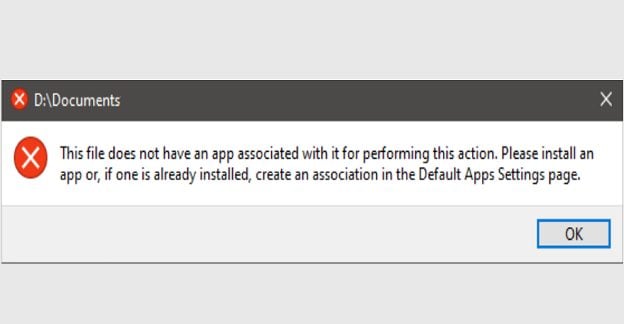
When you try to open a file on your Windows computer, you may sometimes get a strange error message that says the respective file does not have an app associated with it. As a result, Windows can’t open it. Try restarting your computer and check if the issue persists. If this is the case, use the troubleshooting solutions below to fix the problem.
Contents
This File Does Not Have an App Associated with It for Performing This Action
Open the File via File Explorer
Try opening the problematic files using File Explorer and check if the error persists. Many users noticed the error message when accessing files using the search bar or the timeline tool. Interestingly enough, File Explorer seems to be rarely affected by this issue.
Open the File With a Different App
Open File Explorer and locate the file you want to open. Right-click on that file and select Open with from the context menu. Select one of the recommended apps to open the respective file and check which program works. For example, open it in your web browser if you’re trying to open a PDF file using Adobe Reader.
Repair Corrupted System Files
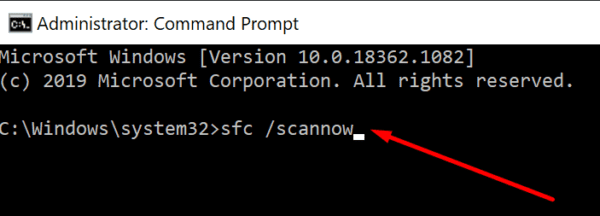
Use DISM and SFC to repair corrupted system files.
- Launch Command Prompt as an administrator.
- Then, run the following commands one by one:
dism /online /cleanup-image /restorehealthsfc /scannow
powershell

Get-AppXPackage -AllUsers |Where-Object {$_.InstallLocation -like "*SystemApps*"} | Foreach {Add-AppxPackage -DisableDevelopmentMode -Register "$($_.InstallLocation)\AppXManifest.xml"}
- Close the Command Prompt window.
- Restart your computer and check if the issue persists.
Run the Windows File and Folder Troubleshooter
Microsoft has developed a special troubleshooter that can automatically diagnose and repair problems with files and folders in Windows 10. Go to Microsoft’s official website and download the troubleshooter. Run the tool on your machine and check if it solves your problem.
Download the Right App for Your File
Windows automatically analyses the file’s extension you’re trying to open to determine how it should handle it. The file extension follows the last dot in the file name. It contains three or four characters that indicate what type of format the file is using.
Check the file extension, and search for a program that can open the respective file format. Download and install it on your computer and use it to open the problematic file. For example, to open files with the .ai file extension, Adobe Illustrator is the right tool for the job.
For security reasons, don’t use third-party websites to download apps. Always go to the app’s official website or use the Microsoft Store app.
Conclusion
If Windows says the file you’re trying to open does not have an app associated with it, try opening it via File Explorer. Additionally, run DISM and SFC to repair corrupted system files. Then run the Windows File and Folder troubleshooter. You can also use an alternative program to open the file. Check the file extension, and download an app that can open the respective file type.
Did you manage to open the problematic file? Hit the comments below and let us know which method worked for you.



Hi, My problem is on win 11 (updated from win 10) gives me the “this file does not have an app associated with it….” message when I connect an external HDD to the USB port. I can open the disk and manipulate the files in it just fine. But that message keeps on popping up for the external HDD. It is as SSD in and enclosure/container.
Where do I find a VIA file? I haven’t tried fixing my pc for 2 years so yeah
Tried the powershell command but came back with a message that Windows needed to be closed. I am confused about that. Maybe I misread it. I can send you a screen capture of the message if you are willing to help further.
The original error message refers to a file, but my problem happens when I try to unsubscribe from an email. Also happens when I try to link to a site from an email.
Thanks.