

“Cannot start Microsoft Outlook. The set of folders cannot be opened. The operation failed“. Unfortunately, way too many users are familiar with this error. It usually pops up out of nowhere when you launch Outlook. In this guide, we’ll list a series of simple and easy-to-follow solutions to help you troubleshoot the problem.
How to Fix “The Set of Folders Cannot Be Opened” Error in Outlook
⇒ Important Note: Back up your Outlook data before pursuing the solutions below.
Launch Outlook in Safe Mode
Press the Windows and R keys to launch a new Run window. Then type Outlook.exe /safe, and hit OK.

If the issue is gone in Safe Mode, most likely, your add-ins are to blame. Go to the next step and disable your add-ins.
Disable Your Add-Ins
- Launch Outlook and go to File.
- Select Options, and click on Add-ins.
- Click on Manage and hit the Go button.

- Select the add-ins you want to disable and save the changes.

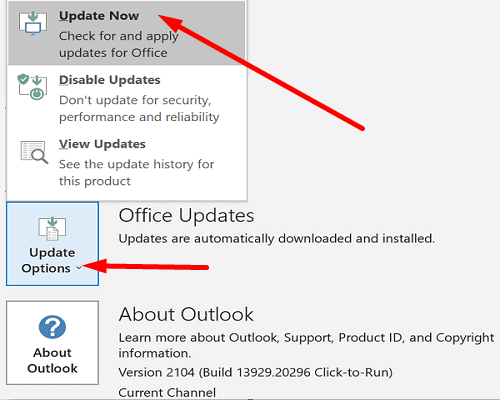
Don’t forget to update your Outlook version. Click on File, select Office Account, and go to Office Update. Click on Update Options and select Update now to update your email client.
Recreate Your Email Profile
Some users were able to fix this error by recreating their email profiles.
- Type regedit in the Windows Search bar and launch the Registry Editor.
- Then, navigate to Computer\HKEY_CURRENT_USER\SOFTWARE\Microsoft\Office\16.0\Outlook\Profiles
- Go ahead and delete all the folders listed under Profiles.
- Note: Depending on your Office version, you may need to navigate to Computer\HKEY_CURRENT_USER\SOFTWARE\Microsoft\Office\15.
- Relaunch Outlook and recreate your email profile.
- Go to File, select Account Settings, and click on Manage Profiles.

- Then go to Show Profiles and hit the Add button.
- Enter all the necessary details in the Profile Name box and save the changes.


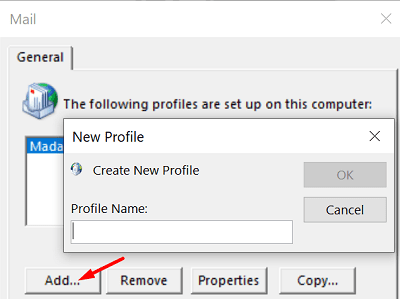
Alternatively, if you’re not comfortable using the Registry Editor, you can only follow the steps from 5 to 8 to create a new profile.
If you can’t create a new profile using Outlook, go to Control Panel → Mail → Show Profiles → Add.
Repair Office
- Go to Control Panel and select Programs.
- Click on Programs and Features and select your Office package.
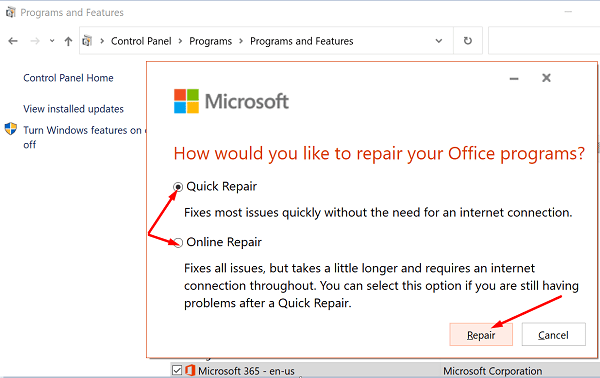
- Hit the Change button and launch the Quick Repair tool.
- If the error persists and you still can’t use Outlook properly, run the Online Repair tool as well.
Repair Outlook
- Go to Settings and select Apps.
- Then click on Apps and Features and select Outlook (or Outlook Desktop Integration).
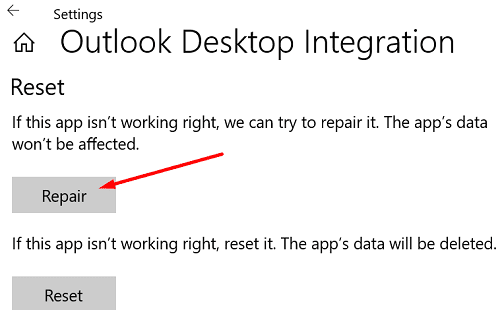
- Go to Advanced options and hit the Repair option.
Alternatively, you can repair the Outlook data file (.pst) file directly.
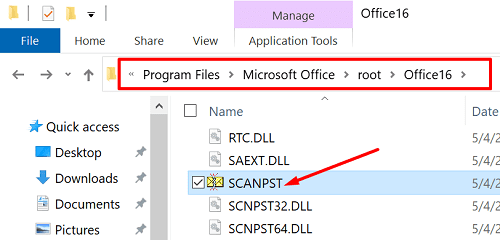
- Close Outlook and navigate to Outlook 2016/2019: C:\Program Files (x86)\Microsoft Office\root\Office16 or Outlook 2013: C:\Program Files (x86)\Microsoft Office\Office15 (depending on your Office version).
- Locate and run SCANPST.EXE.

- Click on Browse to select the Outlook Data File (.pst).
- Hit the Start button and then select the Repair option.
Run Microsoft’s Support and Recovery Assistant
There’s another handy tool that you can use to repair Outlook. The Microsoft Support and Recovery Assistant can quickly find and repair various Office and Outlook issues. Download the tool from Microsoft, install it on your computer, and follow the on-screen instructions to repair Outlook.
Reduce Outlook Data Size
Large mailboxes can take an awful lot of time to open. Apart from that, they may also trigger various errors while loading. Reduce the size of your mailbox and Outlook data files and check if the error persists.
- Launch Outlook, click on File, select Tools, and click on Mailbox Cleanup.

- Select the items you want to remove and confirm your choice.
- To reduce the size of the data file, empty the Deleted Items folder.
- Then click on File, and select Account Settings.
- Go to the Data Files tab, and select the file that you want to compact.
- Go to Settings and hit the Compact Now option.
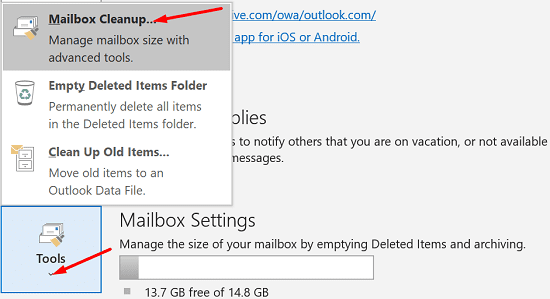

Exchange and Outlook.com users need to click on Settings → Advanced → Outlook Data File Settings.
Reinstall Outlook
If you’re using the standalone desktop app, uninstall it and restart your computer. Then download Outlook again (the 64-bit version). If the error persists, go to Control Panel and select Uninstall a program. Then uninstall your Office package, restart your machine again and reinstall Office. Check the results.
Conclusion
Microsoft Outlook may sometimes fail to launch with the “The set of folders cannot be opened” error. To fix it, launch Outlook in Safe Mode and disable your add-ins. Then repair Office and Outlook, create a new user profile and reinstall the email client. Which of these solutions worked for you? Let us know in the comments below.




Thank you so much! The first option worked for me.
You guys are great! Outlook opened when I deleted the profiles (Version 16) using the Registry Editor.
Thank you so much for making these directions so user-friendly. I have been stumped with this problem for a few weeks and was considering taking my computer in but luckily now I don’t have to since your directions fixed the problem.
Thank you!
In our case, the change of domain name seems to have created the issue. We had to signout some users and sign them back in office (from Word as outlook does not open) to fix the issue.
Deleting the profiles under registry works for me, thank you very much!
only “Recreate Your Email Profile… regedit … Computer\HKEY_CURRENT_USER\SOFTWARE\Microsoft\Office\16.0\Outlook\Profiles… delete all the folders listed under Profiles” works!
Thank you! The second option, recreating profile did the trick!
I had to remove all the profiles using regedit.
Had to delete the profile through Regedit, AND reboot the machine
Recreate Email Profile worked for me. I thank you a lot.
I tried all mentioned technics but it didn’t solved my issue.
Later I rebuilt the user profile and the issue got resolved.
Thanks for your help. Deleting all profiles with the Registry Editor and then relaunching Outlook worked for me.
Thanks so much. I tried so many other things, but this was the only one that worked!
Your contribution is most appreciated.
Thank you. Regedit fixed the issue
Thank you very much. Reg-edit did the job perfectly
Thank you very much!
The “regedit” did the trick!
Thank you so much – for me, option *Repair Outlook* helped.
Oh, hallelujah! After a few frenzied hours navigating Microsoft’s own absolutely useless online “support” services (or lack thereof), the regedit option got me out of tail-chase hell and has my outlook working again!
Thank you thank you thank you!
Best Solution, Help me a lot, many thanks and happy new year
Same problem. Happened after Windows 11 update. Same error message but Outlook had also disappeared from the Apps list. After two days of trying to find a solution, the thing that worked took 5 minutes: Uninstalled iCloud for Windows – reinstall iCloud for Windows… hey presto, Outlook not only reappeared but it opened with no error messages – all my emails and folders, calendars and contacts were there. I have no idea why this worked.
THANK YOU!!! REGEDIT is the problem solver!!!!
Fantastic job! Regedit did the trick for me. Thanks
You guys rock. The Regedit edit fixed my issue. Thanks for the help.
@Wayne
Had the same problem. with Microsoft Outlook 2010 on a Win7 PC. The problem/error occurred when the Blue Screen Error restarted PC while working in Outlook.
SCANPST.EXE did found errors and fixed but still wasn’t able to open Office, not even in safe mode.
I also had other system errors, all related with the USER settings.
I have added a new user with ADMINISTRATOR privileges thinking to transfer USER settings to the new account, but after few switches between users + a bunch of restarts it wasn’t necessary anymore.
In my case it had to do with the PC USER SETTING. If you have any other error beside Office you should look into it.
I cant even get it to start in safe mode? I still get the same error